Add MobilityArena as a preferred source on Google
Investor interest in digital currencies is growing as a result of the significant boom that cryptocurrencies have experienced on the global market. Everyone wants to invest in cryptocurrencies. And for many people, one of their biggest worries is figuring out the best cryptocurrency investment platforms because nobody wants to take a chance by putting their money on unreliable websites.
But don’t worry, in this article we’ve listed the best and most trustworthy platform (apps) you can use to invest in cryptocurrency. The following is a list of the programs that, are the best for cryptocurrency investing.
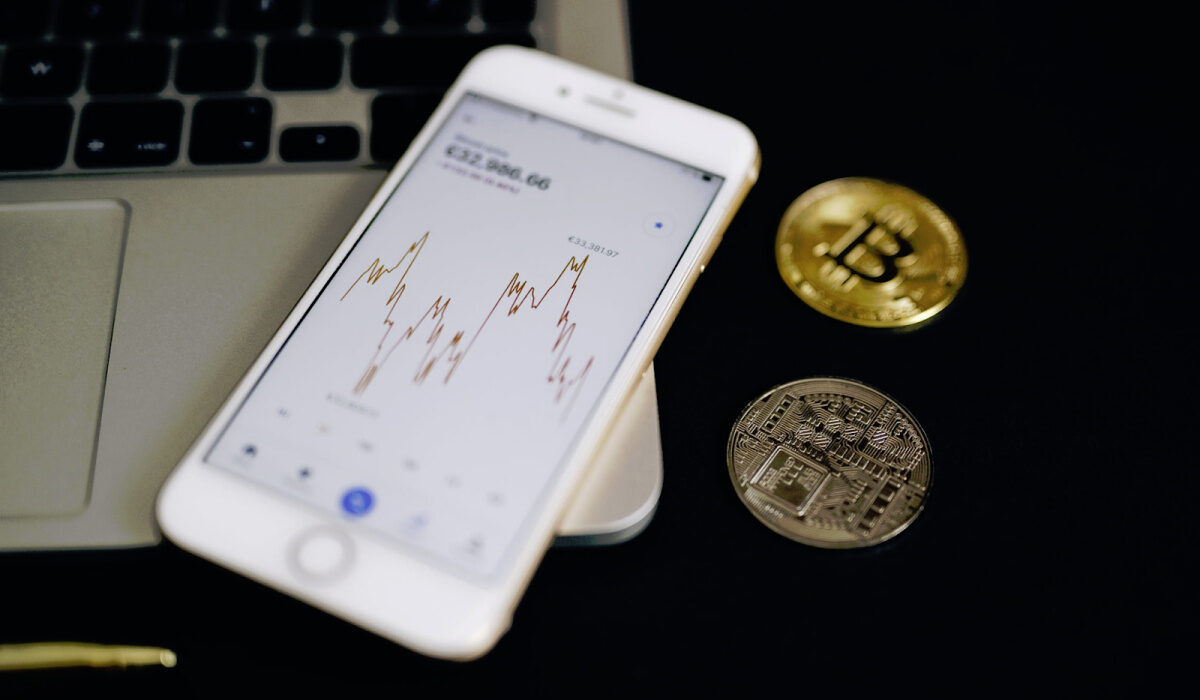
- Binance
- Bit2me
- Bitflyer
- Bitpanda
- Cex-10
- Coinbase
- Coinmama
- Crypto.com
- Gemini
- KuCoins
- Moon
1. Binance
It is regarded as one of the best tools for crypto stock trading. Binance hardly needs an introduction as it is regarded as one of the biggest cryptocurrency exchanges by trading volume. The brand is self-evident.
An iOS and Android app is available for the Maltese trading platform. The app supports a wide range of altcoins (alternative cryptocurrencies), including almost all of the major ones, in addition to Bitcoin and the company’s own cryptocurrency Binance Coin (BNB). It supports futures contract trading with up to 125x leveraged trading on hand BTC-USDT, and it has many advanced features as well.
2. Bit2me
Bit2me is a 2014 creation that offers cryptocurrency trading services. It has offices across Europe, with its headquarters in Spain. However, you can use the site and conduct business from any location in the world. You can purchase Bitcoin and 20 other cryptocurrencies on this platform, including the most well-known ones, accepting a variety of payment methods, including cash, around-the-clock. The drawback of Bit2me is its high trading costs. Fo For Bitcoin, the percentage is 2.76%.
3. Bitflyer
Takafumi Komiyama and Yuzo Kano created BitFlyer in January 2014, making it one of the biggest cryptocurrency market operators in the country. With 2.5 million users, it is one of the biggest exchanges of its sort. The business continually advances by introducing fresh cryptocurrency-related technologies. Users of BitFlyer have access to a wide range of sophisticated trading choices on the platform in the United States, which has been available in Europe since 2017.
4. BitPanda
BitPanda Pro is another of the best platforms for investing in cryptocurrencies. On this cutting-edge trading platform, you can trade well-known digital assets like Bitcoin and Ethereum.
BitPanda Pro is a very active cryptocurrency trading platform that was founded in Vienna. BitPanda Pro is wholly owned by BitPanda. Investors can trade cryptocurrencies and other digital assets on this trading platform for a reasonable fee. Additionally, a variety of digital assets can be swapped for EUR, BTC, and BEST.
5. CEX-10
Since its debut in 2013, this well-known, trustworthy, and safe cryptocurrency exchange has never had any accounts compromised or funds lost or stolen. The primary function of CEX.IO is to purchase Bitcoins right away via the company’s website or iOS and Android mobile apps. It accepts a variety of payment methods, including credit cards, debit cards, bank transfers, Skrill, and more.
6. Coinbase
One of the biggest cryptocurrency exchanges in the world and one of the top programs for investing in cryptocurrencies is Coinbase. It provides a trading program with lots of features that you may connect straight to your bank account. The software accepts a variety of payment options for trading and purchasing cryptocurrency. These consist of Intevac Online, SEPA transfers, debit/credit card payments, and more.
The program comes with a number of cutting-edge tools to assist you in creating a reliable bitcoin wallet. Automatic purchases, immediate price change notifications, secure BTC deposits, etc. Are all possibilities.
7. Coinmama
Coinmama is a platform that acts as an exchange office and acts as an intermediary in the transfer of cryptocurrencies to its users. Since its founding in 2013, it has expanded to more than 180 nations and has over 2,300,000 active users. Since its founding in 2013, it has expanded to more than 180 nations and has over 2,300,000 active users. The site supports ten different cryptocurrencies, with Bitcoin and Ethereum dominating the market. It can be bought using three different sorts of fiat money. The US currency, the euro, and the British pound.
8. Crypto.com
This cryptocurrency payment platform, Crypto.com provides a number of services aimed at bringing the crypto economy to the general public. The “Monaco” brand, a start-up founded in 2017 with the goal of bridging the gap between the traditional financial system and the crypto economy, purchased the crypto.com domain. You may purchase and trade a variety of cryptocurrencies on the crypto.com website. through a debit card (Visa) offered by Crypto.
9. Gemini
The first cryptocurrency exchange in the United States to provide trading between cryptocurrencies and dollars was Gemini. The Gemini trading app is essentially an expansion of the company’s mobile wallet feature, which up until 2018 was the only means for customers to purchase and sell digital assets. You can quickly deposit funds to buy and sell compatible cryptocurrencies with the tap of a finger using this app’s quick loading times and user-friendly layout.
10. KuCoin
Another prominent cryptocurrency exchange with a strong brand and a global presence is KuCoin. On this platform, you may effortlessly use a card to buy your preferred cryptocurrency. KuCoin is simple to use even for new users who have never used cryptocurrency trading apps before, thanks to its friendly user interface. To assist you in managing your investment portfolio, the app provides real-time market analysis tools, price alerts, and analytical candlestick charts.
11. Moon
Many people believe that this service is the finest option for purchasing, selling, and saving Bitcoin and Ethereum. Its interface is simple to use and attractive graphically.
Simply register on the website, fill out the necessary information, and select one of the available authorisation methods to start buying Bitcoin or Ethereum. The system will immediately generate your own wallet during registration, where you can keep your acquired coins.
Author:Moses Udah
Creative, teacher, web content writer, copywriter, and student.
Add MobilityArena as a preferred source on Google
If you’re one to constantly change the background of your iPhone’s screen, you’d appreciate the ease of being able to automate this process. Prior to iOS 14, you had to set this up manually. That’s why it’s great that you can now set your iPhone to automatically change its wallpaper, opening up a world of customization options.
In this helpful guide, we’ll walk you through automatically changing your iPhone’s wallpaper. Pay close attention to the instructions, then you can apply the settings to your device and achieve the results you desire.
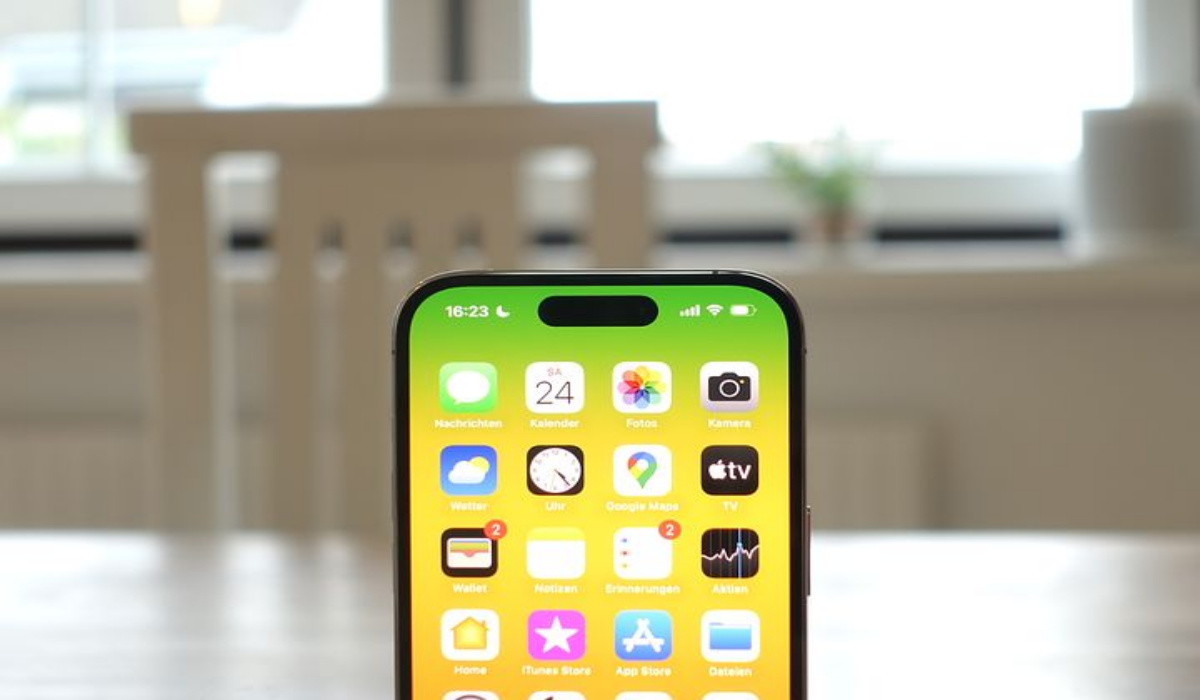
Change iPhone Wallpaper Automatically to Random Pictures
In iOS 14, when a certain trigger—like the time of day or battery level—is engaged, automations in the Shortcuts app can run in the background. You can also take advantage of this to automate your wallpaper change. You’ll have to create a shortcut that selects a random photo, and then an automation that executes it at a specified time each day.
Setting up the Shortcut
The first step is to develop a shortcut that carries out the following three tasks:
- Retrieve the specific Photos album.
- Pick a random picture from the collection.
- Make that image your desktop background.
To create a shortcut that changes the iPhone’s background image:
- Launch the Shortcuts app, go to the bottom menu, choose My Shortcuts , then All Shortcuts . Finally, hit the Plus icon in the top right corner.
- Near the center of the screen, tap the large blue Add Action button.
- Look for the action Find Photos .
- Tap on it when you come across it to include it in the shortcut. You can also drag it out of the list and put it onto the blank automation as an alternative.
- You’ll observe that this action has a few extra choices. To configure a certain album, tap Add Filter .
- Tap Recents , then pick the desired album from the list. You might wish to arrange your iPhone pictures so that you can make a specific album in Photos for wallpapers.
- Next, look for and include the Get Item from List action.
- The parameters will be filled out automatically using shortcuts such that it says “Get First Item from Photos.” You’ll need to change “First item” to “Random item.”
- Add your third action, then Set Wallpaper ; do this by looking it up.
- Make sure to select Show More and deselect Show Preview . The wallpaper on the Lock screen, Home screen, or both can also be changed at your discretion.
All that’s required are those three steps. The shortcut will launch and successfully change the wallpaper on your iPhone if you press the Play button in the lower right corner. Name your shortcut, for instance, Random Photo, at the screen’s top by tapping Next .
Setting Up the Time of Day Automation
In the Shortcuts app, automations are located in their own tab. If you’re creating an automation for the first time, the list will be empty when you tap Automation to access them in the bottom bar. Tap the Plus button at the top to begin.
Afterward, adhere to these guidelines to develop an automation:
- Click on “Create Personal Automation”
- From the list of triggers, select “Time of Day”
- Select “Time of Day” from the list of options you see next, then set the time to 12:00 AM.
- Afterward, select Daily in the Repeat section.
The blank Actions view that displays will look familiar to you because it is identical to the shortcut builder. The shortcut you just created could have been set up right here, within the automation.
Automations, however, are limited to the Automations tab. Because of this, they cannot be duplicated, reused, or shared—features of standalone shortcuts that you will likely grow to value over time.
Instead, you’ll only execute the automation’s shortcut. This is how:
- Choose Add Action from the menu.
- Look for the action called “Run Shortcut” and add it.
- In the action block, tap the vacant Shortcut field.
- Locate your Random Photo shortcut in the list that displays and click it.
There is nothing else to configure because everything has already been set up in the shortcut. On the screen, tap Next at the top.
An overview of your new automation will be displayed. There is one more crucial step left: deactivate the “Ask Before Running” option. You’ll see an alert that your automation will operate without your permission, which is what you want. To enable your wallpaper to adjust in the background, choose Don’t Ask .
To dismiss the display, simply hit Done . Automations are automatically identified and grouped depending on the trigger and actions; you won’t need to give them names or select icons.
At this point, you’re all done! Your iPhone will randomly select a new image to serve as your wallpaper each day at midnight.
In summary , it’s now pretty easy to change your iPhone’s wallpaper automatically. You’ll just need to create a shortcut and set up the time of day when you’d like the wallpaper to change. We’ve provided instructions for both processes in this guide, so follow them carefully to achieve the desired results.
We’ll also encourage you to share or recommend this guide to others; it’ll benefit them considerably, and they’ll have you to thank.
- Don’t miss our mobile phone reviews .
- Follow our news on Google News .
- Join our WhatsApp Group , to be notified of the most important articles and deals,
- Follow us on Instagram , Facebook , Twitter , and YouTube .
