Add MobilityArena as a preferred source on Google
Smart TV accessories can provide a range of benefits and enhance the overall viewing experience. While smart TVs come with built-in features and connectivity options, accessories offer additional functionalities and convenience. Here are some reasons why someone might need smart TV accessories:
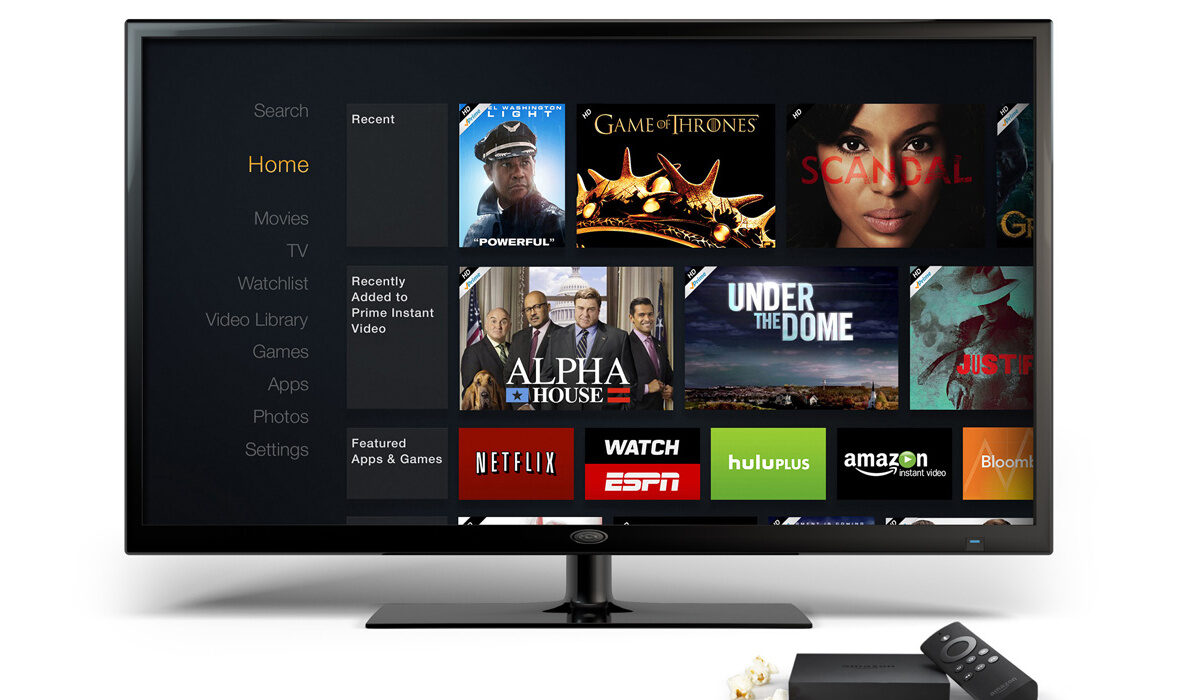
- Enhanced Content and Streaming Options : Smart TVs allow access to popular streaming services like Netflix, Hulu, and Amazon Prime Video. However, dedicated streaming devices like Roku, Apple TV, or Chromecast offer a broader range of content options and may have exclusive features or services. These devices provide access to a wider variety of streaming platforms and can offer a more seamless and user-friendly experience.
- Improved Audio Quality : Smart TVs typically have built-in speakers, but they may not deliver the best audio experience. Soundbars or home theater systems can significantly enhance the audio quality, providing richer and more immersive sound. These accessories offer enhanced clarity, depth, and spatial effects, particularly for movies, shows, and gaming, enhancing the overall enjoyment.
- Simplified Control and Convenience : Using multiple remotes for different devices can be cumbersome. Universal remote controls consolidate control over your smart TV, streaming devices, sound systems, and other connected devices, simplifying the operation. They provide a centralized and user-friendly interface, making it easier to navigate and control various devices with a single remote.
- Connectivity and Compatibility : Smart TVs often require HDMI cables to connect additional devices like gaming consoles, Blu-ray players, or sound systems. High-quality HDMI cables ensure optimal audio and video transmission, providing a seamless and reliable connection between devices. Additionally, accessories like gaming controllers and headsets enhance the gaming experience on smart TVs, allowing for more immersive gameplay.
- Customization and Personalization : Smart TV accessories offer customization options that cater to individual preferences. For example, wall mounts or TV stands allow users to position the TV according to their desired viewing angle and optimize space utilization. Gaming accessories like controllers and headsets provide personalized gaming experiences, adapting to specific gaming styles and preferences.
- Essential smart TV accessories Streaming Device Universal Remote Control Soundbar or Home Theater System HDMI Cables Wall Mount or TV Stand
- Other smart TV accessories you might need
Essential smart TV accessories
Smart TVs offer a wide range of features and capabilities, and to maximize your viewing experience, there are several must-have accessories to consider. These accessories can enhance convenience, connectivity, and audio-visual quality. Listed below are some essential accessories for your smart TV.
Streaming Device
While smart TVs come with built-in streaming capabilities, adding a dedicated streaming device can expand your entertainment options and provide a smoother streaming experience. Popular streaming devices include:
Apple TV : Designed for Apple ecosystem users, Apple TV offers seamless integration with other Apple devices and access to the Apple TV+ streaming service.
Google Chromecast : This device allows you to cast content from your phone, tablet, or computer onto your TV screen, providing flexibility and convenience.
Universal Remote Control
Managing multiple remotes can be cumbersome. A universal remote control simplifies the process by consolidating control over your TV, streaming devices, sound systems, and other connected devices. Look for a remote that is compatible with your smart TV model and offers programmable buttons for easy customization.
Soundbar or Home Theater System
You may own a solid smart TV with really good built-in speakers, but nothing beats the power and depth of a home theater system. Home theaters provide a more immersive sound experience for watching movies, TV shows, and gaming. Alternatively, you can get a soundbar; that works too, though it isn’t as great as a complete home system. Soundbars are sleek and easy to install, while home theater systems consist of multiple speakers for a more cinematic experience. Both are essential smart TV accessories. Ensure compatibility with your TV and consider options with features like wireless connectivity and virtual surround sound.
HDMI Cables
High-quality HDMI cables are essential Smart TV accessories for connecting to various devices, such as gaming consoles, Blu-ray players, and streaming devices. Look for HDMI cables that support the latest specifications, such as HDMI 2.1, for optimal audio and video transmission.
Wall Mount or TV Stand
Consider the placement of your smart TV and choose between a wall mount or a TV stand. A wall mount saves space and provides an elegant look, while a TV stand offers flexibility in positioning and easy access to ports and cables. Ensure that the wall mount or TV stand is compatible with the size and weight of your smart TV.
Other smart TV accessories you might need
This section covers a set of smart TV accessories that are not needed by everyone. It covers the needs of gamers and techies who want more out of their smart TVs.
Gaming Accessories : If you enjoy gaming on your smart TV, there are a few gaming accessories worth considering:
Gaming Controllers : Depending on the gaming platform and compatibility, choose wireless or wired gaming controllers for a more immersive gaming experience.
Gaming Headsets : For private and high-quality audio during gaming sessions, consider a gaming headset that offers clear sound and noise-canceling features.
Smart Home Integration : If you have a smart home setup, consider accessories that integrate your smart TV with other devices:
Smart Lighting : Sync your smart TV with smart lighting systems to create ambient lighting effects that enhance your viewing experience.
Remember to check the compatibility and requirements of these accessories with your specific smart TV model. With the right accessories, you can transform your smart TV into a versatile entertainment hub that caters to your preferences and offers an immersive audio-visual experience.
Author:MobileChic
That motivated, gadget-loving geeky chic who tries to stay on top of things. Unapologetic iFan.
Add MobilityArena as a preferred source on Google
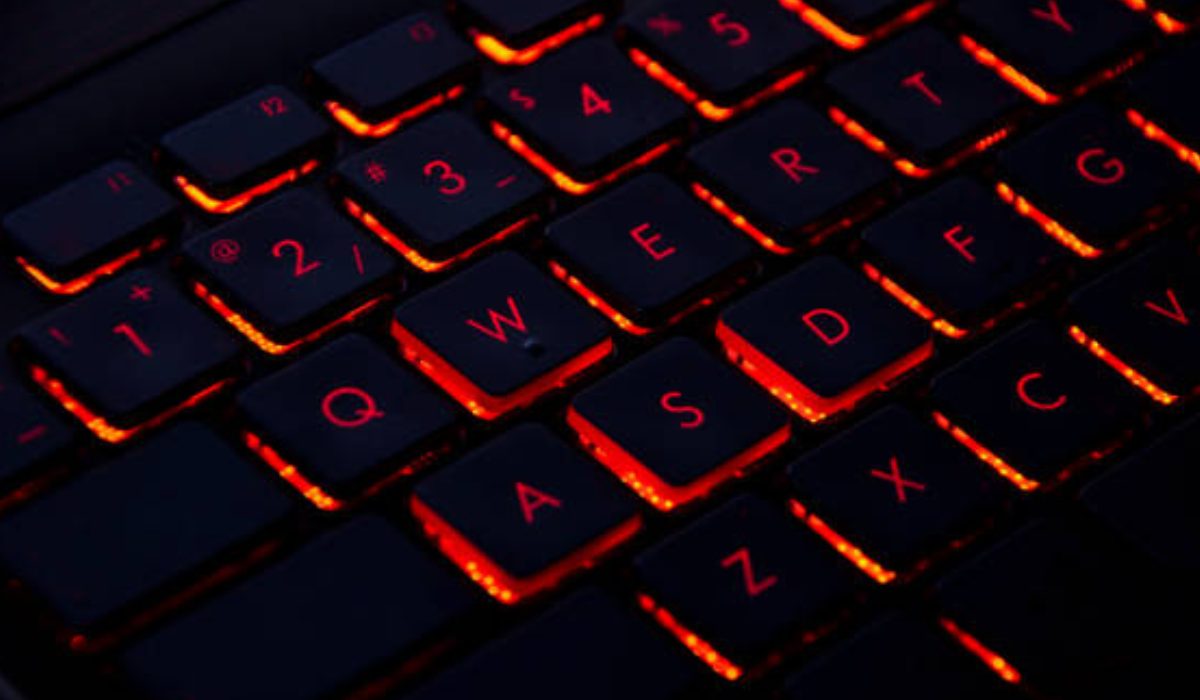
I do my best work at night in the dark, so my backlit keyboard is a non-negotiable essential. In low-light environments, backlit keyboards make typing more comfortable. However, sometimes the keyboard backlight on Windows computers stops working, a frustrating situation if like me, you enjoy working late.
In this article, I will show you several ways to fix backlit keyboards not working on Windows. This issue could arise from Windows apps, software updates, or hardware. So here’s what you can do to fix it.
- How Can You Fix Backlit Keyboards Not Working on Windows? Confirm That Your Keyboard has a Backlit Feature Increase the Brightness Examine Your Hardware Check the Keyboard App Update Keyboard Drivers Run the Keyboard Troubleshooter Perform a Clean Boot
How Can You Fix Backlit Keyboards Not Working on Windows?
Instead of hunching over your keyboard or turning up your monitor’s brightness to see what key you’re pressing in the dark, it’s more practical to use Windows’ backlit keyboard. The troubleshooting steps listed below will help you fix backlit keyboards not working on Windows, so you can work whenever and on whatever light settings you want.
Confirm That Your Keyboard has a Backlit Feature
It’s possible that your keyboard or laptop doesn’t have the backlit option. When you’re looking to fix backlit keyboards not working on Windows, first check your device manufacturer’s website and read the product description for your computer or keyboard.
If you’re sure that your keyboard has a backlight, try activating it with a keyboard shortcut. The shortcut is either the Fn key and one of the F keys or the Fn key + Spacebar , depending on the manufacturer. You can then move on to another solution below if the backlight still won’t turn on.
Increase the Brightness
It’s possible you’ve set the brightness setting too low, so turning on the keyboard backlit will have no impact. If this is the case, use your keyboard to increase the brightness level and thereby fix backlit keyboards not working on Windows.
Find the key that has the backlight icon on your keyboard and press it two or three times in a row. If you find the backlight icon but it does not work, simultaneously press the Fn key . You can also check out different ways to adjust brightness in this guide .
Examine Your Hardware
It could be difficult to determine if a problem with your backlit keyboard is a hardware or software issue. Therefore, rule out any hardware issues before looking at your system settings to fix backlit keyboards not working on Windows.
- Disconnect and reconnect the keyboard. If it’s a Bluetooth keyboard, turn it off for a few seconds and then back on.
- Plug the keyboard into another USB port. If the backlit feature works after this action, it means you need to fix your USB port.
- Examine the keyboard cable and look for any damage.
Check the Keyboard App
Checking the keyboard app could also help to fix backlit keyboards not working on Windows if your laptop has a built-in backlit keyboard. In most cases, the app and keyboard drivers are installed simultaneously.
You should also look at the app if you’ve connected an external keyboard with a backlit feature. Examine the app’s keyboard settings to make sure everything is how it should be. Find the producer’s website and update the app to the most recent version.
Even if you’ve made the necessary system changes, a third-party keyboard app could overwrite them, so this is worth investigating when you’re trying different ways to fix backlit keyboards not working on Windows.
Update Keyboard Drivers
There’s a chance that an outdated or corrupt driver is causing the issue, if your keyboard backlight is sensor-activated and it doesn’t work again. In this case, update your keyboard driver to fix backlit keyboards not working on Windows. Follow these steps:
- Right-click Start and select Device Manager .
- Enlarge the Keyboard menu.
- Right-click your keyboard driver and click the Update driver option.
Run the Keyboard Troubleshooter
There are a few built-in troubleshooting tools in Windows that you can use if updating the driver does nothing to fix backlit keyboards not working on Windows.
- To open Windows Settings , press Win + I .
- Choose Update & Security , then go to Troubleshoot > Additional troubleshooters .
- Choose Keyboard > Run the troubleshooter from Find and fix other problems .
To access the keyboard troubleshooter in Windows 11, go to Settings > System >Troubleshoot >Other trouble-shooters . Turn on or adjust the brightness of your backlit keyboard after Windows has finished its troubleshooting process.
If that didn’t work to fix backlit keyboards not working on Windows, there’s another troubleshooter you should try. Although Microsoft removed it from the Settings menu, you may still use the Command Prompt line to access it. To run the Hardware and Devices troubleshooter, follow these steps:
- Launch Command Prompt with administrative rights.
- Input “ msdt.exe -id DeviceDiagnostic ” into the field and click Enter .
- Click Advanced in the Hardware and Devices window, then select Apply Repairs automatically .
- To run the troubleshooter, click Next .
Perform a Clean Boot
You should perform a clean boot on your system if nothing has worked so far to fix backlit keyboards not working on Windows. Doing this will make your laptop start up without any third-party apps that could interfere with the functionality of your backlit keyboard.
If your keyboard lights up, launch the Control Panel and check the apps you’ve recently installed to see if one of them is responsible for the issue.
To conclude, if the keyboard backlight on your Windows 10 or Windows 11 computer stops working, there’s no need to strain your eyes.
By following the different troubleshooting suggestions I’ve described above, you should be able to easily fix backlit keyboards not working on Windows. It may also help to contact Windows help center for expert intervention if nothing works to resolve the issue
