Add MobilityArena as a preferred source on Google
If you have set out to learn to program, and you don’t know where to start, you should know that your mobile phone can be a great ally. On Android, it is possible to find helpful apps and tools to learn to program.
In this article, we are going to show you the best 11 apps to learn programming freely on your android mobile phone, even if you are just starting.
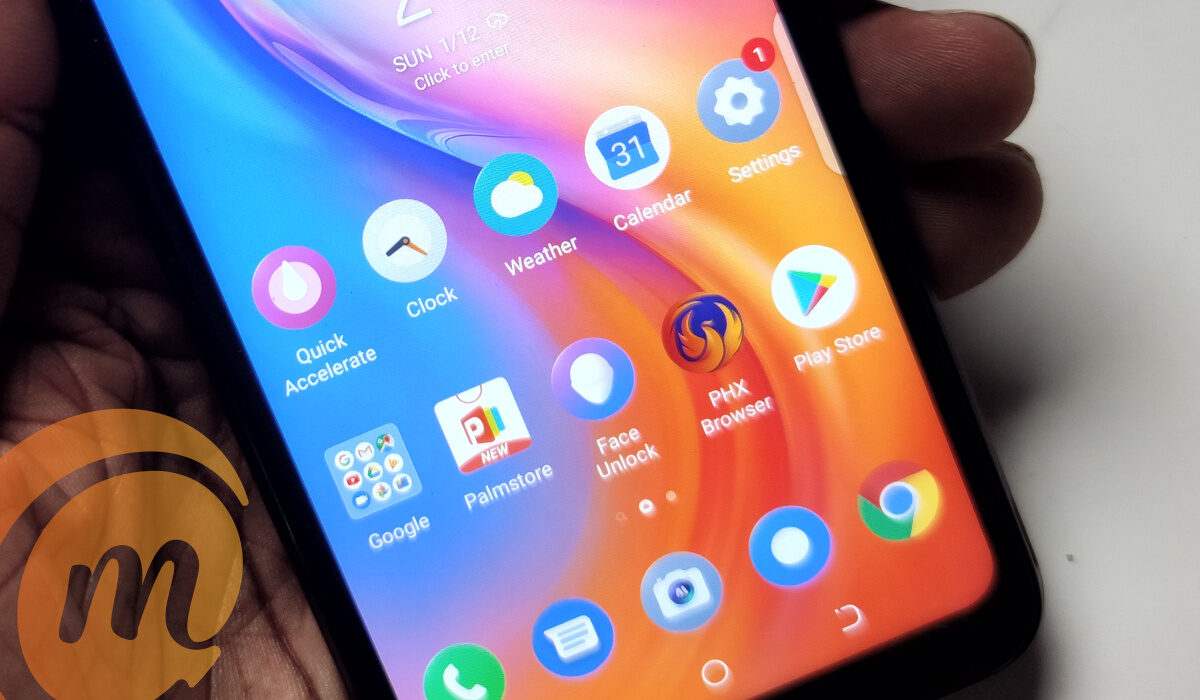
Explore the best free apps to learn programming
The Top Free Apps to Learn Programming
On Google Play, there are many programming learning apps, but only a select number are worthwhile. The list below contains a suite of free 11 apps that you can download, and use freely if you want to enter the world of programming in the best possible way:
- SoloLearn
- Codegym
- Grasshopper
- Programming Hub
- Encode
- Enki
- Programming Hero
- CodeHub
- Khan Academy
- Mimo
- Datacamp
1.SoloLearn
The most widely used software for programming education is SoloLearn. A great tool for learning how to code from start is SoloLearn, which has a big collection of content. There are many levels in this program, from beginner to professional, and a huge variety of themes to pick from.
Courses in a variety of popular programming languages, including Java, Python, Kotlin, C, and many more, are available on the app, which is routinely updated with fresh information. Although it offers a premium subscription, the app is free.
2.Codegym
Codegym is a Java program learning app, with 1200 activities. If learning Java is your only interest, this program is the ideal option for you.
The app’s developers emphasize that it is a programming tool designed for busy individuals because it can get us started in the world of programming with just 30 minutes a day on our smartphones. There are no advertising or in-app purchases on this free app.
3.Grasshopper
Grasshopper is an additional free app for learning programming. It is a Google-created application that offers the chance to learn the fundamentals of programming using the JavaScript language along with fun little games.
Grasshopper has only been available since 2018, however, it is often updated. It offers a variety of exercises that must be completed. The program also displays corrections and suggestions in real-time.
There are no advertising or in-app purchases in this 100% free program. Additionally, it has such an intuitive design that it might even be a useful app for teaching programming to kids.
4.Programming Hub
Programming Hub is an excellent tool for learning to code and was chosen as one of the best in its category by Google Play editors. It is full of courses on various programming languages and technologies, including artificial intelligence and machine learning.
With more than 5,000 sample programs, more than 20 tutorials, and a real-time compiler that enables users to test their programming, it is a very sophisticated tool.
5.Encode
Encode is a great alternative for folks who don’t have a lot of free time to devote to programming. It is an Android app for learning programming that enables us to quickly and easily become familiar with the foundations of programming in many languages.
The platform is accessible without an internet connection. In this way, learning programming will be feasible at any time, or anyplace, without the need for an internet connection.
6.Enki
Enki is another venerable educational app from the Google Play Store. Enki is one of the most well-known apps in its category, giving technical and basic topics on the key programming themes and languages, and more than 1 million users have previously used this tool to improve their programming skills.
7.Programming Hero
Programming Hero can be a fantastic place to start if you’ve never programmed before or are unfamiliar with the fundamentals of programming. This app describes itself as ideal for complete novices. The software has a wonderful design and offers a smooth user experience.
With more than 100 challenges to answer and explanations on subjects like data structures, algorithms, databases, and object-oriented programming, the ultimate goal is to create a game as we learn new mobile programming principles.
8.CodeHub
CodeHub is straightforward to use, has offline access, and is multilingual. It is a platform that offers tutorials on many technologies and languages and makes it simple to learn programming principles from your smartphone.
The app provides its users with courses that are broken down into manageable pieces, each of which includes videos and concise examples to aid in the understanding of each programming concept.
9.Khan Academy
One of the most widely used educational resources in the world is Khan Academy. It is a great option because it offers various courses focused on software or game development with exercises, activities, and exams that must be completed, even though it is not an app designed to teach programming.
The download and use of the application are both free. It is supported by a non-profit group whose mission is to make educational resources available to as many people as possible.
10.Mimo
11.Datacamp
The basics of Python, R, SQL, and ideas like data science, visualization, and machine learning may all be learned via Datacamp. The classes are followed by practical exercises that guarantee you are prepared for the platform’s coding difficulties and projects. You may get a taste of each course by downloading the first chapter for free before paying for full access.
- Don’t miss our mobile phone reviews .
- Follow our news on Google News .
- Join our WhatsApp Group , to be notified of the most important articles and deals,
- Follow us on Instagram , Facebook , Twitter , and YouTube .
Author:Moses Udah
Creative, teacher, web content writer, copywriter, and student.
Add MobilityArena as a preferred source on Google
There is nothing more upsetting than learning that one of your most valuable or critical files has been corrupted. Additionally, there’s a possibility that corruption on Windows devices will harm your files more than once if you don’t know how to tackle it. Which is why it is important to prevent file corruption on Windows PCs and laptops.
In this article, we’ll explore the numerous reasons that can cause Windows files to get corrupted. Additionally, we’ll discuss several methods for avoiding data corruption. So, keep reading to find out tested and trusted ways to protect your files from getting corrupted on Windows devices.
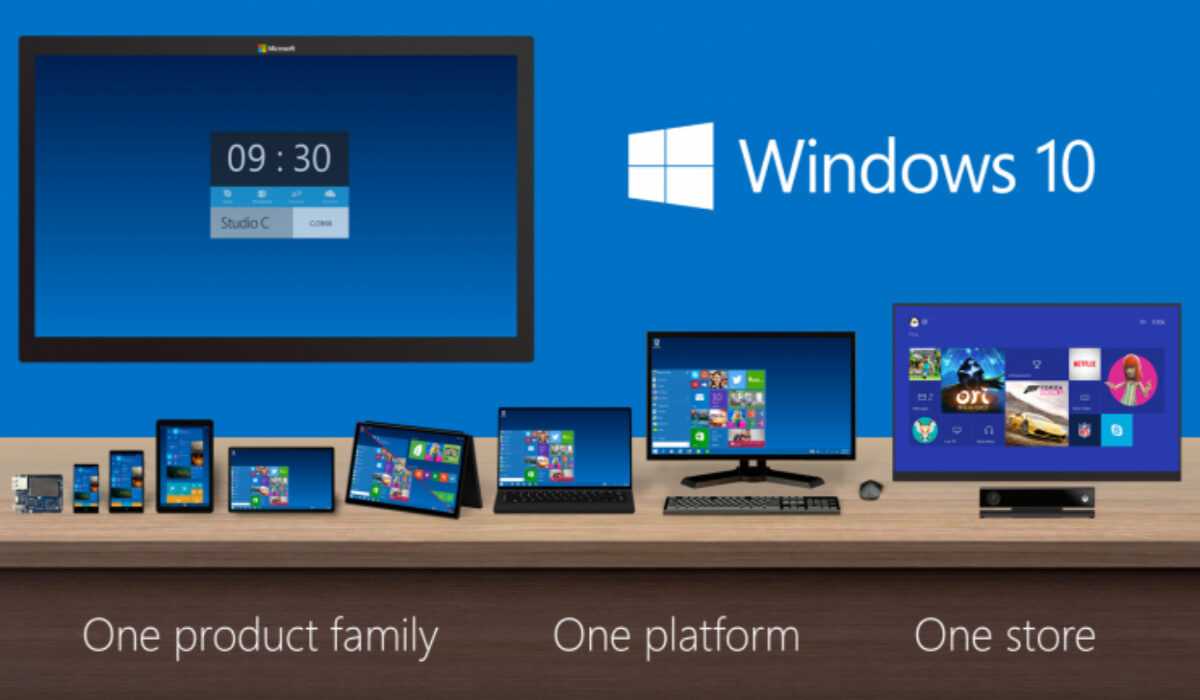
How to Prevent File Corruption on Windows Devices
Why do Files Get Corrupted on Windows?
There are several reasons for file corruption on Windows devices. Let’s consider some of the most significant causes highlighted below:
- Your data might be ruined by malware attacks and computer viruses.
- Another factor that might cause data corruption is incorrect file saving.
- Any file that was being transferred at the time can get corrupted if a file relocation procedure is incorrectly stopped.
- When you unplug storage devices from the computer without removing them carefully, the data may also become corrupted.
- Additionally, faulty disk sectors can corrupt data and directories.
Regardless of the reasons for file corruption, there are some helpful tips to prevent it from happening on your device, and we’ve discussed them in the next section.
Different Ways to Prevent File Corruption on Windows Devices
Below are different steps you can take to avoid having your important data compromised. So you can simply follow these steps if you’re worried that your files may get corrupted one way or the other:
Relocate Files Carefully and Neatly
Files may become corrupt if the transfer of data from one location to another is stopped in the middle. It’s even possible to lose the files if this occurs when moving them using Windows’ cut and paste feature. Due to this, it’s important that you move your data carefully to avoid corruption.
When moving data, always ensure to use the copy and paste feature. This way, you’ll still have the original file on your computer — which was untouched by the transfer process — even if something goes wrong during the transfer.
Always make careful to cleanly end the file-moving procedure when necessary. Simply click the Cancel button in the file transfer box to accomplish this, and Windows will end the process without corrupting any data. Never try to stop a transfer by removing the storage drive from your computer or turning it off.
Additionally, if you are in an area that frequently experiences power outages, take caution when transferring files during these times. Consider purchasing a UPS if power outages occur in your location in an unpredictable manner. These ought to be strong enough to let the transfer complete, or at the very least give you enough time to cleanly cancel it.
Properly Unmount External Storage Devices
After transferring files, it’s typical to immediately unplug the storage device. It can be difficult to determine which apps are still using the data on the storage device, though. As a result, cutting the power straight away risks corrupting any data that was being transferred.
In view of this, it is always a good idea to remove the storage device from the device before you unplug it. Since all apps would stop using the data when the external storage device is unplugged, doing this action will prevent any data loss or corruption. Remember, to How to prevent file corruption on Windows laptops and desktops, properly unmount external storage devices.
Refrain from Opening Files in Unsupported Applications
Another frequent reason for file corruption in Windows is opening files in unsupported programs. When you do this, the software’s incompatibility with the file could corrupt some of the file’s data. Therefore, we strongly advise against opening files in programs that are not supported.
You’ll need to check and confirm which file types the software supports, and then convert your files accordingly if necessary. There are several ways to convert files into different formats, however, we suggest using free online converter programs.
Keep Hard Drive Sectors from Going Bad
A storage drive component that has suffered physical damage is referred to as a bad sector. Physical damage to the storage device may arise from manufacturing faults, power surges, drops, overheating, or dust inside the device.
Windows is shrewd enough to avoid writing new data to corrupted sectors, but data that has already been written there may still get corrupted. As a result, you should refrain from allowing your drive’s sectors to spoil totally.
The following advice may help you avoid physical damage to the sectors of your storage drive:
- Don’t just press the power button to turn off your computer; instead, properly shut it down.
- Make sure to maintain the cleanliness of your laptop and prevent dust accumulation.
- Keep your laptop within a safe temperature range.
- When your laptop is charging, stay away from using any other charger; only use a trusted original one.
- As much as possible, avoid keeping your laptop in sleep mode for extended periods
- By using extra caution when handling your laptop, avoid unintentional falls.
What to Do If Your Files Get Corruptedon Windows
Even if you go by the advice we’ve provided above, data corruption is still a possibility. Sometimes, despite your best efforts to prevent file corruption on Windows devices, it still happens. Here are some pointers on how to deal with it successfully if it does occur on your Windows device:
Save copies of files in other formats
Making a duplicate file in a different format than the original is the best technique to handle file corruption. For instance, to prevent Word file from getting damaged, you can prevent losing data by making a duplicate of the Word file before converting it to PDF.
Similarly, after compressing folders, you can copy them and upload them to a secure location. As a result, you can download the duplicate and regain access to your important data if something goes wrong. However, because this method necessitates more manual labor, it is less useful.
Create regular backups to protect your files
Data corruption due to an error is always a possibility, despite best efforts, and making duplicates is a difficult task. It is thus advised that you regularly create a backup of your data because of this. Additionally, it won’t take up much of your time because it doesn’t demand as much manual labor as making copies.
You can arrange a backup similarly to how you would schedule a virus scan for each day. It is best to set your backup for the moment your computer boots up so that any changes you make the previous night will be reflected in the backup the following morning.
In summary , data loss is always a difficult situation to deal with. As such, it’s smart to do everything in your power to keep it from happening at all. Take a cue from the tips we’ve provided in this article to keep your files from getting corrupted. You should also be able to figure out how to deal with corrupted files from the information in this guide.
- Don’t miss our mobile phone reviews .
- Follow our news on Google News .
- Join our WhatsApp Group , to be notified of the most important articles and deals,
- Follow us on Instagram , Facebook , Twitter , and YouTube .
