Add MobilityArena as a preferred source on Google
This morning, I read Anam Hamid’s article, Google makes great phones that not many people want, new data shows [1], over at Android Authority. It is an interesting read. But I disagree. Google’s Pixel phones are not exactly great, and we didn’t need new data to tell us that many people do not want them.
The Google makes phones that have never sold in significant numbers. Starting from the now defunct Nexus line (which ran for 6 years) all the way to the current Pixel line (which has run for 7 years), Google phones have remained a small niche affair. They have not sold well in the United States and they have not gained significant marketshare in any of Google’s strongholds either.
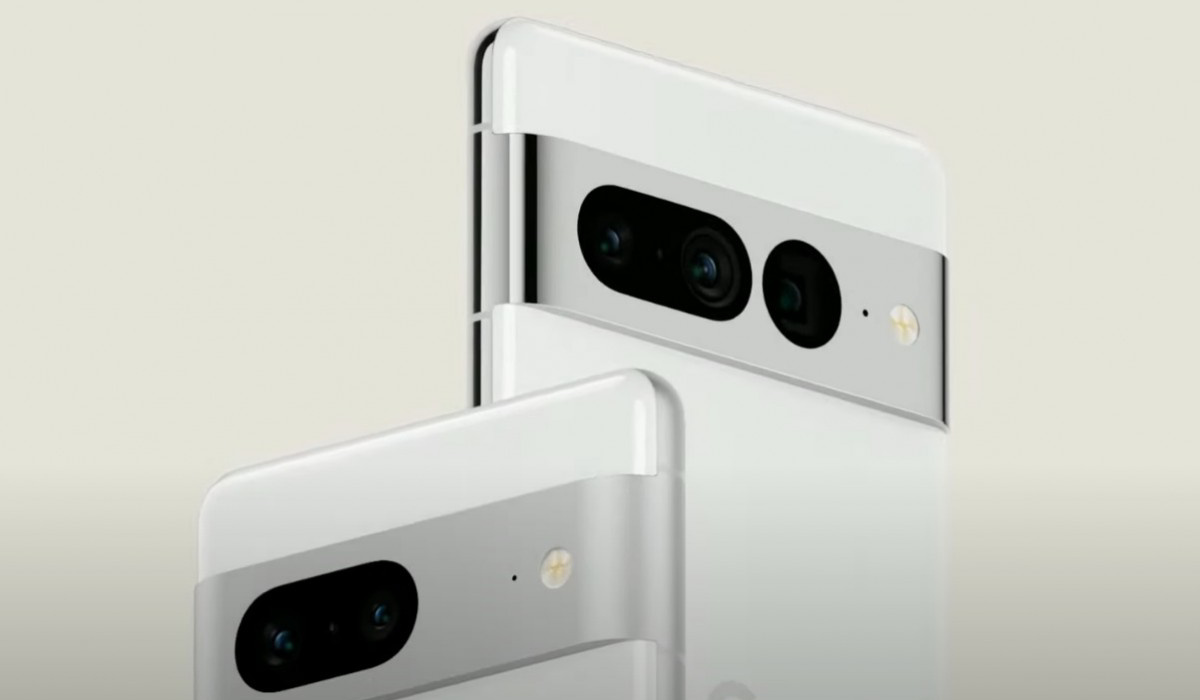
From the U.S. to Canada, to the UK, to Australia, Google phones have never sold in big numbers. Not once in 13 years. As Anam mentioned in his article, the Pixel 7, 7 Pro, and 6a are Google’s bestselling phones ever – and the company did not divulge the numbers. Which from experience means the numbers are not great.
The bottomline is that not a lot of people want phones made by Google. Why? I don’t know. What I do know is that I would never say a smartphone with a reputation for poor battery life is great. Pixel phones have been known for poor battery life for donkey years. The Pixel 6 Pro and 7 Pro have the largest batteries ever in a Pixel phone and still have poor battery life compared to the competition. What kind of optimisations deliver poor battery life in a phone with a 5000mAh battery? Ask Google. It is ridiculous.
It is the same kind of optimisations that make the phone start heating up and turning off vital services when you use the camera extensively or turn on the hotspot or browse for extended period. I have owned the Pixel 3a XL, Pixel 3, Pixel 5a 5G , and I have experienced these issues with all of them – poor battery life and overheating . As Anam said, and I agree, Google makes phones that have a reputation for being buggy and are a one-time decision for many new users and most buyers want to switch to another brand. I tried: I went thrice, but now I am done. I won’t be buying another Pixel phone until these issues are ironed out.
And other reviewers have pointed out these issues. For example, Karandeep on Android Police says he can’t go back to a Pixel smartphone even if he wanted to [2]. Why? He listed out the same performance and overheating issues, as well as poor network connectivity. I have experienced the network issues, too.
The only thing great about Pixel phones are the cameras and Android software updates. In every day use, these phones made by Google regularly frustrate users. If you hardly ever use a Pixel phone for nothing but calls, messaging, and the occasional photograph, you might never run into these issues. But I challenge you to use it as a hotspot, or do an extensive photoshoot or video recording with it and see how quickly your device develops a mind of its own.
It cannot be any surprise that many people do not want phones made by Google. Not a lot of people care about how great Google Pixel photography is; smartphone photography as a whole has matured enough such that most phones produce good enough photos.
How hard can it be to optimise the software with hardware to provide a less stressful experience for Pixel users? Other phone brands are doing it using the exact same Android versions and the exact same hardware that Google is using. Why are Pixel phones so buggy? I get the impression that Google doesn’t care. If they did, 13 years is enough time to have ironed out these issues.
Team Pixel fans will not like to hear it, but I have said it before and will repeat it here: Google does not yet know how to make a solid smartphone (they know how to make a good camera with a phone component). I hope Google figure it out soon. People want solid smartphones.
References
- Android Authority ( source )
- Android Police ( source )
Author:Mister Mobility
Digital Skills and Communication Coach | Mobile Phone Connoisseur since 2001 | Tech Blogging since 2004
Add MobilityArena as a preferred source on Google
Android File Transfer is the official tool that allows Mac users to transfer all of their documents, images, movies, and other media from their Android phones to their Macs. Even though Android File Transfer is quite simple to use, it stops working sometimes.
In this article, I’ll walk you through several ways to fix Android file transfer not working on Mac. Since it’s an effective tool for transferring files, I’m sure you’ll benefit from the suggestions I’ve provided in this guide.
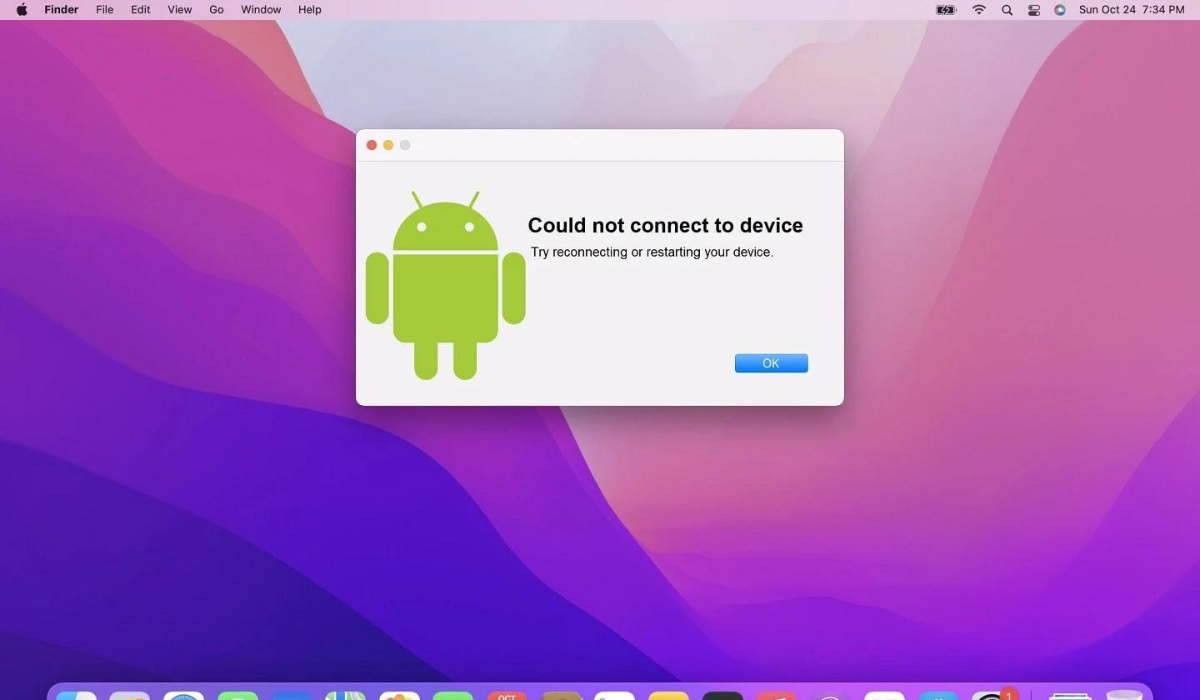
- How Can You Fix Android File Transfer Not Working on Mac? Update Your Phone’s USB Preferences Try a Different Port or USB Cable Stop Apps Accessing USB Devices on Your Mac Uninstall and Reinstall Android File Transfer Update Your Software Restart your Mac and Android phone
How Can You Fix Android File Transfer Not Working on Mac?
There are numerous reasons why the Android File Transfer stops working on Mac devices. When you have problems with Android File Transfer, it is often due to errors, wrong settings or faulty cables or USB ports. Whatever the reason, here are several options you can try to fix Android File Transfer not working on Mac.
Update Your Phone’s USB Preferences
After connecting your USB cord to both your Android phone and your Mac, the first thing to try when you’re looking to fix Android File Transfer not working on Mac is to update your USB preferences. This fix also applies to Max devices even though it may seem more like a Windows and Android thing.
Android does not use the File Transfer mode by default when you connect a transfer cable, so you’ll have to initiate it yourself if you want to fix Android File Transfer not working on Mac. If you encounter an error with the title “ Can’t access device storage ,” it means that USB preferences are the root cause.
Follow these steps:
- Open your Android device after plugging in the cable, then swipe down from the top to see the notification shade.
- Search through the list of notifications for Charging this device via USB , then double-tap the option to access USB Preferences in the Settings app.
- When the page opens, click File Transfer / Android Auto (you may see the name MTP on some Android models) under Use USB for .
Note that the steps needed to alter USB settings may differ across devices, but the fundamental guidelines remain the same.
After you’ve selected this option, your Android phone will make its internal memory accessible via USB cable. As a result, you’ll be able to access files and folders on your Mac from your Android phone. To avoid any further problems with the file transfer, I’d advise that you keep your Android phone unlocked throughout the transfer procedure.
Try a Different Port or USB Cable
Another solution to fix Android File Transfer not working on Mac is to try a different USB cable or switch to a different port on your Mac. First, start by troubleshooting your cable. Some USB cables can’t transfer files, as you may already be aware. Some are solely meant for charging.
By attaching it to a different device, you can test the cable to see if it works. Also try a different cable. I highly recommend using the original cable that your Android device came with. Smartphone manufacturers provide high-quality USB cords that can be used for charging and file transfers.
The port on your Mac or Android phone is something else to consider. File transfers will be impossible to perform if either port is faulty. Try using a different port as Macs have more than one. Most Android smartphones won’t have that option, so connect your phone to another computer to see if the USB port works properly.
Stop Apps Accessing USB Devices on Your Mac
So let’s say you’ve updated your USB preferences as described above, yet you’re still having issues. There’s a good chance that another application is already reading your USB-connected devices. As such, because it doesn’t have access to those linked devices, Android File Transfer won’t be able to see your files.
To fix Android File Transfer not working on Mac in this case, close all Mac apps that are using your USB devices. Examples include built-in macOS apps like Preview (for macOS Ventura and the latest), as well as cloud backup apps like Google Drive , OneDrive , and Dropbox . You can also force quit certain Mac apps if closing them doesn’t help.
The main disadvantage of this option to fix Android file transfer not working on Mac is that it can be difficult to determine whether open apps on your Mac can read USB. Cloud backup apps are common culprits, however if shutting such apps does not resolve the issue, using trial and error is your last option. Close all open apps on your Mac one by one; try Android File Transfer after you close each app to see which one helps to fix Android File Transfer not working on Mac.
Uninstall and Reinstall Android File Transfer
When transferring files between an Android device and a Mac using Android File Transfer, you could experience issues like cache errors or resource conflicts. They are difficult to see, but they may be to blame if the program was functioning before but suddenly stopped for no reason.
Try uninstalling the Android File Transfer app and then reinstalling it if you’ve tried everything up to this point and are still unable to fix Android File Transfer not working on Mac. Instead of merely dragging the app into the Trash, I advise using AppCleaner to delete it entirely from your system. This way, you’ll have a fresh start free of transfer issues.
Update Your Software
The developers of Android File Transfer claim that it is supported by macOS 10.7 devices and later. So consider that the app might not be functioning if your device is using an outdated macOS version for which there is no official support. So to fix Android File Transfer not working on Mac, make sure you’re using the most recent macOS version.
Also ensure that you’re using the most recent version of the Android File Transfer tool, so download from the official website to ensure this. You need to update your Android phone to complete the task.
In general, I’d say it’s a good idea to regularly keep your software up to date. Software updates can enhance the user experience by adding new features, improve security, and fixing any bugs you may be experiencing.
Restart your Mac and Android phone
It sounds cliche, I know, but there’s a reason why restarting a smartphone fixes most issues. Furthermore, this is not limited to phones; it also applies to other devices and software programs.
Restarting both devices will give you a fresh start if the root cause of your issue is conflicts between accumulated temporary files and cache data that prevent Android File Transfer from functioning properly. So to fix Android File Transfer not working on Mac, first restart your Android device, and then try again. If the issue remains, restart your Mac and try transferring files again.
To conclude, using the solutions I outlined above will help you fix Android File Transfer not working on Mac. If nothing works, it might be time to try transferring your files using a different approach. I recommend the open-source, free software called OpenMTP .
You could also try LANDrop , it works for Android transfers to Macs and other Apple devices. If you have reliable, unrestricted internet connectivity, another option is to use cross-platform cloud storage services like Google Drive and Dropbox .
