Add MobilityArena as a preferred source on Google
The design of various iterations of the iPhone have continually inspired other brands, including big names like Samsung and Xiaomi. But inspiration is one, thing; flat-out replication is another. There are smaller brands who go all the way and copy an iPhone design almost to the smallest line. It is 2023 and we are beginning to see iPhone 14 lookalikes hit the markets.
Hardware-wise, they may be visual replicas of the iPhone 14, but on the inside, these are no iPhones. What they offer is not in any way close to iPhone 14 specs and features . They run Android OS. In addition, they are always budget smartphones, costing hundreds of dollars below the price of any iPhone model. These iPhone 14 lookalikes look like the real deal, but you won’t be getting the premium experience that Apple is known for. And, of course, they are made in China.
- i14 Pro Max is a $100 iPhone 14 lookalike
- LeEco S1 Pro is another iPhone 14 lookalike for Android lovers
i14 Pro Max is a $100 iPhone 14 lookalike
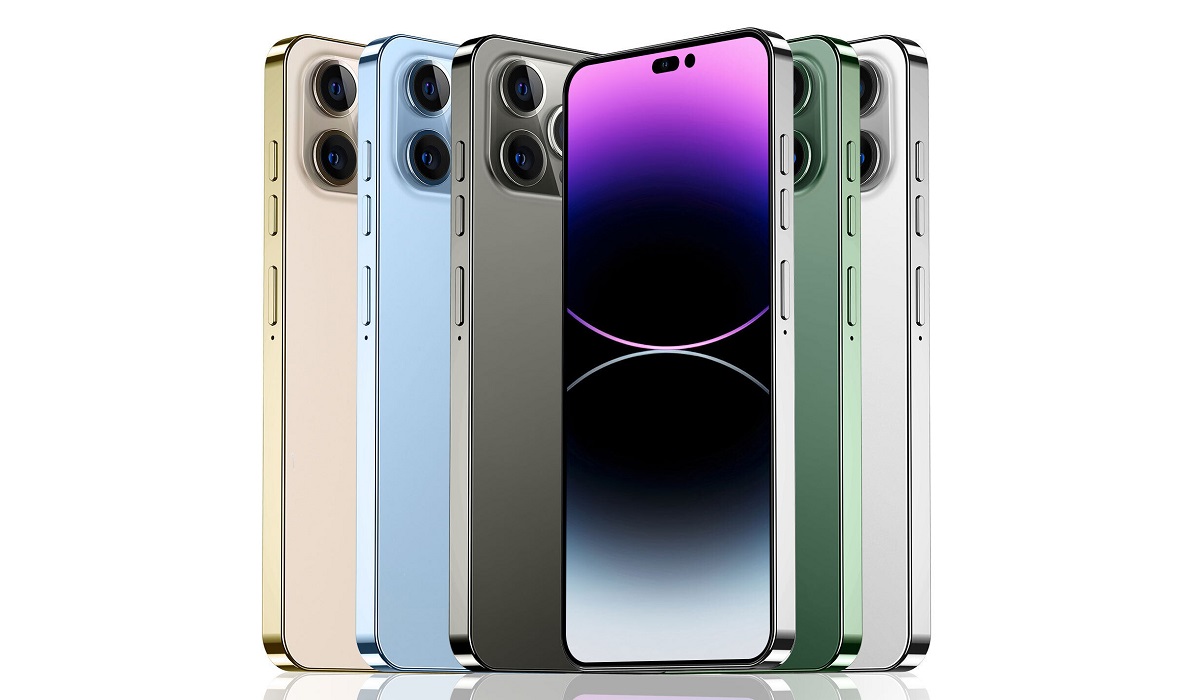
Product image of i14 Pro Max, an iPhone 14 lookalike but without iPhone 14 specs and features.
The i14 Pro Max goes beyond copying the design, but also puts a spin on the name. However, it runs a grossly dated Android 10, has 4GB RAM, 64GB internal storage, and has a large 6.8″ display. It has dual-SIM support and network compatibility is limited to 4G LTE. Which should not be any surprise, considering the $99.59 price tag.
While it is a copy of the iPhone 14 Pro Max in both design and name, the sellers have big signs plastered over it saying that this is not an iPhone and that it runs Android OS. Android 10, for that matter. How many apps still support Android 10? You can’t pay me to buy this phone. I know, I know. Android 10 in 2023? Sheesh. If you are interested in it, though, check Ebay.
LeEco S1 Pro is another iPhone 14 lookalike for Android lovers
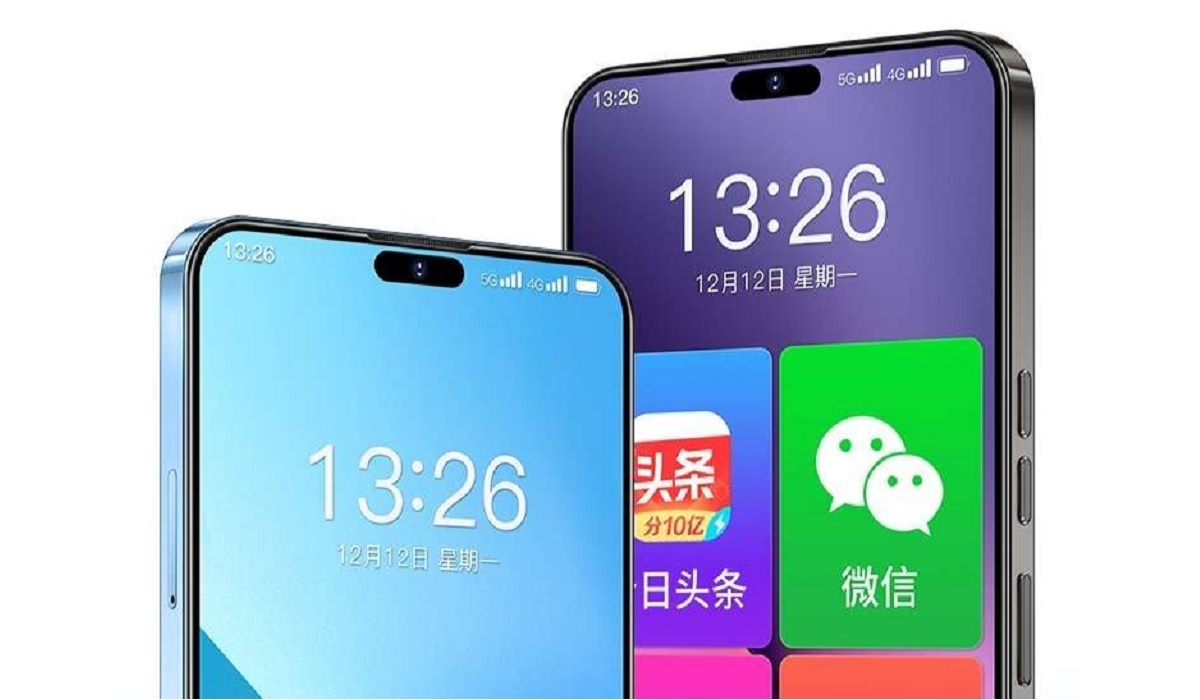
LeEco S1 Pro is an iPhone 14 lookalike
Our next iPhone 14 lookalike is by a more prominent name in the smartphone industry. LeEco is big in China. The LeEco S1 Pro has only just been announced in January 2023, and it features a 6.5-inch 720P display with 60Hz refresh rate. See? That is no premium grade screen. There is no mention of what Android version it runs. It is powered by a Zhanrui T7510 chipset, a 12nm fabrication. For your information, Zhanrui is a Chinese chip maker whose products have been becoming more widely used in recent times. Remember the US ban on Huawei? Well, Huawei turned to Ziguang Zhanrui for chips for some of their products.
But it isn’t only Huawei that is using chips by this manufacturer. The chips that have been featured in many budget Android phones in the last one or two years are made by…..fanfare… Ziguang Zhanrui. In 2021, they shipped almost 10 million chips globally.
Wait. This article is about iPhone 14 lookalikes. Let’s get back to that subject. While the LeEco S1 Pro is no premium phone, it has a generous 8GB RAM and 128GB of storage, making it a more decent option compared to the i14 Pro Max. There is a 5000mAh battery and 10W charging to go with it. Don’t buy it for photography, though; the cameras are poorly. The selfie shooter is a 5 MP unit, while at the back is a single 13MP camera (forget the iPhone 14’s triple camera design at the back).
The LeEco S1 Pro is available in China for 899 Yuan (about $135). You can always purchase it online and have it shipped to your location, if you want it that badly. It will likely be available on online stores like AliExpress.com, Gearbest.com, and Banggood.com, among others. They all ship to the US, Europe, Asia, the Middle East, and Africa.
These iPhone 14 lookalike phones do not deliver anything close to the user experience of the real McCoy. People who want a dirt cheap smartphone that looks like the real thing do have a chance to fulfil their fantasies.
- Don’t miss our mobile phone reviews .
- Follow us on Instagram , Facebook , Twitter , and YouTube .
Author:Mister Mobility
Digital Skills and Communication Coach | Mobile Phone Connoisseur since 2001 | Tech Blogging since 2004
Add MobilityArena as a preferred source on Google
Your iPhone’s default web browser is the Safari app. Compared to many other competing software options, this browser performs better, according to expert tests of performance and efficiency, and it also uses up less energy.
Regardless of Safari’s efficiency and usefulness, though, some users may still be unwilling to use it, or simply prefer other browser options. For example, some people prefer to use Google Chrome on their iPhones to sync their bookmarks and history to Chrome on their Windows PC.
Fortunately, it is now possible to change the default web browser on an Apple iPhone. So, if you’d rather use an option such as Google Chrome or Firefox as your default web browser, there is a simple way to accomplish it. This article will walk you through the steps you need to change the default web browser on your Apple iPhone, so pay close attention.
- How Can I Change the Default Web Browser on my Apple iPhone?
How Can I Change the Default Web Browser on my Apple iPhone?
The process and steps required to change the default web browser on an Apple iPhone are pretty straightforward and easy to go through.
You should note though, that it is only possible to change the default web browser on an iPhone if you are using iOS 14 or a later version. As a result, the first step before getting started is to ensure that your iOS settings are up to current standards.
Here are the steps to follow when you want to change the default web browser on an Apple iPhone:
- In Settings > General > About , ensure your iPhone is running iOS 14 or later. If it isn’t you’ll need to update your device to the latest version of iOS
- Once the update process is complete, navigate to the App Store and click on the Search option in the bottom right corner.
- Search for your preferred browser in the top Search area. You’ll typically see browsers like Chrome, Edge, Opera, Firefox, etc among the top options from your search results. Examine the list of browsers and select the one that most appeals to you.
- Wait for it to be downloaded andinstalled onto your iPhone device
- Once the download and install is complete, launch the app from the App Store or your phone’s Home Screen.
- Navigate to the Settings app and scroll down to the newly installed app. Click on it once you find it to access further options.
- Select the Default Browser App option. On the screen that shows up next, click on the app that you just installed as your preferred browser. You should see the tick transferred from Safari to the new browser you selected to be the default choice
- You can now exit the settings by sliding the screen upwards or clicking on the home button of your device.
At this point, you have successfully changed the default web browser on your iPhone. Now, whenever you click a link, it will open immediately on your iPhone through the newly configured default web browser.
If you change your mind about the default browser you’ve set, you can always go back to having Safari as your default browser by repeating the instructions provided above.
Also note that changing the default web browser from Safari saves you the stress of having to copy and paste a specific URL into the browser of your choice. This way, instead of the link automatically loading through Safari, the browser you prefer loads it as soon as you click on any link.
However, keep in mind that many third-party iOS web browsers use Apple’s WebKit engine, so they can still be classified as one would with Safari, apart from the added layers and functionality included by the other developers.
In summary , as long as you correctly follow the easy steps we’ve provided in this straightforward guide, you’ll find it pretty easy to change the default web browser on an Apple iPhone.
