Add MobilityArena as a preferred source on Google
I believe you know that your browser could do more than just load web pages and keep track of a million open tabs. Safari extensions are the ultimate way to enhance your browsing experience, making Apple’s browser more powerful, efficient, and tailored to your needs. With the right extensions, you can block annoying ads, securely manage passwords, translate websites in a snap, and even find the best shopping deals without lifting a finger. Whether you’re a multitasker, a privacy-conscious user, or just someone who loves a smooth browsing experience, learning how to manage and customize Safari extensions is a game-changer. But how do you get started? It’s easier than you think! You can explore and install extensions directly from the Mac App Store, tweak their settings to suit your preferences, and even remove or disable ones you no longer need. The ability to manage and customize Safari extensions means you’re in control, whether you want a distraction-free experience, tighter security, or faster performance. So, if you’re ready to take your browsing to the next level and manage and customize Safari extensions like a pro.

- What Are Safari Extensions?
- Find and Install Safari Extensions Open the Safari Extensions Gallery Browse and Install
- Manage Your Extensions Enable/Disable Extensions Uninstall Extensions Customize Extension Settings
- Advanced Tips
- Conclusion
What Are Safari Extensions?

Safari Extensions are like apps for your browser. They add extra functionality, letting you tailor Safari to your needs. Whether it’s blocking annoying pop-ups, saving articles for later reading, or auto-filling passwords like a digital butler, extensions can transform Safari into a productivity powerhouse.
Find and Install Safari Extensions
Ready to explore the world of extensions? Here’s how to get started:
Open the Safari Extensions Gallery
- Launch Safari → Click Safari > Settings (or Preferences) → Go to the Extensions tab.
- Click More Extensions to open the Mac App Store’s Safari Extensions Gallery.
Browse and Install
- Search for an extension (e.g., “Adblock,” “Grammarly,” or “Honey”).
- Click Get → Install it like any other app from the App Store.
- Once installed, open Safari → Go back to the Extensions tab → Enable the extension by checking its box.
Manage Your Extensions
Installed a few extensions but want to tweak or remove them? Here’s how:
Enable/Disable Extensions
- Open Safari → Go to Settings > Extensions.
- Use the checkbox next to each extension to enable or disable it temporarily.
Uninstall Extensions
- Open the Extensions tab in Safari settings.
- Click the extension name → Select Uninstall (this will also remove its associated app).
Customize Extension Settings
Some extensions allow customization:
- Go to Settings > Extensions → Select the extension name → Adjust settings (e.g., whitelist certain websites for ad blockers).
Customize Permissions for Security
Safari gives you fine-grained control over what extensions can access:
- Open Safari → Go to Settings > Websites or Extensions tabs.
- Adjust permissions like: Accessing specific websites only (e.g., “Allow on example.com”). Enabling/disabling access to sensitive data like passwords or browsing history.
Advanced Tips
- Use Shortcuts for Quick Access: Many extensions come with keyboard shortcuts—check their settings for faster workflows.
- Sync Across Devices: If you’re signed into iCloud with Safari enabled, your extensions will sync across all your Apple devices.
- Monitor Performance: If Safari feels sluggish, disable extensions one by one to identify resource hogs.
- Combine Tools: Pair ad blockers with productivity tools (e.g., Pocket + Grammarly) for a tailored browsing experience.
Conclusion
In conclusion, Safari Extensions are a must-have for anyone looking to enhance their browsing experience without sacrificing speed or security. Whether you’re blocking annoying ads, keeping your passwords secure, or saving ideas for later, these extensions make Safari more powerful and efficient. If you’re ready to take control of your browser, it’s time to manage and customize Safari extensions to fit your needs. With just a few clicks, you can personalize Safari to boost productivity, streamline tasks, and improve your overall web experience. Dive into the Safari Extensions Gallery today, manage and customize Safari extensions, and discover how easy it is to make your browser truly work for you. However you browse, there’s an extension out there to help you manage and customize Safari extensions to match your lifestyle!
Author:Ifeoluwa Adeleke
Add MobilityArena as a preferred source on Google
Just unboxed your brand-new Mac? First off — huge congrats! Whether it’s the ultra-light MacBook Air , the supercharged MacBook Pro, or a gorgeous iMac, you’re probably thinking, “What now?” Well, here’s the secret sauce to unlocking its full potential: accessories. That’s right — accessories to pair with Mac can completely elevate how you work, create, or just chill. Want a smoother workflow or a cleaner desk setup? The right add-ons can seriously change the game. Think high-resolution external monitors for more screen space, docking stations that keep your cables in check, or blazing-fast Thunderbolt drives for backing up all your creative projects in seconds. If you’re into multitasking, editing, or just want a more seamless day-to-day experience, exploring the best accessories to pair with Mac is totally worth it. Trust us—once you add a few of these essentials into the mix, you’ll wonder how you ever used your Mac without them. From boosting productivity to enhancing your creative setup, the perfect accessories to pair with Mac are the key to making your new machine work even smarter for you.

- List of Accessories to Pair with Mac External Monitors: Expand Your Workspace Why You Need One Top Picks Docking Stations: All the Ports You’ll Ever Need Why You Need One Top Picks External Storage: Never Run Out of Space Why You Need One Top Picks Keyboards and Mice: Comfort Meets Productivity Why You Need Them Top Picks Audio Accessories: Hear Every Detail Why You Need Them Top Picks Stands and Ergonomics: Work in Comfort Why You Need Them Top Picks
- Bonus Accessories: Little Things That Make a Big Difference
- Conclusion
List of Accessories to Pair with Mac
External Monitors: Expand Your Workspace
Why You Need One
A second screen isn’t just for multitaskers—it’s for anyone who loves having room to breathe. Whether you’re editing videos, coding, or juggling spreadsheets, an external monitor gives you more space to work efficiently.
Top Picks
- LG UltraFine 5K Display: Designed with macOS in mind, this monitor offers stunning color accuracy and seamless integration with your Mac. Perfect for creatives working on photo and video editing.
- Dell UltraSharp U2723QE: A budget-friendly 4K option with excellent color reproduction and USB-C connectivity.
- Portable Option: If you’re always on the go, check out the ASUS ZenScreen MB16AC, a lightweight portable monitor that connects via USB-C.
Docking Stations: All the Ports You’ll Ever Need
Why You Need One
Let’s face it—modern Macs are port minimalists. A good docking station solves this by giving you access to HDMI, Ethernet, USB-A, SD card readers, and more—all through a single USB-C or Thunderbolt connection.
Top Picks
- CalDigit TS4 Thunderbolt 4 Dock: The ultimate dock with 18 ports, including multiple Thunderbolt 4 ports, USB-A, HDMI, Ethernet, and SD card slots. Ideal for power users with lots of peripherals.
- Satechi Dual Dock Stand: Combines a docking station with a laptop stand for ergonomic benefits and extra ports—perfect for MacBooks.
- StarTech Thunderbolt 3 Dual 4K Docking Station: Supports dual 4K displays at 60Hz and includes fast-charging USB ports for your devices.
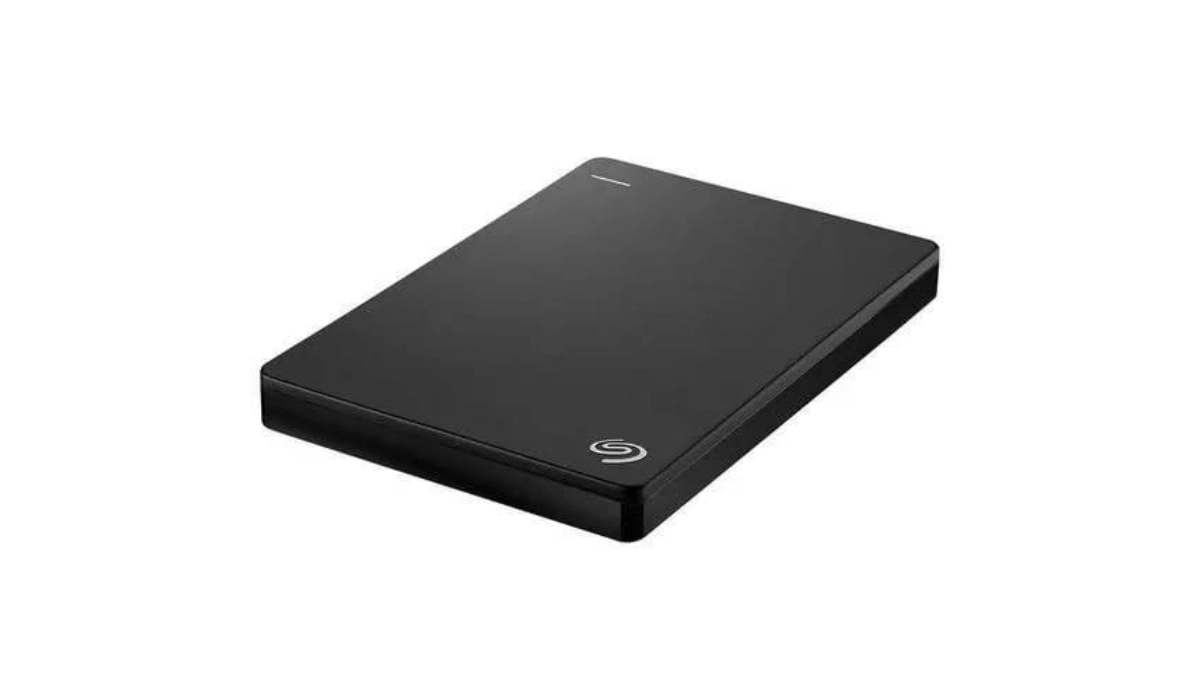
External Storage: Never Run Out of Space
Why You Need One
Macs are fast but storage can be pricey—especially if you opted for the base model. An external SSD or hard drive is perfect for storing large files like videos, photos, or backups without slowing down your internal storage.
Top Picks
- Samsung T7 Portable SSD: Compact yet blazing fast (up to 1GB/s). Ideal for creatives working with large files like RAW photos or 4K videos.
- Western Digital My Passport Ultra: A reliable HDD option with up to 5TB of storage—great for backups or archiving projects.
- LaCie Rugged SSD Pro: Built for durability and speed (Thunderbolt 3/USB-C), perfect for professionals on the move.
Keyboards and Mice: Comfort Meets Productivity
Why You Need Them
Your keyboard and mouse are your primary interaction tools—don’t settle for anything less than comfort and precision.
Top Picks
- Apple Magic Keyboard with Touch ID: Sleek design with seamless macOS integration and biometric security.
- Keychron K8 Wireless Mechanical Keyboard: For those who love tactile feedback and customizable RGB lighting—it even has macOS-specific keys.
- Logitech MX Master 3S Mouse: A fan-favorite among professionals for its ergonomic design, programmable buttons, and ability to switch between devices effortlessly.
Audio Accessories: Hear Every Detail
Why You Need Them
Whether you’re editing audio files or just vibing to your favorite playlist while working, good audio gear makes all the difference.
Top Picks
- AirPods Pro (2nd Gen): Seamless pairing with Macs and Spatial Audio support make these a no-brainer for Apple fans.
- Beats Studio3 Wireless Headphones (Renewed): Excellent noise cancellation and long battery life—great for focus sessions.
- Edifier R1700BT Bluetooth Speakers: Stylish speakers with rich sound quality; perfect for desktop setups.
Stands and Ergonomics: Work in Comfort
Why You Need Them
Long hours at your desk can take a toll on your posture—invest in accessories that keep you comfortable.
Top Picks
- Vaydeer USB Monitor Stand with Wireless Charging Pad: Elevates your monitor while offering wireless charging and extra USB ports.
- Twelve South Curve Stand: A minimalist laptop stand that improves airflow and ergonomics.
- Rain Design mStand: Perfectly aligns your MacBook screen at eye level.
Bonus Accessories: Little Things That Make a Big Difference
- Privacy Screen Filter: Protect sensitive information when working in public spaces (e.g., Spigen SafeView Privacy Filter).
- USB-C Hubs: Compact hubs like the Satechi Clamp Hub are perfect if you need just a few extra ports without going full dock mode.
- Portable Chargers: Keep your devices powered on the go with options like Anker PowerCore+ PD.
Conclusion
Your new Mac is a powerhouse on its own, but the real magic happens when you pair it with the right gear. From boosting productivity to adding a personal touch, the accessories to pair with Mac can truly transform your setup. Whether you’re editing videos, managing spreadsheets, or just enjoying some downtime, these add-ons help you work smarter and more comfortably. At the end of the day, choosing the best accessories to pair with Mac isn’t just about tech specs—it’s about creating a space that feels like yours. A setup that’s both functional and inspiring makes all the difference. So don’t be afraid to upgrade your space. With the right accessories to pair with Mac, you’ll enjoy every minute you spend in front of your screen just a little more.
