Add MobilityArena as a preferred source on Google
Battery capacity – of any kind of battery – degrades over time. As it is charged and discharged, it loses some of its capacity. This is true for phones, cars, inverters – all kinds of batteries. If you are a fan of Apple’s ecosystem, you can check your iPhone battery health or capacity to know when your battery is due for replacement.
Apple says that a normal iPhone battery is designed to retain up to 80% of its original capacity after 500 complete charge cycles when operating under normal conditions. iPhone 6 and later, iOS 11.3 and later have a battery health indicator built in to help you keep tabs on your iPhone’s battery capacity.
That way, you can know when the battery needs to be replaced. A brand new iPhone has a 100% battery health. That’s 100% battery capacity. That figure drops over months and years, as you put the phone to use.
PS: your brand new iPhone may show a battery capacity of slightly less than 100%. This is nothing to worry about, as keeping a battery stored for months without use also drains it of some capacity. So, a brand new iPhone that has spent months on the store shelf might display a 99% battery capacity. Don’t fret.
When to fret is when your iPhone battery capacity drops below 80%, because then, the battery is no longer in optimal form. It means, your iPhone may not retain a full charge for long any more. The performance of the phone is also sometimes affected.
Once the battery health of your iPhone is below optimal and performance degrades, it is time for you to replace your battery. Look below for the easy steps to check the battery health of your iPhone.
The steps to check iPhone Battery Health
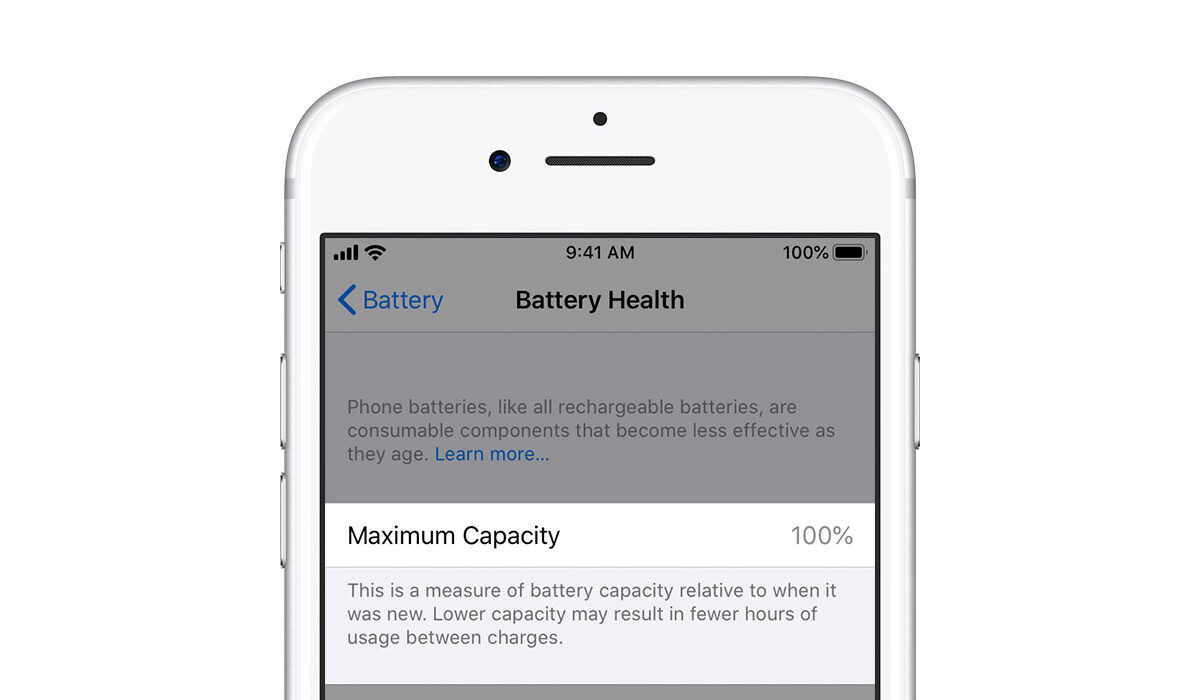
- Open the Settings app on your iPhone.
- Select Battery .
- Select Battery Health .
You will see the battery’s “maximum capacity” displayed in percentages and a message on the status of the battery, stating whether it is significantly degraded or not.
It is your call from that point. If the results are bad, go get your battery replaced at the nearest Apple store. Or perhaps upgrade to a newer model, if you are ready for the expenses.
A few tips for preserving your iPhone Battery Health
Do not use or store your iPhone in extreme temperatures. Very high and very low temperatures can damage your iPhone battery.
If you won’t be using your iPhone for long period of time, e.g. when travelling, do not charge it fully, or empty it, before storing it away. Leave about 50 to 60% charge on it, power it off, and store away.
Lastly, avoid some phone cases. Before you scream, hear me out. I know you love those fancy cases, but they make it difficult for your phone to breath. This applies to all kinds of phones. They heat up faster when used with a case, and heat is bad for your phone’s battery. See?
Heat is perhaps a smartphones number one enemy. Do whatever it takes to keep your device from heating up. For example, when inside a car, don’t place your phone on the dash in direct glare of sunlight. Have you ever touched your dashboard in hot weather? Scalding. Now imagine leaving your phone on it. Don’t do that to your precious iPhone.
Now you know what iPhone Battery Health is all about, how to find it, and how to preserve your battery better. Leave us a comment if you have had an experience relevant to this subject. We love to hear from you. Also, you might be interested in knowing how to check battery health on Android devices .
- Don’t miss our mobile phone reviews .
- Follow our news on Google News .
- Join our WhatsApp Group , to be notified of the most important articles and deals,
- Follow us on Instagram , Facebook , Twitter , and YouTube .
Author:InfoDesk
Add MobilityArena as a preferred source on Google
Recently, I started using my iPhone SE 2020 again, and I needed an Apple accessory to go with it. So, I picked the Apple Watch SE and I came to discover a feature called assistive touch. Let’s talk about how this feature can change the entire way you use your Apple Watch.
Ever since I started using smartwatches, I always tend to shy away from interacting with the touch interface, since it is small and can easily get smudges. I always wished for a smartwatch that I could control without touching its tiny screen. For a while now, Samsung Galaxy watches had a feature that could help you do this (control your smartwatch without touching the screen), but what you can do with it is limited to picking and rejecting calls. This is where Apple topped its smartwatch game up a notch with assistive touch.
- What Is Assistive Touch on Apple Watch?
- How To Set Up Assistive Touch On your Apple Watch
What Is Assistive Touch on Apple Watch?
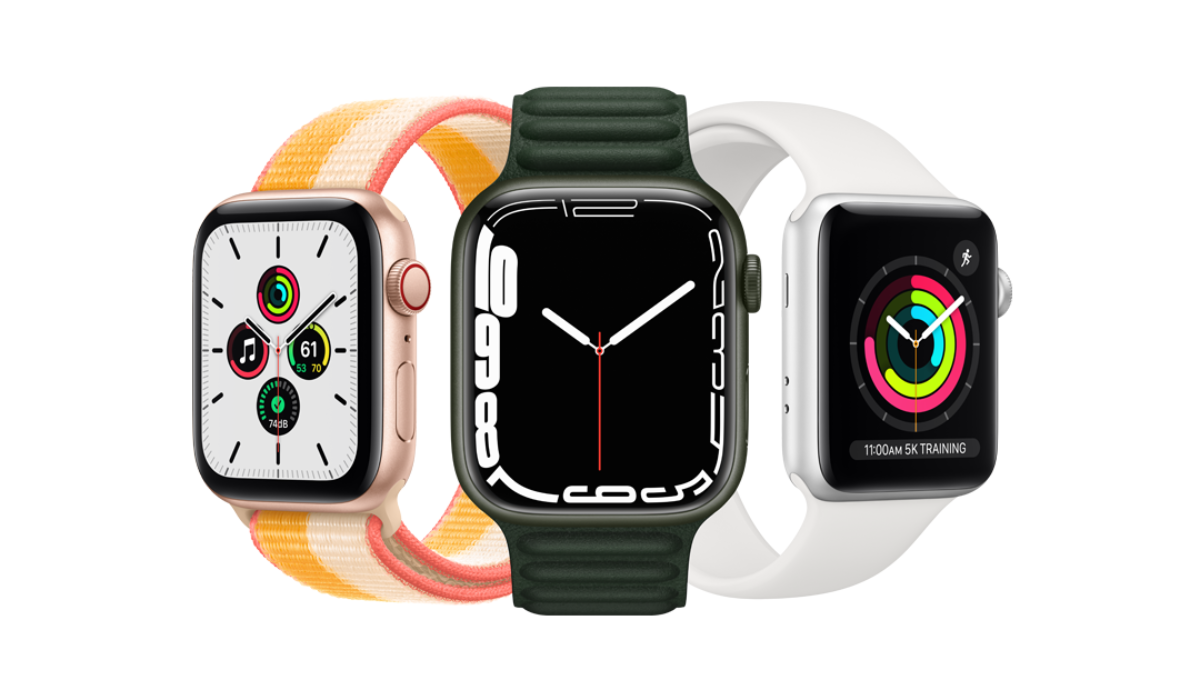
This feature was introduced to the Apple Watch Series with the Watch OS 8 software update. The update came with a lot of cool features for Apple lovers and users. Although designed with one-armed people specifically in mind, assistive touch can be used by any and every one. What is needed to get this feature on your Apple smartwatch? Will the feature be coming to your Apple smartwatch?
First, your Apple Watch needs to be running on Watch OS 8.3 (on Series 4 or later), while your iPhone must be running on iOS 15 for you to be able to get this feature. The technology implemented in assistive touch uses features on your Apple Watch such as tracking of your blood pressure and motion sensors to detect the movement of your hand, and then translates this motion into commands.
It is really practical and cool. Let us say you are cooking and have your hands stained. You can change the music playing on your iPhone or even pick an incoming call without using your stained hands to touch the watch display. Just by flexing your muscles in a somewhat effortless manner, you will have passed a command that will be executed immediately.
How To Set Up Assistive Touch On your Apple Watch
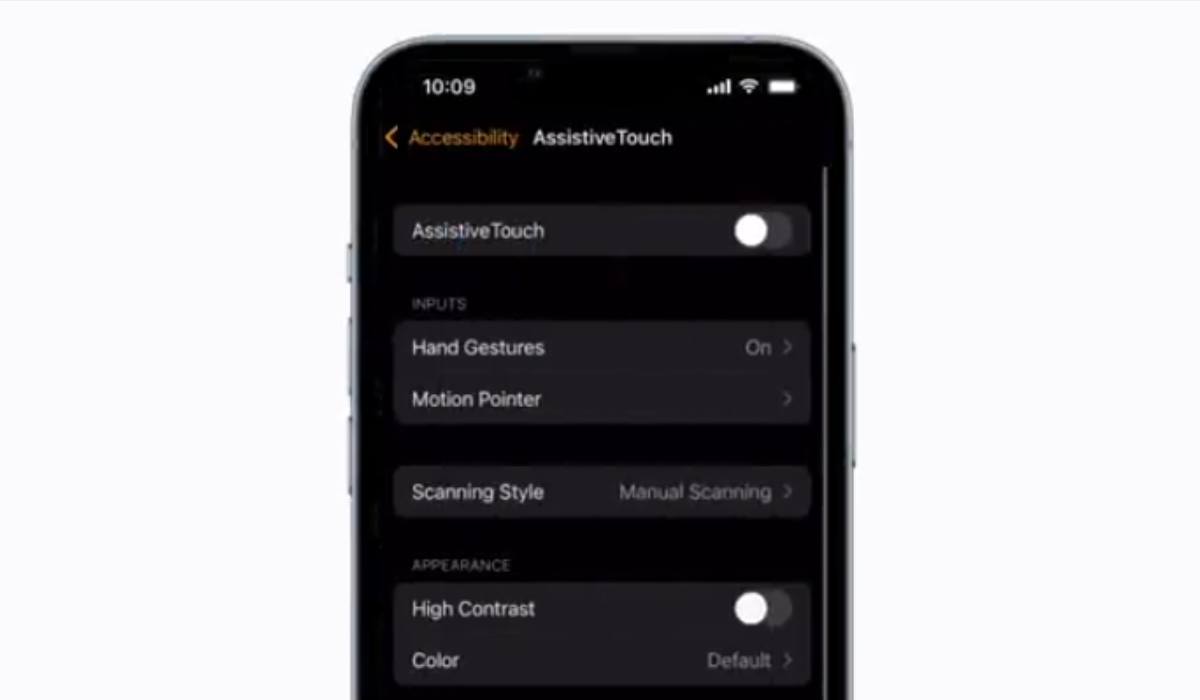
It is important to note that not all Apple watches have this feature already, it is limited to Series 4 or any Apple Watch that was released after it (5, 6, SE, 7). Ensure that your iPhone is also running iOS 15 or newer.
Once you have met these two requirements, on your Apple Watch or iPhone, open the Apple Watch app and select accessibility and then select assistive touch. Now toggle on the assistive touch feature. You can go on to customize the menu or looks of the interface. I will advise that you increase the contrast so that you can better see options on your Apple Watch from a good distance.
Now, there are a few hand gestures and each performs a specific role. You can as well customize this from the assistive touch settings (each gesture plays an important role by default, so changing it might not be important). What are the gestures, and what do they do by default?
The actions by default are as follows:
- Pinch (index finger against thumb) : To move forward while selecting between options on your Apple Watch.
- Double Pinch (index finger against thumb) : To go back while selecting options on your Apple Watch.
- Clench (tighten your fist) : To select an option on your Apple Watch interface.
- Double Clench (tighten your fist twice) : To activate assistive touch on your Apple Watch or open the action menu.
To use assistive touch on the go, simply raise your arm or wrist to wake the watch and double clench your fist to activate it. A blue ring will appear on the first icon on the interface. Pinch to move forward or double pinch to move backwards.
To perform more complex actions double clench to activate the action menu, by pinching or double pinching you will be able to navigate the menu then clench your fist to select a particular item or option. Double clenching your fist when a call comes in will help you answer the call or even stop an alarm.
Author:KittysTech
Tech analyst, Collins Eshiet, writes about technology. Follow me on Twitter @KittysTech.
