Add MobilityArena as a preferred source on Google
Your pictures speak about you more than you may assume. As such, getting the best pictures out there is not just an option, it’s a necessity – if you want to create a good impression of yourself to the world. There are lots of Android photo editing apps that can help you make extraordinary, beautiful photos. And when I say lots, I mean literally thousands of apps on the Google Playstore can help you do this.
With your smartphone in your hands, you don’t have to take or post boring pictures on Instagram, Snapchat or any other social media. Photo editing apps help you to create more sensational photos that are guaranteed to keep your family and friends liking each of your photos.
I’ve collected some of the best photo editing apps for you from Play store. You can try others, though, but I believe you’ll find these very useful. I’ve included some with very straightforward editing features for those who don’t like going through much stress just to get the perfect photo they crave for. So, let me show you some of the best ones.
1.Picsart

First on the list is Picsart. If you’ve already done a little search for the best android photo editing apps, there’s a good chance you’re already familiar with this app. It’s more than your usual Android photo editors. It comes loaded with powerful features that will help you get the best image out there. You can even use this app to remove unwanted backgrounds from your photos. And it’s totally free.
On the downside, though, you’ll need to spend some time mastering the various features of this app. It’s a very powerful editor, and you can literally give wings to your pictures once you learn how it works.
2.Snapseed
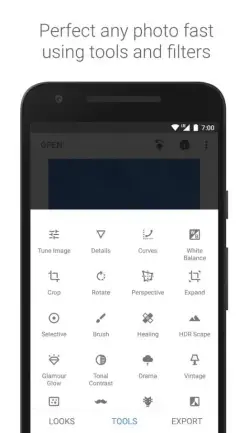
This app is a little tricky; its size is so small that people often think it’s just a bloat. But underneath the small size, it offers powerful features that resulted in Google purchasing it from its developers!
Snapseed is totally free, and you don’t have to worry about ads or in-app purchases because you’ll rarely find any of those. Go for Snapseed if you’re looking for an excellent photo editor that won’t consume a huge chunk of your SD card .
3.PhotoDirector
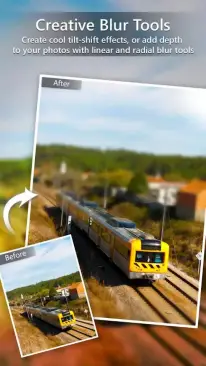
PhotoDirector is another photo editor every Instagram or Snapchat enthusiast should try out to up their game. If you’re tired of the traditional filters found in most photo editors, try PhotoDirector. It gives you more ability to control the amount of color and how a color should be applied to your photo.
4.Adobe Photo Editors
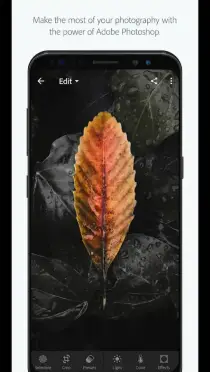
Remember Adobe Photoshop – the powerful PC photo editor? Well, they’ve released quite a number of powerful photo editors on Playstore. With Adobe photo editors you get the best photos by using either Adobe Express, Adobe Photoshop Mix or Adobe Lightroom.
Sure, it wouldn’t make any ‘SD card sense’ to install all of these apps on your phone as they take up huge space. So, I’ll recommend you go with the Adobe Photo Lightroom, which is the most powerful amongst all the other editors. Try others if you’re not satisfied with Lightroom.
5.Facetune
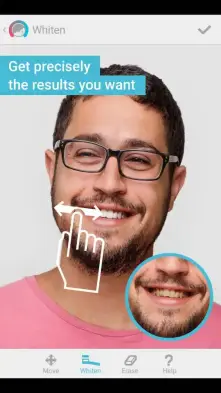
If you are the kind of person that loves taking selfies , you might want to go with Facetune – it tunes the face to the right rhythm.
With simple taps and clicks, you can easily whiten your teeth, remove red eyes, and even reshape your face. This is a powerful photo editor that makes everything simple for you. Though, it’s not available for free.
When it comes to Android Photo editors, you have a lot of options to choose from. But these are carefully selected apps that will give your photos the magic touch you’ve always desired.
- Don’t miss our reviews .
- Follow our news on Google News .
- Join our WhatsApp Group , to be notified of the most important articles and deals,
- Follow us on Instagram , Facebook , Twitter , and YouTube .
Author:Fouad
My name is Fouad Atitebi, and I’m the founder of NairaTechnology, an electronics blog in Nigeria.
Add MobilityArena as a preferred source on Google
If you are resident in the US and shopping for a new carrier, you should have a look at FreedomPop. Also. if you are travelling to the United States of America for business or pleasure, you will need a means of keeping in touch. There are two options: you can roam your line from your originating country, or you can get a SIM card from a US wireless carrier.
Either option has pros and cons. Roaming is usually the more expensive option, especially if you intend to use a lot of mobile data. To avoid expensive roaming charges, getting a local SIM is the preferred option.
- Whose network does FreedomPop Use?
- FreedomPop’s 4G LTE and 5G Networks
- Get the OTT mobile app for free calling and texting
- FreedomPop APN Configuration Settings
Whose network does FreedomPop Use?
FreedomPop is a US wireless Internet and mobile virtual network operator (MVNO) with nationwide coverage. As an MVNO in the United States, this carrier rides on the back of T-Mobile’s and AT&T’s networks.
FreedomPop’s 4G LTE and 5G Networks
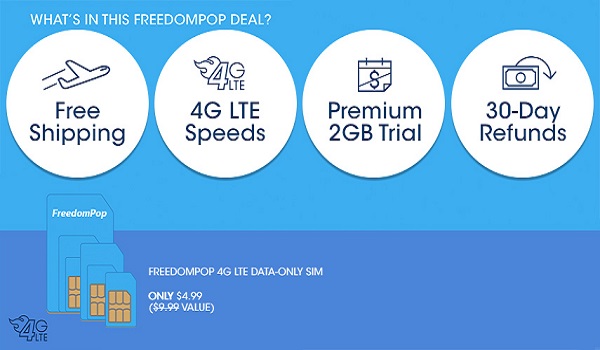
This wireless carrier offers nationwide 4G LTE and 5G services and it is good enough for streaming, should you need to do that. However, note that you have 2GB free Internet only during the free trial. After your first 14 days, you can downgrade to the free basic plan and enjoy 200MB data, 200 minutes calls, and 500 text, all free. You pay only $0.01 to signup. Shipping of your SIM pack is free. If you need more than that, there are paid plans available from $12.99 monthly upwards.
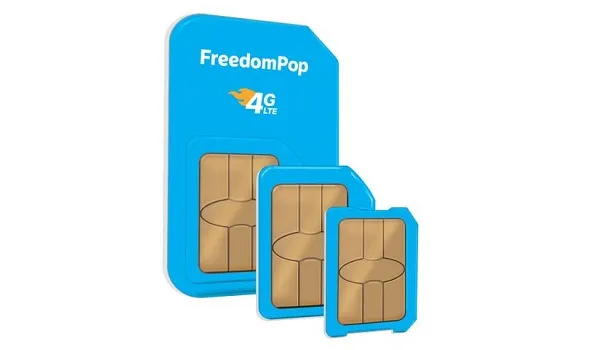
FreedomPop offers bundles that include free voice, SMS and 4G mobile data. The carrier runs an internet-based operation, so you can order your SIM from their website. Delivery can take a few days to two weeks, so do order early or have someone order for you before your arrival. That way, you can have an active phone line for voice, SMS and Internet and be reachable almost as soon as you settle in.
Once you have your FreedomPop SIM card in your phone and it is activated for the voice and data plan of your choice, you will need APN configuration settings to be able to use the network’s mobile data, and we have them for you.
Get the OTT mobile app for free calling and texting
You will need the mobile app to enjoy free calling and texting on the network. The app is available for both Android OS and iOS phones. Once installed and setup, you can do free text messages and calls over both mobile data and WiFi.
But to use the app or any FreedomPop Internet service at all requires proper configuration of your phone. We are assuming that you are travelling with your own smartphone. Should your phone not get automatically provisioned after you put in your SIM card, check the section below for the infomation required to manually configure the APN settings.
FreedomPop APN Configuration Settings
Go to your phone’s Mobile Networks menu under the Settings menu and select the option to create a new APN. Then follow these steps:
- You can give the APN settings any name, but it is logical to name it “FreedomPop”.
- Under APN, enter: fp.com.attz .
- Under NAME enter: FreedomPop .
- Leave the Password field blank.
- Leave all other fields blank.
- Save the APN settings.
- Now, choose the FredomPop APN for use.
That is it. You can now browse, manage your email, chat and share your travel selfies to your social networks. You will find FreedomPop to be one of the most affordable mobile carriers in the US.
PS : You can access the FreedomPop website HERE .
Author:Mister Mobility
Digital Skills and Communication Coach | Mobile Phone Connoisseur since 2001 | Tech Blogging since 2004
