Add MobilityArena as a preferred source on Google
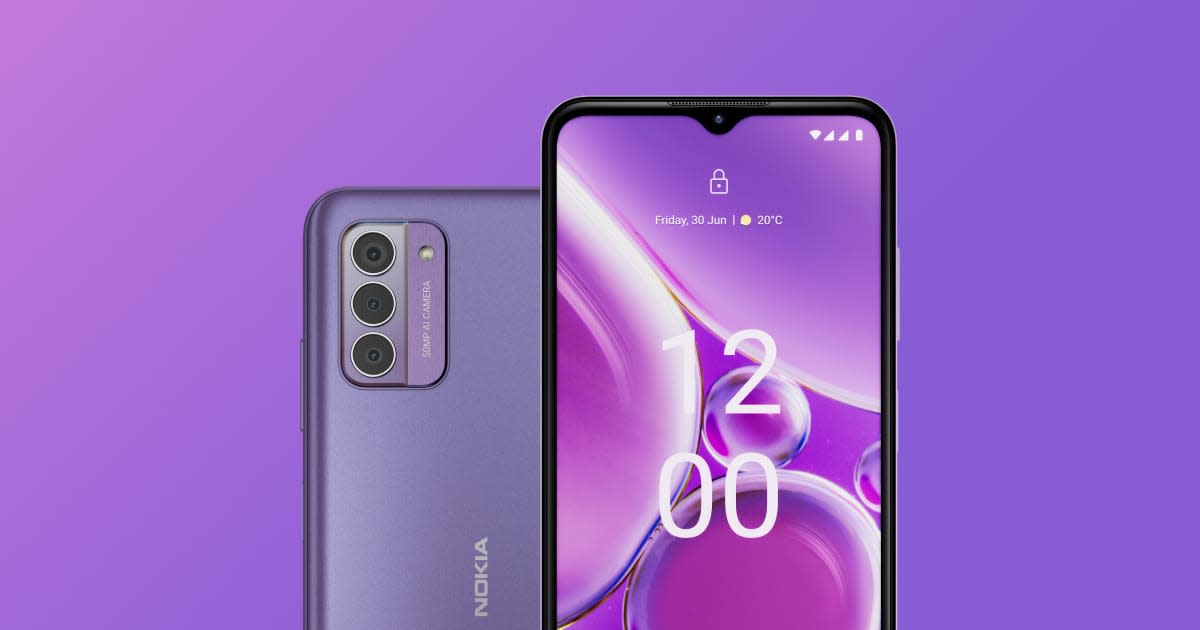
The Nokia G42 came with quite impressive features as well as its affordable price points, which has allowed it to make waves in the smartphone market. However, like any new smart and sophisticated device, some users have encountered challenges. In this article, I discuss the most common issues and explore practical solutions to enhance your Nokia G42 experience.
- Software Update Woes
- Performance Hiccups
- Battery Life Optimization
- Camera Quality Concerns
- Connectivity Issues
- Conclusion
Software Update Woes

Many users of the Nokia G42 have reported difficulties with software updates, ranging from not receiving updates to experiencing issues after updating. This alone can be frustrating. To get over with this, I recommend the follwoing:
- Check your device’s IMEI number against Nokia’s update server to ensure it’s registered for updates.
- Perform a manual check for updates by going to Settings > System > Advanced > System update.
- If updates are still unavailable, consider visiting an authorized Nokia service center for assistance.
- Before updating, always back up your data and ensure your device has at least 50% battery life.
Performance Hiccups

The Nokia G42 has recieved lots of backlash for it lag or sluggish performance, especially after updating to newer Android versions. When you experience this hiccup, simply do the following to ehance performance:
- Clear cache and data for problematic apps through Settings > Apps & notifications.
- Use the built-in device maintenance tools to optimize performance.
- Uninstall unused apps and limit background processes.
- Consider performing a factory reset as a last resort, ensuring you backup your data first.
Battery Life Optimization
While the Nokia G42 boasts impressive battery life, some users are looking to extend it even further, in order to get the most out of it. To optimize your device battery life especially, if you are the type that plays game with your device or usually turn it into a mini-cinema, simply do the following:
- Enable battery saver mode when running low on power.
- Adjust screen brightness and timeout settings.
- Turn off unnecessary features like Bluetooth and GPS when not in use.
- Use dark mode to conserve battery on the OLED display.
Camera Quality Concerns

One of the features of smartphones that actually attracts users, is the Camera quality. Even though the Nokia G42 poses as a smart device with a good camera quality, some users have expressed disappointment with photo and video quality under certain conditions. Well, I have highlighted some of the practical solutions to help you get the best of your device’s camera while trying to capture that important moment:
- Ensure you’re using the latest camera app version, as updates often include improvements.
- Experiment with pro mode for more control over your shots.
- Use HDR mode for high-contrast scenes.
- Consider third-party camera apps for additional features and processing options.
Connectivity Issues
A few users have reported Wi-Fi and cellular connectivity problems. Get it solved by doing the following:
- Ensure your router firmware and phone software are up to date.
- Toggle airplane mode on and off to reset network connections.
- Reset network settings if problems persist.
- If issues continue, contact your service provider to check for network-related problems.
Conclusion
While these issues may seem daunting, it’s important to remember that the Nokia G42 offers exceptional value, especially for its price point. With its robust build quality, clean Android experience, and commitment to updates, the G42 remains a solid choice for many users. Implementing these solutions can significantly enhance your Nokia G42 experience. Remember, every device has a learning curve, and with a little patience and optimization, you can unlock the full potential of your Nokia G42. Stay positive and embrace the journey of discovering all that your Nokia G42 has to offer. With its impressive battery life, capable camera system, and affordable price, it’s a device that’s ready to tackle your daily needs with renewed efficiency and reliability.
Author:Ifeoluwa Adeleke
Add MobilityArena as a preferred source on Google
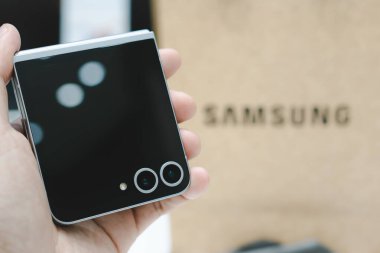
The slick design of the Samsung Galaxy Z Flip 6 will definitely catch anyone’s attention coupled with its impressive features. We can say Samsung carefully took the tech market by storm with this product. However, the charging issue is one of the reported issues of this gadget by users and that can be frustrating. If this is also your experience and you’re reading this right now, worry not! I’ve got you covered with practical solutions to keep your Z Flip 6 powered up and ready for action.
- Understanding the Issue
- Practical Solutions to Revitalize Your Samsung Galaxy Z Flip 6 Check Your Charging Cable and Adapter Clean the Charging Port Restart Your Device Update Your Samsung Galaxy Z Flip 6 Software Check Charging Settings Use Safe Mode Wireless Charging Alternative Factory Reset (Last Resort)
- When to Seek Professional Help
- Conclusion
Understanding the Issue
Several Samsung Galaxy Z Flip 6 owners have experienced problems with their devices not charging properly. These issues range from:
- The phone not charging when plugged in
- Charging stopping at a certain percentage (e.g., 73%)
- Charging only working when the phone is open
While these problems can be concerning, many of them have simple solutions that you can try at home.
Practical Solutions to Revitalize Your Samsung Galaxy Z Flip 6
Check Your Charging Cable and Adapter
Often, the simplest solution is the most effective. Try the following troubleshooting.
- Use the original Samsung charging cable and adapter that came with your Z Flip 6.
- Inspect your cable for any visible damage or fraying.
- Try a different USB-C cable to rule out cable issues.
Clean the Charging Port
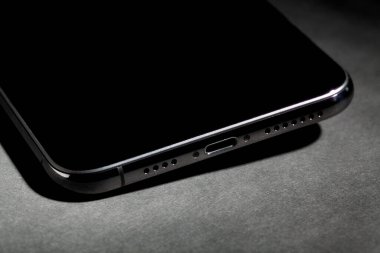
Dust and debris can interfere with charging. Unconsciously we don’t think it’s important to actually check for dirt on our charging ports. I recommend you do:
- Gently clean the charging port using a soft, dry brush or compressed air.
- Avoid using metal objects or liquids that could damage the port.
Restart Your Device
Sometimes, it could be a software glitch or bug. A simple restart can often resolve software-related charging issues:
- Press and hold the power button and volume down key for 7 seconds to force a restart.
Update Your Samsung Galaxy Z Flip 6 Software
Samsung regularly releases updates that can fix bugs and improve performance. So, regularly check for these updates:
- Go to Settings > Software update > Download and install.
- Ensure your device is connected to Wi-Fi and has sufficient battery before updating.
Check Charging Settings
One of the incredible and impressive features of your Z Flip 6 is that it has built-in capacity to optimize battery life. Simply check and adjust:
- Go to Settings > Battery and device care > Battery > More battery settings.
- Ensure that Fast charging and Super fast charging are enabled.
Use Safe Mode
To determine if a third-party app is causing the issue on your Samsung Galaxy Z Flip 6, just make use of the safe mode. How to do that:
- Restart your phone in safe mode by pressing and holding the power button, then long-pressing the “Power off” option.
- If charging works in safe mode, uninstall recently added apps one by one to identify the culprit.
Wireless Charging Alternative
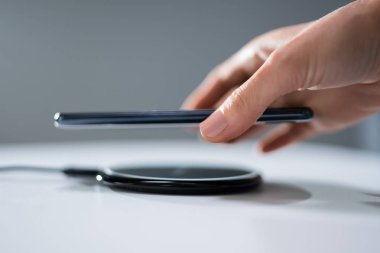
If your charging port is malfunctioning:
- Use a Qi-certified wireless charger as a temporary solution.
- Ensure the phone is properly aligned on the charging pad.
Factory Reset (Last Resort)
If all else fails, a factory reset might be necessary:
- Back up your data first!
- Go to Settings > General management > Reset > Factory data reset.
When to Seek Professional Help
If you’ve tried these solutions and your Samsung Galaxy Z Flip 6 still won’t charge properly, it’s time to contact Samsung support or visit an authorized service center. Your device may need professional repair, especially if it’s a hardware issue.
Conclusion
In conclusion, charging issues can be frustrating, most can be resolved with these simple steps. By following my proven solutions and advice, you can unlock the full potential of your Samsung Galaxy Z Flip 6 and keep it powered up for all your daily adventures. Remember, a little troubleshooting goes a long way in maintaining the revolutionary performance of your cutting-edge foldable smartphone! Stay positive and embrace the innovative spirit of your Z Flip 6. With proper care and these handy solutions, you’ll be back to enjoying your device’s unique features and capabilities in no time!
