Add MobilityArena as a preferred source on Google
MagSafe is a proprietary magnetic technology developed by Apple for attaching accessories to Mac laptops and iPhones. Thanks to MagSafe accessories, you can add extra functionality, capacity, or protection to your beloved iPhone.
Examples of the kind of things you can magnetically attach to your iPhone via MagSafe are chargers, battery packs (finally!), wallets, car mounts, and popsockets, among others.
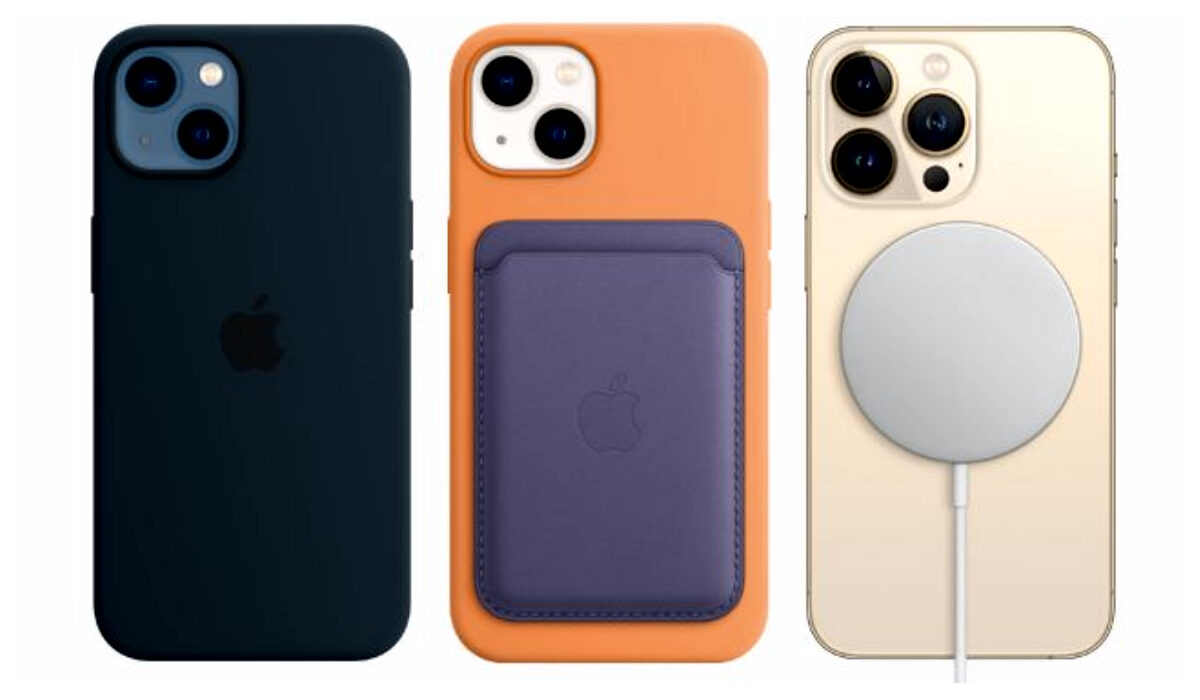
You can extend the functionality of your iPhone with MagSafe attachments.
- How do MagSafe accessories work?
- The best MagSafe accessories for your iPhone MagSafe Battery Pack MagSafe Duo Charger MagSafe Wallet Belkin Car Vent Mount PRO with MagSafe MagSafe Leather Sleeve Razer Phone Cooler Chroma with MagSafe
How do MagSafe accessories work?
From iPhone 12 onwards, Apple has MagSafe technology built into its models as a series of magnets placed around the phone’s internal charging coil. It senses any MagSafe accessories in close range and snaps them seamlessly and securely into place.
It works with only MagSafe compatible accessories, and ignores other magnets around.
The best MagSafe accessories for your iPhone
What is best for you will depend on your needs. For example, if you need better battery life and faster charging for your iPhone, you should definitely try out the MagSafe Battery Pack.
MagSafe Battery Pack
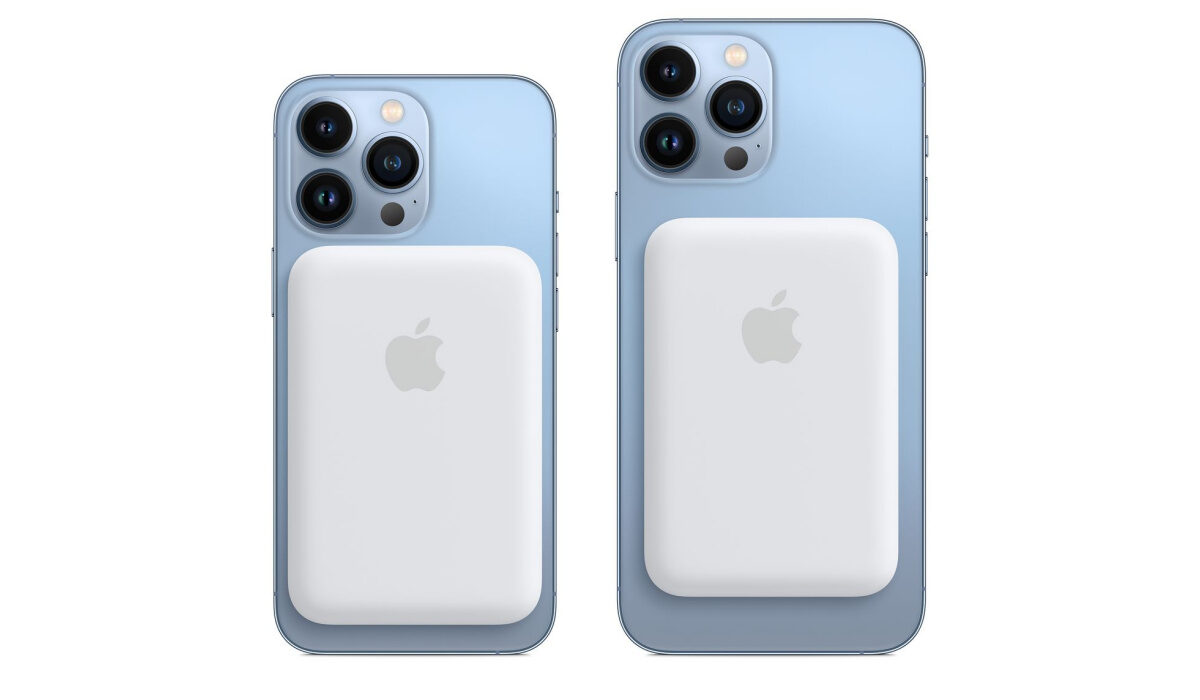
The Magsafe Battery Pack is an accessory that adds extra battery capacity and fast wireless charging to your iPhone 12 to 15.
The MagSafe battery pack has a 1460mAh battery inside and adds between 40% and 70% extra battery capacity to your iPhone, depending on the specific model you own. It also enabled fast wireless charging. It will cost you $99 to purchase one. It is available directly from Apple and partner stores.
Belkin’s BOOST CHARGE™ PRO offers MagSafe wireless charging with up to 15W of power too for a more pocket-friendly $59.99. However, it does not extend the battery capacity of your iPhone.
MagSafe Duo Charger
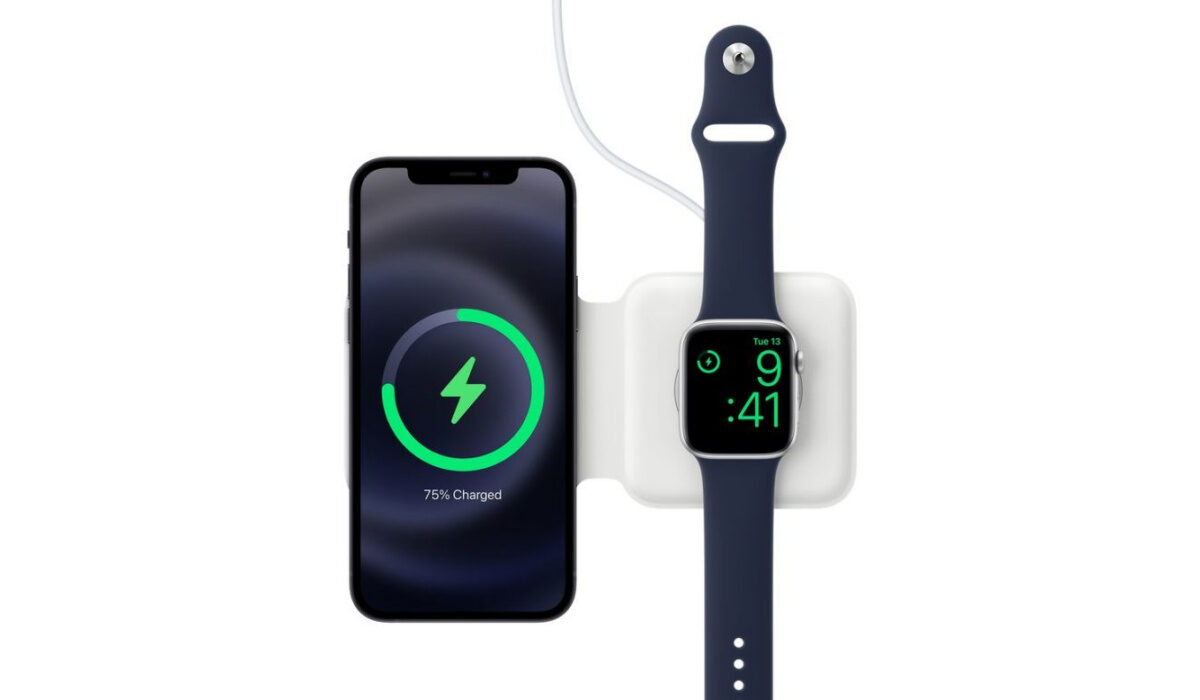
The MagSafe duo charger is one of the best MagSafe accessories for iPhones.
If you own multiple iDevices, e.g an iPhone and an Apple Watch, the MagSafe Duo Charger will come in handy for charging them at the same time. It is a Qi standard charger that enables wireless charging. Just place your devices on it, and they start charging.
How much does the MagSafe Duo Charger cost? $129. It is available from Apple’s website and Apple stores.
MagSafe Wallet
We think the idea of a pouch attached to your iPhone to carry your your ID cards and credit cards is wild and potentially dangerous, but there are people who think otherwise or who do not care. Why else does the MagSafe Wallet exist?
For convenience, we cannot argue with it: we also think that physical wallets need to die and go away so we can walk around freely without a bulge in our jean pockets.
If you want the convenience of not carry a leather wallet around, the MagSafe Wallet beckons to you and will be yours in exchange for a mere $49. It is available from Apple.
Belkin Car Vent Mount PRO with MagSafe
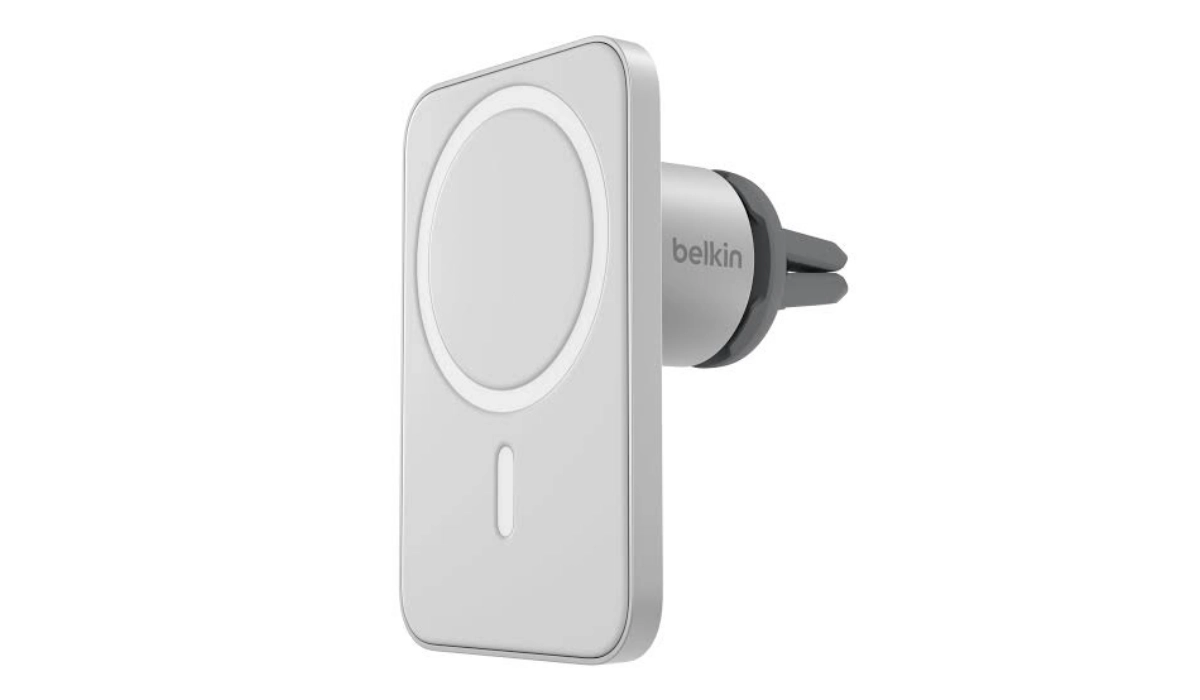
Car owners will find this MagSafe accessory useful. It is a great way to mount your iPhone for easy reach while driving, but that isn’t all it does. It also keeps your iPhone charged. Selling for $39.99 on Belkin’s official website and other retail platforms, the Belkin Car Vent Mount PRO with MagSafe is pocket-friendly.
MagSafe Leather Sleeve
Still on convenience, and this time with some style, the MagSafe leather sleeve offers protection for your iPhone, has slots for your credit cards and ID cards, and includes a lanyard, so you can carry it around like a small pouch.
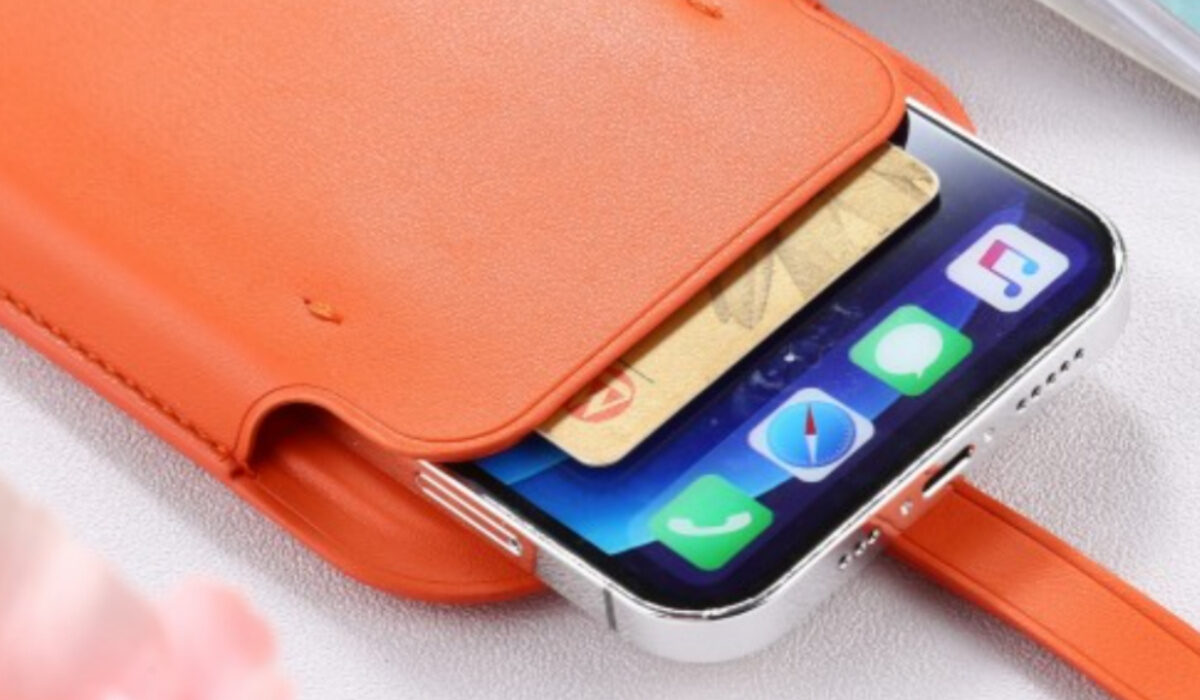
Magsafe leather sleeve.
If you want to get one directly from Apple, it will cost you $129 only. But there are 3rd party MagSafe compatible sleeves with the same features for less. As a matter of fact, you can pick one for as low as $23.99 from online and offline stores.
Razer Phone Cooler Chroma with MagSafe
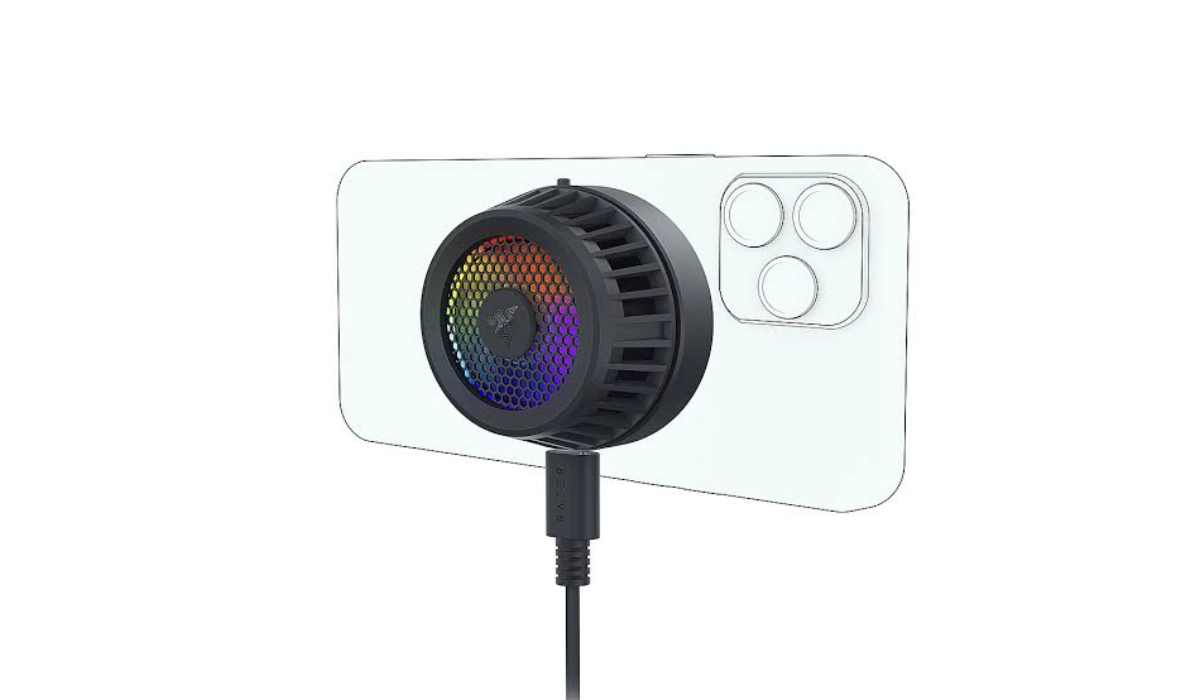
There are other MagSafe accessories out there from Apple and a wide range of 3rd party brands, including Carved phone cases . There is definitely something out there for everyone, so look around a bit. Happy hunting.
Author:Mister Mobility
Digital Skills and Communication Coach | Mobile Phone Connoisseur since 2001 | Tech Blogging since 2004
Add MobilityArena as a preferred source on Google
If you’d like for Siri to read your text messages out loud when they come in, this has been possible since iOS 13.2, so you are in luck. As such, you can enjoy a world of convenience and not have to touch your phone when you have a new text message or iMessage arrives. Yes; it works for iMessage as well.
Note though that for Spirit to read out your text messages automatically, you must have Airports, Airports Pro, Powerboats Pro or Beats Solo Pro headphones connected to your iPhone. Otherwise, it won’t work.
How it works
When a new message arrives, and you have compatible headphones on, Siri will play a tone, then read aloud the sender’s name and the new message. If it ia a long message, rather than read out the message, Siri will instead announce the sender’s name and include that a message has been received.
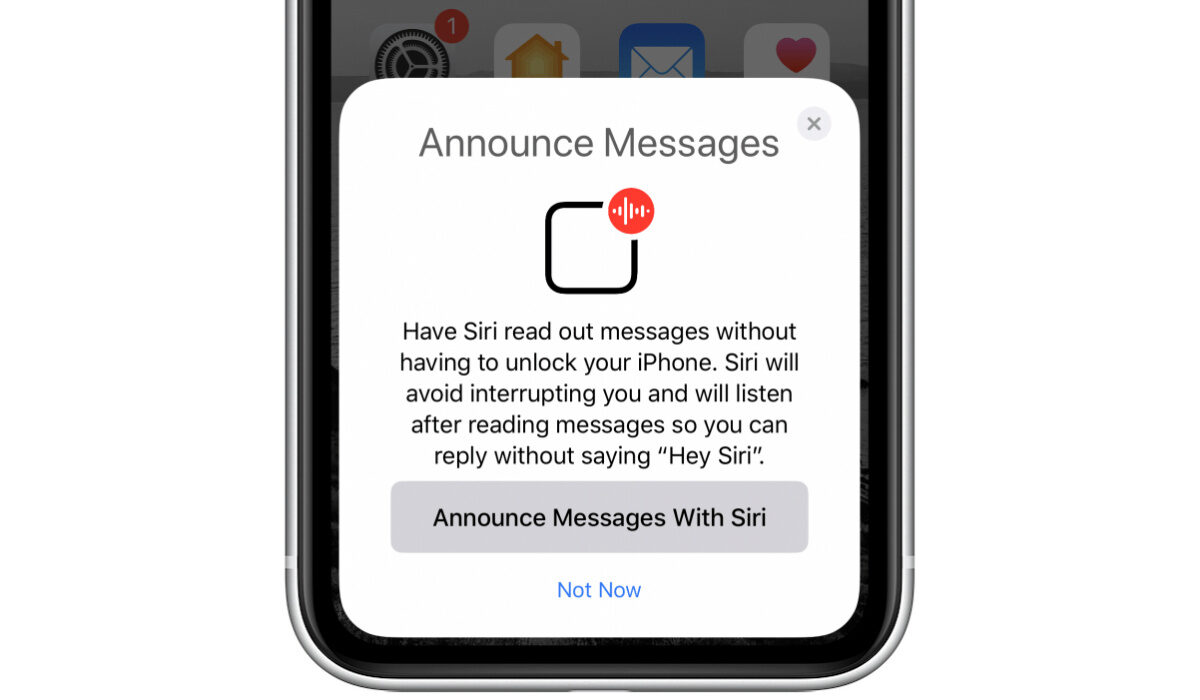
You can setup Siri to read your text messages out to you automatically.
- How it works
- Configure: How to set Siri to read your text messages automatically Have Siri repeat the message How to use Siri to respond to Messages Have Siri check and read out your most recent message Make Siri read old (previously read) text messages
- How to make Siri read out your email
Configure: How to set Siri to read your text messages automatically
The following steps require that your iPhone or other iDevice is running iOS 13.2 or newer. Do a quick check by opening the Settings app → General → About.
Once confirmed that your software is up-to-date, you can proceed with the steps below to enable Siri to read your text messages aloud automatically as they arrive.
- Open the Settings app on your iPhone, iPod Touch, or iPad. If you’re running iOS 14 (or later), go next to Notifications . If you’re running iOS 13 go to Siri & Search .
- Next, tap Announce Messages with Siri. Be sure to enable the Announce Messages with Siri option.
That is all you need to do. Once done, from now on, Siri will automatically read incoming messages to your supported headphones.
How it works
Siri will automatically send you a notification when you get a new message without you having to say, “Hey Siri.” Once it reads the message, you can respond with a number of options and commands, some of which we highlight below.
Have Siri repeat the message
If you didn’t quite hear the first read out, or you missed a detail, you can tell Siri to repeat it by saying “Repeat the message” or “Read again.”
How to use Siri to respond to Messages
Now that you have enabled Siri to read your text messages to you as they come in, sometimes you want to send a reply. Thankfully, it can take care of that too, all hands-free.
After reading out a message to you, Siri will ask you if you want to respond. Say “Yes” and it will give you the option to dictate a message in response. If you say “No”, Siri will go on and read out the next new message.
Dictate the message you want to send .
The dictated message will be displayed on the screen for you to review. You can say “No” or “Cancel,” for the option to dictate another response. Say “Yes” or “Send” to have Siri send the reply.
After sending the reply, Siri will proceed read the next unread text message or iMessage in the list.
Have Siri check and read out your most recent message
If you want to check your most recent message, say, “Read my latest message.”
Make Siri read old (previously read) text messages
Only if you know the person and the exact date of the conversation and tell Siri something like, “Read out Peter’s message from January 1, 2022”.
How to make Siri read out your email
You can also have Siri read out your email messages, but you lose some convenience, as it can’t read incoming messages automatically like it does text messages.
Go to Settings → General → Accessibility → Speech section.
You will be presented with two options: Speak Selection and Speak Screen. The latter is what you need to enable. to configure Siri to read everything that is visible on your screen. Which is how it will be able to read your e-mails, as well as web pages, and other documents.
So, in this case, you will require some use of your hands. To have Siri read out your email, press and hold the Home button on your iPhone or iPad or say “Hey, Siri” to activate Siri. Then say, “Read my unread emails.”
It will read out your first 25 email subjects and senders. You have to tap on a specific email to view it directly in the Mail app, then instruct Siri to read it out, by saying something like, “Read my last email”.
Like we already mentioned, it isn’t automatic like text messages, and it involves repeated action on your part. Not quite as convenient as how it handles text messages and iMessages.
Some day, Siri will be able to automatically read out your incoming email too. For now, you can enable Siri to read your text messages automatically and enjoy that till an automatic option for email becomes available.
