Add MobilityArena as a preferred source on Google
As an Android user, whether you’re experienced or a newbie, the 3.5 million+ apps available in the Google Play Store can be quite overwhelming. As such, it would be understandable if you’re looking for a trusted guide to kick-start your collection, and that’s why we’ve provided this easy guide to get you started with some of the most useful apps for Android devices.
Now, note that the selection of apps we’ve included in this list isn’t even up to a fraction of the options in the Google Play Store. Additionally, we are aware that every Android user has different priorities ranging from work to music, movies, and other leisure activities. We kept this in mind when suggesting app options, and so we’ll advise that you pick based on what’s most important to you and disregard any apps that you don’t find important.
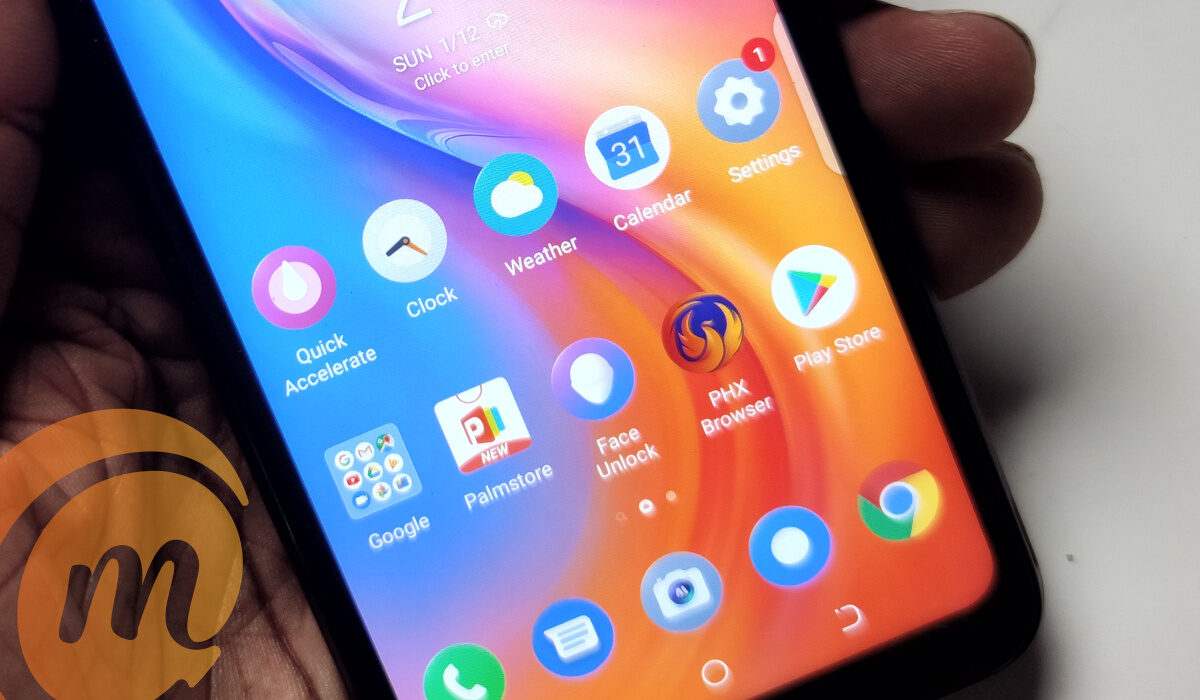
Which of the most useful apps for Android phones and tablets?
- Some useful apps for Android phones and devices Best Organizer – Evernote Best Password Manager – Dashlane Best File Storage Tool and Mobile Office Suite – Google Drive Mobile Video Streaming – Netflix Music Streaming – Spotify Best Virtual Private Networks (VPN) – NordVPN
Some useful apps for Android phones and devices
Often overlooked are the basic pre-installed apps like Gmail (for email), Chrome browser (for Web browsing), camera (for photography and video capture). There is also Maps (for navigation). We use these pre-installed apps hundreds of times every day. They are some of the most useful apps for Android devices. However, our list focuses on 3rd party apps that you have to install on your Android phone or tablet.
Best Organizer – Evernote
Android users in need of organization tools will benefit greatly from Evernote. This app serves as your to-do list manager, voice recorder, webpage clipper, and list maker; it’s essentially your all-around digital multi-tool. At first, it seems daunting, but you’ll soon realize there are countless ways to use it effectively.
Optical character recognition (OCR), which enables text in photographs to be searched, is one of Evernote’s most preferred features. The next time you get handed a business card, just take a picture of it and Evernote will collect all the important details, making it searchable from all your devices, computers, and the internet. Evernote is easily one of the most useful apps for Android devices.
Best Password Manager – Dashlane
Dashlane is a fantastic service in this regard, and it comes with a ton of features that lets you sync your passwords across macOS, Windows, Android, and iOS devices. With features like an integrated VPN and a Dark Web scanner that searches for compromised accounts, Dashlane also makes it simple to reset outdated passwords and safeguard your identity online.
Best File Storage Tool and Mobile Office Suite – Google Drive
For Android users that often find themselves having to work on the go, you’ll love Google Drive. Google Drive offers more than just cloud storage; you can also create and edit files from your smartphone using the robust mobile office suite that is included in the app, in addition to synchronizing and storing your files.
Even locally stored files on Drive can be viewed and edited offline. Google Drive may not be able to take the place of your desktop office programs, but you’ll find that it comes surprisingly close. Additionally, it makes sharing and collaborating on documents with others really easy independent of the platform.
Mobile Video Streaming – Netflix
For the Android users that double as binge-watchers, Netflix is one of the most useful apps for Android device. Netflix is the clear leader in mobile video streaming. It has a sizeable (albeit inconsistent) selection of TV episodes and films, as well as premium services like offline viewing and 4K streaming.
By creating critically acclaimed original programs like Stranger Things , Black Mirror , The Crown , Narcos , and The OA to mention a few, Netflix has successfully set the bar high for streaming services. Even a respectable selection of anime films are available for streaming. Netflix is no longer simply for passing the time; it’s also for staying up to date on the latest hit shows.
Music Streaming – Spotify
On your Android smartphone, you can typically listen to music in a variety of ways. Spotify is one of such ways, combining a huge, diverse collection with crystal-clear, sharp music to deliver a winning product.
You’ll also enjoy personalized mixes with your buddies thanks to collaborative playlists, and runners will appreciate the built-in beat-matching training options. It also boasts amazing multi-device functionality, enabling remote playback device switching. Spotify is the one to select if you just intend to utilize one streaming music service on your Android device.
Best Virtual Private Networks (VPN) – NordVPN
A wonderful work has been done by Google and mobile antivirus providers to keep Android (mostly) malware-free. However, it’s still possible that malicious persons could be intercepting all of your data when you connect to a public Wi-Fi network.
Virtual private networks are crucial in this regard, and NordVPN is one of the best. Other entertaining antics a VPN can perform include viewing content that would normally be region-locked and obscuring your IP address from marketers.
Summarily, your interests as an Android user will typically differ from those of many other people. However, we’ve identified the most useful apps for Android devices, according to different interests.
Take a cue from our suggestions above and optimize your Android user experience with some or all of the apps described above; you can thank us later. Also, don’t forget to recommend this article to your friends and loved ones.
- Don’t miss our mobile phone reviews .
- Follow our news on Google News .
- Follow us on Instagram , Facebook , Twitter , and YouTube .
Author:Joan Agie
Add MobilityArena as a preferred source on Google
The central processing unit (CPU) essentially functions as your computer’s brain. All significant system parts, including the RAM and graphics card, depend on the CPU’s instructions. Due to this fact, the processor is a crucial component of every computer.
Unusually high CPU consumption may be the root cause when you suddenly notice issues such as game stuttering or crashes, open applications failing to respond to new inputs, and slowly opening programs.
When a computer’s CPU is overloaded with too many processes or if a task requires too much focus, it gets overwhelming and the CPU usage increases. This is why we’ve compiled this guide, to go over how to reduce excessive CPU usage and improve performance in Windows 10 devices.
Reboot your Device
Saving your work first, and then restarting your computer is the first course of action if you notice a reduction in your computer’s speed or performance. This is the standard advice for troubleshooting; to “turn it off and on again.”
If it has been a while since your previous restart, this advice is especially beneficial and may suffice to fix the problem because a restart can clear up temporary files and possibly fix delay in lengthy operations.
Restart or End Processes
Launch the Task Manager by clicking CTRL+SHIFT+ESCAPE . Task Manager offers one of the simplest ways to track an application if its CPU usage has started to increase once more, even after a restart.
Select the Processes tab from the top menu once you’re in the Task Manager. To view background Windows processes, click “ More details ” at the bottom of this tab. The “ CPU ” column should be near the top of the “ Processes ” tab; click it to sort by CPU usage.
When using certain games, video editing or streaming software, running an antivirus scan, or managing numerous browser tabs, you should anticipate high CPU consumption.
When you open Task Manager and discover a process (apart from the expected ones) unexpectedly using a significant portion of your CPU, do an online search to find out what it is. If you don’t have a strong reason to, you shouldn’t halt processes like explorer.exe (which controls numerous graphical elements like the desktop and Start menu) or winlogon.exe (which controls startup tasks and the CTRL+ALT+DEL screen).
Once the process has been determined to be non-critical (and you confirm that you’ve saved whatever you were working on), click the process to select it, then select End Process in the Task Manager’s bottom right corner. The program will end without saving if you click on End Process .
Update Drivers
Also try upgrading your drivers if a process is still consuming too much CPU power. Drivers are software applications that manage certain devices attached to your motherboard. Your drivers may need to be updated to fix compatibility problems or defects that lead to higher CPU usage.
Go to Settings from the Start menu. After selecting Updates & Security , click “ Check for Updates .” Important drivers will be updated by this. Manufacturers of graphics cards also offer tools (like NVIDIA GeForce Experience for GPUs) that could enhance overall performance when playing games.
Your BIOS version may also need to be updated to address any uncommon bugs. When a computer starts up, the motherboard’s firmware known as the BIOS (Basic Input Output System) sends commands to the other components.
Only take this step if you have found the bug causing high CPU usage and located a BIOS update that directly fixes it. This is because updating the BIOS typically doesn’t result in performance improvements, and in some cases, may even introduce new issues to your computer.
Do a Thorough Malware Scan
If the high CPU usage problem still exists, malware posing as a standard Windows process may be to blame. Some malicious apps show in Task Manager with familiar names like “Cortana.exe” or “Runtime Broker,” but they are actually consuming CPU and GPU bandwidth for other purposes (like cryptocurrency mining, for example).
To check for this, do a thorough virus scan using your preferred application. One excellent choice is the free offline security scan offered by Windows Security (running on your taskbar or Windows settings). Once you locate the malware, delete it from your device.
Adjust your Power Settings
Whether you’re using a laptop or a desktop, some power settings can restrict the speed of your CPU. By selecting the Start button and typing “ Edit Power Plan ,” you can view your power options. Click “ Power Options ” in the address bar at the top of the window once it has opened. The words “Choose or customize a power plan” will be visible on your computer’s screen.
You can enable a non-power saving plan here by selecting “ Show additional plans ” at the bottom of the screen. Afterward, check to see whether CPU usage goes back to normal by opening Task Manager once more.
Summarily , fixing high CPU usage in your Windows device helps to optimize its performance. So, when you notice lagging, screen crashes, freezing or other abnormalities and you confirm that the problem is high CPU usage, now you know what to do to fix it.
You should also consult specific online guidance in some cases. Get the name of the process from Task Manager’s Processes or Details tab, then search online for help forums on the subject.
If you get minimal results from your initial search, try adding any other details that might be helpful, such as the model of your processor (you’ll find this in System Information next to “Processor”) and the names of any other programs that you think might be the problem.
Make sure to attempt different approaches to your search because it’s unlikely that you’re dealing with a bug that hasn’t already been discussed in hardware and gaming communities.
We hope you’ve found this article helpful, so don’t forget to recommend it to your loved ones so they can also benefit from it.
- Don’t miss our mobile phone reviews .
- Follow our news on Google News .
- Join our WhatsApp Group , to be notified of the most important articles and deals,
- Follow us on Instagram , Facebook , Twitter , and YouTube .
