Add MobilityArena as a preferred source on Google
The popularity of podcasts has resulted in the creation of thousands on a variety of topics including sports, music, current events, interviews, audiobook, radio programs, and humor, among others. Podcasts can be listened to whenever and wherever you want. They are a great way to gain knowledge and be informed.
Some podcasts provide great features while others do not, so it is paramount to choose the podcast app that provides the best choices. We have chosen the best podcast listening apps for you in this article.

- Spotify Podcasts
Spotify has gotten its act together in recent years, acquiring both its own and third-party podcasts. The truth is that it is one of the best podcast apps available today, particularly if you have Spotify Premium.
Simply follow these steps within the Spotify app to find podcasts:
- Go to “Podcasts & Shows” on the home screen.
- Once inside, you’ll see a variety of suggestions as well as new episodes of your favorite podcasts.
- Another option is to go to “Search” and then select the “Podcasts” option:
- Once inside, you’ll notice various categories.
- Choose your favorite, explore, and begin enjoying your favorite programs.
- Keep in mind that you can save Spotify music (and episodes) for offline listening.
PodBean
Google Podcasts
Furthermore, the Google Podcasts app allows you to search for your favorites, as well as listen to personalized recommendations and the most popular podcasts. Available for free on Android and iOS.
- iVoox
iVoox is one of the best apps for listening to podcasts on Android and iPhone. There are hundreds of programs and audiobooks available in both Spanish and English on a variety of topics, including humor, education, history, monologues, and much more. Its interface is simple to use, and everything is organized into sections, making it simple to find what you’re looking for. It also has very useful features like playing on the locked screen or in the background, making personalized playlists, and downloading for offline listening. It’s one of the most powerful podcast catalogs available, and it’s completely free. Also, it’s regarded as one of the best apps for listening to audiobooks.
- Stereo
Stereo takes podcast listening to the next level by allowing live interaction in chat rooms and public conversations. As a result, you can share your knowledge and opinions with your favorite podcasters and streamers.
- TuneInRadio
TuneInRadio is an app that specializes in providing access to various types of audio content, including podcasts. You will also be able to listen to over 100,000 radio stations per day, as well as access television channels, sports programming, opinion media, and music. Although its catalog of emerging content is small, the app contains several episodes of creative authors.
The app is free, but there is a premium version that removes all advertising and gives you access to a larger number of podcasts and radio stations.
- Podcast Go
- Don’t miss our mobile phone reviews .
- Follow our news on Google News .
- Join our WhatsApp Group , to be notified of the most important articles and deals,
- Follow us on Instagram , Facebook , Twitter , and YouTube .
Author:Moses Udah
Creative, teacher, web content writer, copywriter, and student.
Add MobilityArena as a preferred source on Google
When Android was first released, you could connect your smartphone to a computer and it would mount on its own. This meant that as soon as the USB connection was created, your computer’s internal storage would appear, and you could carry on with your tasks. However, that was altered in more recent iterations of Android to help with security.
Nowadays, when you connect your Android smartphone to a computer, it’s typically set to “No data transfer” by default. Then, before you get to transfer your files, you’ll see a notification on your status bar with a few options to choose from.
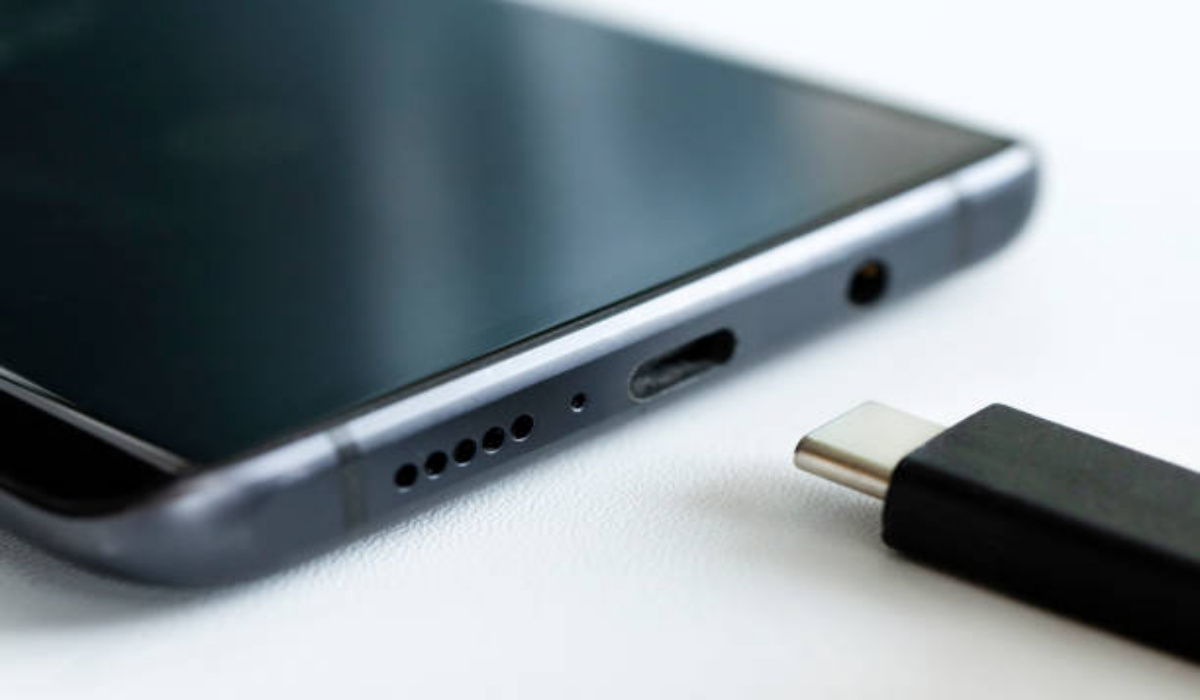
However, there’s a fast little trick you can perform if you would prefer to default to file transfer mode because you trust your computer with your smartphone’s data. We’ve provided the instructions you need to follow in this guide, so make sure to pay close attention.
How Do I Set USB Connections to File Transfer Mode By Default?
Achieving this on your Android smartphone is pretty easy as long as you’re equipped with the right instructions. The following steps will help you get this done easily.
Step 1: To set file transfer mode as your phone’s default mode for USB connections, you must first enable the system settings’ secret developer options. All Android phones follow the same procedure, but depending on the manufacturer, the placement of the settings may vary. Go to Settings -> About phone, scroll down, and quickly tap the “Build number” entry seven times.
The developer choices won’t be available until you enter your PIN or password if one has been set. You’ll then receive a notification that reads, “You are now a developer,” after doing that. You can go to the following stage now that everything is set.
The placement of the settings will differ slightly on a more recent Samsung phone, such as the Note 10 or Galaxy S10.
To do this on Note 10 devices:
- first, access the Settings menu by selecting “Settings” from the app drawer or by clicking the settings (gear) icon in the Quick Settings menu. This will enable developer mode. Select “Software information” on the next screen after selecting “About phone” at the very bottom of the page.
- Find the “Build number” option now, and quickly tap on it seven times. Your password, PIN, or gesture will then need to be entered.
- You will be returned to the previous page after confirming, where a toast message stating “Developer mode has been turned on” will appear.
To activate developer options on Galaxy S10 devices:
- Start by choosing “Settings” from the app drawer or hitting the gear symbol in the Quick Settings menu to access the main Settings menu (the menu will appear when you swipe downwards from the upper edge of any screen).
- Scroll to the menu button and choose “About phone” from there. Select “Software information” next.
- Tap “Build Number” seven times in quick succession as you scroll down. Your PIN, gesture, or password must be entered when requested. You’ll be taken back to the previous page after providing the necessary information, where a toast notification announcing that “Developer mode has been turned on” will appear.
Step 2: The new “Developer options” menu is now located at the very bottom of the user’s primary Settings screen, where it will be most accessible. If not, open Settings, select System, select Advanced, and then select “Developer options.”
Whatever method you used to get here, you can scroll about halfway down the page until you see the “Default USB configuration” area, and then tap it to advance to the following screen.
You should activate the “File transfer” or “Transferring files” option even if the current setting should be “No data transfer.” You can then leave the settings page and reconnect your Android phone to your computer after completing this. Once the USB connection has been established, it ought to automatically enter file transfer mode. You can now begin transferring your files.
In summary, the instructions above should help you easily set your USB connections on your Android smartphone to file transfer mode. Make sure to follow the instructions carefully to get it done easily.
- Don’t miss our mobile phone reviews .
- Follow our news on Google News .
- Join our WhatsApp Group , to be notified of the most important articles and deals,
- Follow us on Instagram , Facebook , Twitter , and YouTube .
