Add MobilityArena as a preferred source on Google
The camera is one of the most important features of an iPhone, and it’s essential to know how to use it effectively to take stunning photos. Whether you’re taking pictures of your family, your pets, or your travels, you want your photos to look their best. However, with so many camera settings and options available, it can be challenging to know which ones to use to get the best picture quality.
In this guide, we’ll explore the best iPhone camera settings to improve picture quality. Whether you’re an amateur photographer or a seasoned pro, this guide will help you take your iPhone photography skills to the next level.
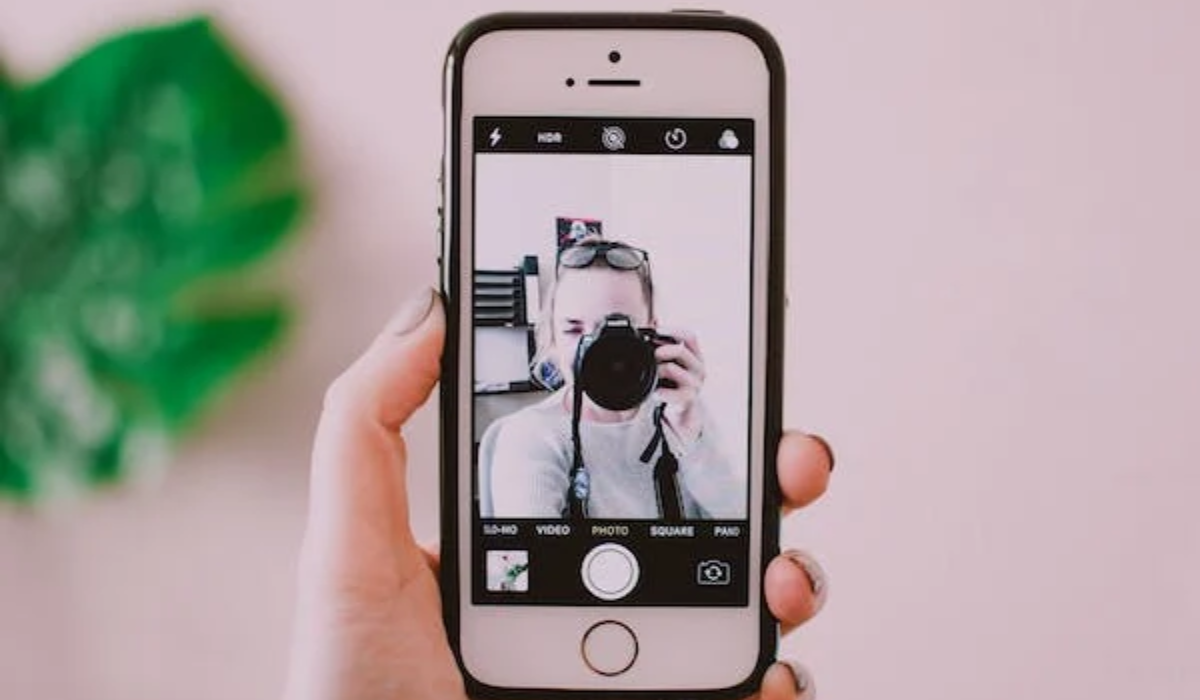
What Are the Best iPhone Camera Settings to Improve Picture Quality?
In today’s world, it’s not uncommon to see people use iPhones as their go-to camera since the lenses on modern smartphones can capture high-quality images. While the default camera settings are often satisfactory, there are certain settings that can be adjusted to further improve the quality of your photos and videos.
So, if you’re someone who enjoys taking pictures with your iPhone, keep reading to find out how to adjust specific settings on your iPhone to achieve better picture and video quality.
Preserve Settings
If you have a favorite camera mode or custom filter, it can be frustrating to have to set it up from scratch every time you open the Camera app. By the time you have your camera ready, the moment you wanted to capture may have already passed.
However, there is a solution: the iPhone’s Preserve Settings feature. With this feature, you can save any preferred camera settings so you don’t have to reconfigure it every time you need to take pictures. To enable the feature, navigate to Camera > Preserve Settings in your Settings app. You can choose from several options, such as Camera Mode , Creative Controls , Exposure Adjustment , Night Mode , and Live Photo .
Enable Grid Lines
If you’re a photography enthusiast, you’re probably already familiar with the Rule of Thirds. This principle is one of the essential guidelines when composing a photograph. In simple terms, it states that the subject of a shot should be placed in one of the four intersections of lines on a 3×3 grid.
To take full advantage of this rule, you must, however, enable an on-screen grid in your iPhone camera settings so you can see the four intersections. Gridlines are also helpful for fixing other compositional problems, including keeping the horizon level or ensuring walls and buildings are at precisely 90 degrees.
To activate these gridlines, navigate to Settings > Camera > Grid and slide the toggle switch to the On position.
ProRAW and ProRes
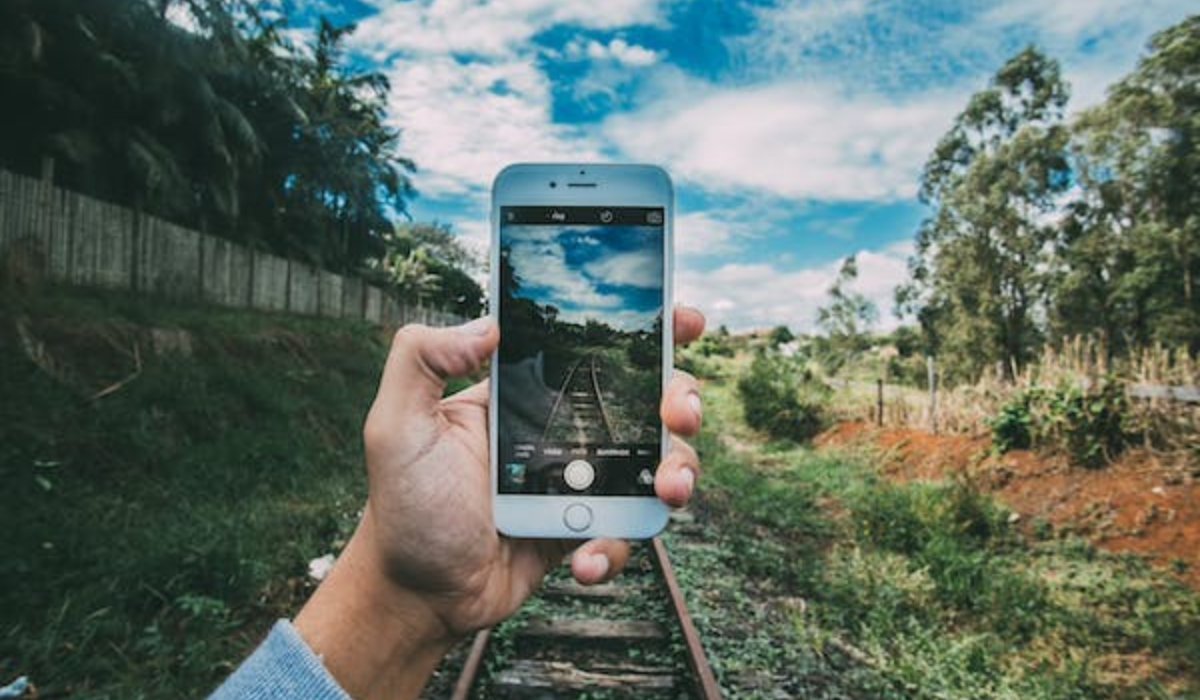
Apple has introduced a new feature in the Camera app since the iPhone 12 Pro that allows users to capture images in ProRAW format. ProRAW photos are the original images that are captured from the camera sensor, without any modifications. They hold important data like brightness, shadows, and colors that can be edited later using software like Adobe Lightroom .
Additionally, iPhone 13 Pro supports ProRes video, which is a codec that has minimal compression, ensuring that the files are of higher quality for post-editing. You can turn on both ProRAW and ProRes in the Camera app’s settings. iPhone 14 Pro users can also choose between taking ProRAW photos with 12-megapixel or 48-megapixel resolution.
Once you turn on the options, you’ll see ProRAW and ProRes buttons in the Camera app that you can tap to take photos and videos using these formats. However, non-Pro iPhone models don’t have these options, and it’s important to know that ProRAW photos and ProRes videos take up more storage space than regular formats.
Macro Control
The ultra-wide lens on the iPhone 13 Pro and iPhone 14 Pro includes a Macro setting that enables users to take extremely close-up pictures. Some users might find it annoying as this mode activates automatically based on the distance between the iPhone and the subject you’re pointing at. Fortunately, you can decide to manually activate this option only when you need it.
To do this, turn on the Macro Control feature in the Camera app’s settings. The Macro button will now appear when the iPhone is very close to an object, and it will only activate if you click on it.
Enable Live Photo
You can also use Live Photo to your advantage when trying to get the perfect shot. Although a Live Photo appears to be a regular picture in the Photo Library, it comes to life when you long-press it. To activate Live Photo , simply tap the circle icon in the top right corner of the Camera app.
If you don’t want dozens of identical images cluttering up your photo albums, it’s a good alternative to burst shots. This is due to Live Photo’s ability to capture the 1.5 seconds immediately before and after a photo capture. You can also convert your Live Photo to a still image later.
Lock the Focus and Exposure
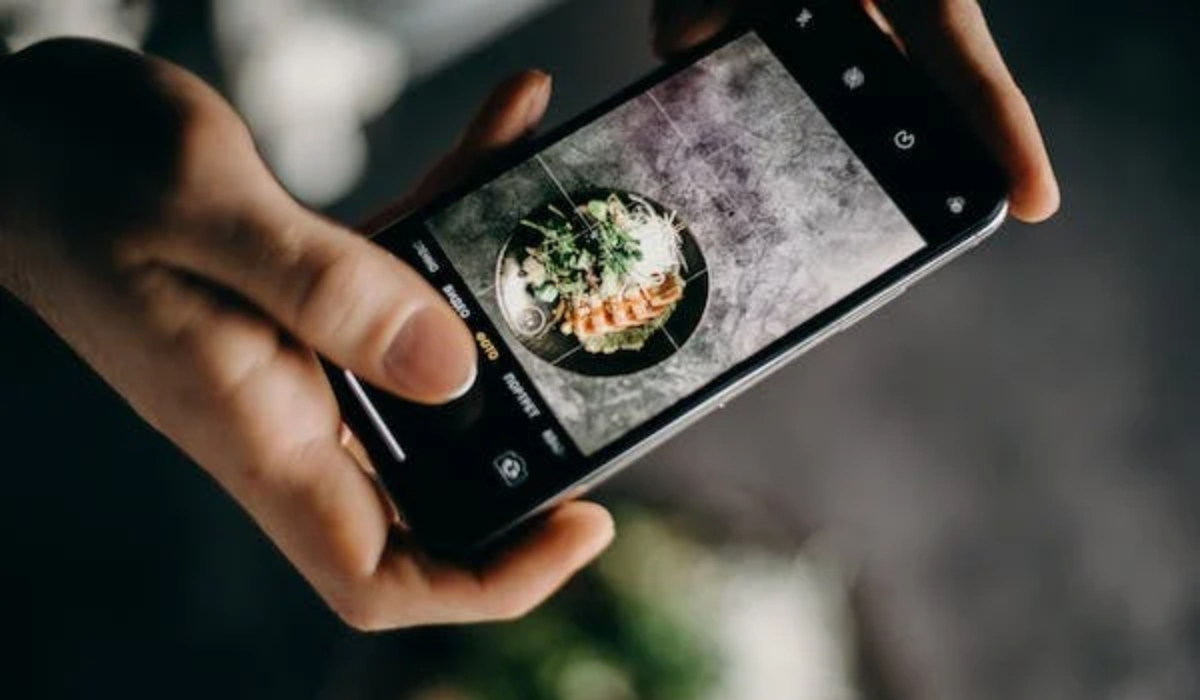
If you want to take professional-grade snaps, you need to understand how focus and exposure work. Exposure refers to how much light reaches your phone’s electronic image sensor, while focus determines the sharpness of your photo. If you don’t learn these essential iPhone camera settings, your smartphone photography will suffer.
Luckily, you can manually lock both focus and exposure on your iPhone’s camera, which allows you to customize your shots more effectively. This means you don’t have to worry about the app automatically overriding your settings. To do this, open the Camera app, then tap and hold your photo’s focal point. After a few seconds, you’ll see the AE/AF Lock banner appear at the top of the screen. To unlock these features, just tap anywhere on the screen.
Enable Geo-Location on Your Photos
If you’re a frequent traveler, you might find it useful to tag your photos with the location at which you took them. It’ll help you stay on top of all your memories in the years to come.
Your iPhone lets you turn on geotagging, but it’s not immediately obvious where to find the setting as it’s not in the Camera app or its Settings menu. Instead, you need to head to the Privacy menu. Go to Settings > Privacy > Location Services > Camera and select While Using the App .
Use Portrait Lighting for a Studio Effect
Portrait Lighting is a great feature that lets you customize the lighting in your photos. You can make your image look like it was taken on a stage or in a studio by tapping the iPhone camera screen.
To use Portrait Lighting , you’ll first need to select Portrait Mode in the camera app. You’ll find a variety of lighting effects at the bottom of the screen, including Natural Light , Studio Light , Contour Light , Stage Light , and Stage Light Mono .
If you don’t want to add any lighting effects, you can choose the default iPhone setting, Natural Light . For more dramatic portraits, you can try Contour Light . And for professional-looking results, you can select Stage or Studio Light .
To sum up, mastering the best iPhone camera settings is the key to taking stunning photos. By following the tips discussed above you can take your pictures to the next level. So, don’t be afraid to play around with your iPhone’s camera settings and discover what works best for you. With a little practice, you’ll be taking professional-grade snaps in no time. If you need other useful tips to get the best of your iPhone, check out this category .
Author:Joan Agie
Add MobilityArena as a preferred source on Google
If you’re looking for the best phone carriers in Florida, you’ve come to the right place! Florida is home to many fun destinations, the perfect place to catch a break during downtimes. As a newbie in Florida, you’ll want to make sure you can access great phone carrier options when you visit, but if the choice is too confusing, I’ve written this guide to help you.
Florida is home to different phone carrier options, each with unique plans, features, and benefits. In this guide, I’ll explore the top options, essentially the best phone carriers in Florida. Whether you’re looking for a budget-friendly plan or unlimited data, I’ve got you covered. So, let’s dive in and find the best plan for you!

- What Are the Best Phone Carriers in Florida? Verizon AT&T T-Mobile Mint Mobile US Mobile
What Are the Best Phone Carriers in Florida?
Florida is a large state, so this means you’ll have many different phone carrier options to choose from. Here are some of the best phone carriers in Florida, along with their network coverage, pricing, features, and plans:
Verizon
Verizon is a top phone carrier in Florida with vast network coverage. Even if you’re living or vacationing in a rural area, Verizon provides 99.88% coverage across the state with 4G LTE for all users. You’ll find the network coverage particularly strong, sufficient to connect seamlessly when the need arises.
Verizon also offers prepaid and postpaid plans with various options. You can choose from budget-friendly plans or unlimited data plans. Its plans come with features like mobile hotspots, unlimited talk and text, and international calling. Prices vary based on the plan you choose, but they start at around $35 per month.
AT&T
AT&T is another major phone carrier with strong network coverage in Florida. If you’re looking for a new phone, AT&T often runs promotions that could be worth considering. For instance, they are currently offering the Google Pixel 7 for $5 a month or $700 off the iPhone 14. AT&T has a coverage area of 99.89% in Florida, with particularly strong coverage in urban areas.
The company offers three different postpaid options, including unlimited data plans, and its plans come with features like mobile hotspots, unlimited talk and text, and international calling. While its pricing varies based on the plan you choose, it generally starts at around $30 per month.
T-Mobile

T-Mobile is a great option if you’re looking for an affordable plan. It’s a popular choice among budget-conscious customers because it offers some of the most affordable plans in the industry. T-Mobile is also an excellent choice if you’re looking to switch to 5G, with 99.81% coverage in Florida.
T-Mobile offers various plans, including unlimited data plans, with features like mobile hotspots, unlimited talk and text, and international calling. Prices vary based on the plan you choose, and you can receive a discount if you’re 55 or older, regardless of the plan you choose.
Mint Mobile
Mint Mobile offers reliable network coverage and the latest phones with 0% financing. It works with most GSM phones and offers a minimum 3-month plan. Mint Mobile’s 5GB plan includes unlimited minutes, texts, and 5GB of data for only $15 per month. As an MVNO, it works with T-Mobile towers, allowing customers to pay less while still receiving 5G service. With four different prepaid plan options, the main difference is the amount of data received each month.
US Mobile
US Mobile is a fantastic cell phone carrier that provides affordable plans. It is an MVNO that operates on Verizon and T-Mobile networks, ensuring that you’ll have coverage almost everywhere in Florida. US Mobile offers a wide range of plans that are flexible and have no contract.
They also offer 24/7 customer service and 5G coverage. However, they don’t provide international calling and have a limited phone selection. You can get US Mobile’s 15GB plan per month, which includes unlimited minutes, unlimited texts, and 15GB of data.
To sum up, choosing the best phone carrier in Florida depends on your needs and budget. The options listed above are some of the top carriers that offer excellent coverage, affordable plans, and exceptional customer service. Each carrier has its strengths and weaknesses, so it’s essential to consider what matters most to you when selecting a provider. By doing your research and comparing plans, you can find the best phone carrier in Florida that meets your unique requirements. If you need business phone plan suggestions, check out this guide .
