Add MobilityArena as a preferred source on Google
It is safe to say that smart TVs have revolutionized home entertainment, giving a seamless combination of traditional television and advanced technology with the use of internet connectivity. However, just like any sophisticated smart device, smart TVs can suddenly develop various issues that can interrupt the daily viewing experience of users.
I will be exploring, comprehensively, 9 common smart TV problems and how to resolve it, according to the daily quest for solutions to these problems by users from around the globe.
- 9 Common Smart TV problems and their solutions include:
- Wi-Fi Connectivity Problems in smart-TV
- Pixilation IN Smart-TV
- Smart TV not turning on
- Lagging or Slow Performance in Smart-TV
- Blank Screen/No Sound in Smart-TV
- Black Bars on either sides in Smart-TV
- Auto Power Off in Smart-TV
- Remote Control Issues in Smart-TV
- Conclusion
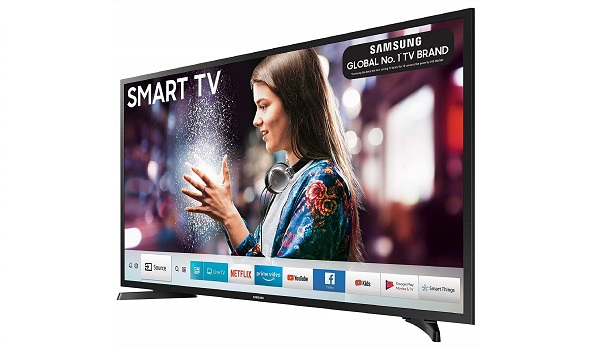
9 Common Smart-TV problems and how to resolve them quickly
9 Common Smart TV problems and their solutions include:
- Wi-Fi connectivity problems
- Pixilation
- Unable to recognize inputs
- Smart TV not turning on
- Lagging or Slow Performance
- Blank Screen/No Sound
- Black Bars on either sides
- Auto Power off
- Limited memory size
Wi-Fi Connectivity Problems in smart-TV

According to the U.S stream content weekly, 80% of households with smart TV are faced with Wi-Fi connectivity issues, which prevent them from streaming their desired entertainment. Simple steps to follow to solve this problem:
- Check Wi-Fi Settings and ensure the correct network name and password are entered
- Restart your router or unplug the router, wait for 30 seconds, and plug it back in to refresh the connection
- Reposition the Router, you can move the router closer to the TV or eliminate obstacles that might interfere with the signal.
- Use a Wi-Fi Extender if the TV is far from the router
Pixilation IN Smart-TV
Another common problem is pixilation, where the picture quality breaks down into small squares with distorted colors. Here are a number of solutions to it.
- If, you use a HDMI cable, ensure it is properly plugged-in into both the TV and the device you’re streaming from
- Also try to access your TV picture settings, locate the TV picture mode settings, refresh rate settings and try to play around the adjustment to see if the pixilation dissolves
- If any of these does not work, you may require the help of a technician
Unable to recognize inputs in Smart-TV
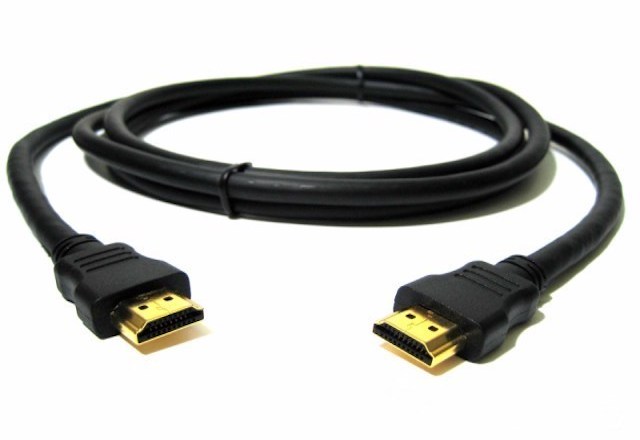
If your Smart TV is not recognizing inputs such as HDMI, USB-playback, etc. you may not be able to connect to gaming consoles, external streaming devices, e3tc. To solve this, you can do the following:
- Check your input settings to be sure you have selected the right input to connect to external devices. Select the “input” or “source” button on your remote control and ensure it matches the devices you want to connect to
- Disable/Enable HDMI CEC: This option allows you to control multiple devices via a single remote control, however, if not properly configured, it could be a problem. Access your TV menu option, Disable/Enable the HDMI CEC and reconnect the device
- You should also check if the HDMI cable is not totally damaged.
Smart TV not turning on

Here’s what you should do when encountered with this issue:
- Plug the TV directly to a power source, sometimes, using a power strip/protector can be the issue, so, just try to plug in directly and turn it on.
- Unplug the TV for 5 minutes, sometimes there’s excess power supply in the TV, this action helps the TV to discharge excessive power supply and remove residual information.
- Try the factory reset button on your TV, ensure your data on the TV is backed up before doing this.
Lagging or Slow Performance in Smart-TV
Smart TVs may experience lag or stuttering during use, affecting the viewing experience. Try to:
- Restart the TV, this refreshes the system and can clear temporary issues. Also, uninstall unnecessary apps and clear cache data to free up memory.
- Check for and install software updates to enhance performance.
Blank Screen/No Sound in Smart-TV
If you have a blank screen or no sound despite the TV being powered on. Solution, try the following:
- Check Cable Connections to ensure all cables are securely connected and try different HDMI ports.
- Verify Input Source to make sure the correct input source is selected in the TV settings.
- Restarting the TV, sometimes, a simple restart can resolve temporary glitches.
- Adjust Audio Settings, check the audio settings and ensure external devices are properly connected
Black Bars on either sides in Smart-TV
Black bars usually happen when the aspect ratio of what you’re watching does not match the aspect ratio of your TV. To fix this, try adjusting the picture settings on your TV.
Auto Power Off in Smart-TV
Another common problem as lodged by users is the Smart TV turns off unexpectedly while in use, simply do the following:
- Disable Sleep Timer, check the settings and disable any sleep timer that may be activated.
- Inspect Power Connections, ensure the power cord is securely connected and try a different outlet if necessary
Remote Control Issues in Smart-TV
The TV’s remote control may not work, or it may not be paired correctly with the TV. To resolve this, simply do the following:
- Replace Batteries, if the remote control is not responding.
- Re-pair the Remote, most Smart TVs make use of Bluetooth remote control, follow the pairing instructions in the TV’s manual to re-establish the connection between the remote and the TV.
- Use Physical Buttons on the TV to navigate the menu and adjust settings as a temporary solution if the remote control is not functioning at all,
- Consider a Universal Remote that is compatible with your TV model. This can provide a convenient alternative to the original remote.
Conclusion
In conclusion, Users can often resolve these issues through simple troubleshooting steps, such as checking settings, restarting devices, and adjusting picture settings. The solutions provided — ranging from checking cable connections to repositioning routers and performing factory resets — empower users to take control of their smart TV experience. Furthermore, recognizing when to seek professional help can prevent further complications and ensure that the TV operates smoothly. As smart TVs continue to evolve and become integral to our daily lives, being equipped with knowledge about common problems and their solutions will enhance user satisfaction and enjoyment. By addressing these issues proactively, users can maximize their smart TV’s capabilities and enjoy uninterrupted entertainment.
Author:Ifeoluwa Adeleke
Add MobilityArena as a preferred source on Google
The recently introduced Apple Intelligence on iPhone 15 Pro comes with advanced AI capabilities in these devices. However, users in their numbers have reported several challenges about this software. I discuss some of the problems and potential solutions based on search trends.
- Performance Issues
- Software Bug
- Functionality Constraints
- Early Adoption Challenges
- Conclusion
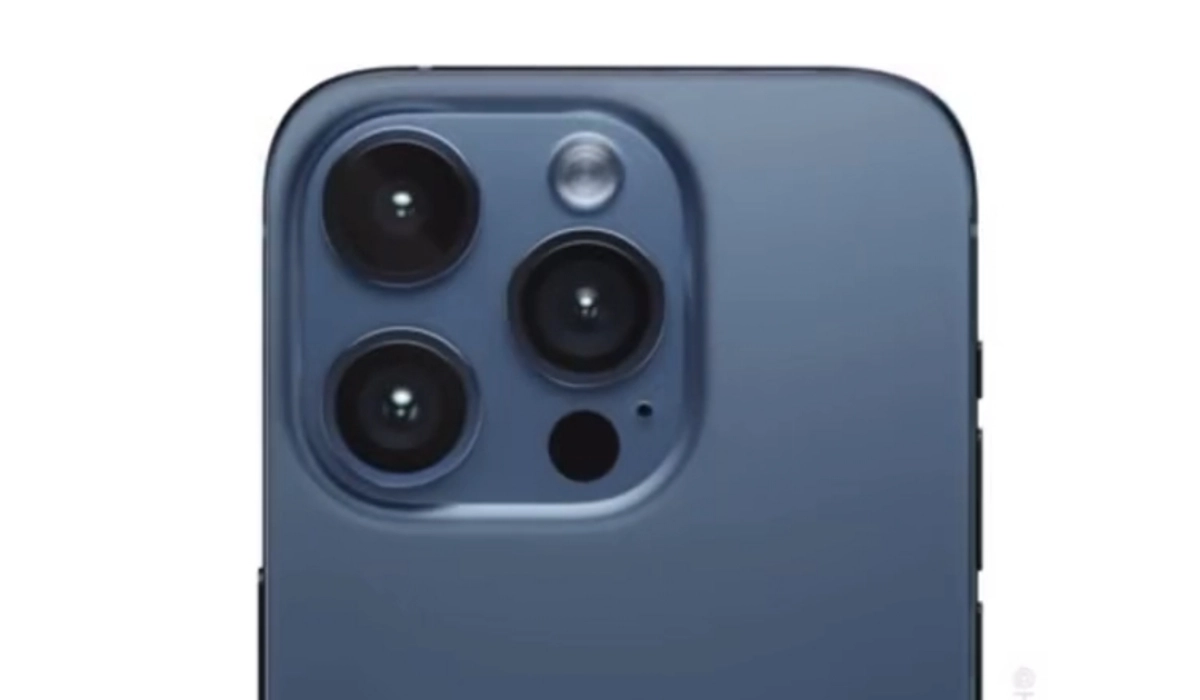
Common Issues with Apple Intelligence on iPhone 15 Pro and Their Solutions
Performance Issues
The iPhone 15 Pro and 15 Pro Max users often complain about the certain glitches such as Unresponsive Keyboard, Unresponsive Screen, Issues with the “tap to wake” function, Overheating, Sound glitches when typing, Dynamic Island display problems, etc. Here are simple steps to resolving these glitches:
- Update to the latest iOS version as Apple frequently releases patches for such issues.
- Regularly restart your phone to clear temporary glitches
- Try resetting all settings (Settings > General > Transfer or Reset iPhone > Reset > Reset All Settings)
- In case of severity, consider a factory reset or contacting Apple Support.
Software Bug

The iPhone 15 Pro users encounter app crashes and system glitches related to Apple Intelligence features and this can be frustrating while using the device. Here are few steps to deploy to solve these problem:
- Ensure to keep your apps updated to ensure compatibility with the latest iOS version.
- Regularly clear app caches or reinstall problematic apps.
- Then there’s the option to report persistent bugs to Apple through the Feedback app or their website, this will help them work on the glitch(es)
Functionality Constraints
Some users still find Siri struggling with certain tasks, even with the Apple Intelligence. Here are a few steps to take to handle this issue:
- Explore Siri’s capabilities thoroughly and use specific commands.
- Provide feedback to Apple about desired features.
- Consider using third-party AI assistants for tasks Siri can’t handle
Early Adoption Challenges
The Apple Intelligence is in beta, hence users are faced with the problem of inconsistent performance and limited functionality. Here are proffered solutions to solve this glitch:
- You definitely have to be patient and regularly update your device as improvement rolls out
- Ensure to participate in the beta program to give feedback directly to Apple.
- Use alternative apps or services for critical tasks until the features stabilizes
Conclusion
In conclusion, these problems can be frustrating, hence, regularly updating the device, restarting it, and clearing caches can resolve many performance issues. For software bugs, keeping apps updated and reporting persistent issues to Apple can help. Users struggling with Siri’s limitations can explore alternative AI assistants or provide feedback to Apple for future improvements. It’s important to remember that Apple Intelligence is still in its early stages, and many of these issues are likely to be addressed in future updates. As Apple continues to refine and expand the capabilities of this technology, users can expect a more seamless and powerful AI experience on their iPhone 15 Pro devices. In the meantime, patience and proactive troubleshooting can help users make the most of their devices while Apple works on enhancing the Apple Intelligence features. As the technology matures, it promises to offer even more advanced AI capabilities, potentially revolutionizing how we interact with our smartphones.
