Add MobilityArena as a preferred source on Google
The iPhone 15 Pro is a strong device that made and is still making waves in the tech world. However, as sophisticated as it could be, there’s no cutting-edge technology or device that is immune to teething problems. Users from different parts of the world have reported several software bugs that’s affecting the overall experience of the device. Stick to this article as I walk you through the most common issues and provide alongside with it the effective solutions to keep your iPhone 15 Pro running smoothly.

- Overheating Dilemma
- Battery Drain Issue
- Performance Lag and Choppiness
- Sound Glitches When Typing
- Startup Freeze During Data Transfer
- App Crashes with Apple Intelligence
- Wi-Fi Connectivity Issues
- Screen Image Retention
- Auto-Focus Camera Problems
- Conclusion
Overheating Dilemma

The number one on the list of the bugs affecting the iPhone 15 Pro is the device becoming uncomfortably hot during intensive tasks like gaming, FaceTime calls, and 4K video recording. This doesn’t allow users to have a good experience while using the device for heavy tasks as aforementioned. Consider the following options to solve the overheating problem:
- Close background apps and avoid multitasking during intensive activities.
- Remove any case that might be trapping heat. You can use a ventilated designed case.
- Update to the latest iOS version, as Apple has released patches to address this issue.
- If the problem persists, consider resetting all settings or contacting Apple Support.
Battery Drain Issue
Users have reported that the rate at which the battery drains especially after initial setup is alarming and unpalatable. Long lasting battery life enhances the user experience of this device. You can fix this by following these simples steps:
- Allow your phone a few days to optimize battery usage after setup.
- Check battery health. Simply go to Settings > Battery > Battery Health & Charging.
- Identify and limit usage of power-hungry apps.
- Enable Low Power Mode when necessary, especially when the battery-power level is below 40%
- Consider replacing the battery if health is below 80%.
Performance Lag and Choppiness
The device is reported to be lagging and having a choppy performance, possibly due to iOS 17 compatibility issues. Device lagging can definitely be annoying and frustrating especially when you’re in haste to perform certain activity, especially if you do gaming with the device. I recommend you do the following:
- Update all apps to their latest versions.
- Clear app caches regularly.
- Perform a force restart: quickly press Volume Up, then Volume Down, then hold the Side button until the Apple logo appears.
- If issues persist, try resetting all settings or performing a clean install of iOS.
Sound Glitches When Typing
If you are like myself that likes the tapping click sound of the iPhone keyboard, I so much love that sound, but it can be frustrating sometimes when suddenly the sound glitches when using the keyboard, you hear the sound now and suddenly you can’t hear and goes on and off like that. You can simply get it fix by:
- Check if the issue occurs with specific apps and update them.
- Toggle off keyboard sounds and back on. You can do this by going to Settings > Sounds & Haptics > Keyboard Feedback.
- Reset all settings if the problem continues.
Startup Freeze During Data Transfer
Some users have reported that the device gets stuck in a boot loop at the Apple logo during initial setup when transferring data from previous iPhone to the iPhone 15 Pro. Follow these steps to solve the issue.
- Update to iOS 17.0.2 or later before attempting data transfer.
- If stuck, force restart the device.
- As a last resort, set up as a new device and manually transfer data
App Crashes with Apple Intelligence
- Keep all apps updated to ensure compatibility.
- Clear app caches or reinstall problematic apps.
- Report persistent crashes to Apple and app developers.
- Consider disabling certain Apple Intelligence features temporarily if crashes continue.
Wi-Fi Connectivity Issues

Futuristic glowing low polygonal wifi symbol made of stars, lines, dots, isolated on dark blue background. Modern design vector illustration.
Another problem encountered by users is the slow or fluctuating Wi-Fi speeds. To get this solved, follow these simple steps:
- Forget the network and rejoin.
- Reset network settings by going to Settings > General > Transfer or Reset iPhone > Reset > Reset Network Settings.
- Update your router’s firmware.
- Contact your ISP if problems persist across multiple devices.
Screen Image Retention
How about the temporary image retention on OLED screen displays? It can be frustrating as well. But there’s always a solution to problems as such. Follow these guides:
- Update to iOS 17.1 or later, which addresses this issue.
- Avoid displaying static images for prolonged periods.
- Use auto-brightness and reduce screen timeout.
- If issues persist, contact Apple Support as it may be a hardware problem.
Auto-Focus Camera Problems
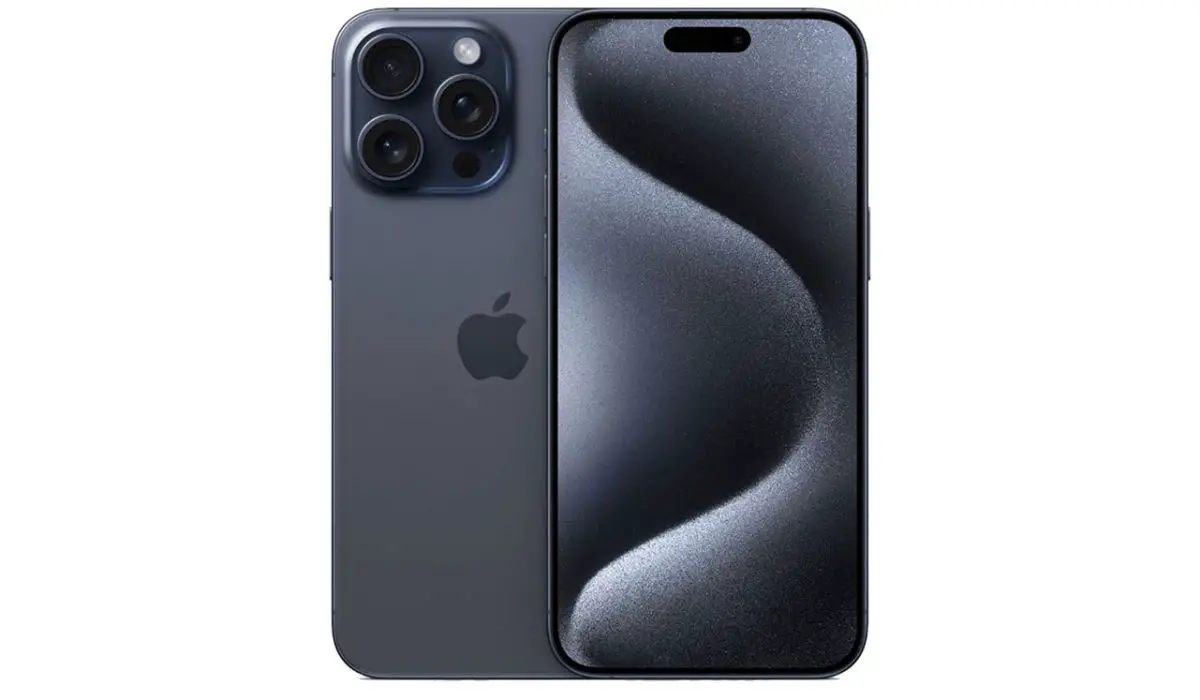
The iPhone 15 Pro device camera is superb, no doubt, but the blurry images due to auto-focus issues can be annoying. This can sorted by following these simple steps:
- Ensure the camera lens is clean and free from obstructions.
- Update to the latest iOS version for camera software improvements.
- Try resetting camera settings (Settings > Camera > Reset Camera Settings).
- If problems continue, contact Apple Support as it could be a hardware issue.
Conclusion
Following these solutions, you can tackle the most common bugs affecting the iPhone 15 Pro. Remember, Apple continuously works on improving iOS, so keeping your device updated is crucial. If you encounter persistent issues, don’t hesitate to reach out to Apple Support for personalized assistance.
Author:Ifeoluwa Adeleke
Add MobilityArena as a preferred source on Google
Storage optimization of your iPhone 15 Pro not only frees up space but also enhances overall performance of the device. The iPhone 15 Pro is a powerhouse of technology, even at that, most advanced devices will operate better when there’s proper storage management. I have put together a guide to effectively optimize your iPhone 15 Pro’s storage for peak performance.
- A Better Understanding Of Your iPhone 15 Pro’s Storage
- Storage Optimization Techniques Make Use of The iCloud Photos Offload Unused Apps Clear Safari Cache and Website Data Manage Messages and Attachments Optimize Music and Podcast Storage Use “Optimize Storage” for TV Shows and Movies Review and Delete Large Files Utilize Third-Party Cloud Services Regularly Update Your Apps and iOS
- Conclusion
A Better Understanding Of Your iPhone 15 Pro’s Storage
Before we dive into optimization techniques, it’s crucial to understand how your iPhone uses storage. To know this, go through the following steps:
- Go to Settings > General > iPhone Storage
- Here, you’ll see a breakdown of your storage usage by category (apps, photos, system data, etc.)
- Review the recommendations provided by iOS for potential space savings
Storage Optimization Techniques
Below are the Storage optimization techniques I have put together to help you enhance the performance of your iPhone 15 Pro.
Make Use of The iCloud Photos

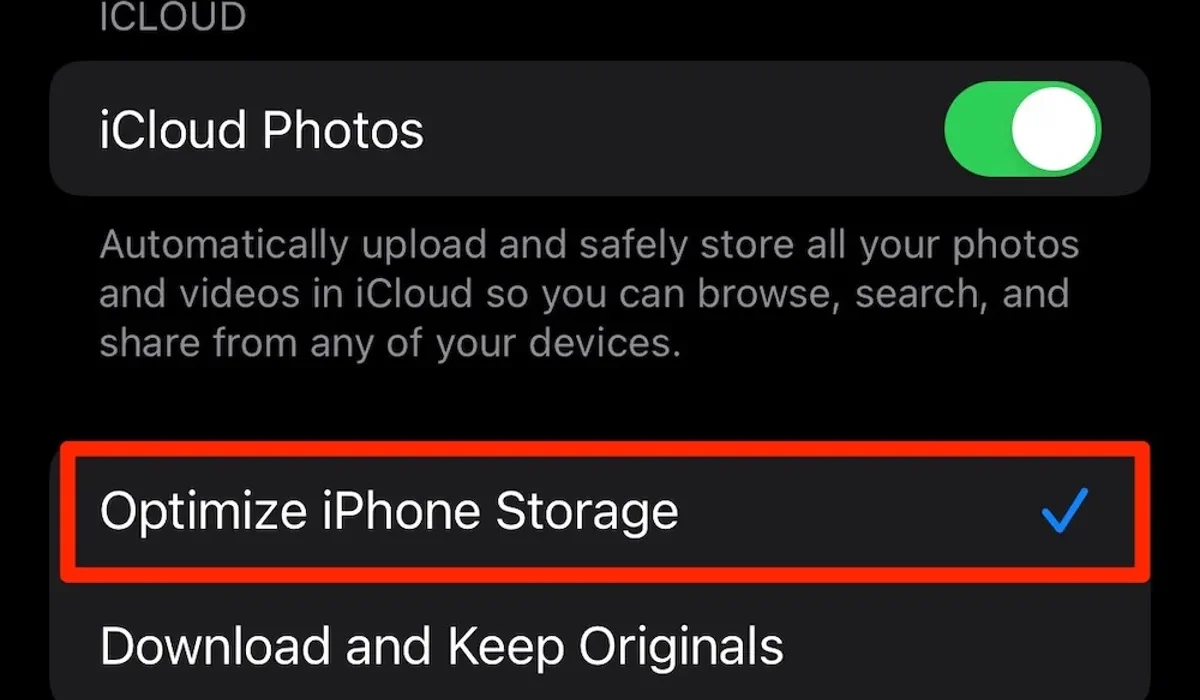
One of the major tools for optimizing your iPhone 15 Pro is the iCloud Photos. It is a powerful tool for managing your photo library, besides, your photos are securely saved in the iCloud and can be accessed anytime, anywhere on any Apple device. Simply follow these steps to optimize your device via the iCloud photos:
- Go to Settings > [Your Name] > iCloud > Photos
- Enable “iCloud Photos”
- Select “Optimize iPhone Storage”
This setting keeps full-resolution photos and videos in iCloud while storing space-saving versions on your device. You can always download the originals when needed.
Offload Unused Apps
Sometimes, there are apps that are really not needed on your device and just occupying space. Another way to optimize your device is to offload these unused apps. The iOS offers a feature to automatically offload unused apps. To do this, follow the steps below:
- Go to Settings > App Store
- Enable “Offload Unused Apps”
This removes the app but keeps its documents and data. The app icon remains on your home screen and can be quickly re-downloaded when needed.
Clear Safari Cache and Website Data
Web browsing can accumulate significant data over time. Clearing the Safari cache will even enhance the internet surfing on your device. You can clear the caches by following these steps:
- Go to Settings > Safari
- Tap “Clear History and Website Data”
Remember, this will log you out of websites, so ensure you know your login credentials.
Manage Messages and Attachments
I bet you keep loads of unnecessary messages on your device. Messages can take up surprising amounts of space. Properly managing this will enhance your device performance. You can manage this by simply doing the following:
- Go to Settings > Messages
- Under “Message History,” select “Keep Messages” for 30 days or 1 year instead of “Forever”
- Enable “Auto-Delete Old Conversations”
Sometimes you have lage message attachments. To delete large attachments:
- Go to Settings > General > iPhone Storage > Messages
- Review “Top Conversations” and delete large attachments
Optimize Music and Podcast Storage
Another option to consider to enhance your device is the Music and Podcast optimization. Simply do the following:
- Go to Settings > Music
- Enable “Optimize Storage”
For podcast enthusiasts:
- Open the Podcasts app
- Go to Settings > Automatically Delete
- Choose “After Playing” or “When Space is Needed”
Use “Optimize Storage” for TV Shows and Movies
This is for movie and TV show lovers. If you are the type that downloads content from Apple TV+, stored up videos might slow down the performance of your device. To optimize, simply:
- Go to Settings > TV
- Enable “Optimize Storage”
This automatically removes watched videos when storage is low.
Review and Delete Large Files
This is another option to consider to optimize your device storage. The iOS 15 and later versions offer an easy way to find and delete large files. Follow these steps given below:
- Go to Settings > General > iPhone Storage
- Scroll through the list of apps
- Tap on apps with large file sizes to review and delete unnecessary content
Utilize Third-Party Cloud Services

Creative background, the image of the hologram of the cloud, blue background. The concept of cloud technology, cloud storage, a new generation of networks. Mixed media.
There are other third-party cloud options to also consider, they are as effective as iCloud. You can make use of services like Google Photos, Dropbox, or OneDrive to offload photos, videos, and documents from your device.
Regularly Update Your Apps and iOS
You can never go wrong with ensuring that your device is regularly running on update iOS. Keeping your apps and iOS updated can improve efficiency and sometimes reduce storage usage. You can do this by following this steps:
- Go to Settings > General > Software Update
- Enable “Automatic Updates”
Conclusion
Optimizing your iPhone 15 Pro’s storage is an ongoing process. Regularly reviewing your storage usage and implementing these strategies will ensure your device maintains peak performance. Remember, a well-managed iPhone not only has more space but also runs more efficiently, providing a smoother user experience.
By following these steps, you can enjoy the full potential of your device, making the most of its advanced features without being hindered by storage constraints.
