Add MobilityArena as a preferred source on Google
Despite the iPhone being a powerful device, it needs some care to maintain optimal operation, like many other devices. The battery is among iPhone components that are most likely to malfunction first. So it becomes important to maintain your iPhone’s battery health so your phone doesn’t just stop working one day.
But how can you achieve this? In this article, I’ll explain how to maintain your iPhone’s battery health effectively. Of course, all iPhone batteries will degrade eventually, but these tips will give yours a chance to last even longer.
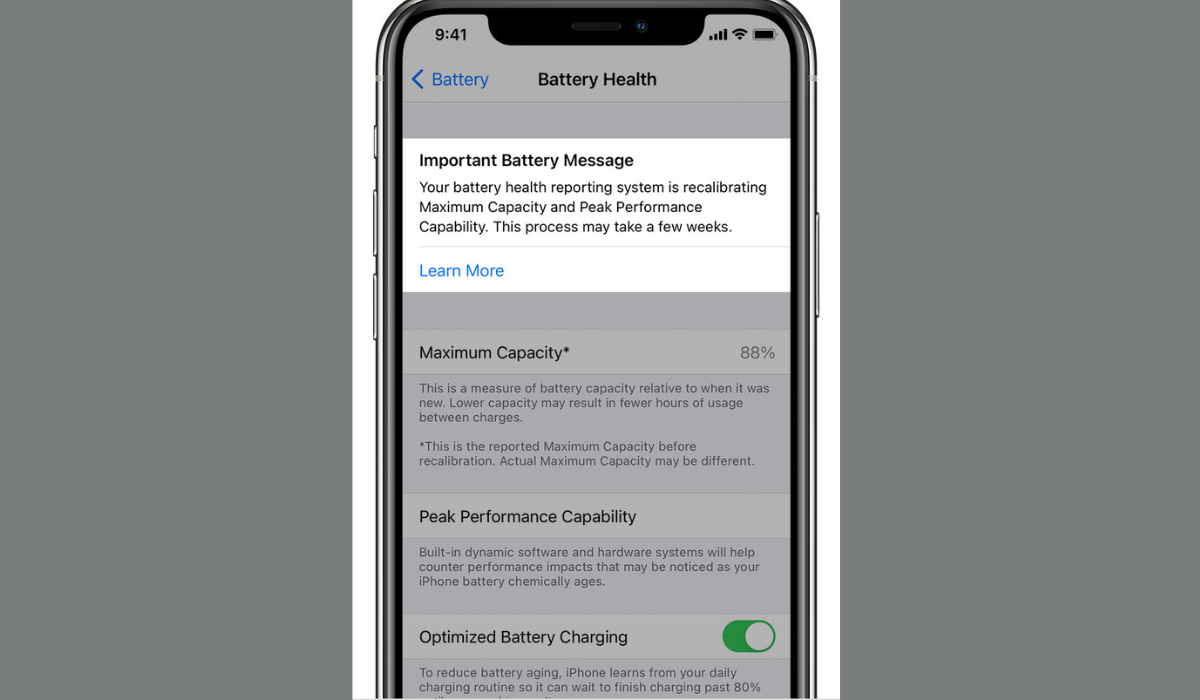
How Can You Maintain Your iPhone’s Battery Health?
The battery life of an iPhone depends on different factors, so there’s no way to tell how long it will last. However, if you want to significantly prolong your smartphone’s usefulness, here are some techniques to maintain your iPhone’s battery health for as long as possible.
Don’t Maximize Charge Cycles
According to Apple, iPhones retain just about 80% of their initial battery capacity after 500 charge cycles. You complete a charge cycle when you have used up all of the battery on your iPhone, for instance, 50% yesterday and 50% today.
As a result, your iPhone uses less charges overall and has a longer battery life the less you use it. Without installing an app, you can see how many battery cycles your iPhone has gone through.
Furthermore, letting the device stay fully charged or completely depleted for long can have a negative impact on the battery health of your iPhone. So, you should make every effort to maintain your device’s battery level between 40% and 80% at all times. This is one of the top tips to maintain your iPhone’s battery health.
Don’t Leave your iPhone Uncharged
The battery cells that make up lithium-ion batteries have a finite lifespan, so you need to maintain your iPhone’s battery health if you want to enjoy the benefits of your smartphone for a long time
Letting your phone’s battery die fully is one of its biggest destroyers. If a battery cell depletes and is kept that way for an extended period of time, it may enter a deep discharge state and never perform well again.
Fortunately, iPhone batteries retain some reserve energy even when the device is turned off, preventing this issue. But remember to charge your iPhone as soon as you can if it runs out of power.
Avoid total battery depletion by using your iPhone’s Low Power mode once it gets to 20% or lower. This can extend its battery life until you can find an outlet to charge.
Turn Off Unused Features
Turn off any features you don’t really need to consume fewer charge cycles and maintain your iPhone’s battery health. These may include battery-depleting functions like Bluetooth, location settings, background app refresh, and push notifications, all of which can be found in the Settings app.
This is just one of the ways to extend the life of a full battery charge on your iPhone. You can also lower the brightness of your iPhone, enable fewer notifications to stop them from constantly waking up your lock screen, and disable the always-on display if your iPhone has one.
Don’t Plug Your iPhone Overnight
It’s the most convenient choice, so most people charge their phones overnight. The downside of doing this is that an iPhone can suffer damage to the battery due to overcharging, which will shorten the lifespan of your phone.
Overcharging your battery on a regular basis harms it by forcing more current into already full cells than they are designed to hold. It also means that your iPhone spends the majority of the night charging, which is not great if you’re trying to maintain your iPhone’s battery’s health.
Fortunately, there is a built-in, optimized battery charging feature to help maintain the health of your iPhone’s battery in this regard. It can be enabled by selecting Settings > Battery > Battery Health & Charging and selecting Optimized Battery Charging . Your iPhone will learn this pattern and delay charging to 100% until just before you need it if you unplug it at roughly the same time each day.
Avoid Charging and Using Your Phone Simultaneously
Of course there’s nothing wrong with briefly browsing social media or reading messages while you charge your iPhone. However, avoid playing video games for an extended period of time while charging your iPhone.
Multiplayer games, in particular, have a tendency to overheat your device. Charging your device at the same time will only exacerbate the problem and harm your iPhone’s long-term battery health.
Therefore, it’s essential to charge ahead of your game instead as a safe way to maintain your iPhone’s battery health.
Use Only Authorized Apple Chargers
Many companies manufacture low-quality or counterfeit iPhone chargers. While these chargers can still charge your device, they are not Apple-certified, which means they do not maintain the same quality and compatibility with your iPhone’s battery.
Use only Apple-approved accessories for your protection and to maintain your iPhone’s battery health. Lightning cables are among the officially approved items for charging iPhones. They help safeguard against power surges and short circuits that might otherwise endanger your safety or harm the phone’s internal parts, including the battery.
Avoid Extreme Temperature Changes
Keeping your iPhone away from extreme temperatures will help it last its entire life without causing damage to its core components. As a result, keeping this in mind can help maintain your iPhone’s battery health.
Extremely cold temperatures can shorten battery life by affecting the battery’s ability to hold charges or causing it to stop working entirely. Extreme highs, on the other hand, may prevent you from using some of the features of the phone indefinitely. For instance, it could lead to cracks in the actual device, which may affect battery life in general.
Buy an iPhone Case
Most of us have probably dropped our iPhones at some point. Despite the fact that the iPhone’s ceramic shield adds to the device’s durability, a case is still a good idea.
The battery health of your iPhone will be impacted by repeated impacts on hard surfaces, which will inevitably cause internal component damage over time. So to maintain your iPhone’s battery health, don’t overlook the place of a good phone case.
Update to the Latest iOS Version
Updating the device’s operating system is an important way to maintain your iPhone’s battery health. Your iPhone receives software updates over time that improve its speed and performance. Long-term battery health is maintained in this way.
Furthermore, these updates frequently include new battery-saving features that you can enjoy. To see if an update is available for your device, go to Settings > General > Software Update .
All in all, Apple’s lithium-ion batteries will naturally degrade with use, but you can still make a difference in overall performance by taking care of your iPhone’s battery. So follow the guidelines above to maintain your iPhone’s battery health. And if all else fails, Apple can replace your battery if the need arises.
Author:Joan Agie
Add MobilityArena as a preferred source on Google
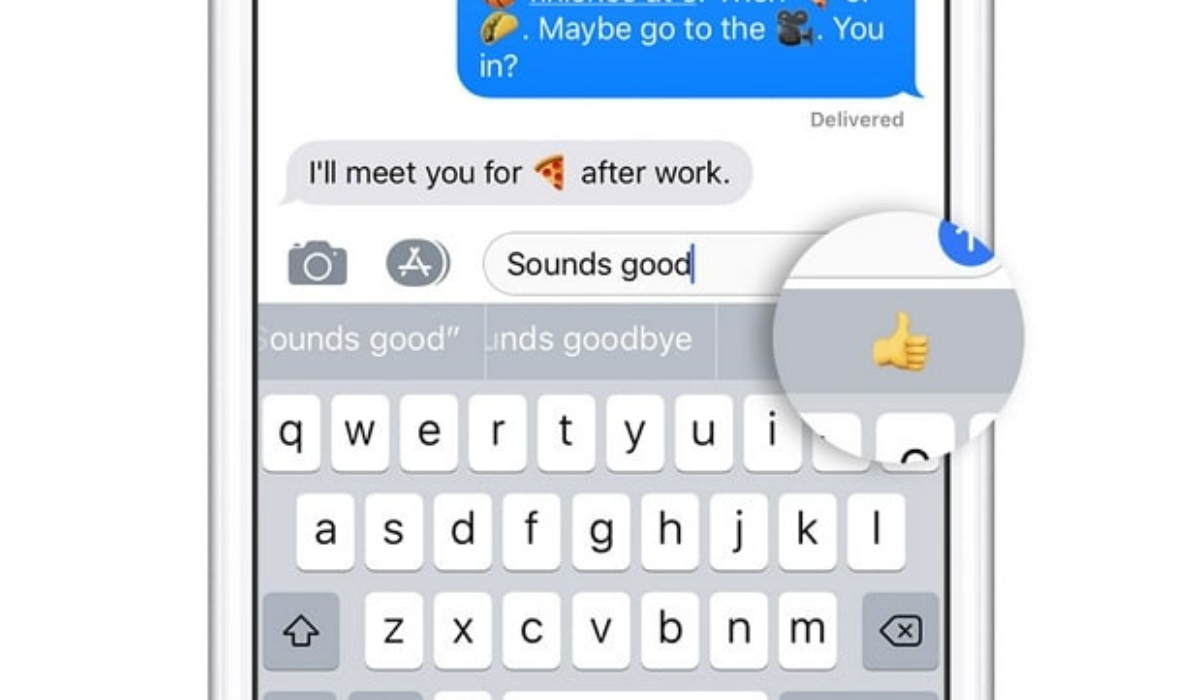
You know when you’re texting and an emoji you’re thinking of pops into the suggestions on your keyboard? That’s what the Predictive emoji feature does. In this article, I’ll show you how to fix predictive emoji not working on iPhones or iPads.
It is a useful feature of iOS and iPadOS devices that uses machine learning to suggest emojis as you type above your keyboard. So if this feature ever stops working to predict emojis while you type, here are some tips to fix it.
- How Can You Fix Predictive Emoji Not Working on iPhones or iPads? Ensure Predictive Emojis Are Turned On Switch to Apple’s English Keyboard Reconfigure Apps to Predict Emoji Delete and Re-add Your Emoji Keyboard Restart Your iPhone or iPad Reset Your Keyboard Dictionary Update Your Software
How Can You Fix Predictive Emoji Not Working on iPhones or iPads?
If your keyboard is no longer suggesting emojis for you to use while you text, it means the predictive emoji on your iPhone or iPad is no longer functioning. Not to worry though, the solutions described below will help fix predictive emoji not working on iPhones or iPads. Side note, if you’re looking for new emojis on Android, check out this guide .
Ensure Predictive Emojis Are Turned On
The first thing to do to fix predictive emoji not working on iPhones or iPads is to check if your device has the Emoji keyboard enabled. Navigate to Settings > General > Keyboard > Keyboards > Add a New Keyboard , then search for and select Emoji .
Now check to see if the Predictive function is turned on. Return to Settings > General > Keyboard and turn on the Predictive toggle.
Switch to Apple’s English Keyboard
Although you can use a ton of awesome third-party iPhone or iPad keyboards, not all of them have a predictive emoji feature. So, if you’re using a third party keyboard and want to fix predictive emoji not working on iPhones or iPads, try switching back to the official Apple keyboard.
To do this, click and hold the Emoji or Globe icon in your keyboard’s bottom-left corner, and then click the English keyboard.
The keyboard language must match what you are typing too, else it will remain unable to predict the right emojis.
Reconfigure Apps to Predict Emoji
Your iPhone or iPad uses the information you provide to make suggestions based on your typing style and previous usage. Keeping this in mind, it’s possible that the absence of predictive emoji suggestions in a given app is due to your infrequent use of emojis in that app. Fortunately, if this is the issue, it won’t be hard to fix predictive emoji not working on iPhones or iPads.
To do so, access the app in which the predictive emoji feature doesn’t work. Once in, click on the Emoji icon at the bottom-left corner to access the Emoji keyboard.
Now start typing emojis anyhow you like. It’s not necessary for them to make sense, but just include enough of them to show your device that you do enjoy using emojis when you type on the app.
Now, delete all the emojis you previously typed and test predictive emoji by typing a word like “angry,” “food,” or “funny.” Above the keyboard, you should now see emoji suggestions, meaning that you’ve been able to fix predictive emoji not working on iPhones or iPads.
Try this fix for any and every app on which predictive emoji doesn’t work, I’m sure you’ll get good results.
Delete and Re-add Your Emoji Keyboard
By deleting it and re-adding your emoji keyboard, you can also reset it to fix predictive emoji not working on iPhones or iPads. To do so, navigate to Settings > General > Keyboard . Click on Keyboards , next swipe left on the Emoji option, and select Delete .
To re-add Emoji, select Add New Keyboard and then Emoji .
Restart Your iPhone or iPad
Try restarting your iPhone or iPad if all other attempts to resolve the issue fail. A simple reboot can sometimes clear up issues and bugs, which may be sufficient to fix predictive emoji not working on iPhones or iPads.
Reset Your Keyboard Dictionary
Try resetting your keyboard dictionary if the predictive emoji feature still doesn’t work. Your iPhone or iPad will lose any words you’ve taught it as a result, so you might need to fix autocorrect mistakes on your Apple devices once more. However, it will also provide you with a blank canvas to re-teach the device that you enjoy using emojis.
To do so, navigate to Settings > General , then scroll down and choose Transfer or Reset iPhone . Now select Reset > Reset Keyboard Dictionary from the menu. You must enter your passcode and then confirm your intention to Reset Dictionary .
You can now feed emojis into your keyboard to re-teach your iPhone or iPad that you enjoy using emojis in all the relevant apps.
Update Your Software
With each update, Apple strives to improve the software on your iPhone and iPad. These updates address common bugs that irritate users, such as when the predictive emoji feature stops working. So, to fix predictive emoji not working on iPhones or iPads, go to Settings > General > Software Update to update your software to the most recent version of iOS or iPadOS.
If your software is out of date, you’ll notice a Download and Install button at the bottom of the screen. To finish the update, tap it and follow the prompts.
To conclude, emojis have become an integral element of our online communication. Apple’s Predictive Emoji function is a useful tool, and that’s why I hope that this guide has helped you to fix predictive emoji not working on iPhones or iPads. You can also get help from Apple if you need further guidance.
