Add MobilityArena as a preferred source on Google
Alcatel Go Flip 3 aka SMARTFLIP Quick Specs : KaiOS 2.5 smart feature phone. Announced in September 2019, it features a 2.8-inch display, Qualcomm Snapdragon 210 chipset, 512 GB RAM, 8 GB internal memory, and a removable battery.
Phone Status : Official. Alcatel Go Flip 3 is available on US carriers, T-Mobile and Metro by T-Mobile, and also sold as Alcatel SMARTFLIP on AT&T and Cricket Wireless.
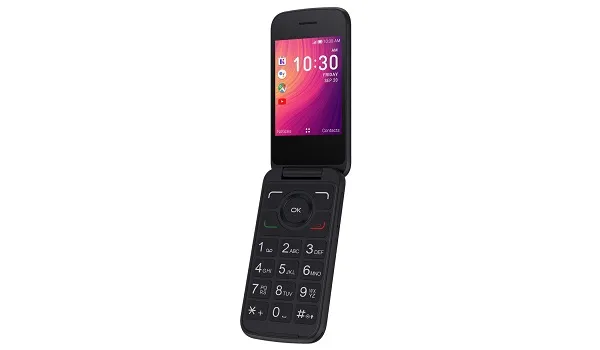
Like the Nokia 8110 4G , Alcatel Go Flip 3 has access to apps via the KaiStore. Available apps include Google Maps, Google Assistant, YouTube, WhatsApp, Facebook, Twitter, and others.
Alcatel Go Flip 3 Specs and Features
Wireless Network and Software
- 2G mobile network bands : GSM, GPRS, EDGE 850 / 900 / 1800 / 1900 MHz.
- 3G mobile network bands : UMTS, WCDMA, HSDPA 850 / 900 / 2100 MHz
- 4G mobile network bands : LTE 1(2100) / 3(1800) / 5(850) / 40(2300) / 41(2500)
- 5G mobile network bands : No.
- SIM Type : Nano-SIM, Dual SIM
- Software / OS : KaiOS 2.5
Design, Form Factor, Appearance
- Dimensions : mm
- Weight : g
- Display : 2.8 inches, 16:9 aspect ratio, IPS LCD display.
- Colours : Black.
- Physical Build : Plastic.
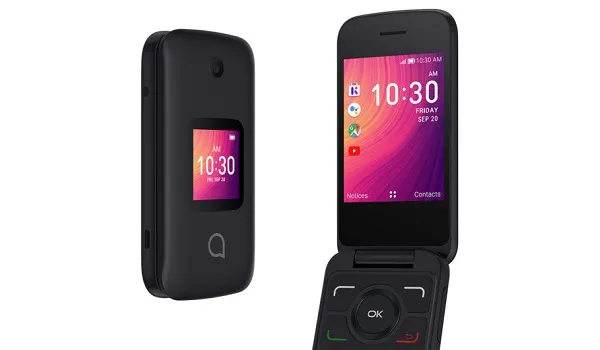
Alcatel Go Flip 3 aka SMARTFLIP is a flip phone running KaiOS 2.5, a smart feature phone OS
Internal Hardware Specs
- Processor Type : 64-bit, 1.8 GHz Octa-core, Cortex-A53
- Processor Name : Qualcomm Snapdragon 210
- Graphics Processor : Qualcomm Adreno 304 (400 MHz)
- RAM : 512 MB
- Internal Storage : 8 GB
- External Storage : microSD, up to 32 GB (dedicated slot)
Photography, Video Recording
- Rear Camera : f2.2 Aperture, LED flash, 1080p@30fps video recording
- Front-facing Camera : , f2.0 Aperture, AI Face Recognition, 720p@30fps video capture.
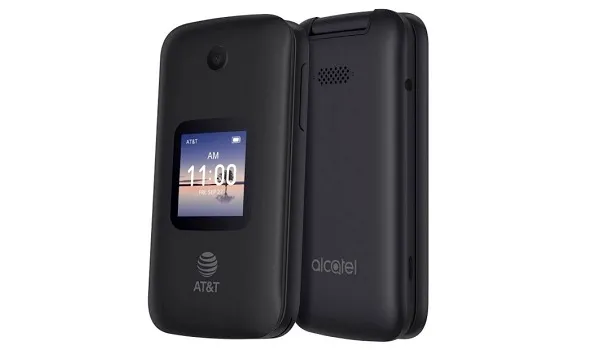
The Go Flip 3 is sold on AT&T and Cricket Wireless as Alcatel SMARTFLIP
Audio, Video Playback
- Music Support : PCM, AAC / AAC + / eAAC + / MP3 / AMR – NB / WB / APE
- Audio : 3.5 mm audio jack
- Loudspeaker : Mono speakers
- Video Support : H.264/MP4/MPEG4 player
- FM Radio :
Sensors
- Digital Compass :
- Accelerometer :
- Proximity Sensor :
- Ambient Light Sensor :
- Barometer : No.
- Pedometer : No.
- Heart Rate Monitor : No.
- Gyroscope (G-Sensor) : No.
- Fingerprint Scanner : No.
- Face Unlock :
- Iris Scanner : No.
- Motion Sensing / Gesture Control : No.
- Voice Control : No.
- Intelligent Digital Assistant : Yes; Google Assistant.
- Infra-red Sensor : No.
Connectivity Options
- Bluetooth : v4.2, A2DP
- WiFi : Wi-Fi 802.11 b/g/n, hotspot Internet sharing
- GPS : Yes, A-GPS,
- USB : microUSB v2.0;
- NFC :
Miscellaneous Specs and Features
- Battery Type and Capacity : Removable Lithium-Ion
- Battery Charging : Regular Charging
- Wireless Charging : No.
- Reverse Charging : No.
- Model Number : N/A
Alcatel Go Flip 3 Price and Launch Date
- Announced : September 2019
- Release Date : September 2019
- Country Availability : United States of America.
- Price : .
MobilityArena Buyer’s Guide Verdict
Not available.
Our Buyer’s Guide Verdict is recommendation that we make based on our evaluation the specs of the device. It is a general guide designed to help you understand how much value a smartphone offers for its price. It is not a stamp of quality assessment or an endorsement of the device or of the manufacturers. Be sure to ask questions and use your judgement when buying any device, as MobilityArena may not be held responsible for your buying decisions .
Alcatel Go Flip 3 Review Rating
We are yet to review the Alcatel Go Flip 3 aka SMARTFLIP and so do not have a review rating for it yet. This section will be updated with our review rating and a link to the review page, as soon as we have a review ready.
- Don’t miss our reviews .
- Join our WhatsApp Group , to be notified of the most important articles and deals,
- Follow us on Instagram , Facebook , Twitter , and YouTube .
Author:InfoDesk
Add MobilityArena as a preferred source on Google
Sometimes – a few times – it could indeed be a problem of “data theft” by the operator. But most times, it is a data management issue. There are certain apps and activities that consume data heavily on your mobile device if not properly managed. This article points out those apps and activities and what you need to do to manage mobile data usage on your smartphone and tablet.
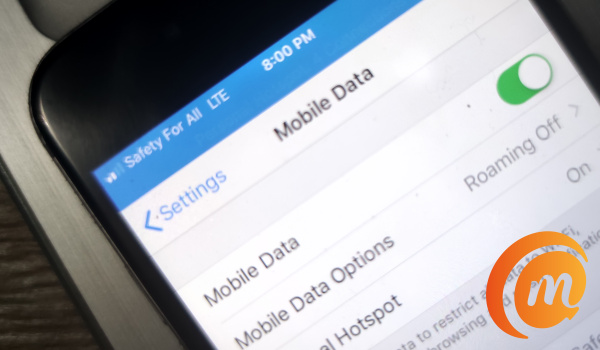
Tip 1 to manage mobile data usage: Turn off Automatic App Updates
If you have lots of apps installed on your smartphone, this could be where the biggest data consumption happens on your device. Why? Mobile application developers now provide updates to their apps almost every other day, which means that each app on your phone gets 3 to 4 updates each week.
Picture a situation where you have a lot of apps installed and have automatic updates enabled. It means you are going to be having all those apps updating on a daily basis. Most apps are 10 MB and above.
On my phone, I often get notifications that there are over 50 app updates waiting for me. At 10MB a piece (and some weigh 3 to 4 times more), I am looking at burning a minimum of 500MB of data a day on app updates alone. In one instance, running all available app updates on my phone wiped out 3 GB of my data bundle.
So, it is a good idea to disable app updates and manually do your updates once a week, once a month, or whenever you have access to a Wi-Fi hotspot. Most of the updates are about minor issues anyway.
To do, it, open Play Store -> Harmburger Menu -> Settings -> Auto-update apps : Select “Don’t auto-update apps”.

Tip 2 to manage mobile data usage:Reduce YouTube video resolution
The screen of a mobile device is small anyway, and reducing the video resolution to 240p will use up less of your data. If you find 240p too poor, 360p will do. To change the video resolution, open the video, click on Settings -> Video resolution/quality : select 240p or 360p. Now, you can watch videos and save on data.

Tip 3to manage mobile data usage:WhatsApp images and video download setting
WhatsApp is a huge data consumer. People are constantly sharing images, video, audio, and documents to you on WhatsApp, and each time those media files are opened and downloaded to your phone, some of your data goes ziiiip.
Disabling automatic download of media files on WhatsApp is something you can do to cut down on how much of your data the app consumes.
Here are the steps to follow: Open your WhatsApp Settings , select “ Data and Storage usage ”, then “ Media auto-download ”. You will see options for when using mobile data, when connected to Wi-Fi, and when roaming. Tap on each one and untick all the boxes except Audio, click OK.
That way, when people send you images and video, they are not automatically downloaded. Another benefit of this is that your phone’s memory doesn’t get clogged up unnecessarily.
Tip 4to manage mobile data usage:Disable Facebook Video Autoplay
By default, as you scroll through your Facebook timeline, whenever you come across a video, it just starts playing. It doesn’t matter whether you like the video or not, it plays and eats up your data. You can disable this feature.
Go to Settings & Privacy -> Settings -> Media and contacts: scroll down to Autoplay .
Then choose whether videos autoplay when you are on mobile data and Wi-Fi, or on Wi-Fi connections only. Or alternatively, select the last option to Never Auto-play Videos . You are done.
Tip 5 to manage mobile data usage: Use less data on Instagram
Launch your Instagram app and open your Profile and tap on the Hamburger menu in the top right corner -> Gear icon at the bottom of the page -> Mobile data use . You can toggle the control there to use less data.
Tip 6 to manage mobile data usage: Enable Data Saver on Twitter
Launch the Twitter app, and go to Settings and privacy -> Data usage -> Data saver . You can enable it to stop videos from autoplaying and to load lower-quality images. Alternatively, in the data usage menu, you can also scroll down to Video autoplay and select “Never” from the available options.
All these controls give you the ability to manage mobile data usage on your smartphone and cut down on your Internet expenses.
- Don’t miss our reviews .
- Follow our news on Google News .
- Join our WhatsApp Group , to be notified of the most important articles and deals,
- Follow us on Instagram , Facebook , Twitter , and YouTube .
Author:Mister Mobility
Digital Skills and Communication Coach | Mobile Phone Connoisseur since 2001 | Tech Blogging since 2004
