Add MobilityArena as a preferred source on Google
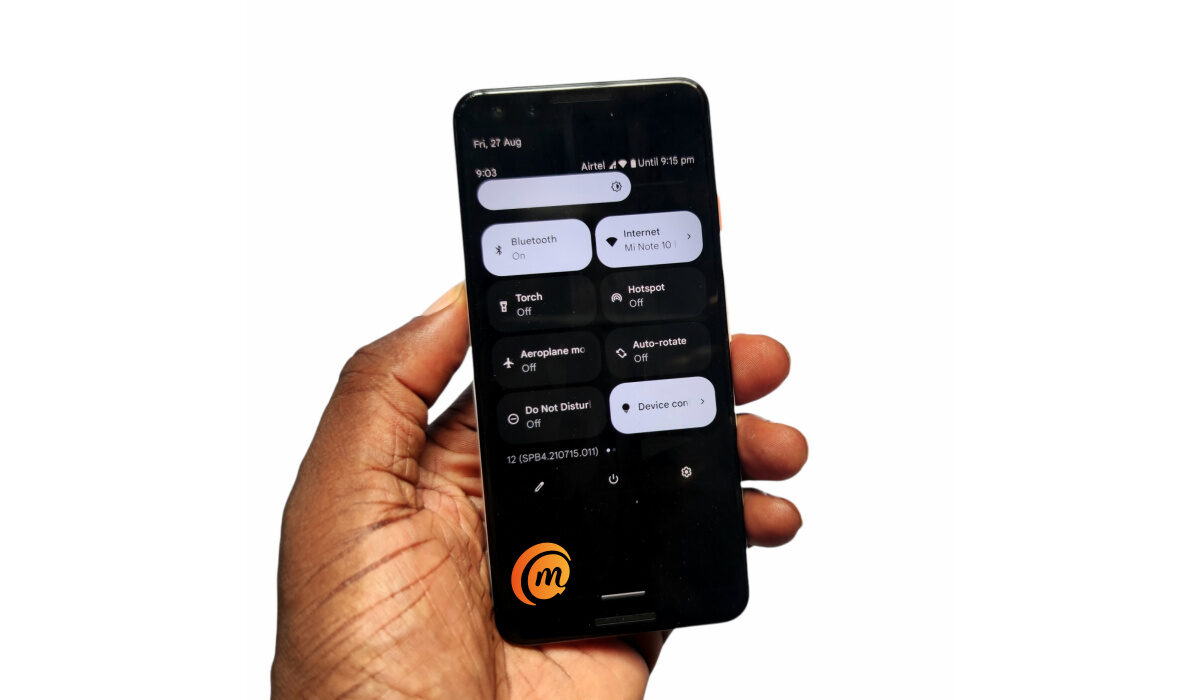
I never thought that I would ever say this, but here we are, and here it is: having used Android 12 beta for about a month now, I am in love with stock Android much more than ever. This is the most gorgeous version of Android yet, and it is so beautiful that almost every custom skin out there looks ugly in comparison. Take note that this Android 12 review focuses on the user interface of the OS.
I like One UI, but after tasting Android 12, I am not quite as excited about it as I used to be. My current driver is the darling Xiaomi Mi Note 10 Pro , and I have enjoyed the MIUI 12.5 experience for the most part. But even that now feels like a tepid experience since my encounter with Android 12.
- What Is The User Experience Of Android 12 Like?
- What Do I Like About The UI Of Stock Android 12?
- Android 12 Review: Conclusions
What Is The User Experience Of Android 12 Like?
If someone were to ask me to describe the user interface of Android 12, the ironic answer would be that it looks like Google took the best parts of One UI and the best parts of MIUI and merged the two to create a masterpiece. That is the impression that I get of stock Android 12.
For example, stock Android 12’s UI isn’t as colourful as MIUI’s. It is more demure, classy, and Zen-like. And it is certainly more flexible, offering a richer set of customization options.
What Do I Like About The UI Of Stock Android 12?
There are lots of things I like about it. I love the cool, calm, colour schemes . I love that the colours of the user interface can be themed to match whatever wallpaper I use. Basically, when you set a wallpaper, the operating system pulls complementary colours from it and uses those to theme the entire system UI of the phone. You can opt to use preset basic colours too, if you want. This is such a beautiful thing, and it reminds me of the glorious days of customization on Symbian OS.

The user interface of stock Android 12
Themed icons is another cool customiation feature that Android 12 brings to the table. If you enable it, the icons of installed apps on the phone are themed to match the colour style you picked for the UI. Personally, I don’t like the results that much, so I have chosen to keep this disabled. But it can and will likely produce better results, and it is great to have the option available.
I like that Android 12 has got rid of Bubbles and chat heads in the stock Google Phone app! Oh, those pesky intrusions on the screen couldn’t go away fast enough, and I am happy that Google is ditching them. Instead, they have been replaced with a chip that displays in the status bar at the top of the screen. Much better. One can only hope that app developers will follow suit as well. Facebook introduced it first, and hopefully they will ditch it too.
The new smart auto-rotate feature is a fabulous idea. Once I pick up a new phone, one of the first things I do is turn off autorotate. Having autorotate on means that every time I recline or lean while using my phone, the display dances and twists and turns. it is a mess. I am not sure how others manage to keep it one, as many in my circle do. But, heck! No.
Anyway, the new smart autorotate system employs the selfie camera to keep track of the position of the user’s head and automatically adjust the screen’s rotation to that. This is what I am talking about when I say smartphones need to get smarter. These damned things have to adjust to the user, and not the other way round, and smart autorotate promises that.
I use the word “promise”, because during my Android 12 beta experience, it didn’t quite work for me. I turned on the setting after it was first made available and autorotate was still turninoninown as it used to do. Then, the feature disappeared from my phone after another software update and has not been back since. No worries; this is beta software. I am looking forward to seeing it again, and working as promised, when Android 12 is pulled out of beta.
Android 12 Review: Conclusions
Android 12 is the biggest change to ever happen in the Android ecosystem in about seven years. The new user interface, Material You, is such a welcome delight. The lads at Google must have worked their butts off to pull this off. Everything looks, feels, and works better.
Android 12 has such a calm, fluid, and lighter appearance than ever before. While I have loved stock Android for years, I am so totally smitten now that it aches a bit just to think of using any phone with a custom Android skin slapped on it.
You will be interested in our recommended Pixel 6 and Android 12 tweaks .
Author:Mister Mobility
Digital Skills and Communication Coach | Mobile Phone Connoisseur since 2001 | Tech Blogging since 2004
Add MobilityArena as a preferred source on Google
Gmail Logo
Sending emails have become a core form of communication in our modern world, whether it is related to school, work or just for random purposes. In other to send emails we need to have an active email account but for the sake of this article we will be focusing on one of the most popular emails service providers Google.
Setting up a Gmail (Google Mail) account is very easy and can be done by anyone including those will little tech understanding,. We all need to have active Gmail accounts as it has become the core on which a lot of core Google services run, due to this fact virtually everyone has a working Gmail account. Gmail is the biggest email platform in the world with an estimate of 1.8 billion users worldwide, so almost every one in five persons have a Gmail account.
Sometimes we open more than one Gmail account on the same device or even on different devices and it can become stressful to run these accounts at the same time if they are important to you. Most persons have two or more Gmail accounts one for school and personal use then the other for work or some other important activities. If you find yourself in this kind of situation you will agree that sending mails to other people is stressing as you constantly need to pick between the preferred account, messages get saved in different locations so sorting becomes an issue and you get a more clogged up inbox. It is time to let all of that go and ease the multiple account burden.
Merge Gmail Accounts!
Just as the word “merge” means bringing together of two or more items to make them one “Gmail accounts merging” does just that. But how can you merge your Gmail accounts? What happens when you merge your Gmail account? What will happen to your contacts on the second Gmail account? All of this will be addressed in this article. Currently Google has not yet offered a straight setting that merges Gmail accounts but we have a little work around for you.
First How Can You Merge Your Gmail Accounts?
If you are facing the problem of multiple Gmail accounts on your mobile device you will need to get the solution away from the mobile application, but if you are using the web version of Gmail on your laptop or desktop you do not need to look far.
On your mobile device sign into your Gmail account via your chrome browser (I will advice that you turn on desktop mode on your browser). Once you are signed into the web the following steps can be carried out on both a smartphone and a desktop (or laptop):
• Sign in with the account you want to serve as the main account
• Tap on the settings icon at the top right hand corner of the interface.
• Tap on see all settings.
• Now select the Forwarding and POP/IMAP drop down.
• A pop up window will appear, there you will fill in the email address that you want to merge. A notification will be sent to the Gmail account to be imported or fowarded, click proceed.
• Ensure that you keep the copy of the fowarded Gmail or “mark as read” the copy so as not to lose your important mails on the fowarded account.
• Click save changes at bottom when done and allow Google do the work.
By following the steps above you will have successfully imported one Gmail account into another making them operate together as one. But if you still want to send emails via one address and not the other head back to your settings for your new (merged) Gmail “accounts” and click on the see all settings then proceed to the “Account and Imports” drop down then click on the “send email as” section and add the imported Gmail address. Be sure to verify your action but do not uncheck the already checked box on the pop up window while imputing your second Gmail account.
You might be concerned about your contacts on your imported Gmail account well you can also import them as well. Head over to the settings tab and navigate to the “Account and Imports” drop down and select the “import mail and contact” section, fill in your imported Gmail account. You will then be directed to sign in to your imported Gmail account, do this and afterwards you will be given a list of options to import choose the ones you want, then start the import. This may take longer than any of the previous actions explained, so be patient. After this step is completed by Google there will be a distinct difference between your imported mails and already existing mails for easy identification.
With these easy steps you will have eliminated the stress of juggling multiple Gmail accounts and cleared the clutter in your Gmail account.
Author:KittysTech
Tech analyst, Collins Eshiet, writes about technology. Follow me on Twitter @KittysTech.
