Add MobilityArena as a preferred source on Google
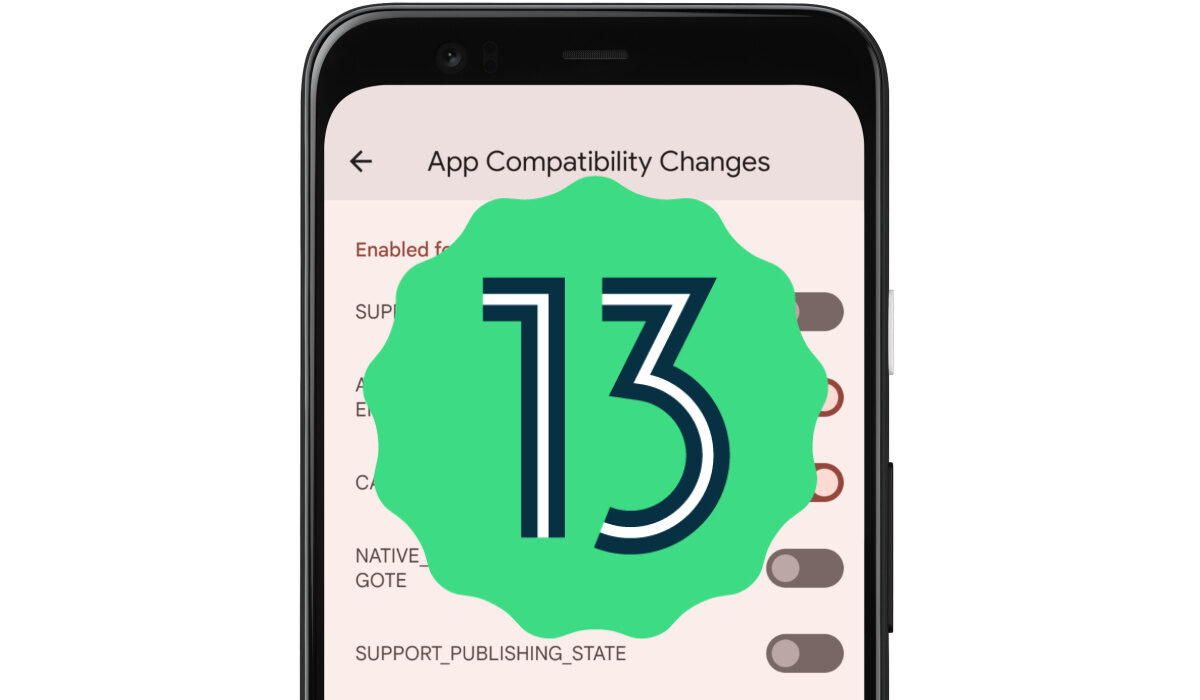
Back in February, 2022, the first version of Android 13, the Developer Preview 1, was made available. It gave an early look at some of the features to expect. On 15th of August, the official stable release was made available by Google and began to roll out to Pixel 4, 5, and 6 phones.
Unlike the case with Android 12, there are no significant visual changes on Android 13. There is an implementation of System-wide Material You icons and more Material You colour schemes. That will be visible. But most of the changes will happen under the hood.
Another feature is a more secure Photo Picker. There is also a feature currently called “Media TTT”, offering tap-to-transfer for files.
If there is one feature that many Android users will appreciate, it is the opt-in notifications, which requires that an app gets your permission before it can send you notifications. Certain Android phone makers have a reputation for bugging users with endless notifications. Making the apps require the user’s permission first will be a big improvement compared to having the user fiddle round to disable notifications for offending apps.
Another feature to expect in this next version of Android is a QR scanner quick settings toggle added in the notification shade. Google is also likely to add support for Bluetooth Low-Energy (BLE) audio, to deliver improved wireless audio playback.
When is Android 13 releasing?
A stable release was done on August 15, 2022.
What is Android 13 called?
Android 13 goes by the in-house name of Tiramisu, a coffee-flavored Italian dessert that is applied on cakes, ice-creams, and other delicacies.
Android 13 Release Date
Before the final stable release, this version saw two developer previews, and at least four beta releases. The final stable version began to roll out on August 15, 2022.
To get the Developer Preview now
If you are interested in installing the developer preview 1 on your smartphone, you must be either a mobile app developer who needs to test new features with your app, or you are insanely addicted to software updates. Developer previews are not stable and so it is not advisable that they be installed on your daily driver.
If you are sure you want to proceed, you can get started on a device today by flashing a system image to a Pixel 6 Pro, Pixel 6, Pixel 5a 5G, Pixel 5, Pixel 4a (5G), Pixel 4a, Pixel 4 XL, or Pixel 4 smartphone. If you are a developer and don’t have a Pixel phone, you can use the 64-bit system images with the Android Emulator in Android Studio to test your apps with the new software.
Eligible Devices: Will my device get Android 13?
Google Pixel phones are the first to get upgraded to Android 13. These will include Pixel 6 Pro , Pixel 6, Pixel 5A 5G , Pixel 4A 5G, Pixel 5, Pixel 4A, Pixel 4 XL, and Pixel 4. Of course, Google Pixel 7 and 7 Pro will both launch with Android 13 inside.
You can also expect phones and tablets from other manufacturers, including Samsung, Asus, Nokia, iQOO, Motorola, OnePlus, Oppo, Realme, Sharp, Sony, TECNO, vivo, Xiaomi, are expected to get Android 13 later. Most of these brands will release it only for their premium flagship models, while also announcing brand new devices that will ship with it out of the box.
- Don’t miss our reviews .
- Join our WhatsApp Group , to be notified of the most important articles and deals,
- Follow us on Instagram , Facebook , Twitter , and YouTube .
Author:InfoDesk
Add MobilityArena as a preferred source on Google
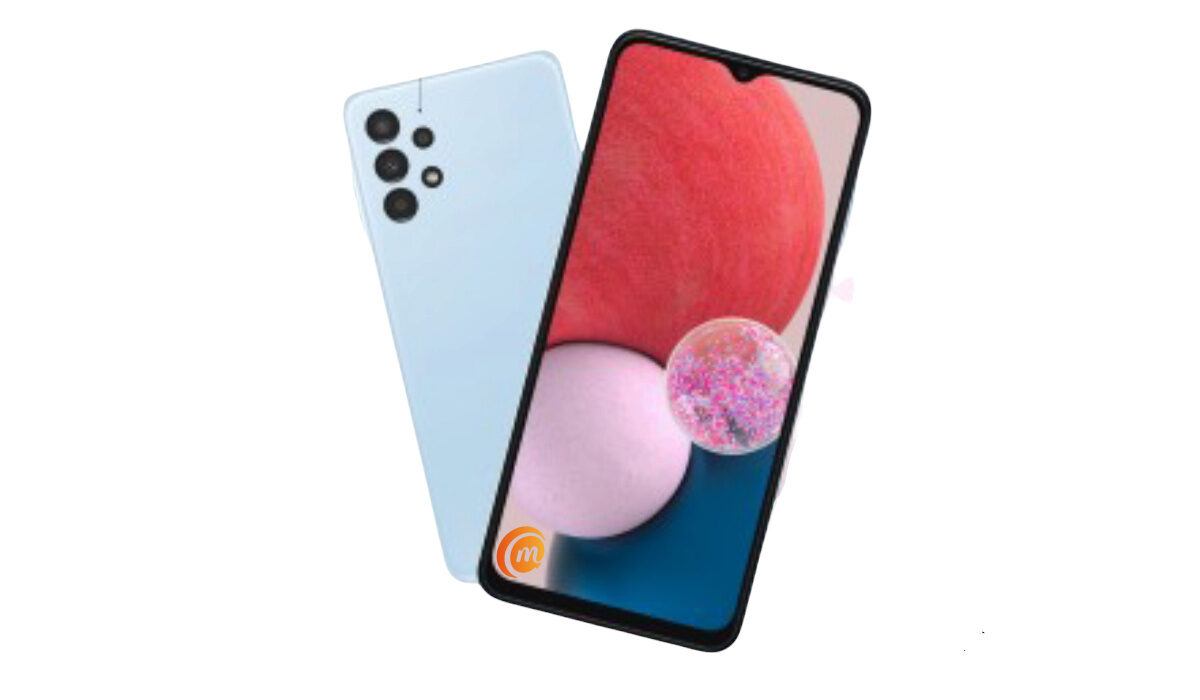
The Samsung A13 is the successor to the highly successful Samsung Galaxy A12 . Like its predecessor, it is affordable and generally gets the job done without much fuss. But it isn’t the most powerful smartphone on the block. Because it is a mid-range cellphone, sometimes its resources are stretched thin and it begins to run slower than usual, maybe even enough to annoy you, which is why you are reading this article. Bellow, I share a few things you can do to make your Samsung A13 faster.
The key thing you need to know are the two factors affecting your phone’s performance: the processor and RAM. The processor determines how powerful your device is, while the RAM determines how smoothly apps launch and run on the phone. RAM (Random Access Memory) is a temporary storage for running apps. We can’t do anything about the processor, but RAM usage can be managed. Bear this in mind, as we provide ways to make your Samsung A13 faster.
How to make your Samsung A13 faster
- Make your Samsung A13 faster by not using many apps at the same time
- Make your Samsung A13 faster by using Device Care auto-optimisation
- Make your Samsung A13 faster by restarting your phone
- Make your Samsung A13 faster by not clogging it up with app updates
- Make your Samsung A13 faster by keeping it from getting hot
Make your Samsung A13 faster by not using many apps at the same time
Whether you own the vanilla version, the Nacho variant, or the Indian variant, your Galaxy A13 is equipped with 3 GB, 4 GB, or 6 GB RAM, depending on the variant you purchased. The lower the RAM, the easier you need to go on your phone. This is because it has less resources for apps to run with. If you switch between a lot of apps on it, the RAM gets used up and the phone begins to slow down.
The same way you shouldn’t attempt to drive a city car like a Formula 1 race car, don’t push your Samsung A13 too hard. It isn’t designed to handle the heaviest pressure. Switching lots of apps means they keep running in the background, using up precious resources. If you have used a lot of apps on the phone, you need to shut down those apps to keep things running smoothly. To do this, open the running apps menu, then slide up on the app you want to close. Repeat this for as many apps as you need to shut down.
Make your Samsung A13 faster by using Device Care auto-optimisation
Device Care is a feature that you can use to auto-optimise your Samsung A13 for better performance. How it works is that when you are not using your phone and the screen is off, the feature closes any background apps (it doesn’t touch your most recently used apps). It is a good idea to set Device Care to auto-optimise your Samsung A13 at night when you are asleep.
- To do this, go to Settings > Battery and Device Care .
- Tap the Options icon.
- Tap Automation .
- Tap Auto optimise daily .
- Tap Time .
- Set the clock to the time you would like Auto optimise to run, e.g. 2am
- Tap Done .
- Tap the switch next to Close apps to free up memory .
That is it; you now have auto-optimisation helping you to free up memory while you sleep. You wake up to your Samsung A13 ready to perform at its best for the day.
Make your Samsung A13 faster by restarting your phone
Restarting your cellphone on a regular basis, say weekly, is an easy way of clearing its memory of junk. This is low hanging fruit. You will be amazed how much smoother or faster your Samsung A13 runs just because you do this. Restart your Samsung A13 at least once a week to make it faster.
Make your Samsung A13 faster by not clogging it up with app updates
Every time you run app updates, your cellphone storage gets clogged up with extra baggage. Each updated app takes up more system space – even those apps that you do not use, especially those pre-installed by Samsung. What to do? Do not turn on automatic app updates. Instead, make it a duty to manually update only the apps that you use or need.
Make your Samsung A13 faster by keeping it from getting hot
You already know that overheating is a bad thing for any kind of electronic or machinery. If your phone heats up significantly, that impacts its performance, and it will slow down if you do not let it cool off. Keep your cellphone away from hot environments. If while using your Samsung A13, it begins to heat up, put it down and let it cool off for a while. It will serve you better if you treat it right this way.
With these few tips, you should see your Samsung A13 perform better, and run faster and smoother. All the best.
- Don’t miss our reviews .
- Follow our news on Google News .
- Follow us on Instagram , Facebook , Twitter , and YouTube .
Author:Mister Mobility
Digital Skills and Communication Coach | Mobile Phone Connoisseur since 2001 | Tech Blogging since 2004
