Add MobilityArena as a preferred source on Google
One of the best apps to use with your car is Android Auto , which should already be available on your Android device. If your car supports it, Android Auto is an easy way to use music apps, Google Maps, call and text, and react to messages (with your voice) while driving.
However, Android Auto won’t be of much help if it’s not working as it should. If you can’t connect to Android Auto or it’s no longer working dependably, we’re here to help. This guide will show you different ways to fix Android Auto not working. Follow the instructions we’ve provided, and you should be able to get it to work well again.
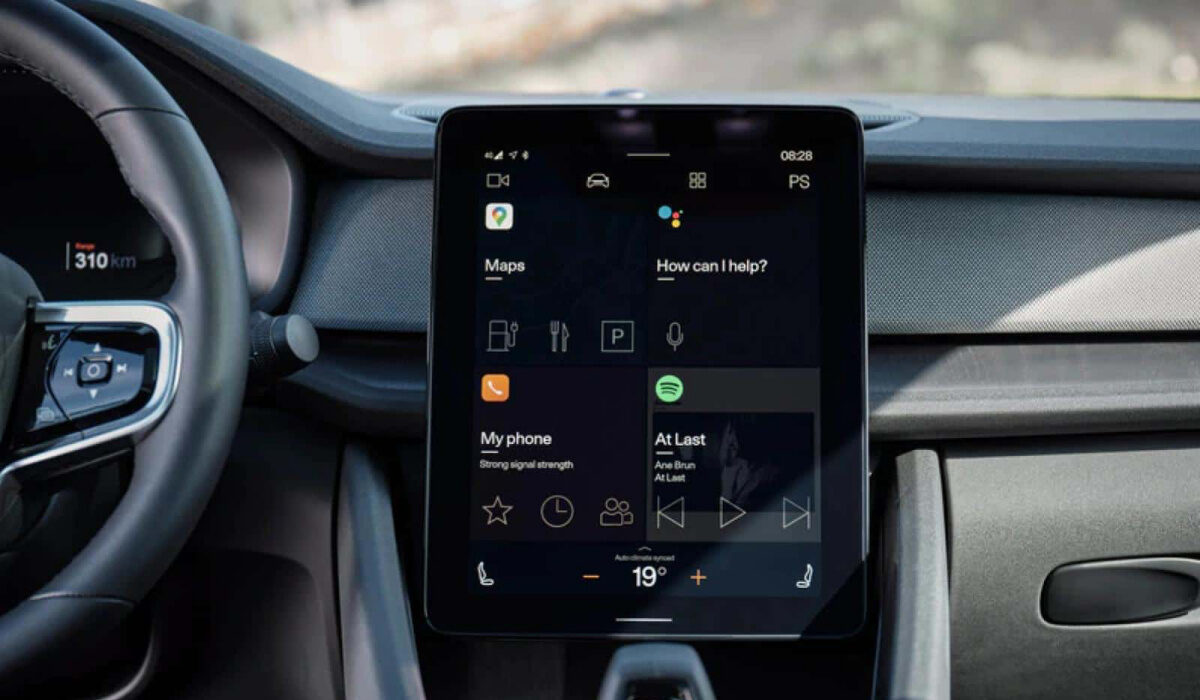
How to Fix Android Auto Not Working
How Can I Fix Android Auto Not Working?
Your Android Auto app may not be working correctly for one of the following reasons:
● You’re trying to connect Android auto to the wrong car
● An incompatible car or smartphone brand is in use
● A poor wired or wireless connection
● The app is faulty
● Changes in the connection’s settings
Not minding the reason though, we’ve described several ways below to fix android Auto not working correctly.
Check Android Auto’s compatibility with your car
One of the first things to try is to verify that Android Audio is compatible with your car and your car stereo.
You’ll be able to determine this by using the Android Auto compatibility website . Note that you may not be able to fix Android Auto not working if it’s not compatible with your car.
Check your wired or wireless connection
It’s also important to check your connections when trying to fix Android auto not working. Ensure that everything is properly connected and operating whether you are using a cable or a wireless connection.
Make sure the cable you’re using for the connection to Android Auto is in good condition. If there’s something broken inside (which you may not be able to see), try a different cable that is in good working order.
Reboot/Restart your device
A restart of your Android tablet or phone usually fixes any minor issues that might obstruct communication between the phone, the car, and the Android Auto apps. As such, this might be just what you need to fix Android auto not working for you.
You can reboot the majority of Android smartphones just by holding down the Power button until you see a menu. If Restart is among the menu options, click on it; if not, select Shut Down and then switch your phone back on after a few seconds. Following that, try using Android Auto once again to check if it functions properly.
To rule out any glitches there as well, it’s worth turning off your car, waiting a bit, and then restarting it.
Check your Paired Car Settings
Several cars can use Android Auto, therefore a couple of things may be going on in your paired car settings. It’s possible that you’re attempting to connect to a different vehicle, that you mistakenly placed your car on the list of Rejected Cars , or that you switched off the option to Add new cars to Android Auto .
Your phone will only be able to charge in these circumstances; it won’t be able to connect to Android Auto. So to fix Android Auto not working in such an instance, verify each of these settings again to be sure they are correct.
If you’re unsure about the settings, you can remove all linked vehicles by selecting Forget all cars from the three-dot menu in the top right. Then, try installing Android Auto once more in your vehicle.
Update your device and Android Auto app
If you’re trying to fix Android Auto not working, you should also ensure that the Android Auto app and your phone are both up to date.
Incompatible operating systems or programs can prevent proper interaction for things to work as they should. So, to ensure you have the most recent versions of both your device and the Android Auto app, update the Android OS first, followed by the apps on the device.
In summary , you’ll find these troubleshooting tips pretty helpful to fix Android Auto not working.
Author:Joan Agie
Add MobilityArena as a preferred source on Google
Despite the fact that we mostly live paperless lives, there are still times when we’ll need to print something. Fortunately, printing wirelessly from your iPhone or iPad is as simple as sending a text message.
Apple’s AirPrint printing technology, along with a few useful third-party apps, makes printing from an iPhone or iPad quick and easily accomplished. This article will show you some extremely useful tips to print from your iPhone or iPad with virtually any printer.
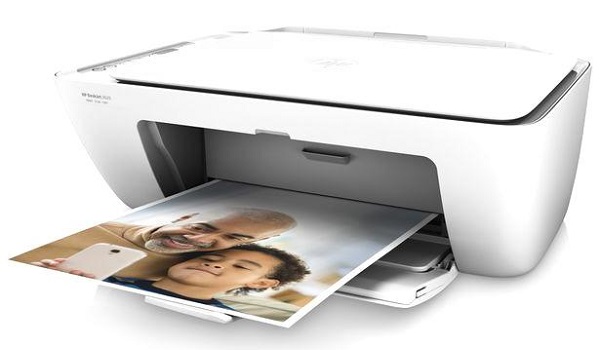
- How Can I Print from an iPhone or iPad?
- How to Print from an iPhone or iPad Using AirPrint
- How to Print Pictures From an iPad or iPhone
- How to Connect a Printer to an iPhone or iPad
- How to Print from an iPhone Using a Dedicated App for Your Printer
- How to Print From An iPhone Using Third-Party Printing Apps
- PrintDirect
- Use Smart Air Printer App
How Can I Print from an iPhone or iPad?
Are you curious about how printing from your iPhone or iPad works? Here’s how to do it with AirPrint and a few other options.
How to Print from an iPhone or iPad Using AirPrint
There are numerous methods for connecting a printer to an iPhone. The simplest one is to use Apple’s AirPrint feature. There is no need to download an AirPrint app because it’s built-in and ready to use.
Simply look at Apple’s list of AirPrint-compatible printers. If yours in on the list, just make sure it’s linked to the same Wi-Fi network as your iPhone or iPad. There’ll be no need to add the printer because it should appear on your device automatically.
To print from Safari,
● Click the Share button on a Safari web page .
● Then, simply scroll down and select Print .
● This brings up the printer settings on your iPhone or iPad. You must select your printer here (if there’s more than one on your network).
● You can also specify the number of copies to be made and which pages to print. When you’re finished, press the Print button .
Since some iOS apps lack a printing feature, you may need to export the selected content. Save the document to the Files app to accomplish this — AirPrint is supported by the Files app. If you can’t export the content from the original app, you can make a screenshot of it and print it as a picture.
How to Print Pictures From an iPad or iPhone
Printing photos from iPhone’s or iPad’s Photos app is simple. Follow the same steps as above to print a single image. Find the photo you want to print, then tap the Share button , followed by Print .
You can also print a large number of images at once from an iPhone or iPad. To do so,
● Open Photos and click on Select in the upper-right corner.
● Select all of the photos you want to print — check marks will appear beside the ones you’ve added. (Tap them once more if you’d like to deselect them.)
● Finally, tap the Share button, then the Print icon, and then Continue .
How to Connect a Printer to an iPhone or iPad
AirPrint should connect you to your printer if it’s supported, but finding your printer may still be a problem.
If the goal is to AirPrint from an iPhone or iPad on a supported printer and it’s not working, make sure both the printer and your device are connected to the same Wi-Fi network. Some printers use both Bluetooth and Wi-Fi, but AirPrint will not work unless you are connected to Wi-Fi.
How to Print from an iPhone Using a Dedicated App for Your Printer
If you need to connect your iPhone to a wireless printer that doesn’t support AirPrint, your best bet is to check if your printer has its own app.
The majority of printer manufacturers offer apps made to function with their own hardware on the same network, including HP Smart , Canon PRINT , and Epson iPrint . These apps may provide additional features, such as changing the print size to print full pages, that you won’t find elsewhere.
How to Print From An iPhone Using Third-Party Printing Apps
Some of the third-party apps below should be able to help if the options we’ve mentioned above aren’t working for you.
PrintDirect
PrintDirect is an older but dependable app for printers that aren’t supported by AirPrint. It is free to download and test, but full functionality requires an in-app purchase. While it detects printers connected to the same Wi-Fi network as AirPrint, it also works with printers that aren’t AirPrint-compatible.
To print a document from an iPhone or iPad with PrintDirect,
● Open it and tap the Share icon . Then select Save to Files .
● After you’ve saved your file, you can use PrintDirect to print it on your preferred printer.
● Scroll down until you see More under Files > Share .
● Scroll down to PrintDirect and tap More . Then, open the document, set your printer preferences, and print.
UseSmart Air Printer App
The Smart Air Printer App, one of the best printer apps available, has a plethora of features that make printing from your iPhone or iPad simple
After downloading the app, all you have to do is select the file from your device that you want to print or scan. Scanning documents is preferable to photographing them because it makes them printer-ready and uses less ink.
In summary , you can print from your iPhone and iPad in a simple and easy way by using the tips and suggestions we’ve provided above.
