Add MobilityArena as a preferred source on Google
A smartphone’s basic functions are supported by several of its components, one of which is the proximity sensor. Without this component, your smartphone’s display won’t turn off during a telephone conversation or turn back on afterwards. It’s also responsible for identifying your face to unlock your smartphone.
This guide will help you fix an Android’s proximity sensor not working. Your device could stop recognizing your face to unlock the screen or stop performing other functions that depend on the proximity sensor. In that case, pay attention to the techniques I’ll describe below to fix an Android’s proximity sensor not working.
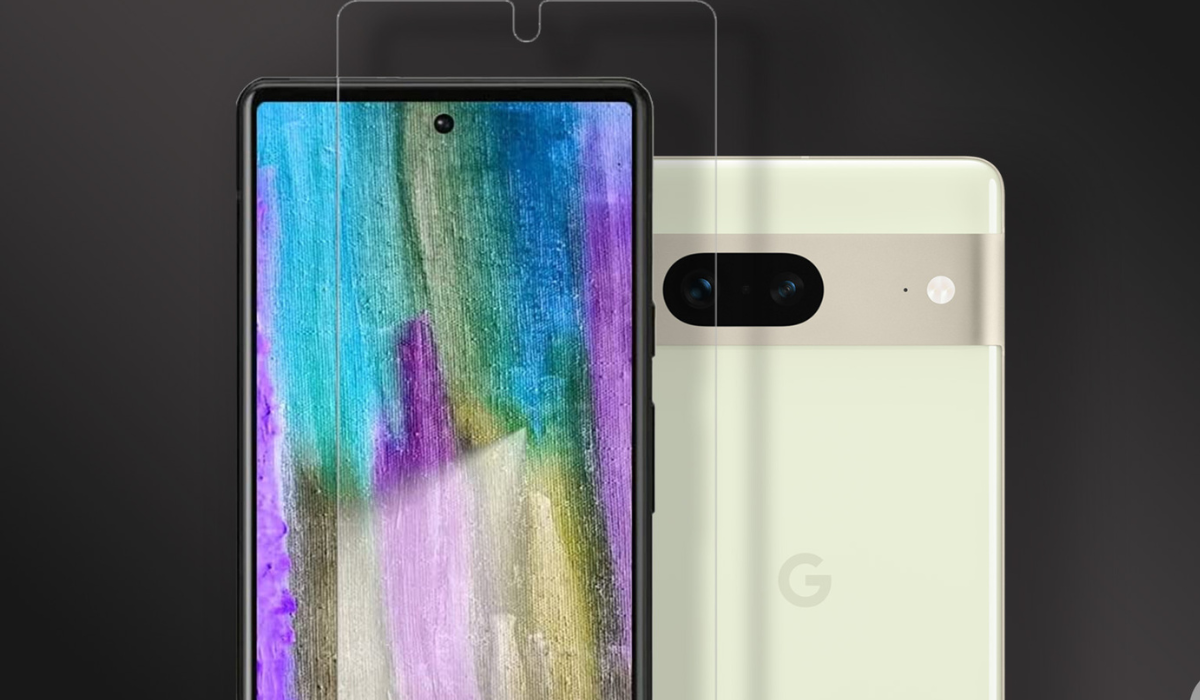
- How Can You Fix an Android’s Proximity Sensor Not Working? Clean Dirt and Dust Near the Sensor Remove the Case or Screen Protector Enable Accidental Touch Protection in Settings Update Your Phone Recalibrate the Proximity Sensor Reset Your Device
How Can You Fix an Android’s Proximity Sensor Not Working?
If the proximity sensor on your Android phone stops working, it can result in pocket dials or face unlock failures. Here are some ways to fix an Android’s proximity sensor and get it working fine again
Clean Dirt and Dust Near the Sensor
Dust and grime may not appear to be major issues at first, but if they begin to accumulate, they can be harmful to your phone. If dust gets in the way of your proximity sensor, it won’t be able to recognize your face properly.
To fix an Android’s proximity sensor not working, gently clean the top part of your phone that holds the sensor, using a clean cloth or ear swab. The proximity sensor is always situated alongside the top speaker, regardless of phone type.
After cleaning it, check to see if it works. Also check for cracks or scratches near it, as they might also prevent proper functioning. If these are present, take your device to a repair shop.
Remove the Case or Screen Protector
Cases and screen protectors could also prevent a proximity sensor from working properly. If the glass is too thick or not sized correctly for your phone, it may cause detection issues. If you recently installed a new screen guard, carefully remove it from your touchscreen and clean it down.
This suggestion may help fix an Android’s proximity sensor not working. Also, when purchasing screen accessories, make sure to get one that is designed exclusively for your phone model and test it thoroughly.
Enable Accidental Touch Protection in Settings
Your proximity sensor could also have its functionality disabled thereby causing accidental touch protection to stop working on your device. It’s easy to correct this to fix an Android’s proximity sensor not working.
On Samsung phones, you can enable this option by heading to Settings > Display , scrolling down, and selecting Accidental touch protection . When activated, your phone will ignore any accidental touch while in your pocket.
When the feature is activated, the screen will show “ Your phone is being protected from accidental touches .” When you take your phone out of your pocket, you’ll notice an option to to slide your device to dismiss the protection and continue using it normally.
Update Your Phone
Smartphones sometimes experience bugs or other issues due to incompatible software updates or short-term problems (these tend to go away on their own). It’s therefore necessary to constantly update your smartphone since phone manufacturers release updates to fix these bugs.
Go to Settings > System > Advanced > System Update to see if your phone needs any upgrades. You can locate it under Settings > Software update > Download and install on Samsung mobile devices. Check afterward to see if the update helps fix an Android’s proximity sensors not working.
Recalibrate the Proximity Sensor
Problems arising from the action of bugs or glitches can be fixed by recalibrating your phone’s sensors. Calibration is crucial since it ensures that the data being read by your sensors is accurate.
Recalibrations work like resets — they help ensure proper device operation. To recalibrate your Android’s proximity sensor, you’ll find the Proximity Sensor Reset/Fix app useful. You can download the app for free from the Google Play Store. Once you’re done, check to see if the recalibration worked to fix an Android’s proximity sensor not working.
Reset Your Device
Resetting your device deletes all your data and returns the device to its original state. This can get rid of any bugs that the other solutions could not fix.
Make sure to backup your data and sync all of your information to your Google account before the reset. You won’t lose any data this way, and Google will restore it all once the reset is complete.
Dealing with proximity sensor issues can be frustrating, but by following the easy methods outlined above, you can easily fix an Android phone’s proximity sensor not working. If everything else fails, I recommend taking your smartphone to an approved repair center for specialists to handle it.
Author:Joan Agie
Add MobilityArena as a preferred source on Google
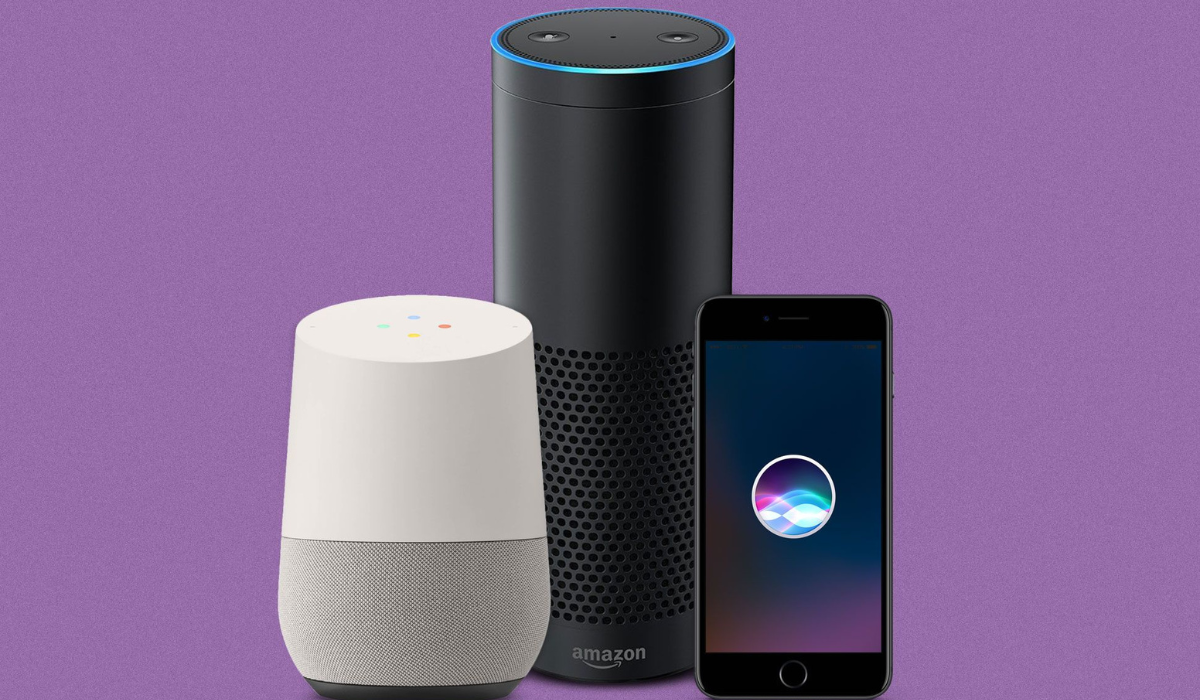
- How Can You Fix Alexa Not Responding? Speak Clearly to Your Alexa Device Check your Echo Device’s Microphone Restart Your Alexa-Enabled Device Examine the Wi-Fi Connection Signal Strength Modify Alexa’s Wake Word Modify Alexa’s Wake Word Through the Amazon Alexa App Reset Your Alexa-Enabled Device
How Can You Fix Alexa Not Responding?
Speak Clearly to Your Alexa Device
Sometimes, Alexa won’t respond to your questions because you’re summoning the virtual assistant incorrectly. To get Alexa’s attention, you must say the correct wake word.
Also, if there is a lot of noise around you when you call Alexa, it may lead Alexa to mistake what you say for something else. As such, to fix Alexa not responding, remove any unnecessary sounds, learn the correct wake word, and then try calling Alexa again.
Check your Echo Device’s Microphone
To check this, look for a red light on your Echo device indicating that the microphone is off. Turn on the microphone to fix Alexa not responding; you can do this by pressing the physical mic button on the Echo. You can now speak to Alexa, and she should understand your commands.
Restart Your Alexa-Enabled Device
A little glitch with Alexa-enabled devices could also cause problems. Alexa may therefore not answer your commands because of a problem with your device. Fortunately, these minor issues can be resolved simply by resetting the device.
When using an Alexa device that plugs into a power outlet, unplug it and leave it off for 30 to 60 seconds. Then, reconnect the gadget to the power outlet so it may be turned back on.
If you have a battery-powered Alexa device, remove the batteries to turn it off. Wait 30 seconds to 1 minute before replacing the batteries in the device. Hopefully, this action will help fix Alexa not responding to your commands once you turn the device back on.
Examine the Wi-Fi Connection Signal Strength
If your Alexa device doesn’t have a good Wi-Fi connection, it may remain unresponsive to your commands. In this case, restarting won’t resolve the issue, so continue working via the Alexa app on your phone.
- If you haven’t already, open the Alexa app on your Android or iPhone and sign in.
- Go to Device Settings and select Wi-Fi Network from the menu.
- Adhere to the directions you’ll see displayed on screen. By holding down the action button for 15 seconds or until the light goes orange, put your Alexa device on Setup Mode .
- Continue the on-screen instructions once the device is in setup mode, making sure to connect to the correct Wi-Fi network.
- Alexa should respond to you as soon as you are connected to the proper network.
Modify Alexa’s Wake Word
If your Alexa device still doesn’t respond, it could be waiting for a different wake word than the one you use. For instance, if you alter the wake word to “ Echo ” or “ Computer ” while you’ve set the device to listen to “ Alexa ,” it will not respond.
To see what wake word your Alexa device is using, or to change it, I’ve provided the instructions you’ll need below.
- Start the Amazon Alexa app on your smartphone.
- Tap Devices in the app’s bottom bar.
- Select All Devices from the menu at the top of the following screen.
- Select your Alexa device from the list that appears on your screen.
- Scroll down to the General area of the device’s screen. Tap the Wake Word option here.
- Close the app after selecting your preferred wake word from the available list.
Reset Your Alexa-Enabled Device
After the reset process is complete, you can re-configure your device with your account and add all the previous Alexa preferences and information.
Here’s how to use the Alexa smartphone app for the reset and fix Alexa not responding:
- Open your smartphone’s Amazon Alexa app.
- Select Devices from the app’s bottom menu.
- To select your Alexa device, tap All Devices and select it from the list.
- The settings menu on your device will appear. Scroll down and select Factory Reset .
- In the prompt that appears on your screen, tap Factory Reset once more.
- Your Alexa device should start resetting itself.
