Add MobilityArena as a preferred source on Google
Google did not start out from the beginning, naming Android versions. It wasn’t until the 3rd iteration of the software, Android 1.5, that we got the first in what was to be a long line of Android version names. That first sweet and tasty name was Cupcake.
Though the first commercial version of Android was not ready till November 2008, September 2007 was when Android OS was first unveiled. Since then, it has been updated many times. It is history time, Mobilistas. Let’s get started.
All Android version names and history
Here is a list of all android version names from Cupcake in 2009 till Pie in 2018. The list also includes the Android operating system versions that do not have a dessert name, so it is a constantly updated list of Android OS versions.
- Android 1.0 – Released in September 2008.
- Android 1.1 – Released in February 2009.
- Android 1.5: Cupcake – Released in April 2009.
- Android 1.6: Donut – Released in September 2009.
- Android 2.0 to 2.1: Eclairs – Released in October 2009.
- Android 2.2: Froyo – Released in May 2010.
- Android 2.3, to 2.4: Gingerbread – Released in December 2010.
- Android 3.0 to 3.2: Honeycomb – Released in February 2011.
- Android 4.0: Ice Cream Sandwich – Released in October 2011.
- Android 4.1 to 4.3: JellyBean – Released in July 2012.
- Android 4.4 KitKat – Released in October 2013.
- Android 5.0 to 5.1 Lollipop – Released in November 2014.
- Android 6.0: Marshmallow – Released in October 2015.
- Android 7.0 to 7.1: Nougat – Released in August 2016.
- Android 8.0 to 8.1: Oreo – Released in August 2017.
- Android 9.0: Pie – Released in August 2018. After Android 9 Pie, Google discontinued the use of names and adoped a numbering system only.
- Android 10: Released in September 2019.
- Android 11: Released in 2020
- Android 12: Released in 2021
- Android 13: Released in 2022
- Android 14: Released in 2023
- Android 15: Released in 2024
And the pattern of naming Android versions with dessert names ended after Android 9 Pie. During the Android 10 unveiling, Google announced that Android OS would no longer be so named but would stick to a number pattern only, and Android 10 was just Android 10.
And so it was that Android Pie became the last of the Android version names. The next versions will be known by their numbers only, e.g., Android 11, Android 12.

Google discontinued the use of Android version names after Android Pie
As you can also see from the list of Android version names, Google did not start out releasing updates on an annual basis. It was not until after Android 4.0 Ice Cream Sandwich in 2011 that Android OS updates became a yearly affair.
Who maintains Android OS?
Officially, Google and the Open Handset Alliance are responsible for the maintenance of the Android Open Source Project. The Open Handset Alliance is an ever-growing consortium of mobile device manufacturers, developers, and network operators. Members include companies like Google, Samsung, Huawei, OPPO, Acer, Alcatel, ZTE, G, Sony, HTC, Motorola, Qualcomm, and MediaTek, among others. A complete list of all current members can be found HERE .
Questions have been raised about whether the Alliance is actually involved in any work with Android OS, as it appears that Google has been single-handedly carrying out development work on the operating system. To all intents and purposes, the Open Handset Alliance is a dummy.
Google runs the show and has been responsible for development work, including software versions and updates, on Android OS for years. Even the OHA website is a relic in terms of website design and the last update on it was in 2011, which speaks volumes.
Android OS has come a long way since the first Android phone (and also my first Android phone), HTC Dream AKA T-Mobile G1, which was released in late 2008. In its 11th year now, about 87% of smartphones in use in 2019 are Android devices.
That’s it for this episode. We hope that this feature on Android version names and history has been enlightening, informative, or just entertaining. MobilityArena has lots more informative content for you. If it is about mobile phones and smartphones, we likely have published something about it. Use the search button at the top of the page to find the information you need.
- Don’t miss our reviews .
- Follow our news on Google News .
- Follow us on Instagram , Facebook , Twitter , and YouTube.
Author:Mister Mobility
Digital Skills and Communication Coach | Mobile Phone Connoisseur since 2001 | Tech Blogging since 2004
Add MobilityArena as a preferred source on Google
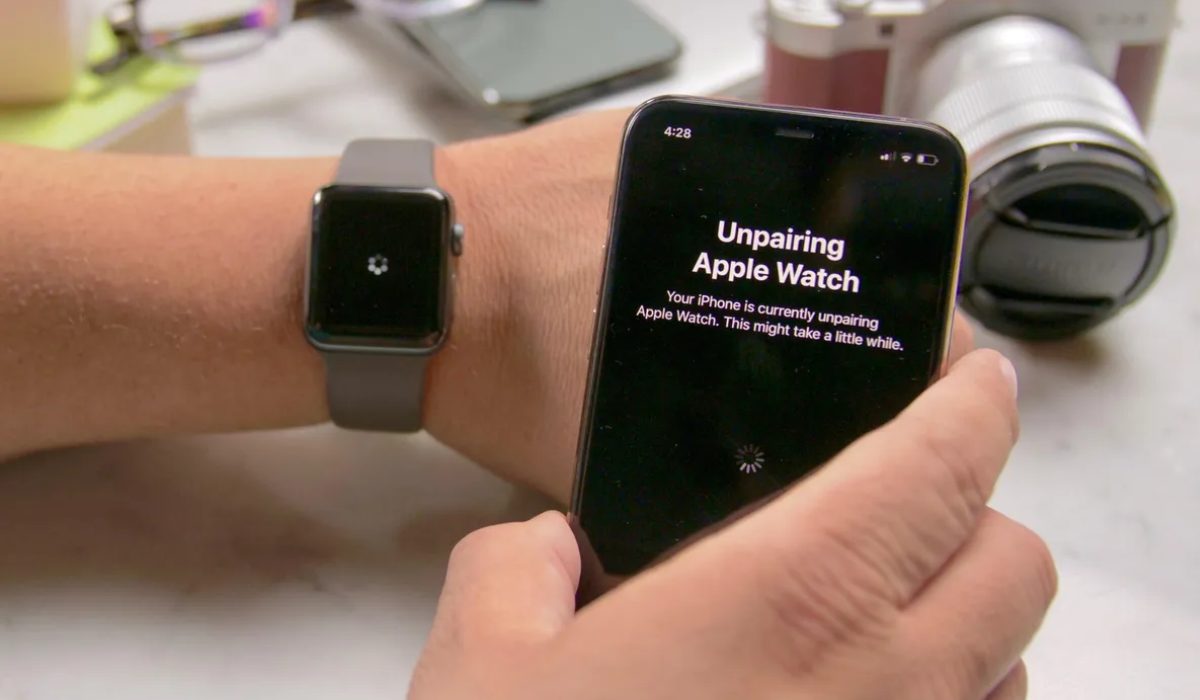
Knowing how to unpair an Apple Watch from an old phone is essential to ensure that your data is not compromised. The Apple Watch is designed to be paired with only one iPhone at a time, so you’ll need to unpair it from your old phone if you recently upgraded to a new iPhone. The same goes for if you intend to sell or give away your Apple Watch, or if your old phone gets stolen.
In this article, I’ll teach you how to unpair Apple Watch from an old phone so you can pair it with your new phone or give it to someone else. You’ll find this guide handy, so pay close attention.
How Do I Unpair My Apple Watch From My Old Phone?
It can be tricky to unpair an Apple Watch from one iPhone and pair it with another. To guarantee that the unpairing process is successful, you’ll need to take specific steps to avoid interference or complications throughout the procedure. Here’s how to unpair your Apple Watch from an old iPhone and pair it with a new one.
How to Unpair an Apple Watch From Old Phone
If you want to connect your Apple Watch with a new phone or upgrade to the best Apple Watch, you must first unpair it from your previous iPhone, back up its data, and then turn off Activation Lock so that it can be set up again.
The most straightforward method to accomplish this is directly from your iPhone. Here’s how to unpair your Apple Watch from your old phone, follow these steps:
- Keep your Apple Watch and old iPhone close together.
- On your old iPhone, open the Watch app .
- Click on the My Watch tab at the bottom of the screen.
- Select the watch that you want to unpair.
- Press the i icon next to the watch.
- Click on Unpair Apple Watch .
- Select Confirm to confirm that you want to unpair your Apple Watch.
- Choose whether to keep or remove your plan if you have cellular service.
- Enter your Apple ID password and click Unpair to disable Activation Lock .
The most recent data on your watch will start backing up to your iPhone. When it’s completed, it will wipe the passcode, remove any Apple Pay cards used on the Apple Watch, unpair itself from your current iPhone, and delete all active Bluetooth accessory pairings. Finally, your watch will reset itself to its default settings from Apple.
How to Unpair Apple Watch Without Old Phone
The Apple Watch app on your iPhone automatically syncs and backs up the most recent data from your smartwatch before resetting it to factory settings when you unpair it. The best and smartest way to save your most recent information is to use your phone. However, you won’t be able to use the instructions above if you don’t have your old phone due to any circumstances.
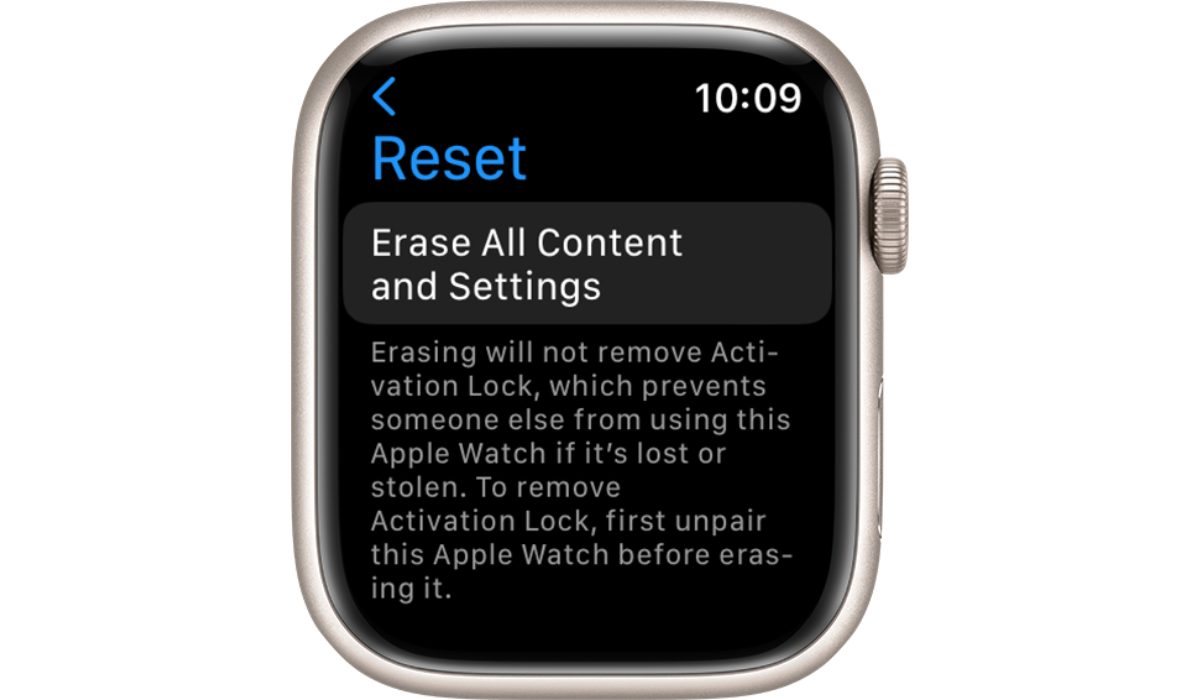
Fortunately, there is a workaround, and you can unpair directly from your smartwatch. Activation Lock is not automatically turned off, and a backup is not created when unpairing directly from your watch. (And keep in mind that a new user won’t be able to set up the Apple Watch while Activation Lock is on.)
Therefore, make sure to unpair via the Watch app if you require a current backup and have access to a phone. If you don’t have access to your old phone, you can still unpair your Apple Watch by following these steps:
- On your Apple Watch , go to Settings > General > Reset .
- Click on Erase All Content and Settings .
- Enter your passcode if prompted.
- Confirm that you want to erase all content and settings by tapping on Erase All (Or Erase All & Keep Plan if you already have a cellular plan and want to keep it)
- When the Apple Watch has finished restoring, go to iCloud.com in your computer’s web browser to disable the Activation Lock .
- Log in with your Apple ID and password.
- Select Settings .
- Choose your Apple Watch from My Devices .
- To remove your Apple Watch , click the X next to it.
- To confirm, press the Remove button.
After your Apple Watch resets, it will no longer be paired with your old phone. You can now pair it with a new phone or sell/give it away.
To conclude, unpairing your Apple Watch from your old phone is a simple process that can be done in a few steps. By following the steps outlined in this guide correctly, you can easily disconnect your Apple Watch from your old phone. If you’re in need of more Apple Watch tips, you’ll love this category .
