Add MobilityArena as a preferred source on Google
Apple iPad 10th Gen brief information
- OS: iPadOS 16
- Release Date: 2022
- Network Type: 2G/3G/4G/5G
- Display: 10.9-inch, 2360×1640 pixels resolution
- Processor: Apple A14 Bionic
- Selfie Camera: 12 MP
- Rear camera: 12 MP
- RAM: 2 GB
- ROM: 256 GB
- Battery:
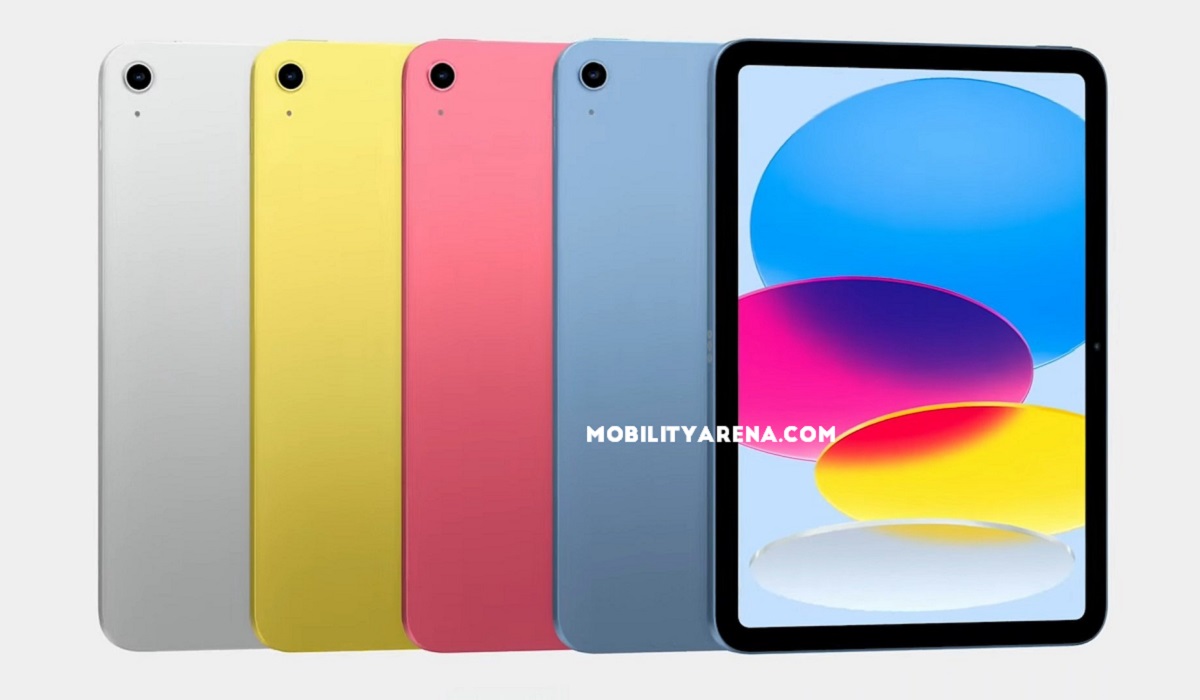
Apple iPad 10th Gen
- Apple iPad 10th Gen specifications
- Apple iPad 10th Gen Tablet Review Rating
Apple iPad 10th Gen specifications
Mobile Wireless Network and Software
- 2G mobile network bands : GSM, GPRS, EDGE 850 / 900 / 1800 / 1900 MHz.
- 3G mobile network bands : UMTS, WCDMA, HSDPA 850 / 900 / 2100 MHz
- 4G mobile network bands : LTE.
- 5G mobile network bands : NSA/SA/Sub6 1, 2, 3, 5, 7, 8, 12, 20, 25, 28, 29, 30, 38, 40, 41, 48, 66, 71, 77, 78, 79
- SIM Type : Nano-SIM, e-SIM
- Software / OS : iPadOS 16
Design, Form Factor, Appearance
- Dimensions : 248.6 x 179.5 x 7 mm
- Weight : 477g
- Display : 10.9 inches, 2360×1640 pixels, 90 Hz refresh rate, 19.5:9 aspect ratio, IPS LCD screen
- Colours : Silver, Blue, Pink, Yellow.
- Physical Build : Glass front, aluminum back, aluminum frame
Internal Hardware Specs
- CPU/ Processor : 64-bit, 2.3 GHz Hexa-core
- Chipset : Apple A14 Bionic + 16-core Neural Engine
- GPU/ Graphics Processing Unit : Apple GPU
- RAM : 2 GB
- Extended/Virtual RAM : No.
- Internal Storage : 64 GB / 256 GB
- External Storage : No
Photography, Video Recording
- Main Camera : 12 MP main sensor, autofocus, LED flash, 4k video, 1080p@30fps video recording
- Front Camera : 12 MP, fixed focus, Face Recognition, 1080p@30fps video capture
Audio, Video Playback
- Music Support : PCM, AAC / AAC + / eAAC + / MP3 / AMR – NB / WB / APE
- Audio : 3.5 mm audio jack
- Loudspeaker : Stereo speakers
- Video Support : H.264/MP4/MPEG4 player
- FM Radio : No.
Phone Sensors
- Digital Compass : Yes.
- Accelerometer : Yes.
- Proximity Sensor : Yes.
- Ambient Light Sensor : Yes.
- Barometer : Yes.
- Pedometer : No.
- Heart Rate Monitor : No.
- Gyroscope (G-Sensor) : Yes.
- Fingerprint Scanner : Yes; top-mounted.
- Face Unlock : Yes.
- Iris Scanner : No.
- Motion Sensing / Gesture Control : No.
- Voice Control : No.
- Intelligent Digital Assistant : Yes; Siri.
- Infra-red Blaster : No.
Connectivity Options
- Bluetooth Version : 5.2
- Bluetooth Profiles : A2DP
- WiFi : Wi-Fi 802.11 a/b/g/n/ac, hotspot
- GPS : Yes, A-GPS, GLONASS, BDS, Galileo
- USB : microUSB v2.0. Type-C.
- NFC : Yes.
Miscellaneous Specs and Features
- Battery Type and Capacity : Non-Removable Lithium-Polymer
- Battery Charging :
- Wireless Charging : No.
- Reverse Charging : No.
- Model Version/Number :
Launch/Release Dates and Information
- Announced : October 18, 2022
- Release Date : October 26, 2022
Apple iPad 10th Gen Prices by Country
- USA : $449 (WiFi-only, 64GB)
- European Union : €579 (WiFi-only, 64GB)
- UAE : AED
The above prices may change with time from country to country, as market forces and economic policies influence product price movements.
MobilityArena Buyer’s Guide Verdict
Not available.
Our Buyer’s Guide Verdict is a recommendation based on the specifications of the device and a general guide to help you understand how much value a device offers for its price. It is not an endorsement of the device. Ask questions and use your judgement when buying any device; MobilityArena takes no responsibility for your buying decisions .
Apple iPad 10th Gen Tablet Review Rating
Not available.
Author:InfoDesk
Add MobilityArena as a preferred source on Google
Since it contains all of the shortcuts and bookmarks you’ve added to your home screen, you’ll agree that the App Library is a great resource for browsing all of the apps on your iPhone. However, it still typically takes a lot of swiping to open the App Library, especially if you have a lot of visible pages on your home screen.
Fortunately, there is a shortcut to getting to your App Library quicker on your iPhone device. In this guide, we’ll show you tricks that will help you reach your home screen faster. Some methods work better than others, so just read through this guide and choose what works best for you.
How Can I Access the App Library Faster on My iPhone?
On your iPhone, there are just four ways to access the App Library more quickly; we’ve described them here. Given that alternatives 1 and 2 need you to change the layout of your home screen, options 3 and 4 might be the best solution.
Method 1: Limit the Number of Home Screen Page
If you don’t mind altering your home screen’s layout, you can reduce the number of pages on your home screen, thus making it quicker to swipe to the App Library. If you prefer to have all of your apps on home screen pages, this may not be the best option. However, if there are only two active home screen pages, opening the App Library will only require two quick left swipes across the screen.
Method 2: Hide Some Home Screen Pages
This option produces the same result as the option above, essentially hiding home screen pages till you actually require them. If you frequently use the apps contained on your hidden home screen pages, this is also not ideal. However, if you prefer the App Library, you may make it accessible with a left swipe via this method and then reveal home screen pages as necessary or desired.
Method 3: Employ a Two-Swipe Gesture
Simply tap and drag the Search button (located above your dock) to the right, holding it there until you reach the last page of the home screen on iOS 16.0 (and later devices). Release your hold, and then swipe left to access the App Library.
On iOS 16.0 and later devices, or if you haven’t upgraded to an iOS 16 firmware already, you should see dots above the dock in place of the Search button, representing all of your home screen pages. To open the App Library on the last page of the home screen, swipe left after touching and dragging the highlighted dot to the right until it stops moving. In comparison to swiping the Search button, doing this is actually a lot quicker.
Method 4: Use Voice Control to Access the App Library
The Voice Control accessibility feature can unlock the App Library for you even if Siri can’t. So, if you don’t want to swipe, this method is pretty useful, even though it may not be as quick as the swiping alternatives above.
To activate and deactivate Voice Control , you have a variety of alternatives:
- Toggle Voice Control on or off by going to Settings -> Accessibility -> Voice Control . But you should note that this is just more swiping.
- Add it to your accessibility shortcut so that you may access it with a triple-click of the Home or Side button ( Settings -> Accessibility -> Accessibility Shortcut ). Select Voice Control from the drop-down menu if the shortcut has more than one option allocated to it.
- The Back Tap gesture can be used here, so simply assign it; go to Settings -> Accessibility -> Touch -> Back Tap . Then, touch the Apple logo located on the back of your iPhone twice or thrice.
- Use the Settings -> Accessibility -> Touch -> AssistiveTouch menu to assign it to an AssistiveTouch gesture. Long-press, double-tap, or triple-tap the AssistiveTouch symbol on your screen after turning on the function.
- You could also ask Siri. The fastest choice is definitely this one. Use words and phrases like “Start/stop Voice Control,” “Turn Voice Control on/off,” and “Turn Voice Control on/off,” to name a few.
- Voice Control cannot turn on itself, so when it is enabled, it is actually quicker to command it to switch off by uttering “Turn Voice Control off” or “Turn off Voice Control.”
You can use Voice Control to launch the App Library now that you understand how to activate and disable it. Speak one of the commands below after turning it on.
- “Open App Library”
- “Open the App Library”
- “Show App Library”
- “Show the App Library”
If it still doesn’t function, navigate to Settings -> Accessibility -> Voice Control -> Customize Commands -> Basic Navigation -> Open App Library . Once you get there, turn on the “Enabled” option.
In summary , these alternatives will help you reduce the amount of swiping gestures you make when trying to access the App Library on your iPhone device. Just follow the easy instructions we’ve provided here and you’ll be good to go.
Now, we’re sure you’ve benefited immensely from this guide, so we encourage you to recommend it to other iPhone users you know.
- Don’t miss our mobile phone reviews .
- Follow our news on Google News .
- Join our WhatsApp Group , to be notified of the most important articles and deals,
- Follow us on Instagram , Facebook , Twitter , and YouTube .
