Add MobilityArena as a preferred source on Google
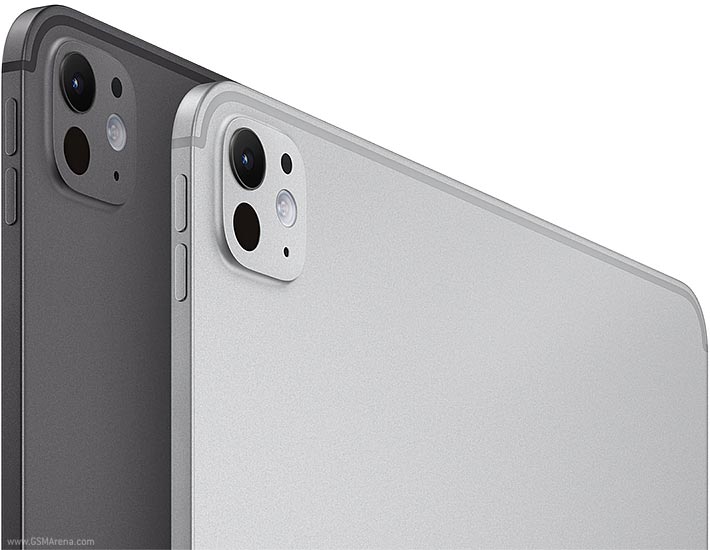
The Apple iPad Pro 2024 is renowned for its powerful performance, stunning Liquid Retina display, and seamless integration into the Apple ecosystem. However, following the recent update to iPadOS 17.6.1, some users have encountered frustrating glitches and freezes that can disrupt their workflow and overall user experience. Whether it’s issues with apps not functioning properly, unexpected freezes during use, or problems with connectivity, these challenges can be quite inconvenient. In particular, users have reported difficulties with Wi-Fi connectivity and app crashes that hinder productivity. By addressing these issues effectively, users can regain confidence in their device and make the most of its impressive capabilities. Understanding how to troubleshoot these glitches will empower you to navigate your iPad Pro with ease, allowing you to focus on what truly matters—your work and creativity. Let’s dive into the details and explore how to tackle these challenges head-on!
- Common Glitches and Freezes After Updating to iPadOS 17.6.1 App Crashes and Freezes Connectivity Issues Performance Lag Display Issues
- Some Other Practical Solutions for Enhanced Performance Clear App Cache Disable Background App Refresh
- Conclusion
Common Glitches and Freezes After Updating to iPadOS 17.6.1
App Crashes and Freezes
Many users of the iPad Pro 2024 have reported that apps frequently crash or freeze after updating to iPadOS 17.6.1. This can occur with both native apps like Safari and third-party applications, making it difficult to complete tasks. Ensure that all your apps are updated to their latest versions, as developers frequently release updates to address compatibility issues with new operating systems. How to Update:
- Open the App Store, tap on your profile icon in the upper right corner, and scroll down to see pending updates.
Connectivity Issues

Some users of the iPad Pro 2024 have experienced problems with Wi-Fi connectivity, where their iPad fails to connect to networks or drops connections unexpectedly. This can hinder productivity, especially for those relying on internet access for work or study. If you’re experiencing connectivity issues, Resetting your network settings can help resolve Wi-Fi connectivity problems:
- Go to Settings > General > Transfer or Reset iPad > Reset > Reset Network Settings . Note that this will erase saved Wi-Fi passwords.
Performance Lag

Users have noted performance lag when switching between apps or multitasking, which can be particularly frustrating given the powerful hardware of the iPad Pro. Low storage can lead to performance issues:
- Check your storage usage and delete unnecessary files or apps. Go to Settings > General > iPad Storage to see what’s taking up space.
Display Issues
Glitches related to the display, such as flickering screens or unresponsive touch inputs, have also been reported by several users of the iPad Pro after the update. A simple restart can often resolve minor glitches and refresh system resources:
- Press and hold the power button until you see the “slide to power off” option, then slide it to turn off your device. Wait a few seconds before turning it back on.
Some Other Practical Solutions for Enhanced Performance
Clear App Cache

Clearing the cache can free up resources and improve performance. Here is how to Clear Cache:
- Unfortunately, there isn’t a direct way to clear cache on iPads like on Android devices; however, deleting and reinstalling an app can achieve a similar effect.
Disable Background App Refresh
Limiting background activity can help improve performance. Disable background app refresh for non-essential apps:
- Go to Settings > General > Background App Refresh , then select “Off” or choose specific apps you want to disable.
Conclusion
While glitches and freezes following the update to iPadOS 17.6.1 on the Apple iPad Pro 2024 can be frustrating, understanding their common causes and implementing these effective solutions can significantly enhance your user experience. By restarting your device, updating apps, resetting network settings, clearing app cache, freeing up storage space, disabling background app refresh, and restoring your device if necessary, you can ensure that your iPad Pro operates smoothly. Embrace these strategies as opportunities to optimize your device for peak performance. With a little attention and care, you’ll find that navigating any glitches becomes much more manageable, allowing you to fully enjoy all that your powerful iPad Pro has to offer!
Author:Ifeoluwa Adeleke
Add MobilityArena as a preferred source on Google
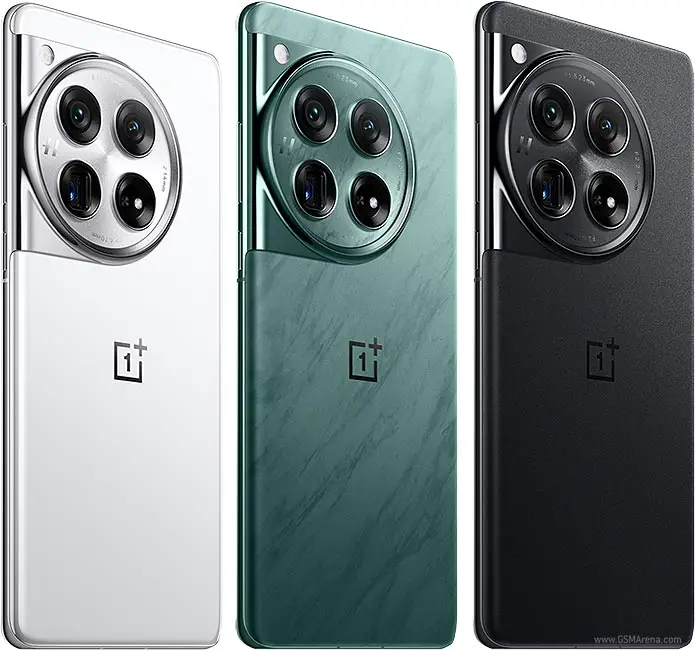
The OnePlus 12 has quickly established itself as a powerful contender in the smartphone market, boasting impressive specifications, including the latest Snapdragon 8 Gen 3 chipset and up to 16GB of RAM. However, some users have reported frustrating issues with performance lag and frame drops, particularly during app switching or gaming. These problems can significantly detract from the user experience, leading to dissatisfaction despite the phone’s otherwise stellar capabilities. In particular, users have noted that lag can occur when launching minimized apps or switching between them, causing delays of 1-2 seconds that can disrupt the flow of usage. By understanding these issues and implementing effective fixes, you can maximize your OnePlus 12’s potential and enjoy a smoother, more responsive smartphone experience. Whether you’re a gamer looking for seamless performance or someone who frequently switches between apps for productivity, addressing these concerns is essential for getting the most out of your device. Let’s dive into the details as I discuss how to tackle these performance challenges effectively!
- Common Causes of Performance Lag and Frame Drops on the OnePlus 12 Software Bugs and Updates High Resource Usage Storage Space Limitations Thermal Throttling Background Processes
- Practical Solutions for Enhanced Performance Regularly Update Software Optimize Storage Space Manage Background Applications Adjust Animation Settings Utilize RAM Expansion Features Monitor Device Temperature Factory Reset (Last Resort)
- Conclusion
Common Causes of Performance Lag and Frame Drops on the OnePlus 12
Software Bugs and Updates
Many users have noticed that performance issues often arise after software updates. For instance, lag when launching apps or switching between them can be exacerbated by bugs introduced in new firmware versions.
High Resource Usage
Running multiple applications simultaneously or using resource-intensive apps can overwhelm system resources. This is particularly evident when switching between demanding apps like games or video editors.
Storage Space Limitations
When internal storage approaches capacity—typically above 75%—the device may slow down. Insufficient storage can hinder background processes and app performance.
Thermal Throttling
Extended use of resource-heavy applications can cause the device to heat up, leading to thermal throttling. This results in reduced performance as the system tries to cool down.
Background Processes
Certain apps running in the background can consume valuable resources, leading to lagging performance when switching between apps or performing tasks.
Practical Solutions for Enhanced Performance
Regularly Update Software
Ensure your OnePlus 12 is running the latest software version. Updates often include bug fixes that can resolve performance issues. Here is how to check for updates:
Go to Settings > System > Software Update and check for available updates.
Optimize Storage Space
Keep at least 20-25% of your OnePlus 12 internal storage free to maintain optimal performance. Here is how to:
- Go to Settings > Storage and review large files or unused apps.
- Consider using cloud storage for photos and videos.
Manage Background Applications
Limit background processes by closing unused apps. To Close Apps:
- Access the recent apps menu and swipe away any applications you are not actively using.
Adjust Animation Settings
Reducing animation scales can improve perceived speed. Here is how to adjust:
- Enable Developer Options by tapping Build Number in About Phone seven times.
- Go to Developer Options > Window Animation Scale , Transition Animation Scale , and Animator Duration Scale , setting them to 0.5x or off.
Utilize RAM Expansion Features
If you have not already, enable RAM expansion features on your OnePlus 12 that allow you to utilize part of your internal storage as virtual RAM. To Enable:
- Go to Settings > Battery & Device Care > Memory > RAM Expansion , and select the desired amount.
Monitor Device Temperature
Keep an eye on your device’s temperature during intensive tasks. Avoid using your phone while charging if it becomes excessively warm, as this can exacerbate thermal throttling.
Factory Reset (Last Resort)
If you continue experiencing significant lag on your OnePlus 12 despite trying all other solutions, then you should try to factory reset your device. Here is how to:
- Back up your data first, then go to Settings > System > Reset Options > Erase All Data (Factory Reset) .
This action will restore your device to its original state, potentially resolving persistent software-related issues.
Conclusion
While performance lag and frame drops in the OnePlus 12 can be frustrating, understanding their common causes and implementing these effective solutions can significantly enhance your user experience. By regularly updating software, optimizing storage space, managing background applications, adjusting animation settings, utilizing RAM expansion features, monitoring device temperature, and considering a factory reset when necessary, you can ensure that your OnePlus 12 operates smoothly. Embrace these strategies as opportunities to optimize your device for peak performance. With a little attention and care, you’ll find that navigating any performance issues becomes much more manageable, allowing you to fully enjoy all that this powerful smartphone has to offer!
