Add MobilityArena as a preferred source on Google
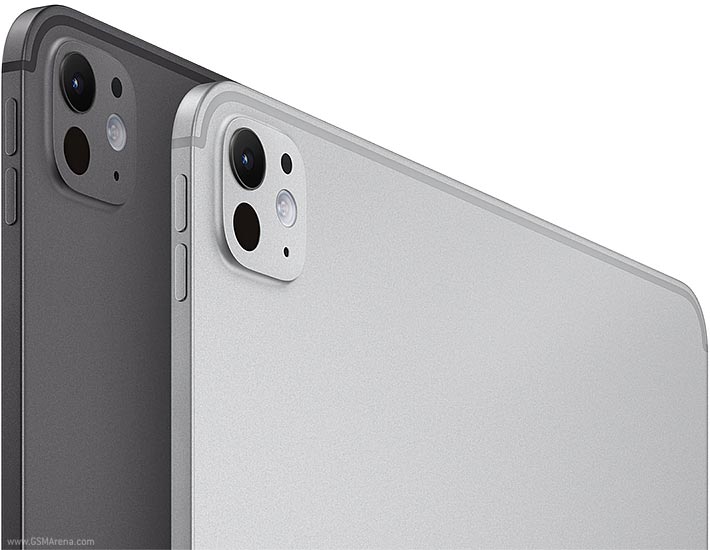
The Apple iPad Pro 2024 with its powerful M4 chip has made waves in the tablet market, offering unparalleled performance and features. However, like any advanced device, users have reported some challenges. From software glitches and unexpected freezes to video playback issues and battery concerns, users have encountered a range of problems that can impact productivity and enjoyment. While these issues may seem daunting, many can be resolved through simple troubleshooting steps, settings adjustments, or software updates. By understanding these common challenges and implementing targeted solutions, users can maximize the potential of this advanced tablet and enjoy a smoother, more satisfying experience with their iPad Pro (2024). Let’s dive into these issues and explore practical solutions to enhance your Apple iPad Pro 2024 experience.
- iPadOS 17.6.1 Glitches and Freezes
- Video Playback Issues
- Apple Pencil Unresponsiveness
- Battery Life Concerns
- Visual Distortions and “Rainbow Effect”
- Conclusion
iPadOS 17.6.1 Glitches and Freezes
Many users of the Apple iPad Pro 2024 have reported bugs, glitches, and system freezes with iPadOS 17.6.1, even on the powerful M4 chip. I recommend the following steps to resolve this issue:
- Update to the latest iPadOS version, as Apple often releases patches for known issues.
- Perform a clean install of iPadOS by backing up your data, wiping the device, and setting it up as new.
- If problems persist, consider downgrading to a more stable version of iPadOS temporarily.
Video Playback Issues
Some users have experienced problems with video playback across various apps. This can be frustrating. Fret not. Apply these solutions below:
- Force close all apps and restart your iPad.
- Clear the cache for problematic apps by deleting and reinstalling them.
- Check for app updates, as developers may have addressed playback issues.
Apple Pencil Unresponsiveness
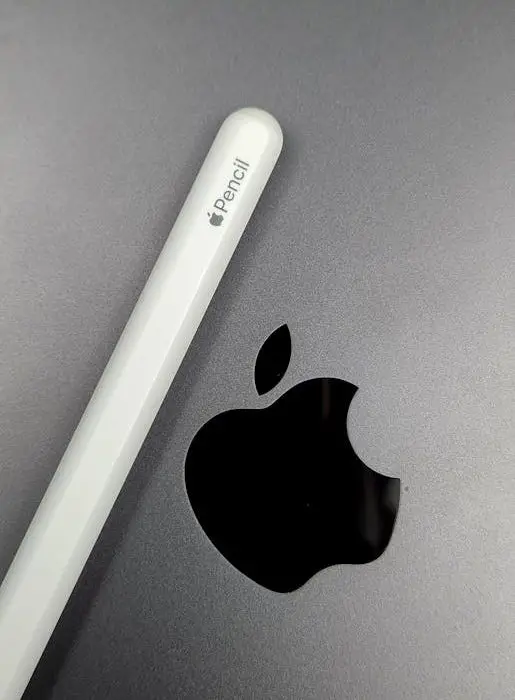
A few users of the Apple iPad Pro 2024 have reported issues with Apple Pencil responsiveness after updating to iPadOS 17.6.1. I recommend the following steps to resolve the issue:
- Unpair and re-pair your Apple Pencil with the iPad Pro.
- Ensure the Apple Pencil is fully charged.
- Check for and install any available firmware updates for the Apple Pencil.
Battery Life Concerns
While not universal, some users have noted faster battery drain than expected. If you would agree with me, what is a smart mobile device without a good and long lasting battery? I recommend the following to enhance your Apple iPad Pro 2024 battery life:
- Check battery usage in Settings to identify power-hungry apps.
- Adjust screen brightness and disable unnecessary background app refresh.
- Enable Low Power Mode when needed.
- Perform a battery calibration by fully draining and then charging to 100%.
Visual Distortions and “Rainbow Effect”

Some users of the Apple iPad Pro 2024 have reported visual issues, including color inconsistencies across the display. This can manifest as uneven color distribution, color shifting, or areas of the screen appearing warmer or cooler than others. These issues can be particularly noticeable when viewing uniform color backgrounds or images with gradients. Such inconsistencies can significantly impact the user experience, especially for those engaged in color-sensitive work like graphic design, photo editing, or video production. Follow these simple steps to get the issue resolved:
- Adjust the display settings, including True Tone and Night Shift, to see if it improves the issue.
- If problems persist, contact Apple Support as this may be a hardware issue requiring repair or replacement.
Performance Bottlenecks Due to iPadOS Limitations

Many users the Apple iPad Pro 2024 feel that iPadOS doesn’t fully utilize the M4 chip’s capabilities, limiting the iPad Pro’s potential as a laptop replacement. I recommend you do the following:
- Explore pro-level apps optimized for iPadOS that can take advantage of the M4 chip.
- Use Sidecar or Universal Control to integrate your iPad Pro with a Mac for more complex workflows.
- Provide feedback to Apple and third-party developers about specific features or apps you’d like to see optimized for the M4 chip.
Conclusion
The Apple iPad Pro 2024 is a powerful device with immense potential. While these issues can be frustrating, many can be resolved through software updates, settings adjustments, or simple troubleshooting steps. By implementing these practical solutions, you can significantly enhance your iPad Pro experience and unlock its full capabilities. Remember, technology evolves rapidly, and Apple continuously works on improving iPadOS. Stay patient and keep your device updated to benefit from the latest enhancements and bug fixes. With its impressive M4 chip and stunning display, the Apple iPad Pro 2024 remains a top-tier tablet that, with a few tweaks, can meet and exceed your expectations.
Author:Ifeoluwa Adeleke
Add MobilityArena as a preferred source on Google
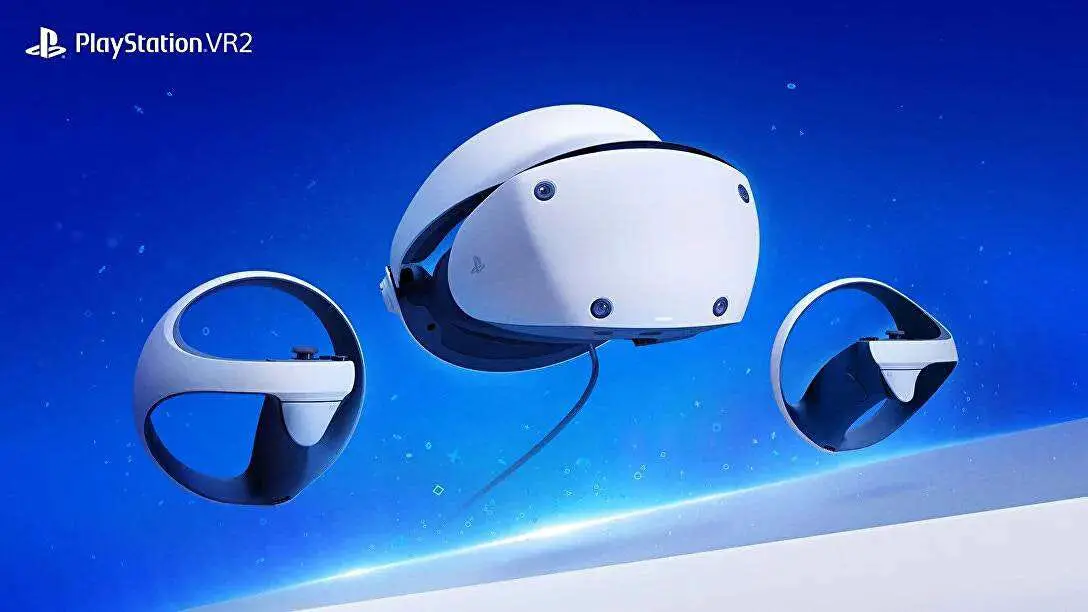
The PlayStation VR2 (PSVR2) has revolutionized virtual reality gaming with its impressive graphics, enhanced tracking, and innovative Sense controllers. However, like any cutting-edge technology, users have reported some challenges. From Sense controller malfunctions and headset tracking problems to power issues and visual distortions, users have encountered a range of obstacles that can impact their immersion and enjoyment. Additionally, some users have reported discomfort during extended use and struggles with VR sickness, particularly those new to virtual reality. While these issues may seem daunting, many can be resolved through simple troubleshooting steps, adjustments to your play environment, or software updates. By understanding these common challenges and implementing targeted solutions, users can maximize the potential of this advanced VR system and fully enjoy the next-generation gaming experiences it offers. Let’s dive into these issues as I explore practical solutions to enhance your PlayStation VR2 experience.
- Sense Controller Malfunctions Reset the controller:
- Headset Tracking Problems
- Power Issues with the Headset
- Blurry On-screen Images
- VR Sickness
- Reflective Surfaces Causing Tracking Issues
- Conclusion
Sense Controller Malfunctions
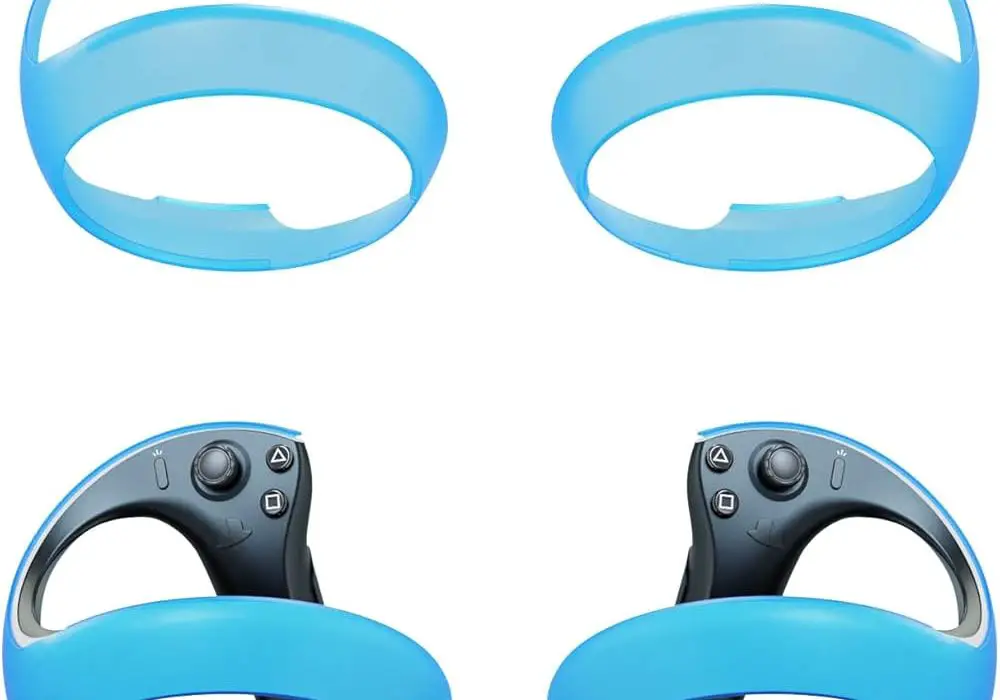
Some users of the PlayStation VR2 have reported issues with Sense controllers not registering correct motions or failing to track input accurately. Simply follow this steps to get it resolved:
Reset the controller:
Power off your PS5 console.
Locate the tiny reset button on the back of your Sense controller.
Press the reset button using a small pin and hold it for a few seconds.
Connect your Sense controller to your PS5 using the USB cable.
Press the PS button to sync the controller and headset together.
Ensure the controller is fully charged.
Check for and install any available firmware updates for the controllers.
Headset Tracking Problems
Inaccurate tracking can lead to your in-game avatar moving without your direct input, severely impacting immersion. This is one of the major complaints of users of the PlayStation VR2. I recommend the following to resolve this issue:
- Ensure adequate lighting in your play area.
- Eliminate external light sources that might interfere with the headset or camera.
- Stay within the designated play area.
- Clean the headset’s cameras with a microfiber cloth to remove any debris.
- Recalibrate your play area, taking extra time to scan thoroughly beyond the initial prompt.
- Check that all Bluetooth devices are tied to the same user account as your headset and controllers.
Power Issues with the Headset
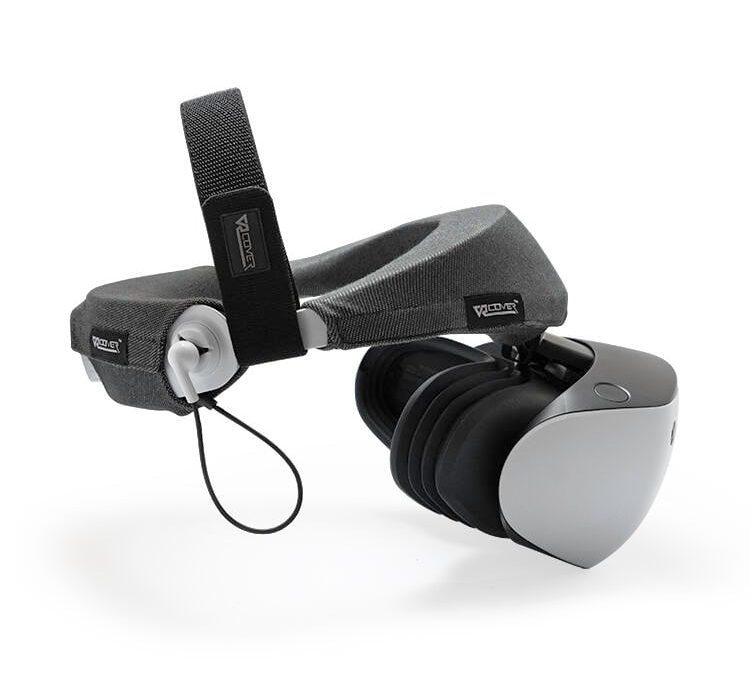
If your headset fails to power on or turns off unexpectedly, it could be due to software or hardware problems. Simply check for updates:
- Update the PlayStation VR2 system software to the latest version.
- Ensure all cables are correctly connected and seated firmly.
- Try using different cables to identify if there’s a faulty connection.
- If problems persist, contact Sony support for potential repair or replacement.
Blurry On-screen Images
While the PlayStation VR2 is capable of producing sharp images, some users have reported blurry visuals. A little tweak could help:
- Press the PS button to load the PSVR2 Activity Card.
- Select “Adjust Visibility” to clear up blurry images.
- Reposition the headset on your face to ensure proper alignment with your eyes.
- Clean the lenses carefully with a microfiber cloth.
VR Sickness
VR sickness is a common issue, particularly for those new to virtual reality or prone to motion sickness. If you’re experiencing this, Irecommend the following:
- Start with less-intense VR games or experiences to build your tolerance.
- Take frequent breaks, especially when first using the headset.
- Ensure your play area is well-ventilated and cool.
- Try natural remedies like ginger or peppermint to alleviate nausea symptoms.
- Consider using anti-motion sickness wristbands or over-the-counter medications like Dramamine.
Reflective Surfaces Causing Tracking Issues
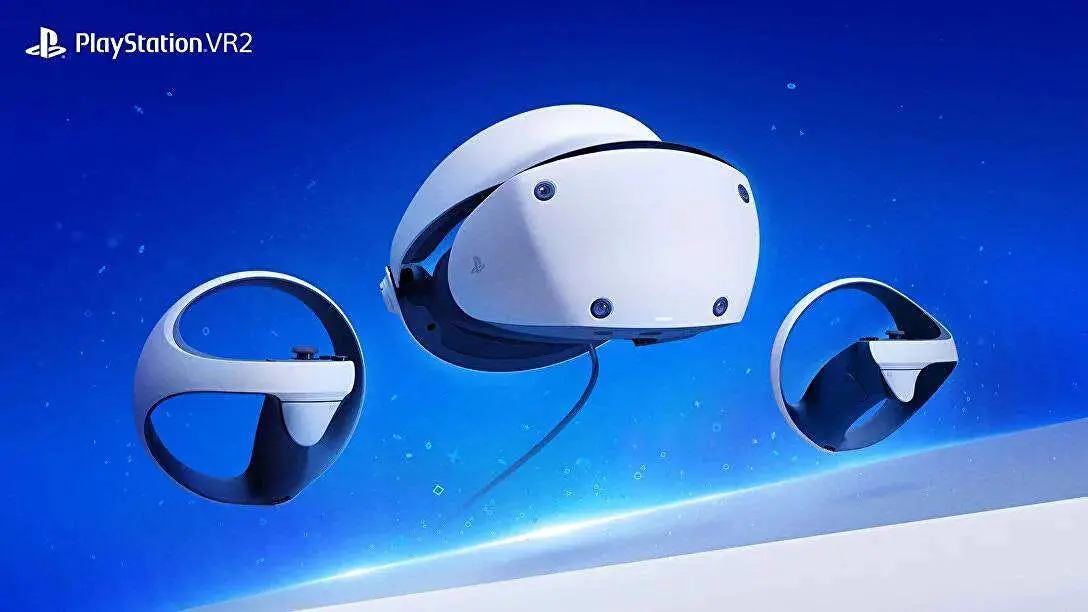
Reflective surfaces in your play area can interfere with the PlayStation VR2’s tracking system. Follow my recommendations below to get over with it:
- Cover or remove reflective surfaces like mirrors or glass tables in your play area.
- During recalibration, observe where the blue triangles appear. Areas without triangles may cause tracking issues.
- Add non-reflective objects or posters to blank walls to improve tracking.
Conclusion
While these issues can be frustrating, many can be resolved through simple troubleshooting steps or minor adjustments to your play environment. By implementing these practical solutions, you can significantly enhance your PlayStation VR2 experience and fully immerse yourself in the exciting world of virtual reality gaming. Remember, as with any new technology, there’s a learning curve. Stay patient, keep your system updated, and don’t hesitate to reach out to Sony support for persistent issues. With its advanced features and growing library of games, the PSVR2 offers an unparalleled VR gaming experience that’s well worth the effort to optimize.
