Add MobilityArena as a preferred source on Google
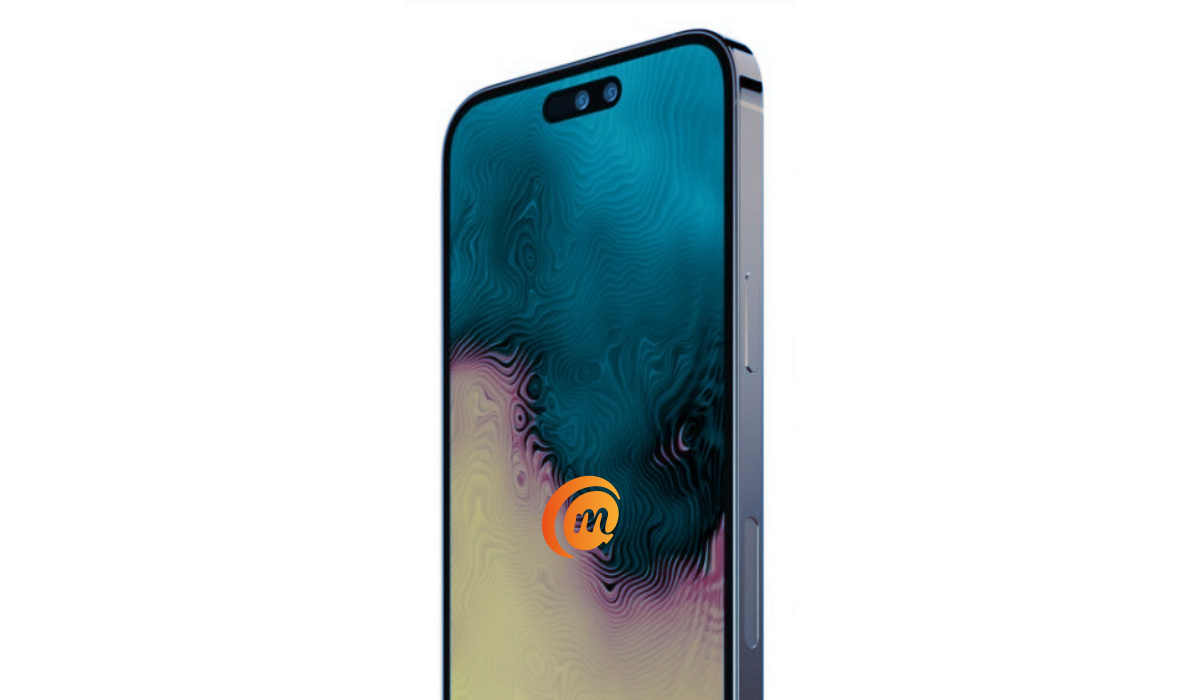
The Apple iPhone 15 Pro is the best compact smartphone on the market. It combines the power of the latest Bionic chipset with the smoothness of iOS in a small mini-smartphone size.
The iPhone 15 Pro brings the iconic metal frame and glass sandwich build, a new and more powerful A-series chip, the A17 Pro, more RAM, better graphics, as well as better cameras. Of course, it will be the most powerful iPhone Pro ever. It will also be the first iPhone with a USB-C port instead of the Lightning port that the iPhone has been known for.
- aptX Bluetooth Codecs
- Chipset
- Does iPhone 15 Pro have an IR blaster?
- Detailed Specifications
- Prices of iPhone 15 Pro in the USA, UK, and EU
- Hands-on Video
aptX Bluetooth Codecs
The iPhone 15 Pro does not support any aptX Bluetooth codecs.
Chipset
The iPhone 15 Pro has the new A17 Pro processor for performance boost, as well as more powerful neural processing and better photography as well.
Does iPhone 15 Pro have an IR blaster?
If you are interested in having infrared (IR) blaster and have wondered whether the iPhone 15 Pro has one, we clear the air on it. The iPhone 15 Pro does not have an IR blaster. The growing interest in this feature in the last few years has motivated some phone brands to start including it in their devices. Unfortunately, Apple has not included it in the iPhone 15 Pro.
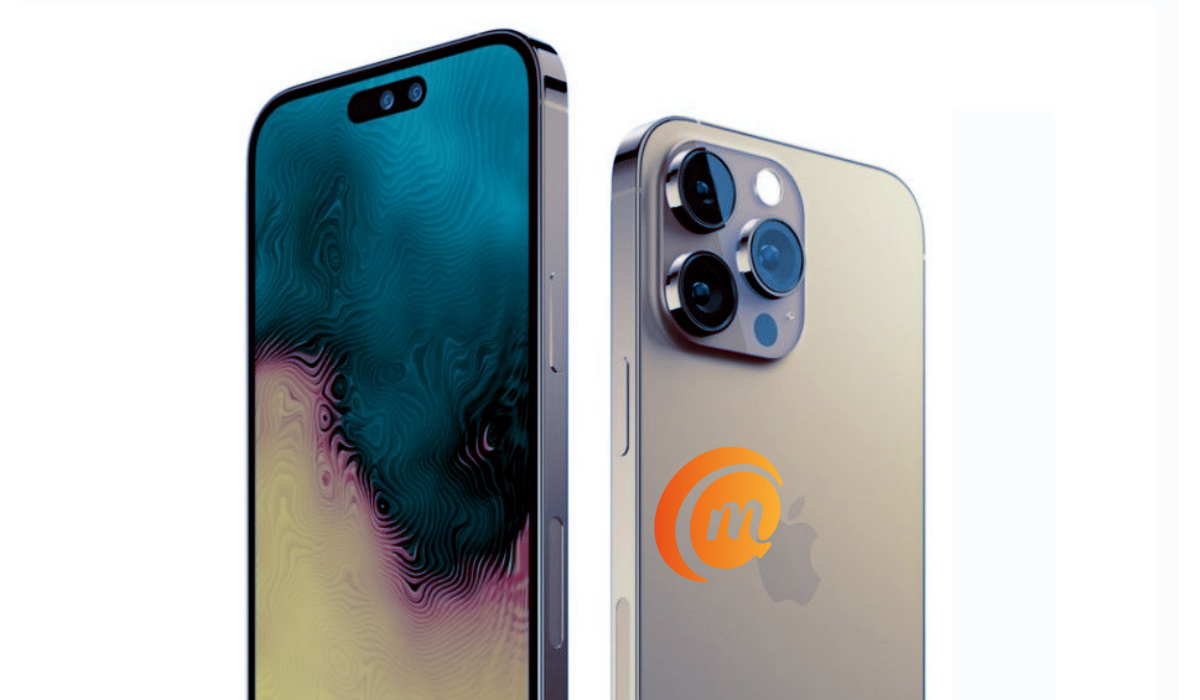
Apple iPhone 15 Pro
Detailed Specifications
Mobile Wireless Network and Software
- 2G mobile network bands : GSM, GPRS, EDGE 850 / 900 / 1800 / 1900 MHz.
- 3G mobile network bands : UMTS, WCDMA, HSDPA 850 / 900 / 2100 MHz
- 4G mobile network bands : LTE.
- 5G mobile network bands : NSA/SA
- SIM Type : Nano-SIM, Dual SIM/eSIM
- Software / OS : iOS 17
Design, Form Factor, Appearance
- Dimensions : 146.47 x 70.46 x 8.24 mm
- Weight : 187g
- Display : 6.1 inches, 1179 x 2556 pixels, 120 Hz refresh rate, 20:9 aspect ratio, Always-On Display, Super Retina, OLED screen, Ceramic shield glass
- Colours : White. Red. Green.
- Physical Build : Gorilla Glass screen, Stainless Steel frame, Glass rear cover
Internal Hardware Specs
- CPU/ Processor : 64-bit, 3.6 GHz Hexa-core
- Chipset : Apple A17 Pro (3nm)
- GPU/ Graphics Processing Unit : Apple GPU
- RAM : 8 GB
- Extended/Virtual RAM : No.
- Internal Storage : 128 GB / 256 GB / 1 TB
- External Storage : None
Photography, Video Recording
- Main Camera : 48 MP main sensor, autofocus, dual LED flash, 4k video, 1080p@30fps video recording
- Front Camera : 12 MP, fixed focus, 4k video, 1080p@30fps video capture
Audio, Video Playback
- Music Support : PCM, AAC / AAC + / eAAC + / MP3 / AMR – NB / WB / APE
- Audio : No 3.5 mm audio jack
- Loudspeaker : Stereo speakers
- Video Support : H.264/MP4/MPEG4 player
- FM Radio : No.
Phone Sensors
- Digital Compass : Yes.
- Accelerometer : Yes.
- Proximity Sensor : Yes.
- Ambient Light Sensor : Yes.
- Barometer : Yes.
- Pedometer : No.
- Heart Rate Monitor : No.
- Gyroscope (G-Sensor) : Yes.
- Fingerprint Scanner : No.
- Face Unlock : Yes.
- Iris Scanner : No.
- Motion Sensing / Gesture Control : No.
- Voice Control : No.
- Intelligent Digital Assistant : Yes; Siri.
- Infra-red Blaster : No.
Connectivity Options
- Bluetooth Version : 5.3
- Bluetooth Profiles : A2DP, LE
- WiFi : Wi-Fi 802.11 a/b/g/n/ac/6, hotspot
- GPS : Yes, A-GPS, GLONASS, BDS, Galileo, QZSS
- USB : microUSB v2.0. Type-C.
- NFC : Yes.
Miscellaneous Specs and Features
- Battery Type and Capacity : Non-Removable Lithium-Ion 3274 mAh
- Battery Charging : Power Deliver 2.0 (50% in 30 minutes)
- Wireless Charging : 15W (Magsafe). 7.5W Qi
- Reverse Charging : 4.5W reverse wired.
- Model Version/Number :
Launch/Release Dates and Information
- Announced : September 2023
- Release Date : September 2023
Prices of iPhone 15 Pro in the USA, UK, and EU
- USA : from $1,059.99
- United Kingdom (UK) : from £ 970
- European Union (EU) : from €1,250
The above prices may change with time from country to country, as market forces and economic policies influence product price movements.
Hands-on Video
Enjoy Mister Mobility’s hands-on video of the iPhone 15 Pro on YouTube .
MobilityArena Buyer’s Guide Verdict
if you are looking for the most powerful smartphone with a small screen, the Apple iPhone 15 Pro fits. It is the best compact smartphone on the market. It combines the power of the latest Bionic chipset with the smoothness of iOS in a small mini-smartphone size.
Our Buyer’s Guide Verdict is a recommendation based on the specifications of the device and a general guide to help you understand how much value a device offers for its price. It is not an endorsement of the device. Ask questions and use your judgement when buying any device; MobilityArena takes no responsibility for your buying decisions .
Author:InfoDesk
Add MobilityArena as a preferred source on Google
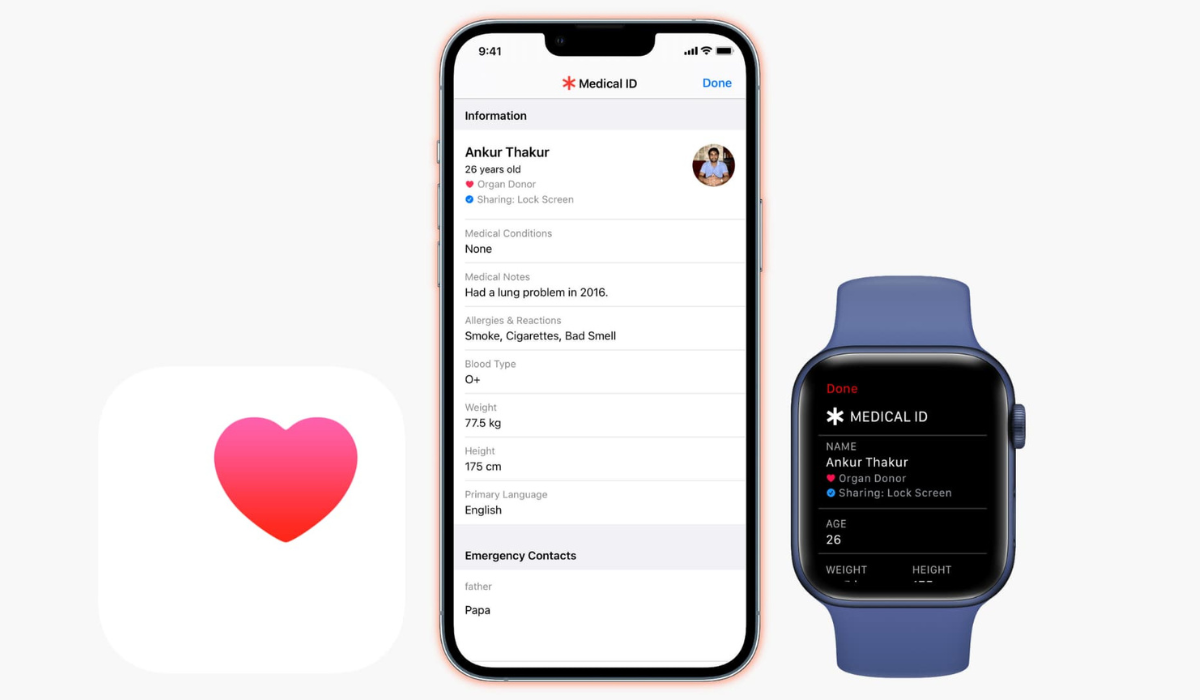
The medical ID feature on the iPhone and Apple Watch provides important information about you and your health. No one prays for health emergencies, but having relevant health information that a medical ID provides can mean the difference between life and death in some health cases.
If you know how to find medical ID on a device, essential details such as a person’s name, age, blood type, existing medical conditions, current medications, and other important medical details become available. So, in this article, I’ll show you how to find medical ID on your iPhone and Apple Watch.
How Can You Find Medical ID on an iPhone and Apple Watch?
If you set up Apple’s Medical ID function beforehand, it may be able to save your life in an emergency. Also, knowing where to find medical ID on an iPhone or Apple Watch can be useful whether you’re a paramedic, a first-aid provider, or just a well-meaning passerby. You’ll be able to find vital information about someone if they are rendered unconscious, and also to return a lost device to its rightful owner.
The steps to find medical ID on an iPhone and Apple Watch are described below.
How to Find Medical ID on an iPhone
There are several ways to find medical ID on an iPhone, whether it’s yours or someone else’s:
- Press the Side or Top button five consecutive times, then slide across the screen with the Medical ID slider. Depending on the settings, this may cause the iPhone to enter emergency SOS mode.
- You could also hold the Side or Top button together with either Volume button, then slide across on the Medical ID option.
- Swipe up (or press the Home button if there is one) from the lock screen to access the passcode entry screen. Then, in the bottom-left corner, select Emergency > Medical ID .
- Look for the Health app and launch it if the iPhone is unlocked. Then, in the top-right corner, tap the profile icon and select Medical ID .
If you don’t see a Medical ID option on the device, it means the user has either not configured it on their device or has opted not to share it from the Lock Screen.
Follow the directions above and use the “ Emergency Call ” slider instead if you need to call the emergency services. This initiates a call to your local emergency services. When you end the call, the iPhone will send a message to each emergency contact listed on the Medical ID, which is just one of the iPhone’s emergency features.
How to Find Medical ID on an Apple Watch
Both an iPhone and an Apple Watch have similar potential to save your life in an emergency situation since first responders are trained to seek out medical bracelets. Here are the steps to find medical ID on an Apple Watch:
- Press and hold the Side button, then slide across on the Medical ID slider on an Apple Watch to view medical ID.
- Ensure that you are pressing the Side button and not the Digital Crown on the Apple Watch.
To contact the local emergency services, swipe across the Emergency Call slider. If you aren’t using a cellular Apple Watch, the device will have to be close to a paired iPhone before you can do this. The Apple Watch will notify each emergency contact after calling emergency services and display the medical ID.
Please keep in mind that Apple’s Medical ID is only helpful if users activate it on their devices. So don’t forget to set it up on your personal device as well. Also, to find medical ID on a locked iPhone screen, you must keep Show When Lock enabled ( Settings > Health > Medical ID > Edit > Scroll down and enable Show When Lock ).
It’s true that many of us are unlikely to ever need Apple’s Medical ID, but it’s still useful to know how to locate it on your iPhone and Apple Watch. I hope the information above is helpful in case you ever need to find medical ID on an iPhone or Apple Watch.
