Add MobilityArena as a preferred source on Google
Apple Vision Pro 3D enhancing device has generated a significant vibe as a groundbreaking mixed reality headset, giving an immersive experience that blends the digital and physical worlds. However, the early users have given a range of complaints regarding its functionality and comfort. In this article I delve into quite a number of primary issues users are facing and offer practical solutions to enhance the overall experience.
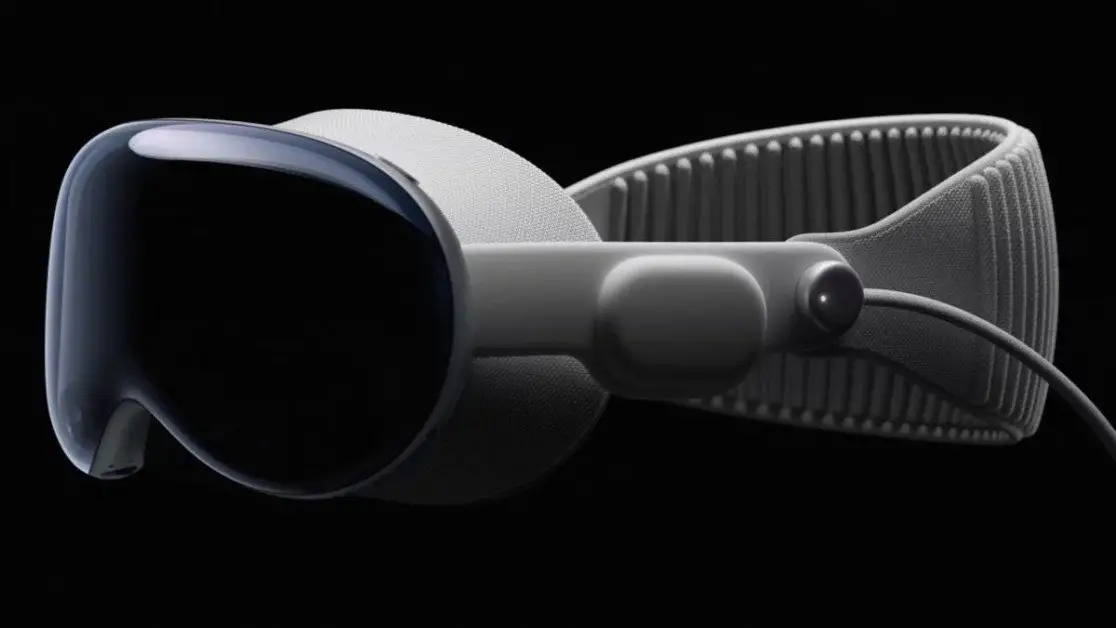
- Weight and Comfort of the Apple Vision Pro
- Eye Tracking Issues
- Software Bugs
- View Limited Field
- Privacy Concerns
- Lack of Collaborative Features
- Conclusion
Weight and Comfortof the Apple Vision Pro

The Apple Vision Pro is often compared to carrying or wearing an iPad on the face. Many users report discomfort during prolonged use due to the headset’s heavy weight. The weight of the device on the face, leads to eye strain and pressure on the cheeks.
To deal with this discomfort, it is important that users take regular breaks when using the Vision Pro. Also adjust the fit of the headset to alleviate pressure points. If you have the affordability, experimenting with different bands or padding may provide a more comfortable experience.
Eye Tracking Issues
Users have noted that the eye-tracking feature requires frequent recalibration, which can be frustrating and disrupt the user experience.
You can sort this by ensuring that the eye-tracking feature is calibrated before each use. This will help to maintain accuracy and reduce the frustration of misaligned controls. Users should get themselves familiar with the calibration process to streamline their setup.
Software Bugs

The visionOS has faced high criticism for instability, including crashes, glitches, and unresponsive apps. Imagine having half-keyboards appearing and having difficulty in deleting or launching applications, these are usually frustrating.
You easily get over these glitches by Keeping the device updated. It is crucial for addressing software bugs as Apple often releases updates that improve stability and functionality of her devices.
View Limited Field
The Apple Vision Pro’s field of view has been described by some users as “tunnel-like,” which detracts from the immersive experience they expect from a mixed reality device.
I advise that users consider investing in third-party accessories, designed to enhance comfort and usability. Lightweight head straps or additional padding can make a significant difference during extended use
Privacy Concerns

There’s a “Persona” feature introduced on the Apple Vision Pro, which creates a digital avatar for video calls. It has raised security alarms. Researchers demonstrated a vulnerability (GAZEploit) that could allow hackers to infer what users are typing by tracking eye movements.
To mitigate privacy risks associated with the Persona feature, it is best that users should avoid typing sensitive and personal information while using the virtual keyboard. Instead, opt for physical keyboards or voice input when possible. Also, users should be careful about sharing videos that include their Persona during typing activities.
Lack of Collaborative Features
Some users have expressed their disappointment over the limited ability to share their experiences with others, making the device feel isolating during social interactions.
While the Vision Pro currently lacks robust collaborative features, users should be on the lookout for updates and new applications that may enhance social interactions. Interacting with the Apple community can provide insights into upcoming features and third-party apps that facilitate shared experiences.
Conclusion
As I conclude, the Apple Vision Pro is a representation of a significant leap in mixed reality technology, but it is not without its challenges. By addressing common complaints through practical solutions, users can enhance their experience with this innovative device. As Apple continues to refine the Vision Pro and expand its capabilities, staying informed and adaptable will be key to making the most of this cutting-edge technology.
Author:Ifeoluwa Adeleke
Add MobilityArena as a preferred source on Google
The Samsung Galaxy S24 has received lots of complaints from users because of the AI feature bugs, hindering the performance of these tools. Although the device have garnered attention for its advanced AI features, enhancing user experience through smart functionalities.
Common issues include problems with grammar AI, image editing, and connectivity errors. I explore these complaints in details and offer practical solutions to help users optimize their experience with the Galaxy S24.

- Common AI Feature Bugs Grammar AI Issues Image Editing AI Failures Connectivity Problems Post-Update Bugs
- Practical Solutions for the AI Feature Bugs Check Your Internet Connection Disable Data Processing Features Clear Cache and Data Use Safe Mode Update Your Software Report AI Feature Bugs to Samsung Reset Network Settings
- Conclusion
Common AI Feature Bugs
Grammar AI Issues
The grammar AI frequently fails to process requests, displaying error messages such as “The processing function on the Internet does not respond.” This issue often occurs despite having a stable internet connection. This experience can be a frustrating one.
Image Editing AI Failures
Many users experience problems when attempting to use the image editing AI, with messages like “Couldn’t fill image, try again.” These errors can occur after initial successful usage, leading to frustration.
Connectivity Problems

Some users find that their AI features work intermittently, often requiring a switch between mobile data and Wi-Fi to regain functionality. This inconsistency can be particularly annoying when trying to use AI features on the go.
Post-Update Bugs
Users have noted a spike in AI-related issues, including failures in AI for the Samsung keyboard and other integrated applications, usually after major software updates
Practical Solutions for the AI Feature Bugs
Check Your Internet Connection
No matter how strong an AI feature is, it often relies heavily on stable internet connectivity. To enjoy the AI feature, ensure that your Wi-Fi or mobile data is functioning properly. If you encounter issues, simply:
- Restart your router or switch to a different network.
- Test your internet speed to confirm stability.
Disable Data Processing Features
Some reports from users have shown that disabling certain data processing features can improve AI functionality. To do this:
- Go to Settings > Advanced Features.
- Look for options related to data processing and disable them temporarily to see if performance improves.
Clear Cache and Data

Clearing caches and data have proven to be one of the workable solutions to enhance device performance, especially for specific apps. Doing this can resolve many issues. Here’s how:
- Go to Settings > Apps.
- Select the app related to the AI feature (e.g., Samsung Keyboard, Photo Editor).
- Tap on Storage and then select Clear Cache and Clear Data.
Use Safe Mode
Booting your device in Safe Mode can help determine if third-party apps are causing issues. You can do this by simply doing the following:
- Press and hold the power button until the power off menu appears.
- Tap and hold the Power Off option until the Safe Mode prompt appears, then tap OK.
- In Safe Mode, check if the AI features work correctly. If they do, a third-party app may be the culprit.
Update Your Software
Ensure that your device is running the latest software version, as updates often include bug fixes and performance improvements. To check for updates:
- Go to Settings > Software Update > Download and Install.
Report AI Feature Bugs to Samsung
If issues persist, consider reporting them through the Samsung Members app. Feedbacks often help tech companies like Samsung prioritize fixes in future updates. To report a bug:
- Open the Samsung Members app.
- Go to Support > Send Feedback > Report Error.
Reset Network Settings
If connectivity issues persist, resetting your network settings may help. Note that this will erase saved Wi-Fi networks and Bluetooth connections:
- Go to Settings > General Management > Reset > Reset Network Settings.
Conclusion
While the Samsung Galaxy S24 offers impressive AI features, users may encounter various bugs that affect performance. Simply following the solutions outlined above, users can troubleshoot common issues and enhance their experience with the device. Staying informed about updates and actively reporting bugs can also contribute to a more stable and enjoyable use of the Galaxy S24’s advanced functionalities.
