Add MobilityArena as a preferred source on Google
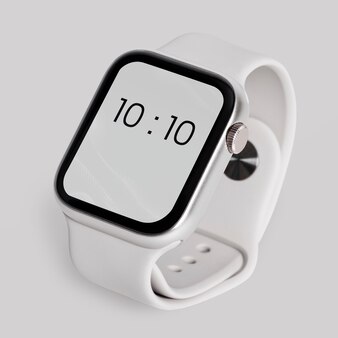
The Apple Watch series 9 is packed with innovative features which makes it stand out. Although it is innovatively designed, it also has its own share of user complaints. Let’s dive into the most prevalent issues and explore potential solutions.
- Some of the User complaints about the Apple Watch Series 9 and Potential Resolutions The “Ghost Touch” Double Tap Feature Troubles Battery Life Concerns Complications Not Showing Up Conclusion
Some of the User complaints about the Apple Watch Series 9 and Potential Resolutions
The “Ghost Touch”

Many users have reported experiencing “ghost touches” on their Apple Watch Series 9 displays. This glitch causes the screen to behave erratically, with unintended actions occurring without user input. Some of the symptoms of this “ghost touches” are listed below:
- Screens jumping erratically
- Unexpected app launches
- Unintentional phone calls being initiated
- Difficulty entering passcodes
It is worthy of note that Apple has acknowledged this particular issue and is actively doing a background check to correct this glitch. But in the meantime, you can try these simple steps to solve the problem:
- You can perform a force restart by holding down the Digital Crown and side button simultaneously for at least 10 seconds until the Apple logo appears.
- Make sure to keep your watch’s software up to date, as Apple may release a fix in a future update.
- If problems persist, you might have to contact Apple Support for further assistance.
Double Tap Feature Troubles
Some users report that the new Double Tap gesture isn’t working as expected. If you have such experience, I recommend that you do some of the checks highlighted below to rectify this issue:
- Be sure your watch is running watchOS 10.1 or later
- Confirm if the Double Tap feature is enabled. simply go to Settings > Gestures and make sure it’s turned on.
- Note that Double Tap doesn’t work in Low Power Mode, during Sleep Focus, or when the screen is inactive.
- Practice the gesture – It may take some time to master the precise finger movement required.
Battery Life Concerns
Although this is not a universal complaint, some users have reported subpar battery life on the Series 9 which is one of the reasons they have not enjoyed the device. To improve the battery life of your watch, deliberately look out for the following:
- Check for power consuming apps. To do this, simply go to the Watch app on your iPhone, then tap My Watch > General > Usage to see which apps are consuming the most battery.
- Adjust screen brightness. Lower brightness can significantly improve battery life.
- Turn off unnecessary notifications to reduce wake-ups.
- Ensure your watch is running the latest watchOS version, as updates often include power optimization improvements.
Complications Not Showing Up
Some users have experienced issues with watch face complications not displaying correctly. You can correct this by doing the following:
- Force quit the problematic app and relaunch it
- Try removing the complication and re-adding it to the watch face.
- For the weather complications, try setting a specific location instead of using “Current Location.”
- Restart your Apple Watch and paired iPhone
- As a last resort, unpair and re-pair your watch with your iPhone
Conclusion
While these issues can be frustrating, it’s important to remember that many of these issues can be resolved through simple troubleshooting steps. Apple is known for its commitment to user experience, and it’s likely that software updates will address many of these concerns in the near future, which is why I recommend that you regularly update your device. If you continue to experience problems after trying these solutions, don’t hesitate to reach out to Apple Support or visit an Apple Store for personalized assistance. The Apple Watch Series 9 is a powerful device, and with a little patience and the right know-how, users can overcome these initial hurdles and enjoy all the benefits this advanced smartwatch has to offer.
Author:Ifeoluwa Adeleke
Add MobilityArena as a preferred source on Google
The iPhone 15 Pro is a strong device that made and is still making waves in the tech world. However, as sophisticated as it could be, there’s no cutting-edge technology or device that is immune to teething problems. Users from different parts of the world have reported several software bugs that’s affecting the overall experience of the device. Stick to this article as I walk you through the most common issues and provide alongside with it the effective solutions to keep your iPhone 15 Pro running smoothly.

- Overheating Dilemma
- Battery Drain Issue
- Performance Lag and Choppiness
- Sound Glitches When Typing
- Startup Freeze During Data Transfer
- App Crashes with Apple Intelligence
- Wi-Fi Connectivity Issues
- Screen Image Retention
- Auto-Focus Camera Problems
- Conclusion
Overheating Dilemma

The number one on the list of the bugs affecting the iPhone 15 Pro is the device becoming uncomfortably hot during intensive tasks like gaming, FaceTime calls, and 4K video recording. This doesn’t allow users to have a good experience while using the device for heavy tasks as aforementioned. Consider the following options to solve the overheating problem:
- Close background apps and avoid multitasking during intensive activities.
- Remove any case that might be trapping heat. You can use a ventilated designed case.
- Update to the latest iOS version, as Apple has released patches to address this issue.
- If the problem persists, consider resetting all settings or contacting Apple Support.
Battery Drain Issue
Users have reported that the rate at which the battery drains especially after initial setup is alarming and unpalatable. Long lasting battery life enhances the user experience of this device. You can fix this by following these simples steps:
- Allow your phone a few days to optimize battery usage after setup.
- Check battery health. Simply go to Settings > Battery > Battery Health & Charging.
- Identify and limit usage of power-hungry apps.
- Enable Low Power Mode when necessary, especially when the battery-power level is below 40%
- Consider replacing the battery if health is below 80%.
Performance Lag and Choppiness
The device is reported to be lagging and having a choppy performance, possibly due to iOS 17 compatibility issues. Device lagging can definitely be annoying and frustrating especially when you’re in haste to perform certain activity, especially if you do gaming with the device. I recommend you do the following:
- Update all apps to their latest versions.
- Clear app caches regularly.
- Perform a force restart: quickly press Volume Up, then Volume Down, then hold the Side button until the Apple logo appears.
- If issues persist, try resetting all settings or performing a clean install of iOS.
Sound Glitches When Typing
If you are like myself that likes the tapping click sound of the iPhone keyboard, I so much love that sound, but it can be frustrating sometimes when suddenly the sound glitches when using the keyboard, you hear the sound now and suddenly you can’t hear and goes on and off like that. You can simply get it fix by:
- Check if the issue occurs with specific apps and update them.
- Toggle off keyboard sounds and back on. You can do this by going to Settings > Sounds & Haptics > Keyboard Feedback.
- Reset all settings if the problem continues.
Startup Freeze During Data Transfer
Some users have reported that the device gets stuck in a boot loop at the Apple logo during initial setup when transferring data from previous iPhone to the iPhone 15 Pro. Follow these steps to solve the issue.
- Update to iOS 17.0.2 or later before attempting data transfer.
- If stuck, force restart the device.
- As a last resort, set up as a new device and manually transfer data
App Crashes with Apple Intelligence
- Keep all apps updated to ensure compatibility.
- Clear app caches or reinstall problematic apps.
- Report persistent crashes to Apple and app developers.
- Consider disabling certain Apple Intelligence features temporarily if crashes continue.
Wi-Fi Connectivity Issues

Futuristic glowing low polygonal wifi symbol made of stars, lines, dots, isolated on dark blue background. Modern design vector illustration.
Another problem encountered by users is the slow or fluctuating Wi-Fi speeds. To get this solved, follow these simple steps:
- Forget the network and rejoin.
- Reset network settings by going to Settings > General > Transfer or Reset iPhone > Reset > Reset Network Settings.
- Update your router’s firmware.
- Contact your ISP if problems persist across multiple devices.
Screen Image Retention
How about the temporary image retention on OLED screen displays? It can be frustrating as well. But there’s always a solution to problems as such. Follow these guides:
- Update to iOS 17.1 or later, which addresses this issue.
- Avoid displaying static images for prolonged periods.
- Use auto-brightness and reduce screen timeout.
- If issues persist, contact Apple Support as it may be a hardware problem.
Auto-Focus Camera Problems
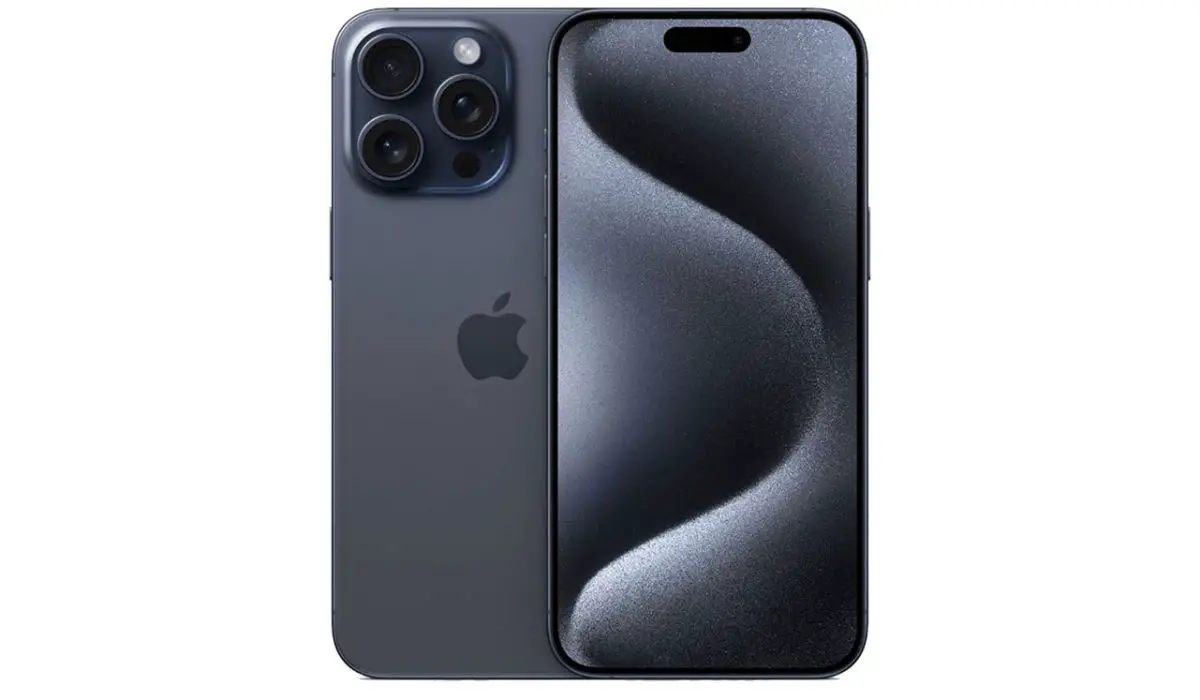
The iPhone 15 Pro device camera is superb, no doubt, but the blurry images due to auto-focus issues can be annoying. This can sorted by following these simple steps:
- Ensure the camera lens is clean and free from obstructions.
- Update to the latest iOS version for camera software improvements.
- Try resetting camera settings (Settings > Camera > Reset Camera Settings).
- If problems continue, contact Apple Support as it could be a hardware issue.
Conclusion
Following these solutions, you can tackle the most common bugs affecting the iPhone 15 Pro. Remember, Apple continuously works on improving iOS, so keeping your device updated is crucial. If you encounter persistent issues, don’t hesitate to reach out to Apple Support for personalized assistance.
