Add MobilityArena as a preferred source on Google
Microsoft’s Surface Pro is the most iconic detachable tablet, and it has maintained a significant lead in the Windows 2-in-1 market, in both performances and mindshare. However, other OEM partners have joined the fray, and there have been several devices that compete with the Surface Pro, with varying success. The Asus Transformer Pro T304 is one of the devices that look almost exactly like the Surface Pro in terms of design but is quite different in everything else.
Truly, the Asus Transformer Po T304 is so similar to the Surface Pro in appearance that if you were to see both devices side by side from across a room, you would have a hard time telling them apart. Both devices have a strikingly similar magnesium-alloy chassis, an almost-identical kickstand, and the keyboard cover on both devices look very much alike. However, that’s where the similarities end. The Surface Pro feels slightly better in the hands than the Transformer Pro.
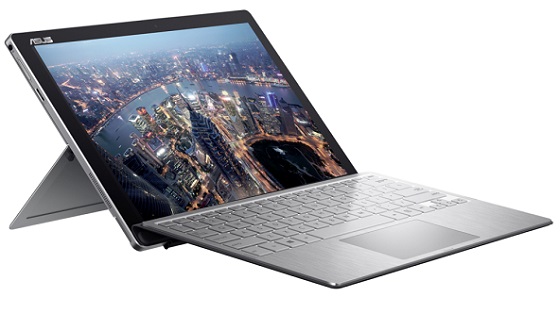
The Transformer Pro T304 has lots of options for data input. The device can be used as a tablet with just touch and/or a pen, and you can also attach a keyboard. The keyboard layout is familiar, with all the right-sized keys in the right places, and it is attached using magnets and a pogo pin connector, which means that it offers the typical flat and inclined typing positions.
Asus also includes the Active Pen with the Transformer Pro T304. This pen offers 1,024 levels of pressure sensitivity, compared to 4,096 levels of pressure sensitivity from the Surface Pro. But the device’s 10-point multi-touch display responds quickly and accurately, which is the norm for Windows 10 touchscreen devices today. it therefore provides an excellent experience whether in tablet or laptop mode.
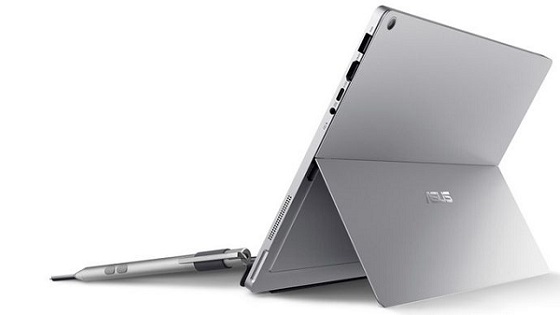
The Asus Transformer Pro T304 has a microSD card reader, a USB 3.1 Type-A port, a full-sized HDMI connection and a USB 3.1 Type-C port. Unfortunately, the Type-C port is not Thunderbolt 3-equipped. Furthermore, you cannot use the Type-C port to charge the device, as it comes with a standard A/C adapter.
In terms of display, the Transformer Pro T304 is not quite up to the level of the Surface Pro. The device has a 12.6-inch screen, with a screen resolution of 2,160×1,440, or 206 PPI. In use, the Transformer Pro T304’s display is good enough, with decent colors and acceptable video. Of course, you can always customize the display using the Asus Splendid technology utility. For audio, the device offers dual speakers that flank the display on each side of the tablet towards the bottom. Asus promises 96 decibels of sound, a Smart Amplifier provided by Texas Instruments aimed at maximizing volume without damaging the speaker, and Harmon Kadon certification, which should provide a superb audio experience.
The device performs quite poorly in terms of battery life. On a heavy-usage test, the Transformer Pro T304 lasted a mere two hours and 14 minutes. This means that this device should be used with a charger and a power outlet close by.
If you are satisfied withal these features, then you will surely find the $1,000 price a bargain. This includes the keyboard cover and pen for complete productivity. The Asus Transformer Pro T304 is a solid value in this class machines for that price, and it does meet the need of the vast majority of people who need a detachable tablet.
The Asus Transformer Pro T304, in summary
Looking for a versatile and powerful 2-in-1 laptop that can keep up with your busy lifestyle? The Asus Transformer Pro T304 might just be the device you’ve been searching for. This sleek and stylish laptop boasts a variety of impressive features, including a high-resolution touchscreen display, a powerful processor, and long-lasting battery life. In this article, we’ll take a closer look at the Asus Transformer Pro T304 and explore everything it has to offer.
Author:EmmyCN
Add MobilityArena as a preferred source on Google
Locking our smartphones to prevent unauthorized access is pretty much a no-brainer. However, unlocking said smartphones tends to be monotonous, and sometimes difficult.
But if you own a relatively new Android smartphone, you do not need to bother with such issues. A new feature, known as Smart Lock, can automatically unlock your phone without prompting you to do anything. Here’s everything you need to know about Android Smart Lock.
HOW TO ENABLE SMART LOCK
Google introduced Smart Lock with Android 5.0 Lollipop version, and since then it has evolved. This feature lets you specify conditions when it is safe to remove the PINs, patterns, and any other security procedures required to unlock your phone.
To enable Smart Lock, go to Settings > Security > Smart Lock. You will be prompted to input your phone’s PIN, pattern, or password before you continue. After doing that, you can enable the feature, and with it enabled you can choose from 4 options to unlock your phone.
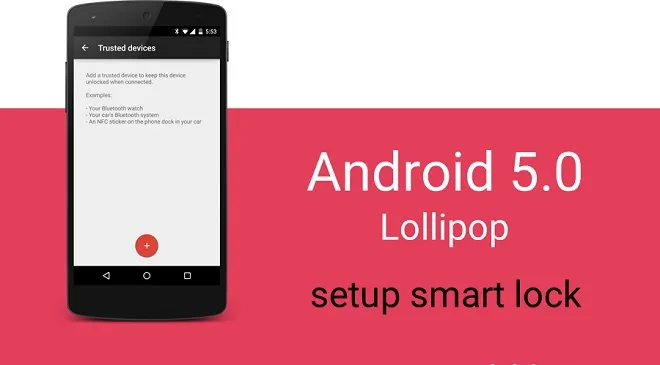
The options are On-body Detection, Trusted Places, Trusted Devices and Trusted Face. Not all of these are available on every device, so you’ll have to check for which of the options work for your phone.
HOW TO USE ON-BODY DETECTION
This option uses the phone’s accelerometer and other sensors to keep your phone unlocked when it detects that it’s being carried in your hand, pocket, or bag. To enable On-body detection, go to the Smart Lock menu, then tap on On-Body Detection, then toggle it on.
HOW TO SET UP TRUSTED PLACES
If you prefer to keep your phone locked while you’re walking, you can set up Trusted Places. This makes use of geofencing, or geographic boundaries defined by your phone’s mapping software, to detect when you’re at home, work or any other location where you feel comfortable leaving your phone unlocked.
As long as your phone has an internet connection and access to your location, you never have to worry about unlocking it again.
Before you enable Trusted Places, enable location mode on your phone. Once you do that, you can add your trusted places.
- Add your home location by tapping Trusted Places from the Smart Lock menu. Tap Home, then tap, Turn on this Location.
- Add a custom location by tapping Trusted Places from the Smart Lock menu, then tapping Add Trusted Place. A map will open to your current location. Name the trusted location, then press OK.
HOW TO SET UP TRUSTED DEVICES
Trusted Devices lets you use a paired watch, fitness tracker or car speaker to keep your device unlocked. When you designate a Bluetooth device as trusted, your phone automatically unlocks the moment it pairs with it.
To add a trusted Bluetooth device,
- Tap on Trusted Devices in the Smart Lock menu.
- Tap on Add Trusted Device > Bluetooth, then on the list of connected devices, tap a device. The list will only show paired devices.
You can also set up a trusted NFC tag, which is even safer than Bluetooth. In this case, you can set an NFC sticker in your car or your bedside, so that when you tap the sticker with your device, it unlocks. Here’s how to set it up:
- Tap Trusted Devices > Add trusted Device > NFC.
- Tap your device to the NFC tag, then add a name for the NFC tag. Then tap OK
HOW TO CONFIGURE TRUSTED FACE
This method is not the most secure way to unlock your smartphone, but it is one of the most convenient. When you set it up, your phone’s front-facing camera will search for your face and unlock it if it recognizes you. To set up a Trusted Face,
Tap on Trusted Face. Set Up, then follow the on-screen instructions.
When your phone stats looking for your face, you’ll see the Trusted Face icon. If your phone does not recognize your face, you can unlock it with the PIN, pattern, or password you saved.
Don’t miss our reviews .
Follow our news on Google News .
Join our WhatsApp Group , to be notified of the most important articles and deals,
Follow us on Instagram , Facebook , Twitter , and YouTube .
