Add MobilityArena as a preferred source on Google
If you’ve ever linked your iPhone to a computer and seen the message “Attempting Data Recovery”, you might be curious as to what it signifies. More importantly, you’ll need to find out how to fix it and get your data back.
Usually, iTunes attempts to back up your iPhone when you connect it to your computer. In this case, you’ll see the “Attempting Data Recovery” message displayed on your screen if there is a problem with the backup. This message indicates that iTunes’ attempt to restore data from your device has been unsuccessful.

What does Attempting Data Recovery Mean on iPhone?
In this guide, you’ll learn what this message means for your device, and the right fix to restore your iPhone to its normal state. When trying to install iOS upgrades, users from all over the world have reported that their iPhone becomes stuck in the “attempting data recovery” cycle. “Attempting data recovery” can also happen during an upgrade via iTunes, but some users feel that updating via iTunes is better.
Trying to update an iPad or iPhone to iOS 12, 11.2, 11.3, or 11.4, whether by OTA or iTunes, may cause you to encounter the “Attempting data recovery” issue. This delays the update and also partially or completely wipes an iPhone’s data.
The warning “attempting data recovery” that appears after updating iOS may mean that there isn’t much storage left on your iPhone. Small-storage iPhone models, like the 16GB iPhone, are more likely to experience this situation, however, large-storage models are equally prone to it after an update.
How Can I Fix Attempting Data Recovery on iPhone?
You can try one of the following methods if your iPhone is stuck on the attempting data recovery screen.
Method 1 : Wait after Pressing the Home Button
Sometimes, all you need to do is press the home button of your device and wait. Your iPhone will function normally once the upgrade is complete. You’ll need to consider the alternatives we’ve suggested below if you can’t wait for a long time.
Method 2: Force Restart
A hard restart can help you fix the issue if your iPhone keeps saying it is “attempting data recovery” but makes no progress. Numerous iPhone issues may always be resolved with a force reset. Different force restart procedures apply to various iPhone models.
For iPhone X, XS, XR, 11, 12, 8, 8 Plus, and SE 2:
- Press the Volume Up button, then quickly release it.
- Press the Volume Down button, then quickly release it.
- Up until the Apple logo shows, press and hold down the Side button (Power).
If you’re using an iPhone 7 or iPhone 7 Plus, hold down the Volume Down and Sleep/Wake keys simultaneously until you see the Apple logo.
For an iPhone 6/6s/SE 1, hold down the Home and Sleep/Wake buttons at the same time until the Apple logo shows before letting go of both buttons.
Method 3: Put your iPhone in Recovery Mode
Put your iPhone in recovery mode to resolve the attempted data recovery problem if force restarting doesn’t work. This approach is generally helpful when iOS update malfunctions and you need to restart your phone to fix the problem. It is important to note that the iPhone’s data would likely be completely erased using this procedure.
Follow these steps:
- First, connect your iPhone and computer
- Force restart the iPhone, but even if you see the Apple logo, don’t let go of the buttons until you reach the “Connect to iTunes” screen.
- launch iTunes next. A pop-up message displaying the Restore and Update options will appear. Choose “Update.” Without erasing any data, iTunes will attempt to restore iOS. You could repeat the second step, then select “Restore” to delete all the iPhone’s data if the “Update” wasn’t able to resolve the problem.
- Set up your device after the update or restoration process is finished.
How Do I Restore My Data After Fixing the Attempting Data Recovery iPhone Issue?
The “attempting data recovery” problem might be resolved by putting your iPhone in recovery mode, but you’ll most likely lose all your iPhone data in the process. After fixing the issue via the steps via the instructions we provided above, you can recover lost data from your iPhone from iTunes or iCloud backups.
Retrieve your iPhone’s data from iTunes by following these steps:
- Open iTunes, then connect your iPhone to the machine where you previously made an iTunes backup.
- Click the icon for your device, then select “Restore Backup” from the Backups menu.
- Click “Restore” after selecting the most recent backup.
If you decide to recover your iPhone’s data with iCloud, follow these steps:
- On the Apps & Data screen, select “Restore from iCloud Backup”
- After logging in with your Apple ID, choose the most recent backup from the list.
In summary , if you ever run into this issue on your iPhone device, you now know what to do to fix it. Also take note of our helpful instructions for recovering your data in the case of data loss.
Author:Joan Agie
Add MobilityArena as a preferred source on Google
Have you ever wondered if you can share songs, videos, movies, and even your entire screen on FaceTime with friends and family? Or you’ve been waiting for Apple to adopt a feature like this? Well, you are in luck. The new SharePlay features allow you to do all of that with whoever you want while on a Facetime call.
With SharePlay, you can stream and watch TV shows, series, movies, videos, and music in sync with your family, friends, or partner. You don’t need to worry about whether what you’re streaming together is in sync and playing at the same time, SharePlay has that covered. Playback is synced and controls are shared. You see, hear, and witness every moment at the same time. A feature called “smart volume” allows you to dynamically adjust media audio, so you can stream or listen to whatever you want while still being able to chat with one another.
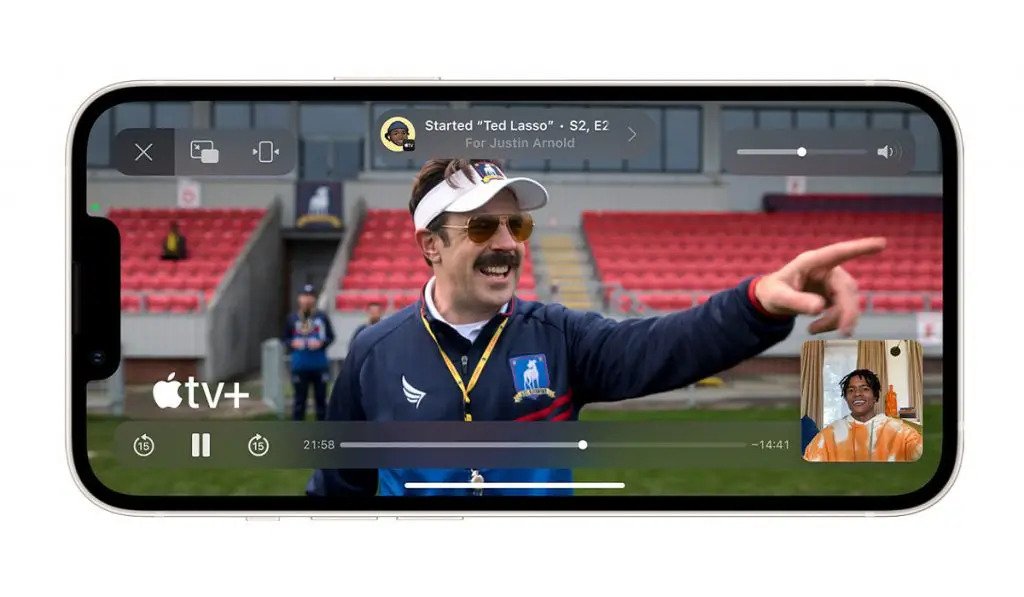
Use SharePlay towatch videos together while on a Facetime call
As stated earlier, SharePlay allows you to stream series and movies with your friends, partner, e.t.c. while on a Facetime call. To do this simply;
• Start a FaceTime call.
• Go to the home screen, and open a video streaming app that supports SharePlay.
• Choose any movie or series of your liking, tap the play button, then select “Play for everyone”. Everyone on the call will now be able to watch what you are watching with you. To see the video, other people on the call might have to tap ” Join SharePlay”.
• Once they join, they can now see everything you see and hear everything you hear, at the same time, for those who have access to whatever content is playing. There are no delays for anyone on the call. Those who do not have access, are asked to get access. It could be in the form of a subscription, a free trial, or a transaction.
All the parties watching the content can use the Playback controls to pause, play, rewind and fast-forward. There is also a “Picture in Picture” feature that allows you to use another app while watching the video or movie.
Use SharePlay to send what you’re watching in SharePlay to Apple TV
If you’ve already started watching a video together on iPhone, you can send it to Apple TV to enjoy on the big screen. Here’s how to do it.
• In the streaming app, tap the AirPlay button, then choose Apple TV as the playback destination.
• Open Control Center, tap the Playback Destination button, then choose Apple TV as the playback destination.
• The video plays in sync on Apple TV, and you can keep the conversation going on your iPhone.
Use SharePlay to listen to songs together while on a FaceTime call.
With SharePlay, you can listen to music, albums, or a favorite playlist with others on a FaceTime call. Anyone who has access to the music and/or the music platform via a subscription, a free trial, or a transaction, on a device that meets the minimum system requirements, can listen to the song with you, see what song is going to play next, add songs to the queue and more. To do all of this;
• Start a Group FaceTime call.
• Go to the home screen. Open a music streaming app that supports SharePlay.
• Choose whatever music you want to listen to, then tap the Play button to start listening to the song together. As stated before, others may have to tap “Join SharePlay” to hear the music.
For everyone on the call who has access to the content, the music starts playing at the same time. People who don’t have access are asked to get access (through a subscription, a transaction, or a free trial, if available).
With SharePlay, you can also share your screen to show apps, webpages, and more during the conversation. See “Share your screen” in a Facetime call. SharePlay also lets you work out with others using Apple Fitness+. See “Work out together” using SharePlay.
Author:Flamez
Flamez loves basketball, art, gadgets and cars.
