Add MobilityArena as a preferred source on Google
Your Android phone’s accelerometer can determine the phone’s orientation and automatically rotate the screen to portrait or landscape mode. With Android, however, auto-rotate can stop operating as it should sometimes.
Usually, this problem results from the option being merely disabled. In other cases, a malfunctioning sensor, conflicting third-party software, or problems with the firmware of the phone may be to blame. Regardless of the cause, we’ll walk you through a few simple solutions to fix auto-rotate not working on your Android phone.
- How Can I Fix Auto-Rotate Not Working on Android? Enable Auto-Rotate in Settings Restart your Device Look Out for App-Specific Issues or Third-Party App Conflicts Use a Third-Party App
How Can I Fix Auto-Rotate Not Working on Android?
If your Android phone’s auto-rotate function stops working, there are several things you could try to fix it. Below are some helpful options to fix auto-rotate not working on an Android:
Enable Auto-Rotate in Settings
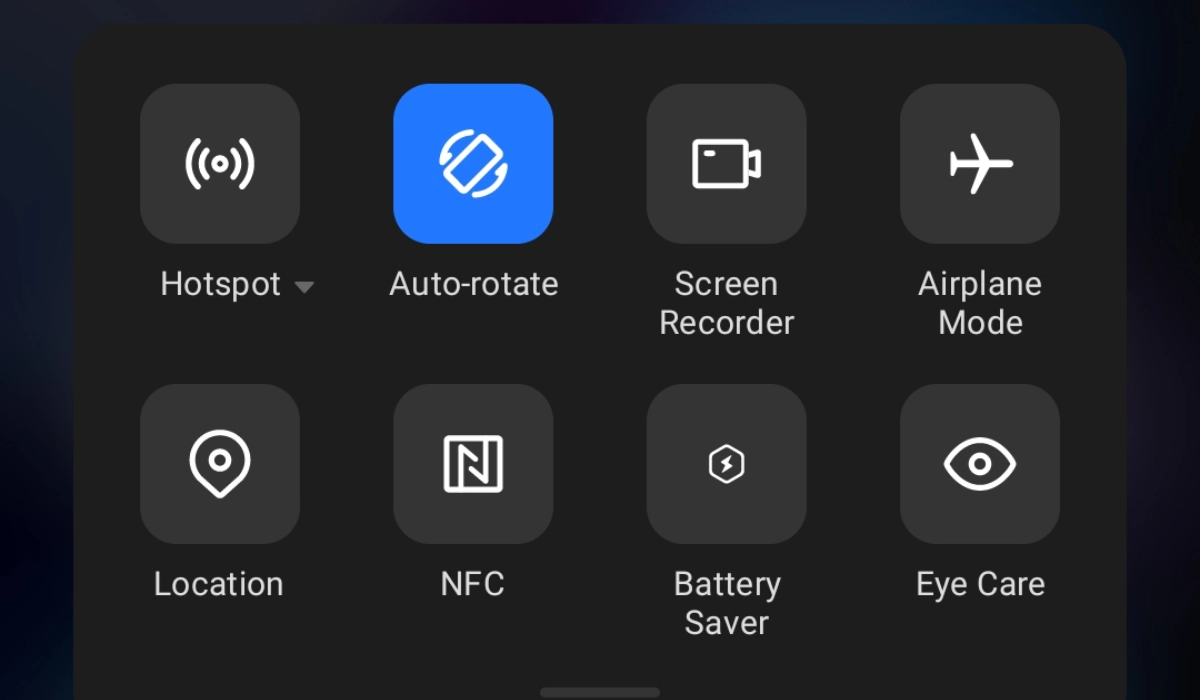
An auto-rotate feature is already incorporated into your Android phone, and it may be off. So, to fix auto-rotate not working on your Android, go to the Quick Settings panel. You can use the switch you find there to lock your display in a specific orientation or to activate or disable rotation.
Look through these settings to see if you or someone else made any changes, and if required, enable the feature to repair auto-rotate on your device. Follow these steps to enable auto-rotate on Android:
- To view the Quick Settings panel, scroll down from your screen’s top.
- Find and hit the Auto-rotate icon here. Depending on the phone you’re using, it will appear differently; on Samsung phones, the symbol will either say “ Portrait ” or “ Landscape ” based on your current screen orientation.
The auto-rotate function should start working as soon as you switch it on following the steps above.
Restart your Device
Restarting your Android phone is the next most popular option to fix auto-rotate not working on an Android. Any temporary issues blocking one or more system functions from operating can be resolved with a short restart.
Press and hold down the Power button to restart your phone. Tap Restart after that, then confirm your choice by clicking Restart again. After the restart is complete, check to see if auto-rotate works well again on your Android.
Look Out for App-Specific Issues or Third-Party App Conflicts
Auto-rotate sometimes loses its functionality for a certain app. For instance, the Android version of the YouTube app frequently has problems detecting phone orientation. However, newer upgrades of the app can help fix auto-rotate not working, especially if it’s a widespread problem.
You should also check if there is an app conflict especially if you installed a lot of apps recently. Certain applications can interfere with your phone’s settings including the auto-rotate function.
To determine if the problem is fixed, try uninstalling the most current apps and restarting your phone. You should also check to see whether you have auto-rotate turned off for specific apps.
Use a Third-Party App
For smartphones with a partially functional display, a rotation control app can be useful to fix auto-rotate not working on an Android. If the top portion of the mobile display is broken and you can’t reach Quick Settings , such apps can be helpful. They’ll also work as an alternative to Android’s auto-rotate function.
With over five million downloads, Control Screen Rotation is a well-liked rotation control app for Android. You can manually adjust the screen orientation or have it shift based on sensor orientation. The notification panel also has a useful overlay function that allows you to modify the screen orientation. The app is simple enough to use. Here’s how:
- Launch the app, then select Start service .
- Set the option to “ Choose screen orientation ” to “ Sensor orientation ”
- Turn on the “ Add a button to the notification for stopping service ” switch to turn on the overlay.
In summary , try any of the above options to fix auto-rotate not working on your Android. You could also try a factory reset if nothing else works but remember to back up your device first.
Author:Joan Agie
Add MobilityArena as a preferred source on Google
Having remote access to important files on your computer can offer many benefits. In this manner, Apple offers a Remote Login function that makes it simple to access your Mac remotely from another computer. This functionality comes in very handy, for instance, when you’re on the go or if you ever just need to view files urgently on your Mac from another place.
In this guide, we’ll explain what Remote Login is. We’ll also describe how to access your Mac with Remote Login from another computer. Now, you’ll be able to view files on your Mac from wherever you are.
- How Does Apple’s Remote Login Feature Work?
- How Can I Access my Mac with Remote Login? Accessing a Mac with Remote Login
How Does Apple’s Remote Login Feature Work?
The SSH (Secure Shell) protocol over the Internet is made possible on Mac devices through the advanced functionality known as Remote Login.
Every Mac comes with the Remote Login feature and its main function is to give you or any other person remote access to the data contained on your computer. Moreover, Remote Login can also be used to move files between two computers.
Before you can successfully connect remotely to your Mac from another computer, you must be aware of two things:
- Your user name
- the IP address of your Mac
Remote Login is a useful tool, but it’s vital to note that turning it on could make your Mac less secure. When Remote Login is enabled, for instance, hackers can access your computer through unauthorized means.
You should therefore always choose a strong password and only enable Remote Login when it is absolutely necessary or there’s no other option.
How Can I Access my Mac with Remote Login?
It’s easy to access your Mac device with Remote Login. First, you need to set it up on your device. Follow these steps:
- Navigate to System Settings > General > Sharing from the Apple icon on the menu bar.
- Switch on the option for Remote Login .
- To include users on the list of devices that can access your Mac remotely, click the info button ( i ) beside Remote Login , then click the addition ( + ) icon.
- Alternatively, if you want every device on your network to connect to your Mac, click on All Users .
- Once Remote Login is enabled, your username and IP address will display on the screen.
Accessing a Mac with Remote Login
After enabling Remote Login with the instructions above, you can access your Mac from another device through the steps we’ll discuss below. Note that you’ll need Terminal or an SSH client in order to remotely access your Mac from another computer using Remote Login.
Terminal is a useful tool that lets you use the command line to communicate with your Mac. Since Linux and macOS are both Unix-like operating systems, similar tools are available for both operating systems. Bash is the name of the command line interface (CLI), or the language you’ll use in Terminal to communicate with your Mac.
If you like, you have the option to personalize Terminal before using it so that it suits your preferences. For a more personalized appearance and feel, you could even download a third-party Terminal substitute if you prefer this option.
After you’ve successfully set up Terminal, carry out the following actions to access your Mac with Remote Login:
- On the other computer, start Terminal.
- Replace “ username ” with the username for your Mac and “ hostname ” with your IP address when typing the following command: “ ssh username@hostname ”
- When prompted, enter the password for your Mac.
At this point, you’re all done! You will now be able to access your Mac on another computer thanks to Remote Login.
In summary , being able to access your Mac with Remote Login is a great one, and you never know when it will come in handy. Carefully note the instructions we’ve provided in this guide to help you manage the function successfully.
