Add MobilityArena as a preferred source on Google
Music lovers, there’s a big new product coming your way soon. Beats By Dr. Dre has announced the release of its new Beats Studio3 Wireless headphones. This is the latest in the company’s premium over-ear headphones. Apple says that the headphones will feature a number of internal improvements over previous models. This includes improved battery life and much better active noise cancellation.
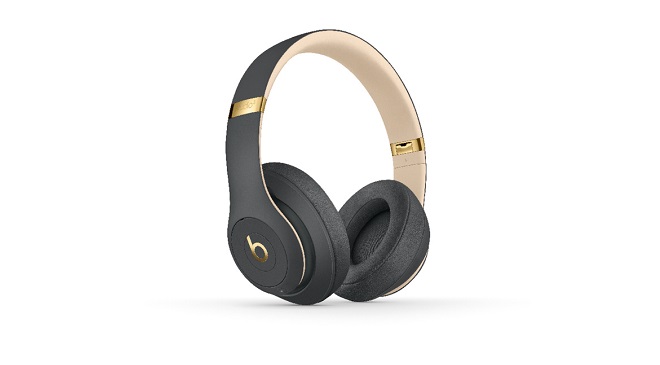
The Beats Studio3 Wireless still retains the look of previous models. It’s still made of colorful plastic, and the popular Beats logo is still featured on the outside of each earcup. The differences include the battery improvements. The company has included Apple’s W1 chip inside the headphones, which is the same as that in the Apple AirPods. This is to improve battery life and enable fast charging.
One Of The Best Noise Cancelling Headphones?
The Beats Studio3 Wireless is said to be able to last 22 hours on a single charge, which increases to 40 hours when you turn off the noise cancellation feature. Furthermore, the W1chip guarantees that the headphones can get up to three hours of playback time in just 10 minutes through the included micro USB cable.
The Pure Adaptive Noise Cancelling tech included in the device works by constantly monitoring your listening environment using advanced algorithms. This, according to the company, means that the headphones can adjust for leakage caused by hair, glasses, ear shape and head movement.
Other features included by the W1 chip include proximity-based pairing. The company says that iPhone users can easily switch between devices that are logged into the same iCloud account. Furthermore, the Beats Studio3 Wireless will likely offer a similarly bass-forward sound to previous generations of Beats headphones. This is one of the major characteristics of the Beats headphone brand ever since the company launched.
The Beats Studio3 Wireless is available for sale on Apple’s website for $350.
- Don’t miss our reviews .
- Follow our news on Google News .
- Join our WhatsApp Group , to be notified of the most important articles and deals,
- Follow us on Instagram , Facebook , Twitter , and YouTube .
Author:EmmyCN
Add MobilityArena as a preferred source on Google
Losing useful files from your hard drive while using a computer is a terrible experience. It may ruin the whole day, or even a couple of days. Well, what can you do to recover lost files? We guess the best answer is taking measures in time to recover data from hard drive .
Classified by computer types, the hard drive can be divided into two categories: laptop hard drive and desktop hard drive.Just as the name implies, laptop hard drive refers to the hard drive used in laptops, while desktop hard drive is the main storage device of desktop computers.Considering laptop is used widely nowadays, we decide to put our focus on lost files on laptop. And we’ll show you the detailed operations of laptop hard drive data recovery
Lost Files on Laptop? Don’t Worry about It
Sometimes, you may make a mistake in deleting files from laptop hard drive that are still useful; sometimes, you may find some data are lost suddenly from laptop due to unknown reasons. No matter what the situation is, laptop data recovery won’t be too troublesome as long as it is still working properly.
Now, let’s see the specific steps to recover lost files from laptop hard drive.
Steps To Recover Lost Files
Step one : choose a reliable one from the many laptop hard drive recovery tools you can find on the internet. We discover a good choice – MiniTool data recovery , which has high security.
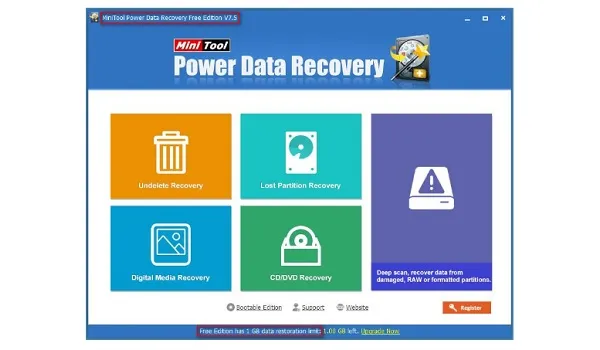
Step two : run the software and specify a proper function from the main interface shown below.
Tips for choosing a suitable function
- If you need to recover deleted data from laptop, please choose “Undelete Recovery”.
- To recover data from a missing partition, you should choose“Lost Partition Recovery”.
- If you want to recover data from laptop hard drive after you found it has been damaged, please choose“Damaged Partition Recovery”.
- As for multimedia files recovery (like photos and music), please select “Digital Media Recovery”.
Step three : select your hard drive/the specific partition and press “Scan”/“Full Scan” button to start searching for files.
Step four : browse and check files to recover at the end of the scan. Then, please click on the “Save” button to store those files to a safe location.
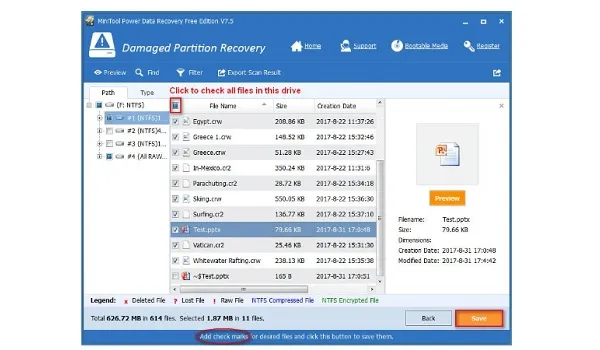
This is the whole demonstration on how to recover data from laptop hard drive by yourself. Considering that you may need to recover data after resetting a laptop sometimes, we advise you to read How Do You Recover Files after Factory Reset Laptop .
Attention : The most obvious difference between the free edition and other advanced editions is that– the former only allows you to recover no more than 1 GB of data, while the latter has no such limit. So please choose a suitable edition according to your own needs to recover data from laptop.
Reading here, you must have understood why we tell you not to worry about after you lost files on laptop. Just go ahead to solve your problem in person now.
- Don’t miss our reviews .
- Join our WhatsApp Group , to be notified of the most important articles and deals,
- Follow us on Instagram , Facebook , Twitter , and YouTube .
