Add MobilityArena as a preferred source on Google
The BraX2 phone is a darling of privacy nerds who are tired of the constant data sniffing in their smartphone by Google. The phone offers a de-Googled experience; that is, an Android smartphone without Google Mobile Services and so which does not report activities on your device to Google’s servers.
It is a value proposition that appeals to a small segment of the global smartphone market. In this article, I look at the top 2 features of the BraX2 phone, as well as a look at everything else it offers, so you can see if this is what you want.
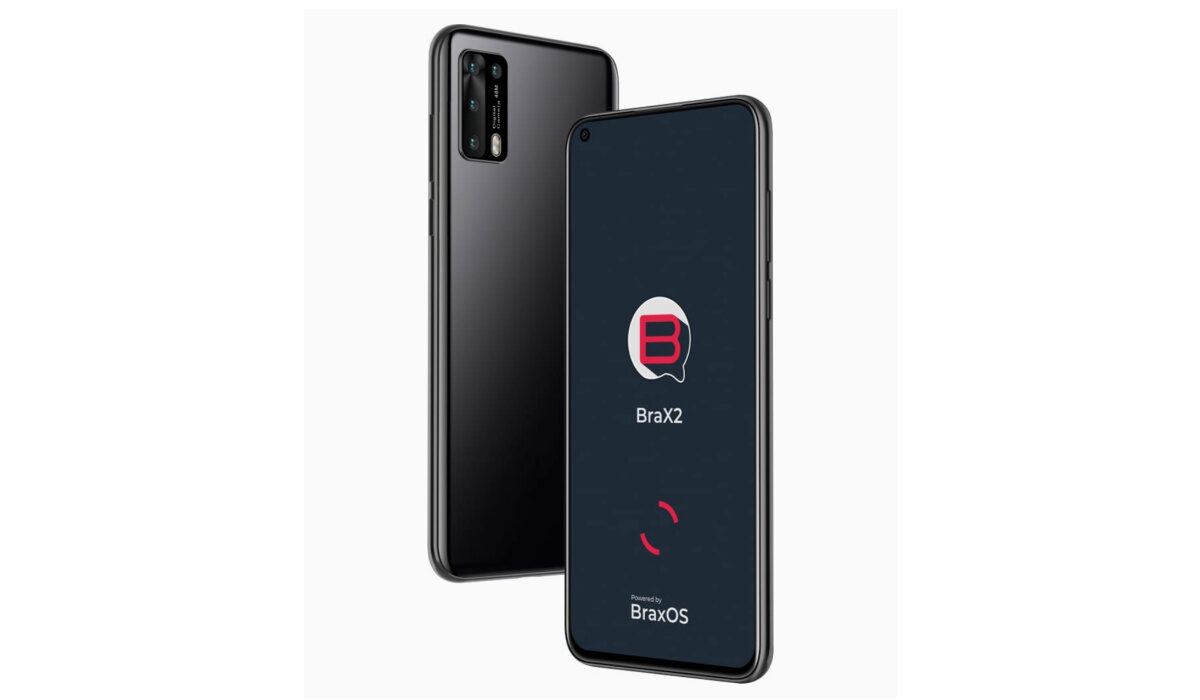
- The best 2 features of the BraX2 phone No Google Mobile Services No data farming by apps
- Other things you should now
The best 2 features of the BraX2 phone
No Google Mobile Services
Of course, the most attractive feature of the phone is the lack of Google Mobile Services (GMS) . This is the number one reason why anyone wants the BraX2 phone. Whether it is in your pocket or you are using it to surf the Web or chat on WhatsApp, the lack of GMS means that there is no background mining of your personal data. None at all.
No data farming by apps
On your regular Android phone and iPhone, 3rd party app developers also take advantage of your data. Their apps are constantly asking for this information or that other information. In the BraX2 phone, data farming by 3rd partty app developers is blocked. Your phone, your data.
Other things you should now
Other than the above two features, the BraX2 phone is an unimpressive smartphone in terms of specs and features. The display is fairly large and unremarkable. There is no higher refresh rate or protective glass of any kind. It ships with a dated version of Android Open Source – version 11. Dated, but privacy secure, of course, which (again) is why you probably want this phone.
Keeping the power on in the BraX2 phone is a fairly adequate 4500mAh battery. There is no fast charge here, so you will have to be patient charging it. In use, do not expect the BraX2 phone to deliver outstanding performance. Why? This device is powered by a 2018 budget chip, MediaTek’s Helio P60. No; you will not get anything close to top performance. Especially as there is only 4GB RAM included. For storage of your media and other files, you have only 128GB memory, too. You will likely need a memory card to get some more storage space, but that means you have to give up one of the two SIM card slots.
And do not expect outstanding photography either, for the simple reason that the brands behind the best camera phones in the market spend millions of research and development to tune and tweak the cameras in their products for outstanding image capture and video recording. This is not the case with BraX2 phone. User privacy is its focus and is what the manufacturer has invested in. The phone can take photographs that you are able to use, but it won’t wow you.
Lastly, there is no headphone jack and no wireless charging as well. If you are in the United States, you also want to know that the BraX2 phones does not support CDMA networks like Verizon and its MVNOs.
In summary, the BraX2 phone is great for the user privacy, keeping Google and 3rd party app developers away from snooping on you and farming your data for their purposes. This two-pronged privacy protection is its great shining point. If this is what you want and you are willing to sacrifice everything else – and I mean every thing else – the BraX2 phone is exactly what you need. You can get the detailed specs and price here .
Author:Mister Mobility
Digital Skills and Communication Coach | Mobile Phone Connoisseur since 2001 | Tech Blogging since 2004
Add MobilityArena as a preferred source on Google
Taking a screenshot on an iPhone can be a convenient way to capture and share information from your phone, whether it’s a conversation or a funny, relatable post. Additionally, it’s a fantastic way to store data for later use.
Apple has added a new method for taking screenshots, the Back Tap, which is one of the new iOS 14 features. It is a useful shortcut that lets iPhone users double- or triple-tap the back of their devices to carry out various actions. The Back Tap is an excellent iPhone accessibility feature for those with limited tech-savviness or eyesight, but the ability to screenshot on an iPhone with a double back tap is practically useful for everyone.
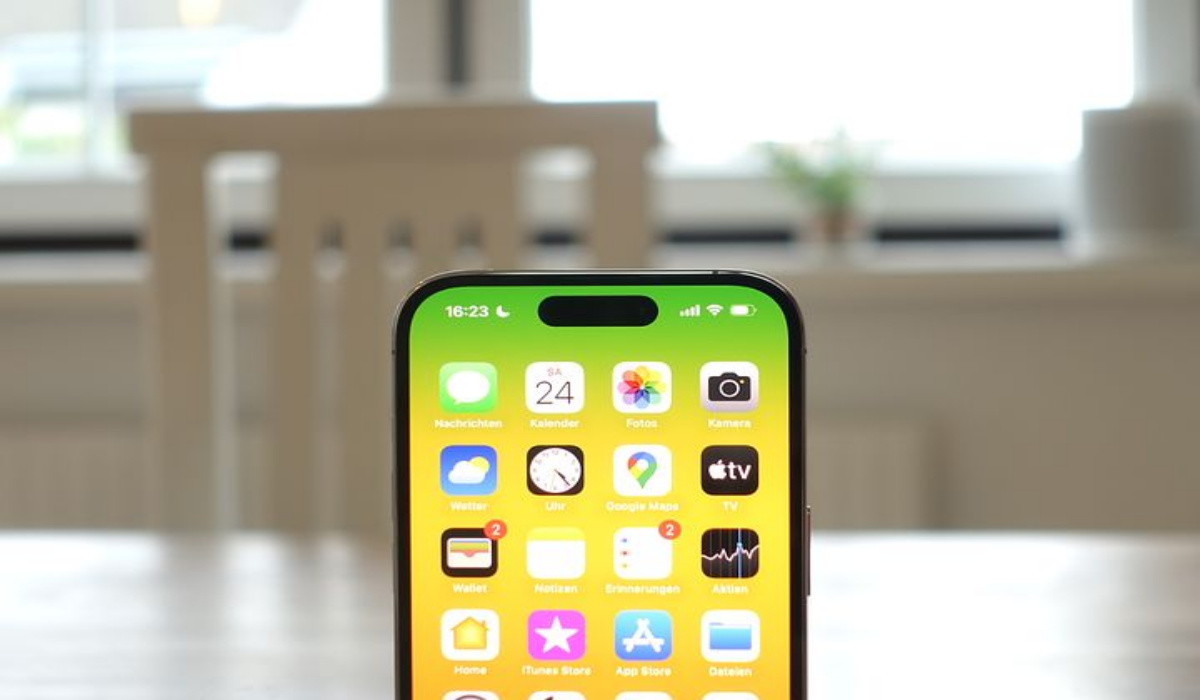
In this guide, we’ll demonstrate how to screenshot on an iPhone with a double-back-tap. So, pay close attention to the instructions to set up and use the feature so you’ll be able to take screenshots on your iPhone quickly and effortlessly.
How Does the Back Tap Feature on iPhones Function?
Before you learn how to screenshot on an iPhone with a double back tap, let’s give you a little insight into how the back tap feature works.
With the introduction of iOS 14, a neat feature called “ Back Tap ” was added for iPhone users. The iPhone Back Tap adds a second hardware button to the device’s back and allows you to perform specific activities, such as opening shortcuts or calling for Siri, by double- or triple-tapping the device’s back.
It’s important to note that only iPhones that support wireless charging can use the Back Tap feature. This means that you must own an iPhone 8 or later device, including the iPhone X, iPhone XR, iPhone 11, 11 Pro, and the new iPhone series.
How Can I Screenshot on an iPhone with a Double Back Tap?
It is pretty easy to screenshot on an iPhone with a double back tap once you know how to set it up. On supported iPhone models, the Back Tap function enables you to carry out different functions by merely tapping the back of your device with your fingertips.
Here’s how to activate the Back Tap feature and screenshot on an iPhone with a double back tap:
- Launch the Settings app on your iPhone.
- Scroll down and select the Accessibility option.
- Select the Touch option.
- Now scroll to the bottom and press the Back Tap button.
- Click on the Double Tap option.
- Tap the Screenshot button under Shortcuts .
At this point, you’re good to go! After turning on the back-tap feature, and linking the screenshot shortcut to Double Tap, you’ll be able to quickly screenshot on an iPhone with a double back tap.
Simply tap your iPhone’s back twice quickly to take a screenshot and it will be automatically saved to your device’s Photos app, where you can edit or share it as needed.
Customize the Double Back Tap Action for Other Functions
Apart from being able to screenshot on an iPhone with a double back tap, this double-backtapping feature can also be configured to carry out a range of other tasks. The Control Center , as well as the App Switcher and other options, can be accessed easily with a double back tap.
Follow these instructions to customize the double back tap action on your iPhone:
- On your iPhone, open the Settings app.
- Choose the Accessibility option.
- Scroll down to the Touch option and click it.
- Scroll down to the Back Tap option.
- Select Back Tap and then select a different action (other than Screenshot ) from the menu.
In conclusion , it’s simple and convenient to screenshot on an iPhone with a double back tap. Simply enable the option in your phone’s accessibility settings, and you’ll be able to quickly capture and transmit or save critical information.
Also consider modifying the double back-tapping feature to carry out a variety of other tasks. Feel free to try out the various available options to find out which actions you’d like to further simplify.
- Don’t miss our mobile phone reviews .
- Join our WhatsApp Group , to be notified of the most important articles and deals,
- Follow us on Instagram , Facebook , Twitter , and YouTube .
