Add MobilityArena as a preferred source on Google
As technology continues to advance, Android tablets have become increasingly popular because they’re versatile and convenient. With so many options available on the market, it can be difficult to know which Android tablet is the best fit for your needs.
In this article, I’ll explore some of the best Android tablets in 2023 based on factors such as performance, battery life, display quality, and overall value for your money. Whether you’re looking for a tablet for work, entertainment, or both, I’ll help you find the right device for your needs.
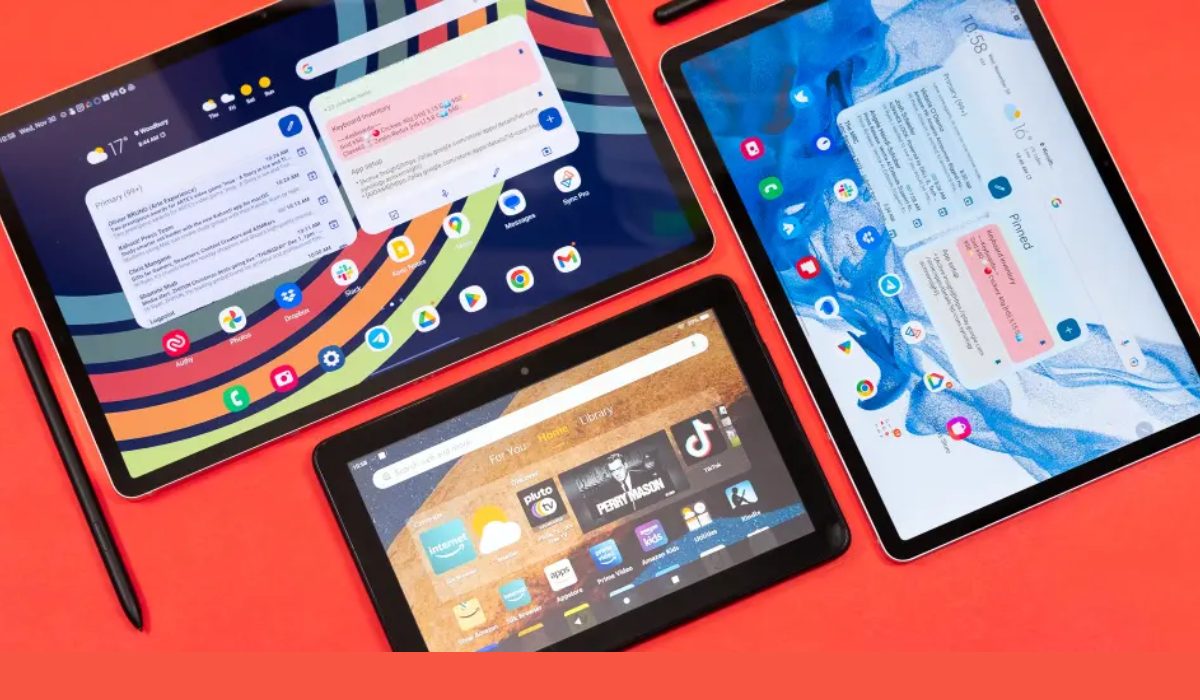
What Are the Best Android Tablets in 2023?
Android tablets vary in size and quality, but some provide remarkable value and can serve as excellent iPad alternatives for people on a tighter budget. To make things easier, I’ve compiled a list of possibilities worth considering. Below are some of the best inexpensive Android tablets in 2023.
Samsung Galaxy Tab S8 (Best Buy)
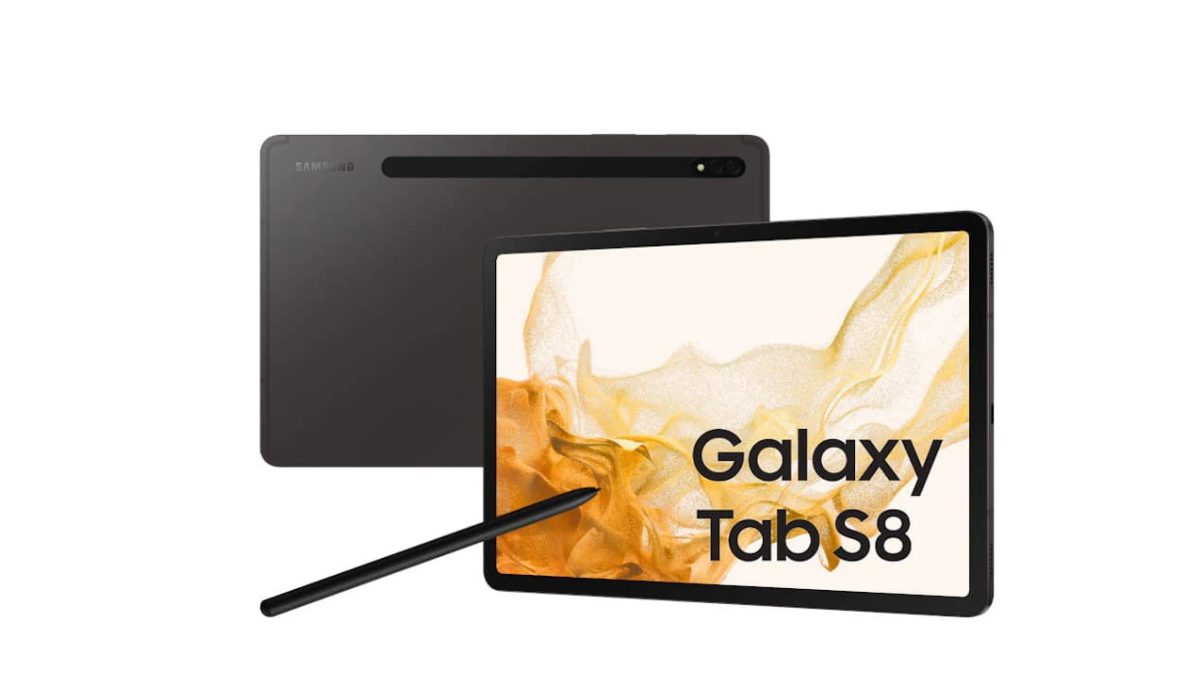
If you can afford it, the normal Galaxy Tab S8 is the best premium Android tablet available, albeit the Tab S8+ and Tab S8 Ultra are more expensive. This model offers the best value for money in terms of price, performance, design, and features. For starters, you get a Snapdragon 8 Gen 1 processor with plenty of memory and storage. It’s also an unusual case where a stylus is supplied in the box.
Besides the sleek and high-end design you’d expect from Samsung, the company provides an exceptional four years of OS updates, ensuring that the Tab S8 will keep you going for a long time. At this price, it’s a shame the screen is LCD rather than AMOLED, and there’s no charger included. The 5G inclusion is also iffy because it is not available in the United States and is expensive in the United Kingdom.
Nonetheless, if you’re on the lookout for one of the best Android tablets in 2023, don’t miss out on the Samsung Galaxy Tab S8.
The Xiaomi Pad 5
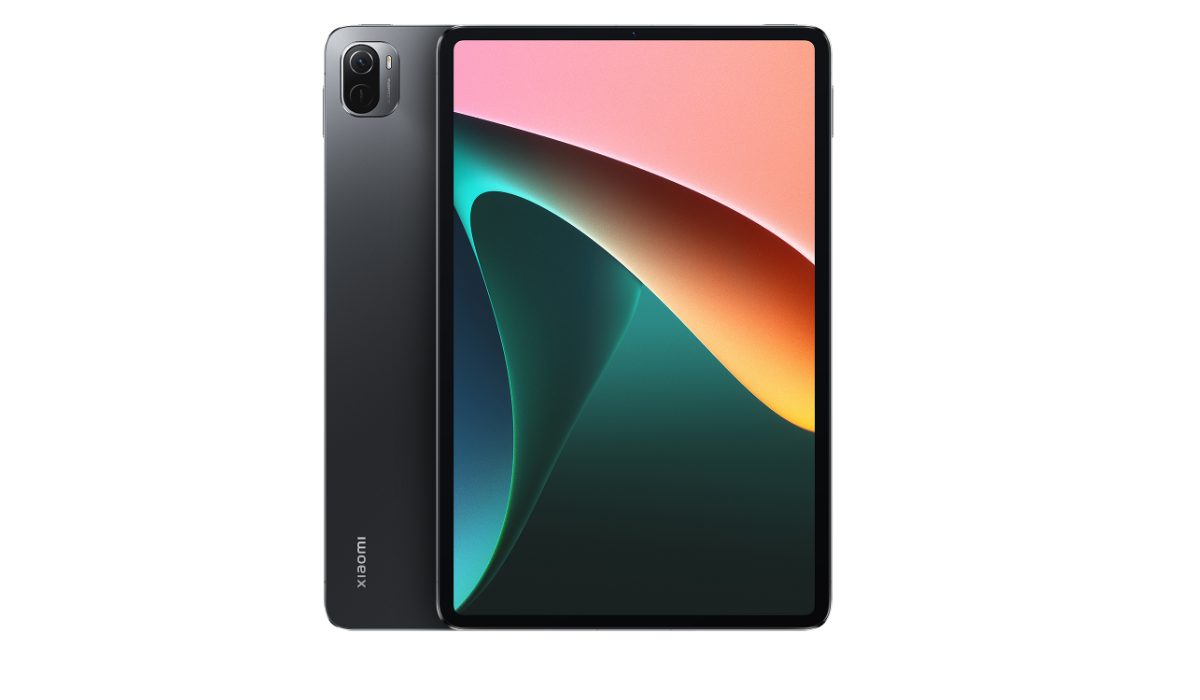
Xiaomi hasn’t released a slate on the world stage in quite some time, but the Xiaomi Pad 5 is a welcome comeback to the tablet market. The tablet has a slim design with a magnificent 2.5K 120Hz display in front, as well as amazing stereo speakers and solid performance.
Similar to what it does with phones, Xiaomi’s tablet-optimized MIUI user experience won’t be to everyone’s taste, but it is entirely functional. Despite the fact that the added connectivity found on Chinese models doesn’t reach most international markets, there isn’t much else on the Android side of the fence that I’d suggest at the Pad 5’s price point. So yes, it’s second on my list for the best Android tablets in 2023.
Lenovo Tab P11 Pro
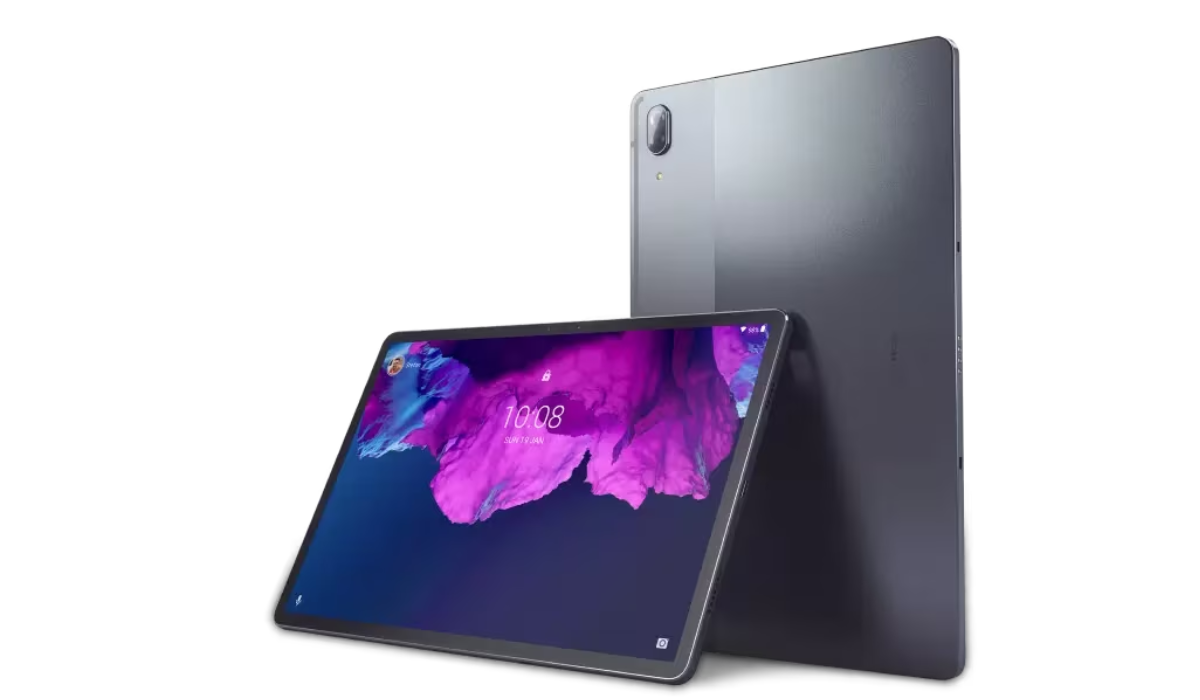
This Lenovo tablet is large, sharp, and packed with powerful OLED technology thanks to its 11.5-inch 1600 x 2560 OLED screen. With the exception of its traditional 60Hz refresh rate, expert testers have found it to be a delight to watch video on as it also supports HDR10. The Lenovo Tab P11 Pro is a capable media device with powerful quad speakers and a large 8,600mAh battery, making it a fantastic travel companion.
You’ll also love the Lenovo Tab P11 Pro’s stylish metal design. It supports a keyboard and a stylus, and can be used as a productive tool, but unfortunately, it still can’t compete with a standard laptop.
Also, its performance is somewhat mediocre and its cameras aren’t so great, but I’d say you can live with these shortcomings given this device’s shockingly reasonable price. So don’t write it off the list of best Android tablets in 2023 just yet.
Samsung Galaxy Tab A8
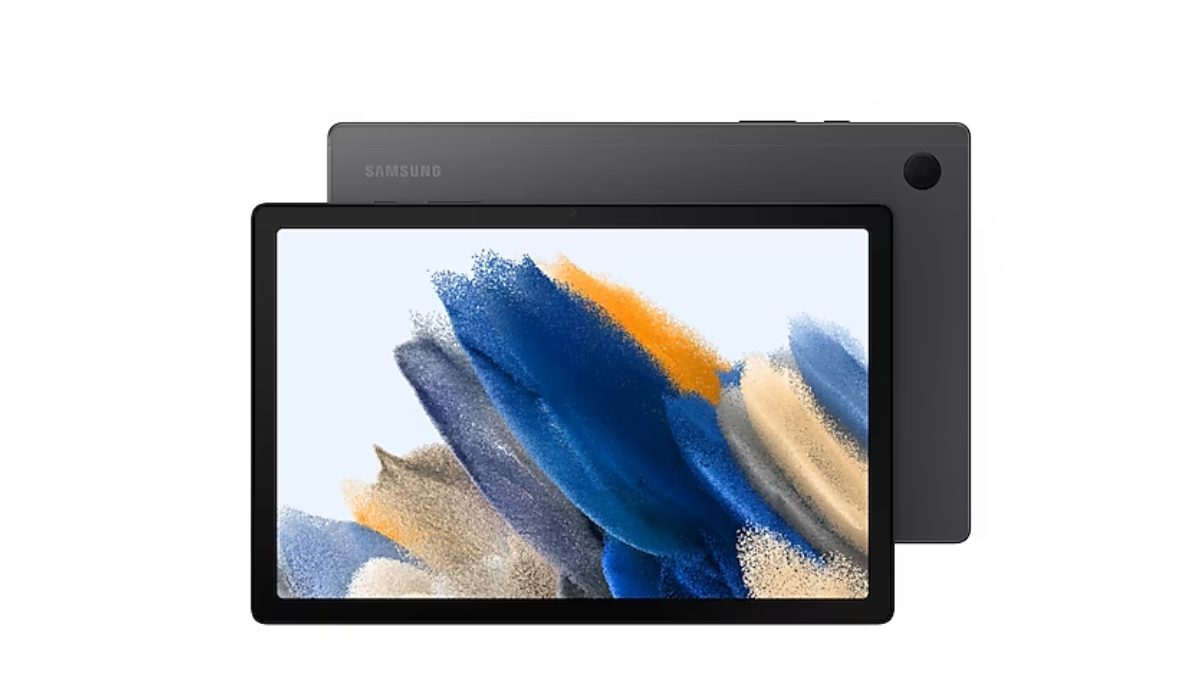
The Galaxy Tab A8 is a pleasant addition to Samsung’s tablet lineup, with its stylish design and other noteworthy features like strong audio performance.
Its two major flaws prevent it from being an instant recommendation for a budget media player, but despite these, it still has a good battery life and provides an overall balanced experience, especially given the price.
So while my applause for it is not the loudest, I’d still call it fair enough to include it among the best Android tablets in 2023.
Oppo Pad Air
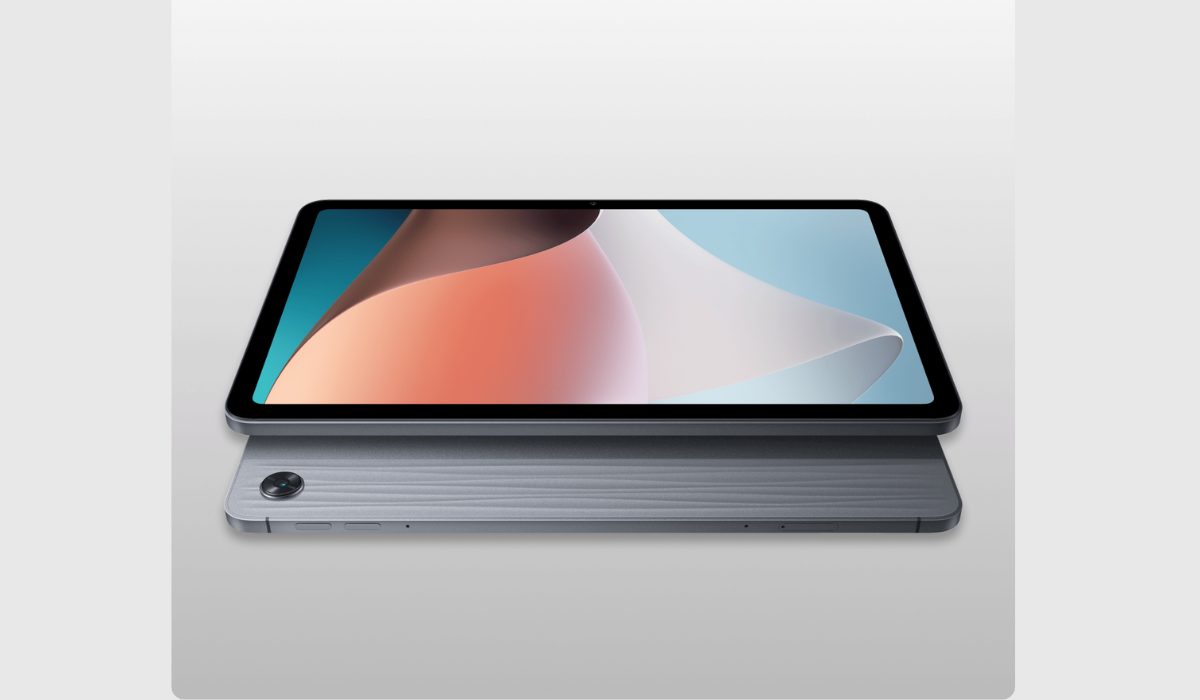
With its first Western tablet, Oppo has done a fantastic job of providing something that is definitely worth consideration. Excellent affordable tablets are difficult to come by.
In addition to having quad speakers and an all-metal body, the Pad Air features a superior IPS display than the Samsung Galaxy Tab A8. It is a trustworthy device for a variety of purposes thanks to its long battery life.
It’s noteworthy, though, that the Pad Air’s performance falls short of that of its major competitors, and it could also benefit from features like a fingerprint scanner to make it more appealing. But considering the features it does have, I don’t think I’m wrong to include it among the best Android tablets in 2023.
To sum up , there are many great Android tablets available on the market in 2023, each with its own unique strengths and features. I hope the suggestions here make it simpler to choose the best Android tablet in 2023.
Don’t forget that this depends on your specific needs and preferences, such as performance, battery life, display quality, and overall value for your money. Need great Android suggestions? Check out this category .
Author:Joan Agie
Add MobilityArena as a preferred source on Google
If you recently purchased a used pair of AirPods or received them as a gift, they’ll most likely remain linked to the previous owner’s Apple ID. In this case, you’ll need to reset the AirPods from the previous owner – to remove the previous owner’s information – and set the AirPods up as your own.
In this article, I’ll walk you through how to reset AirPods from the previous owner and set them up with your Apple ID. Resetting AirPods is a straightforward process that you can complete in just a few steps, and it doesn’t require any special tools or technical expertise.
- How to Reset Airpods from the Previous Owner How to Reset AirPods From the Previous Owner Using an iPhone or iPad How to Reset AirPods From the Previous Owner Without a Phone How to Setup Your AirPods How to Remove Apple ID From AirPods
How to Reset Airpods from the Previous Owner
Whether you’ve received AirPods as a gift or purchased them secondhand, you’ll eventually need to reset the AirPods from the previous owner to ensure they work correctly and link to your Apple account. I’ve provided simple ways to accomplish this below. PS: these instructions also work if you need to know how to reset Airpods Pro from previous owner or how to remove previous owner from Airpods Pro without previous owner.
How toReset AirPods From the Previous Owner Using an iPhone or iPad
If you need to reset AirPods from a previous owner but don’t have access to the person’s Apple ID, you can still reset them to their factory settings. Here’s how you can reset your AirPods without the previous owner; note that these instructions work for AirPods Pro as well:
- Place both AirPods in their case and close the lid
- Wait for about 30 seconds, then open the lid
- Hold down the setup button on the back of the case until the amber LED light on the front of the case begins to flash.
- Release the button and then close the lid.
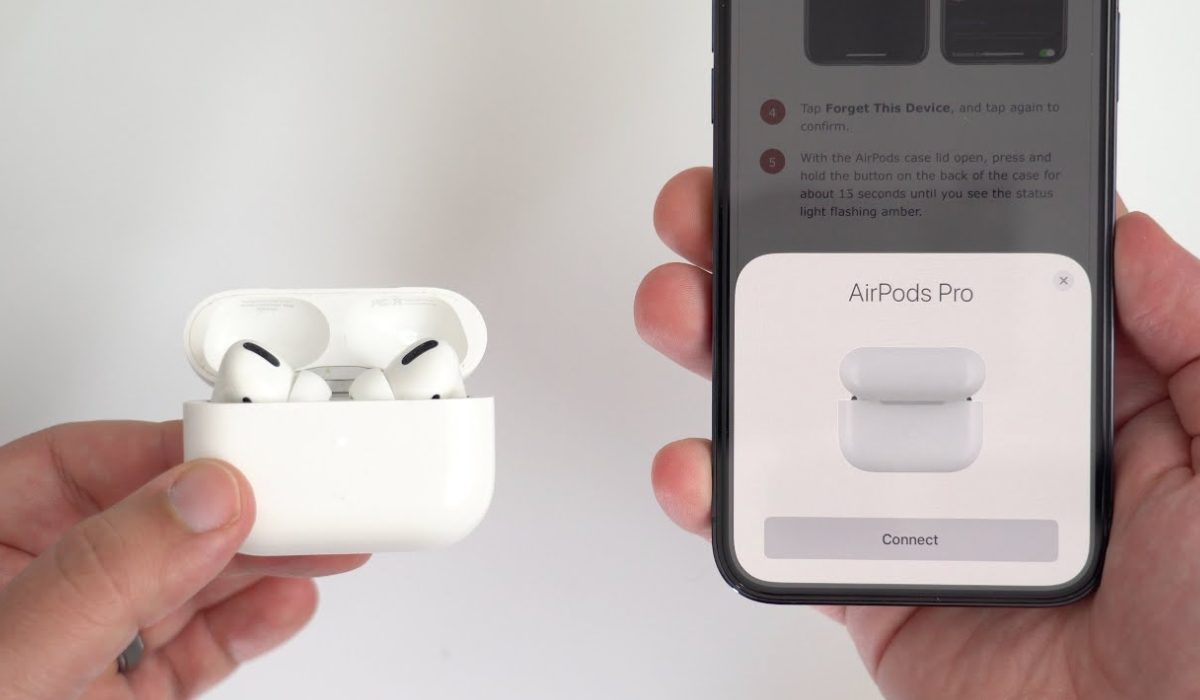
- On your iPhone, go to Settings > Bluetooth . Locate your AirPods in the device list and hit the “ i ” icon next to them.
- Next, select “ Forget This Device ” and confirm the action.
- Put your AirPods back in their case and keep the lid open.
- Hold down the setup button on the rear of the case until the LED light on the front of the case begins to flash white.
- Your AirPods have now reset and are ready to pair with another device.
Remember that resetting your AirPods will remove all saved settings and data, so you’ll need to set them up as new devices when you pair them with your iPhone or other compatible device.
How to Reset AirPods From Previous OwnerWithout Phone
Even if you don’t have your phone, it’s still easy to reset AirPods from a previous owner without having to unpair them from your phone.
To perform a factory reset and unpair your AirPods from all devices without using your phone, follow these steps:
- Put both AirPods in their charging cases. Open the lid.
- Find the Setup button on the back of your AirPods case.
- Hold down the Setup button for 15 seconds. The status light needs to change from amber to white.
- Put the lid back on. Your AirPods have completely reset.
That’s all there is to it; your AirPods have successfully reset. Place the AirPods near an Apple device to begin the setup procedure.
How to Setup Your AirPods or AirPods Pro
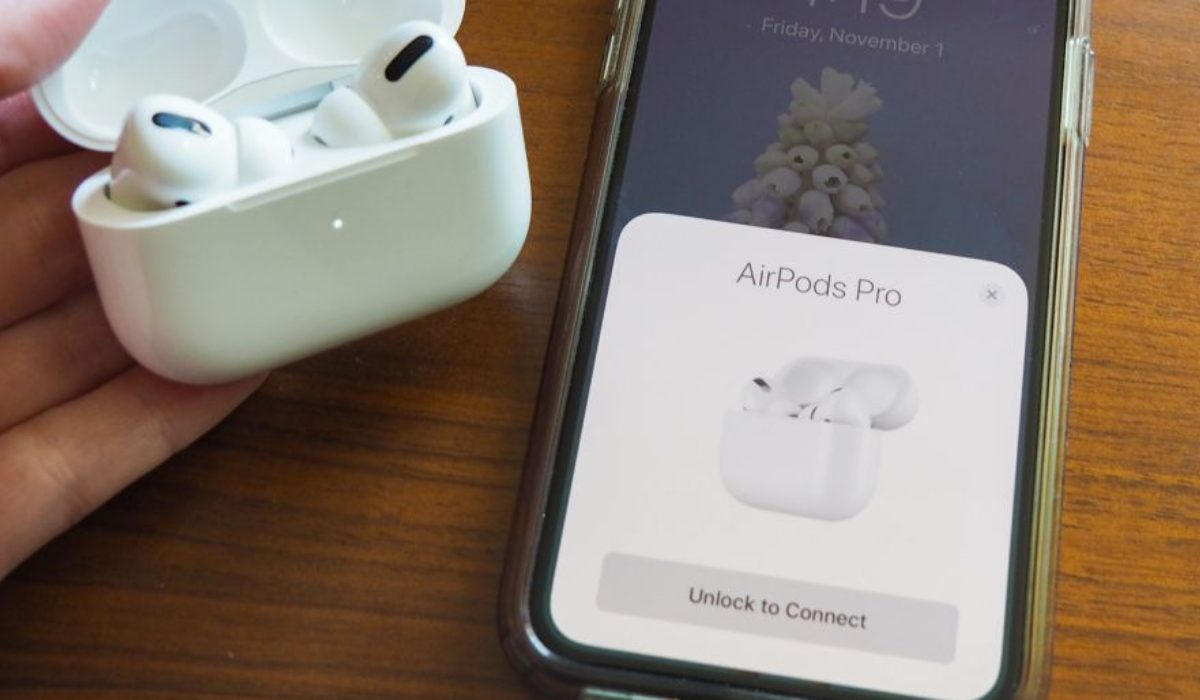
You can also set up your AirPods without the previous owner. To do this, follow these steps:
- Place your AirPods in their case and leave the lid open.
- Hold down the setup button on the case’s back until the status light begins to blink white.
- Go to Settings > Bluetooth on your iPhone and make sure to turn on Bluetooth
- Tap on your AirPods from the list of available devices.
- To finish the setup, follow the on-screen instructions.
If you’re having trouble connecting your AirPods to your iPhone, ensure that your iPhone is running the latest version of iOS and that your AirPods have a full charge. You can also contact Apple’s Help Centre to troubleshoot the issue.
How to Remove Apple ID From AirPods without previous owner
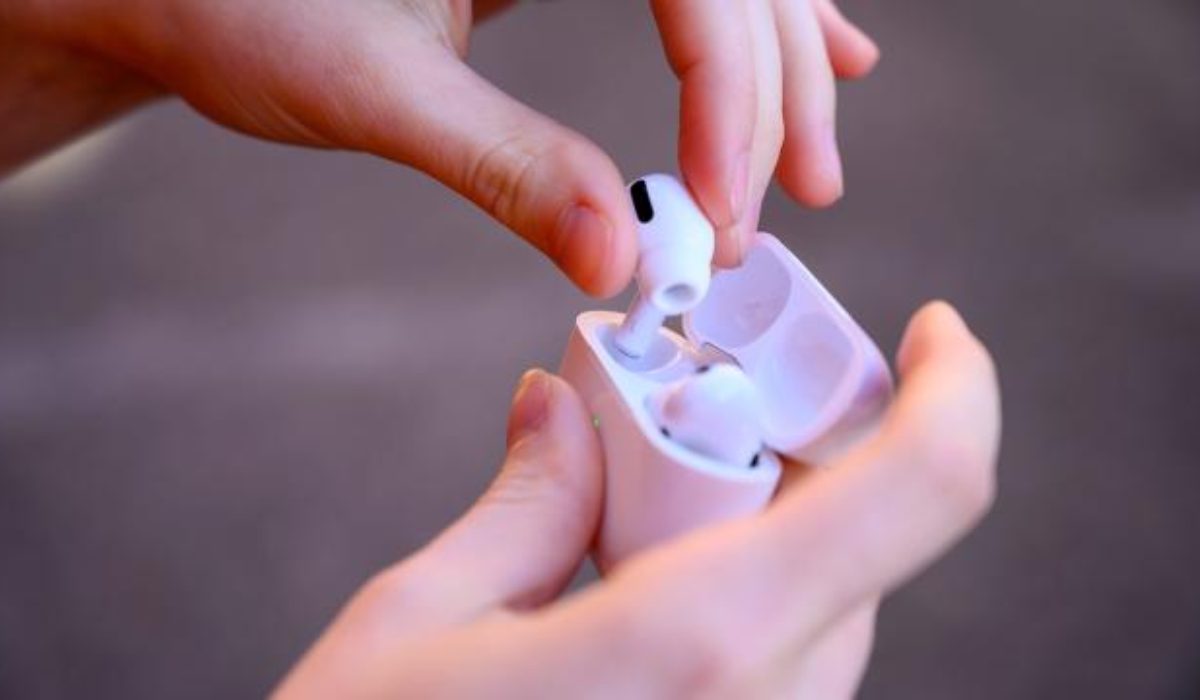
Apart from having to reset AirPods from the previous owner, you may also need to disconnect them from the former owner’s Apple ID details. Here’s what you need to do:
- Launch the Find My app on the associated iPhone, and navigate to the “ Devices ” tab at the screen’s bottom
- You will see your AirPods devices listed here. Swipe left on the name, then click the “ Delete ” button.
- Next, click the “ Remove ” option
- Now, type in your Apple ID Password and click “OK” at the screen’s top right corner
That’s all you need to remove Apple ID from AirPods without previous owner. After you’re done, you can reset them with the steps I provided earlier.
To conclude, it is quick and easy to reset AirPods from a previous owner, and you can complete the process with just a few steps. Make sure to follow the instructions correctly to properly remove the previous owner’s information and set up AirPods with your own Apple ID. If you need extra AirPods tips, check out this category .
