Add MobilityArena as a preferred source on Google
The Samsung Galaxy Watch has been one of the most popular smartwatches since its launch, and it’s easy to see why. With its advanced features, sleek design, and long battery life, it’s the perfect wearable device for people who want to stay connected and productive on the go. Another thing that’s really great about the Galaxy Watch is its ability to run a wide range of apps.
In this article, I’ll show you some of the best apps for Samsung Galaxy Watch in 2023. From productivity tools to entertainment apps, this guide has got you covered. So, if you’re looking to get the most out of your Galaxy Watch, read on to discover some of the best apps currently available for that purpose.
What Are the Best Apps for Samsung Galaxy Watch in 2023?
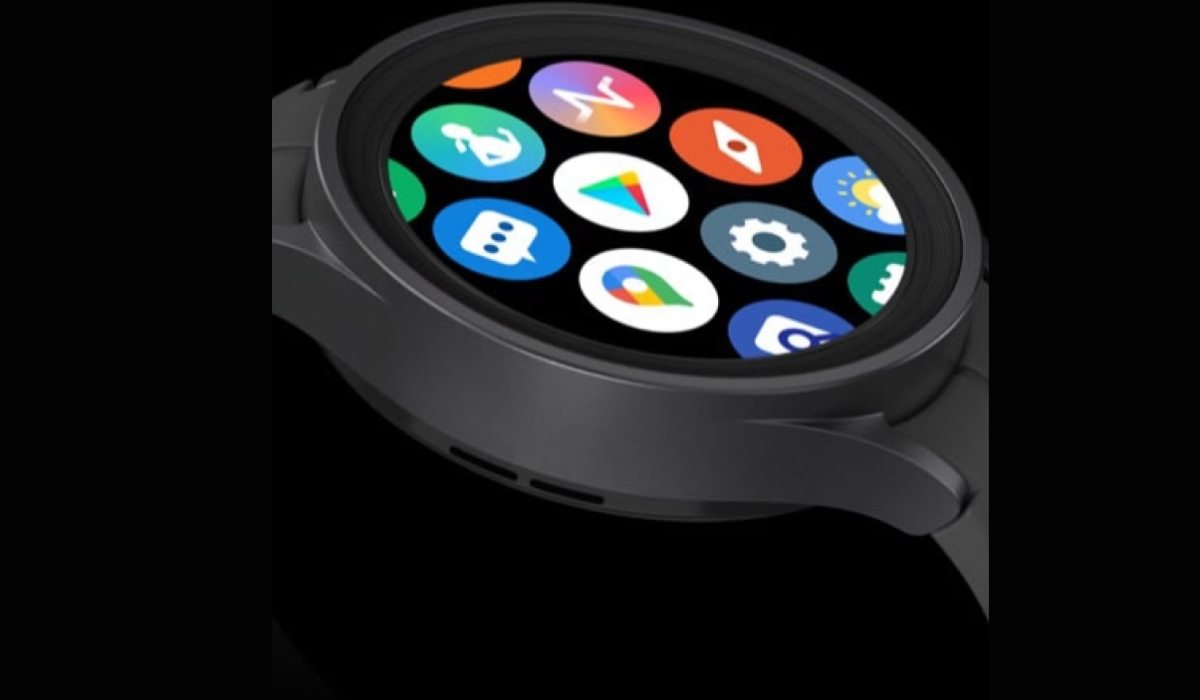
Depending on the watch you own, a large number of Galaxy Watch apps are available to download from the Google Play Store and the Samsung Galaxy Store . Here are some of the best Samsung Galaxy Watch apps in 2023, regardless of whether your goal is to increase your fitness level, stay organized, stay connected with friends and family, or manage your vast collection of smart home devices.
Samsung SmartThings
The Samsung SmartThings app lets you control your smart home devices from one place. You can turn off the lights, set the thermostat, and even lock the doors with just a few taps on your watch. To get started, install the SmartThings app on your Samsung Galaxy Watch. You can also set up automated routines to make your life easier.
For example, you can create a “Good Night” routine that turns off all the lights, locks the doors, and adjusts the thermostat when it’s time for bed. With SmartThings, you essentially have the power to control your home from your wrist.
Samsung Pay
With the Samsung Pay app on your Galaxy Watch, you won’t have to worry about forgetting your card the next time you go shopping. Similar to using your smartphone or a traditional credit or debit card, you can make purchases with your Samsung smartwatch anywhere you see the contactless symbol.
Samsung Health
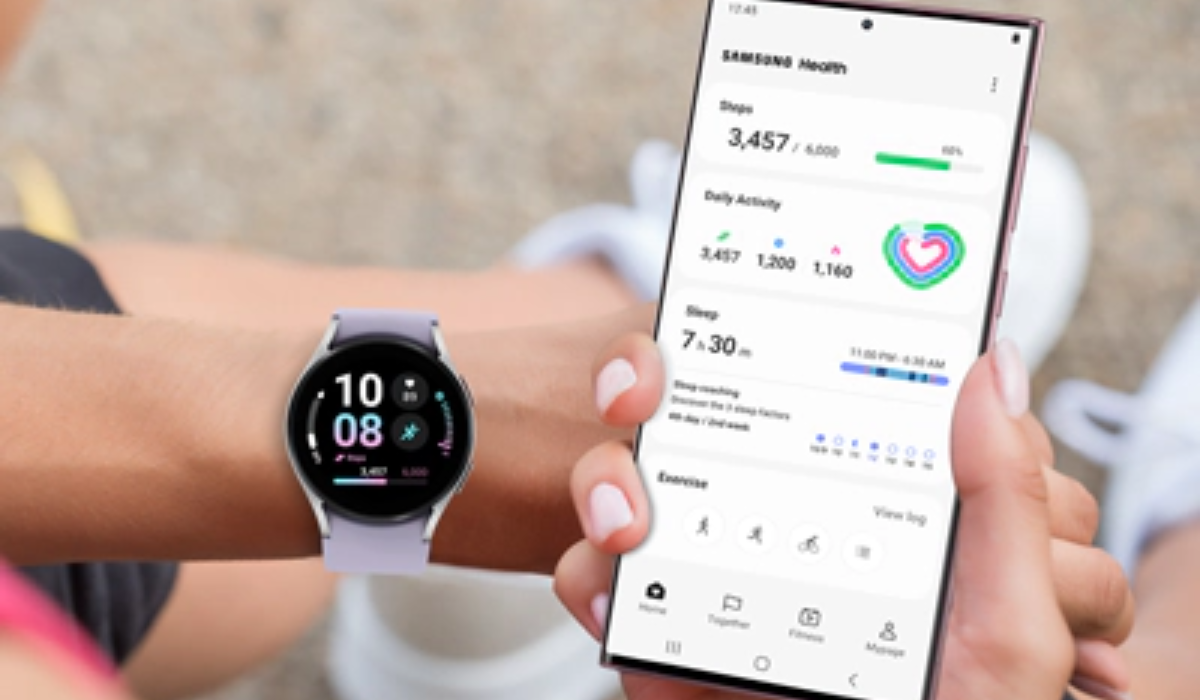
Samsung Health is a fitness app that has everything you need to track your fitness and improve your health. It’s designed specifically for Galaxy Watches and has features like tracking your steps, setting goals, and seeing your progress. You can even connect with your friends and family to make it more fun. Samsung Health is part of the Galaxy Ecosystem, which means you can use it on other devices like your phone and Samsung Smart TV too.
Spotify
Spotify is a music streaming service that can help you stay motivated while exercising or relaxing, or even working. On Samsung Galaxy watches, you can use the Spotify app to play, pause, and skip music and podcasts. You can also save your favorite playlists to your watch for easy access. With Spotify on your watch, you can stream and control your entire music library, including playlists you’ve created, without having to use your phone.
Camera Controller
The Camera Controller app lets you use your Galaxy Watch to take photos and videos remotely on your Galaxy smartphone. This is great for taking pictures of groups or yourself from afar. You can also preview what you’re taking a picture of, set a timer, and see what your picture looks like after you take it.
Google Maps
Samsung’s Galaxy Watch 5 and Watch 5 Pro introduced Google’s new version of the Google Maps app. Although maps were previously inaccessible on older models due to Samsung employing Tizen as the operating system, they were already available on Wear OS 2. Luckily with Wear OS 3, users can now access Google Maps. Also, if you have the LTE version, you can leave your phone at home and still use the GPS to get where you need to go.
Find My Mobile
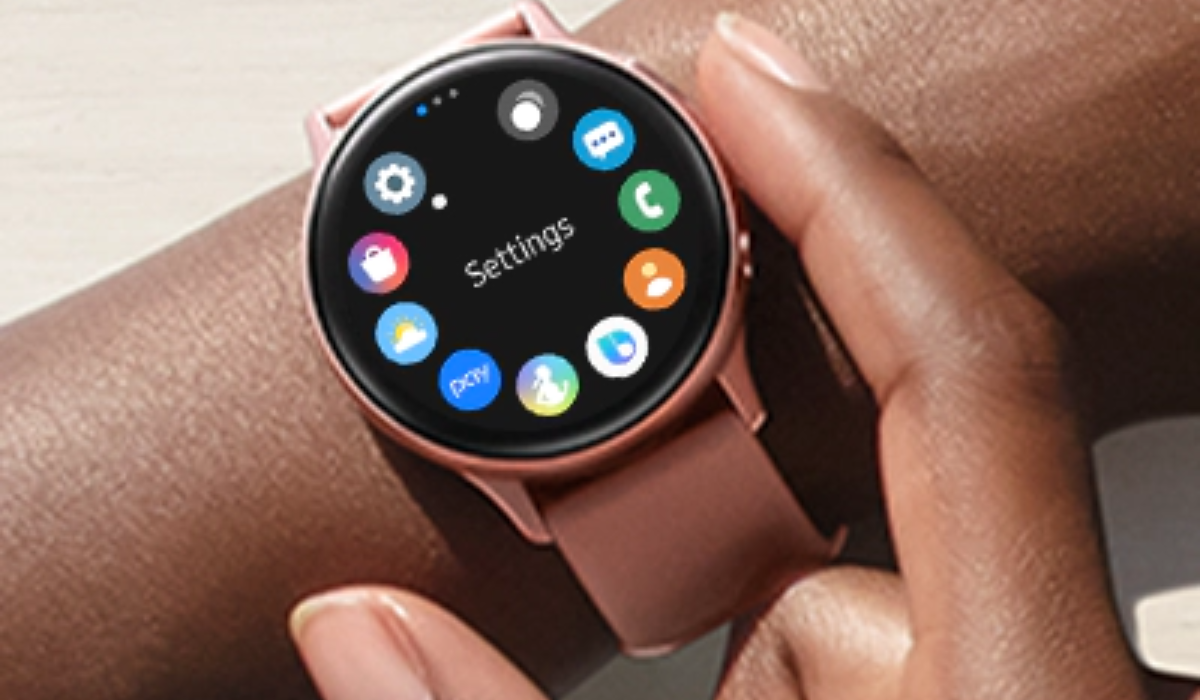
The Find My Mobile software from Samsung makes it simple to locate a missing phone. Simply launch the app, hit the button, and your phone will begin to make a sound, allowing you to determine its location with pinpoint accuracy.
This feature can be helpful when you’re out and about, as it helps you locate your phone in various locations. With the Find My Mobile app on your Galaxy Watch, you’ll never have to worry about losing your phone again, as long as you are within Bluetooth range and have some sense of where it is.
Wrist Flashlight
The Wrist Flashlight app does exactly what its name implies—it transforms your Samsung Galaxy watch into a torch or accent light. It’s great if you need a little light to see in the dark or if you want to let drivers know you’re there while out for a run at night.
Wrist Flashlight, however, has more features than Galaxy watches – it can also flash red, orange, or blue in addition to the more conventional white. You can also change the brightness using the watch’s bezel or display to avoid blinding yourself or other people around you.
All in all, the Samsung Galaxy Watch is a versatile device that can help you streamline your life and stay on top of your goals. With the best apps available for the Samsung Galaxy Watch in 2023, you can tailor your device to fit your unique needs and interests. I hope the app suggestions discussed above help you take full advantage of your Samsung Galaxy Watch and enjoy all of the benefits it has to offer. If you need more app suggestions for other devices, this category might help.
Author:Joan Agie
Add MobilityArena as a preferred source on Google
In this article, I’ll walk you through how to offload apps on iPhones. If you’re an iPhone user, you’re probably familiar with the rather common issue of running out of storage space. With so many apps, photos, and videos, it’s easy to fill up your device’s memory.
One solution to this problem is to offload unused apps. Offloading apps frees up space on your iPhone by removing the app while still keeping its data and settings. So, in this guide, you’ll learn how to manage this action to regain useful storage space. You’ll also learn how to reinstall offloaded apps if you ever need to use them again.
What Does It Mean to Offload an App?
When iOS first came out, there were only two options for managing apps: you either keep them or delete them entirely. If you chose to keep an app you didn’t need, it would take up valuable iPhone local storage space. If you deleted it, the app and all of its local data would be gone.
However, with the release of iOS 11, Apple introduced a new alternative — offloading apps. This option provides a balance between keeping and deleting an app. The feature removes the app while retaining its data on the iPhone. So, if you decide to reinstall the offloaded app later, you can continue using it just as before, with all your data and settings intact.
Please note that offloading an app is different from deleting it because when you delete an app, it wipes out all data and files. While offloading ensures that app data, user settings, and documents remain on your device. Now that you’re all caught up, here’s how to offload an app on your iPhone.
How to Offload Apps on iPhones Manually
You can offload an app manually whenever you want by following the instructions provided below:
- Go to Settings and select General .
- Click on iPhone Storage and wait for it to load.
- Tap the app you wish to offload from the list of apps.
- Next, click the option to Offload App and then click Confirm .
It’s a pretty easy and seamless process, but there’s also an automatic alternative which I’ve explained below.
How to Offload Unused Apps Automatically on Your iPhone
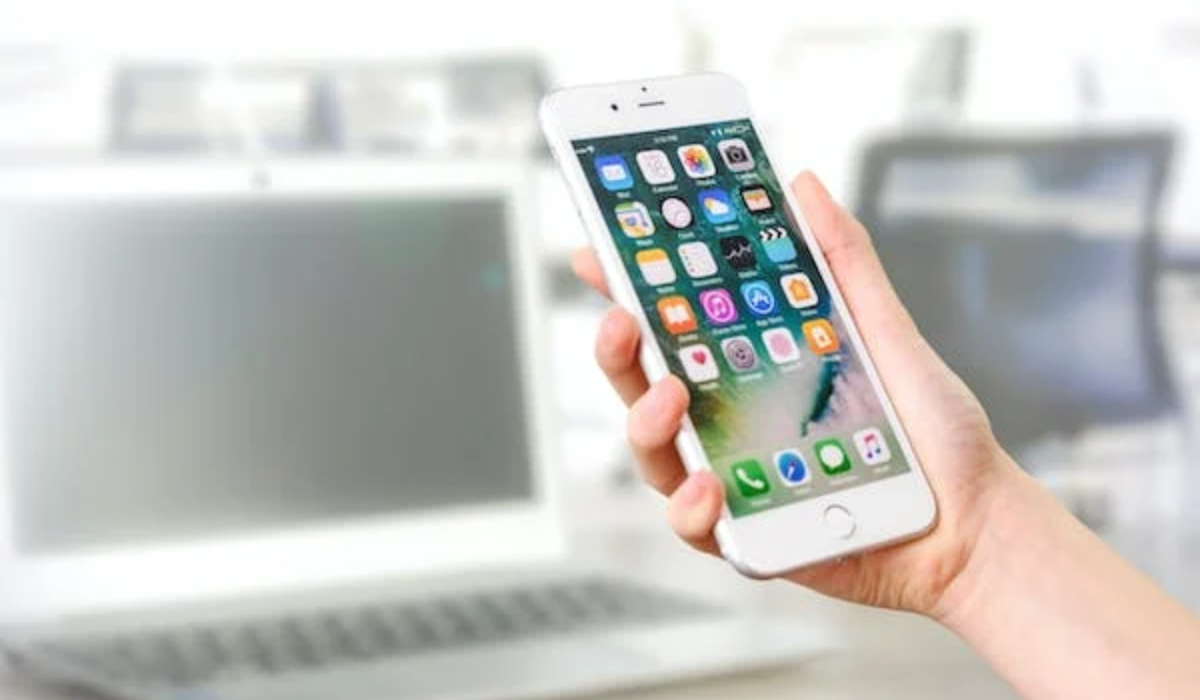
It’s easy to get bogged down in the tediousness of manually searching for and offloading apps on your iPhone. Setting your iPhone to automatically offload apps will optimize storage, especially if you struggle to keep local storage free. When you enable it, your iPhone will automatically offload apps that you haven’t used in an extended period of time.
To enable automatic app offloading on the iPhone, follow these simple steps:
- Navigate to Settings , then select General .
- Select iPhone Storage .
- Tap Enable next to Offload Unused Apps under Recommendations .
This process, like the manual method, is also easy to complete. It also has the added advantage of being easy to turn off whenever you wish.
How to Reinstall or Redownload an Offloaded App
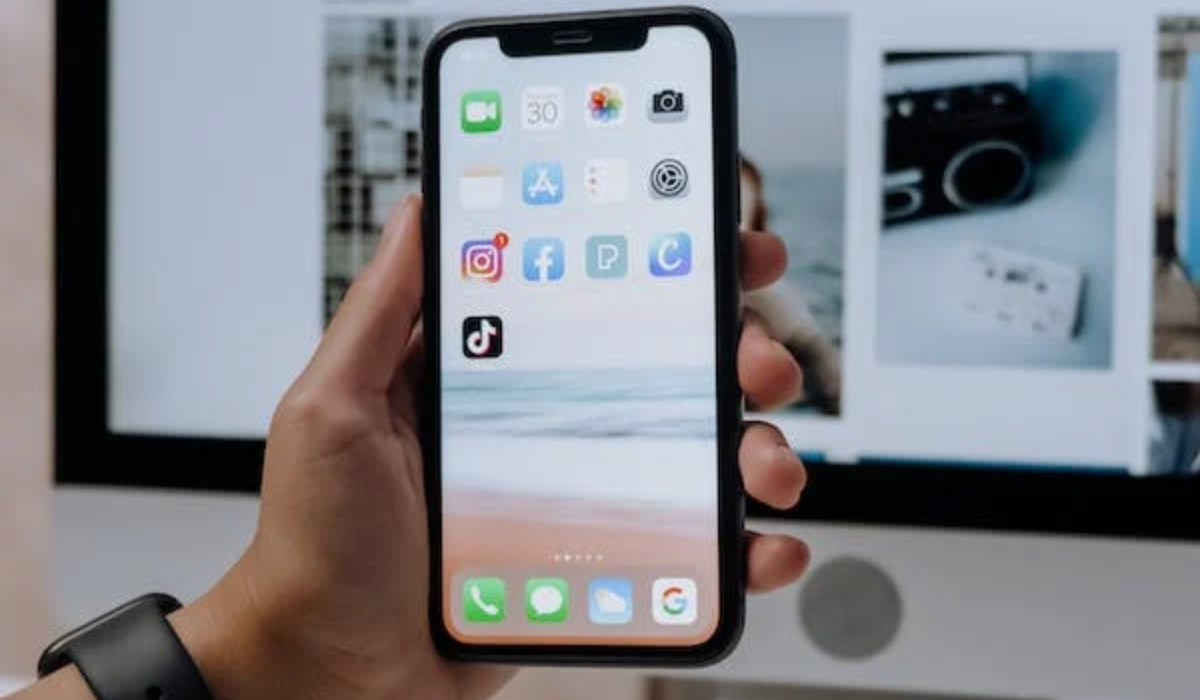
Even after you unload an app, its icon remains on the Home Screen and in the App Library of your iPhone device. You’ll notice a download arrow before the app’s name, indicating that the app in question has been offloaded. Now, if you ever need to redownload the app for use, simply tap the icon again. Since (as previously stated) the app data remains on the device, it’s pretty much easy to carry on from there.
An alternative option is to go to Settings > General > iPhone Storage > Name of the App > Reinstall App . You can also use the App Store’s search function to find the app and then click the download button . It will download within a few minutes, depending on the speed of your internet connection.
To sum up, offloading apps on your iPhone can be a simple and effective way to free up space on your device. With the option to do it manually or automatically, you can choose the method that works best for you. By following the steps outlined in this guide, I’m certain that you’ll find the process easy so you can keep your iPhone device running smoothly. If you’d like other useful troubleshooting tips, ensure to check out this category .
