Add MobilityArena as a preferred source on Google
Huawei has been making waves in the smartphone market for a long time, and with the release of new models, it’s no surprise that people are looking for the best phones the brand has to offer. Huawei phones are known for their exceptional camera quality, long battery life, and sleek designs.
In this article, I’ve compiled the best Huawei phones that you can get your hands on in 2023. So, whether you’re looking for a budget-friendly option or a top-of-the-line flagship device, I’ve got you covered.
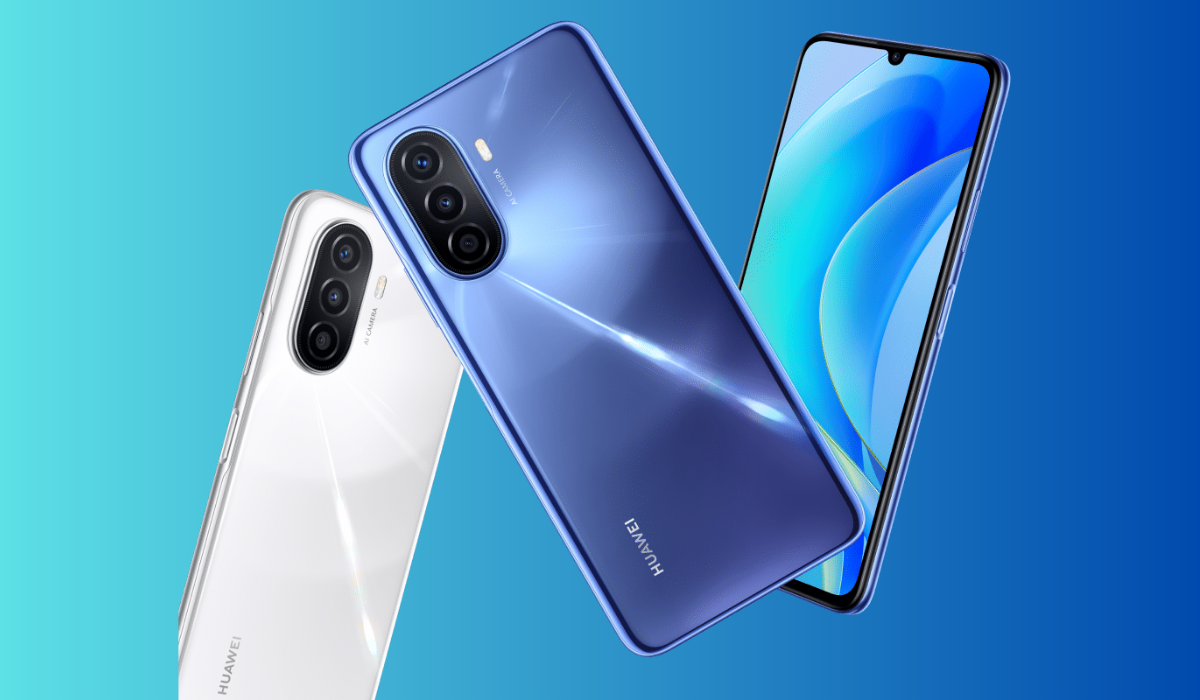
What Are the Best Huawei Phones in 2023?
Back in the day, Huawei was a major player in the mobile phone market, competing with Apple and Samsung. Thanks to its large network business and focus on innovation, Huawei was able to make a name for itself with its terminals. Even with US sanctions, Huawei has been able to continue innovating and launching impressive terminals without Google services, the latest processors, or 5G modems.
However, for advanced users who don’t depend on Google services or know how to install them, Huawei’s innovative brand with excellent designs and cameras can still be enjoyed. Here are some of the best Huawei phones to check out in 2023.
Huawei P60 Pro
The Huawei P60 Pro is a top-notch smartphone with a powerful camera system, fast charging, and a super-bright display. Its 48-megapixel main sensor and variable aperture from f/1.4 to f/4.0 capture good pictures in any situation. The design is attractive with curved frames and a matte surface that is impervious to fingerprints. The 6.67-inch OLED panel with a refresh rate of 120 Hz and a high resolution of 2700 x 1220 ensures perfect sharpness in text.
However, the lack of Google services and 5G may be a turn-off for some users. Good 4G speeds could be enough depending on the region, and users must be clear about their device’s contents. Despite some software shortcomings, the Huawei P60 Pro is still one of the best camera phones out there, making it a good choice for those who value top performance in mobile photography.
Huawei Mate 50 Pro
The Huawei Mate 50 Pro is a unique and powerful phone with a 6.74-inch AMOLED display, 120Hz refresh rate, HDR10+, and a variable aperture main camera (f/1.4-f/4.0). It features a telephoto periscope lens with 3.5x optical and 10x hybrid zoom, Snapdragon 8+ Gen 1 performance, 66W wired/50W wireless fast charging, 4,700mAh battery, loud stereo speakers, and IP68 dust and water resistance. The camera system is also impressive, with a variable aperture allowing for amazing portrait shots with real optical bokeh.
The phone also features a 3.5x periscope zoom, and the night shot algorithms make it easy to take clear pictures even in low light conditions, making it the best camera phone on the market at the moment. The phone is also relatively thin and lightweight, making it comfortable to hold for extended periods of time. However, it’s worth noting that the Mate 50 Pro is a bit pricey and also doesn’t come with 5G connectivity or Google Mobile Services. But if you’re looking for a unique and powerful device, the Mate 50 Pro might be the right choice for you.
Huawei P50 Pocket
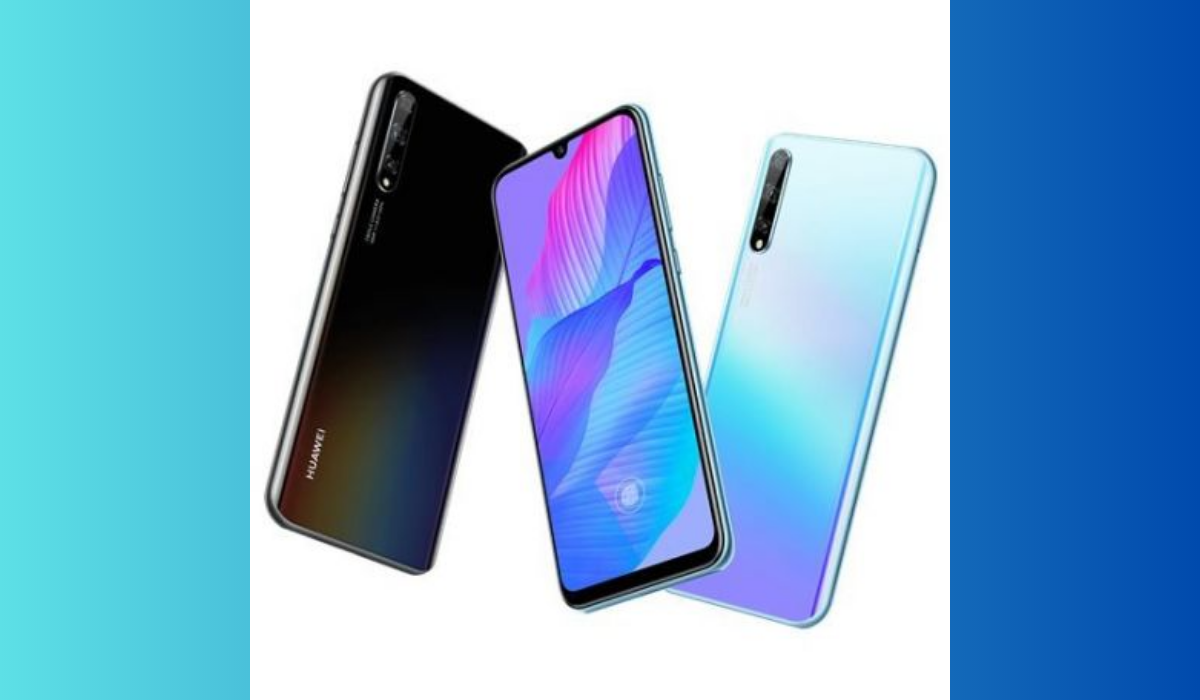
The Huawei P50 Pocket is a foldable phone with the latest Harmony OS 2.0 operating system. It has a 6.6-inch OLED screen with a 120 Hz refresh rate and a resolution of 1188 x 2790 pixels. The phone is powered by a Qualcomm Snapdragon 888 4G with 5nm technology, and it has a RAM capacity of 8GB and 12GB, internal storage of 256GB and 512GB, and a triple rear camera of 40 MP, 13 MP, 32 MP. The forward-facing camera has 10.7 MP. The phone has a 4000 mAh battery and supports 40-watt fast charging.
The P50 Pocket has great photo quality and a fun Pro camera mode for photography enthusiasts. It’s also comfortable to use both folded and unfolded, and it has a reliable battery life and fast wired charging. However, like the above two options, it doesn’t have Google Mobile Services, 5G support, and a U.S. chip so these software limitations may affect its value-for-money ratio. Despite these drawbacks, the P50 Pocket is a great choice for anyone who wants a stylish and original phone with an impressive display and screen quality.
Huawei Mate X3
The Huawei Mate X3 is an excellent device with a sleek design, a reliable camera system, and a bright and vivid internal display. It features a very functional external display with minimal crease and fast charging. The Mate X3 is the world’s thinnest foldable device, measuring just over 5mm thick when unfolded and 11mm when folded. Its large panel, resolution of 2,496 x 224 pixels, a variable refresh rate of up to 120 Hz, and 6.4-inch Full HD external screen make it a versatile device.
However, its price exceeds 2,000 euros, and it lacks 5G and Google services. Despite these, the Mate X3 is an excellent choice for those looking for a lightweight yet functional device.
Huawei P30 Pro
The Huawei P30 Pro is a great phone with an attractive design, great cameras, and support for Google Play Services. Despite its aging hardware and awkward long-term software support, it still offers great value compared to rival flagships. The display is great, and the cameras still deliver great performance.
The P30 series was announced before Huawei was put on the US trade blocklist, and Google removed support, so it still has full access to Google apps, services, and security updates. As a result, it remains a great choice for a wide range of users.
All in all, it’s clear that Huawei has some of the best phones on the market in 2023, each with unique features that cater to a variety of users. These high-end devices offer powerful camera systems with variable aperture main cameras. Huawei’s unique features make them a top choice for those seeking a high-quality phone. Overall, the above Huawei phones are worth considering for those seeking a versatile and high-quality device. If you’d like more smartphone recommendations, be sure to check out this helpful category .
Author:Joan Agie
Add MobilityArena as a preferred source on Google
Keeping your Samsung Smart TV updated is crucial to ensuring that you have access to the latest features and improvements. Updating your TV will enhance your viewing experience with better performance, new apps, and an improved user interface. Because just like with smartphone devices. outdated software can cause your TV to slow down, apps to crash, and even create security vulnerabilities.
In this article, I’ll show you step-by-step instructions on how to update a Samsung Smart TV, regardless of the model you have. You’ll learn different ways to get the latest version of your TV software, and how to update apps on Samsung Smart TV. So, follow me on this journey to keep your TV updated to enjoy the latest features and improvements.
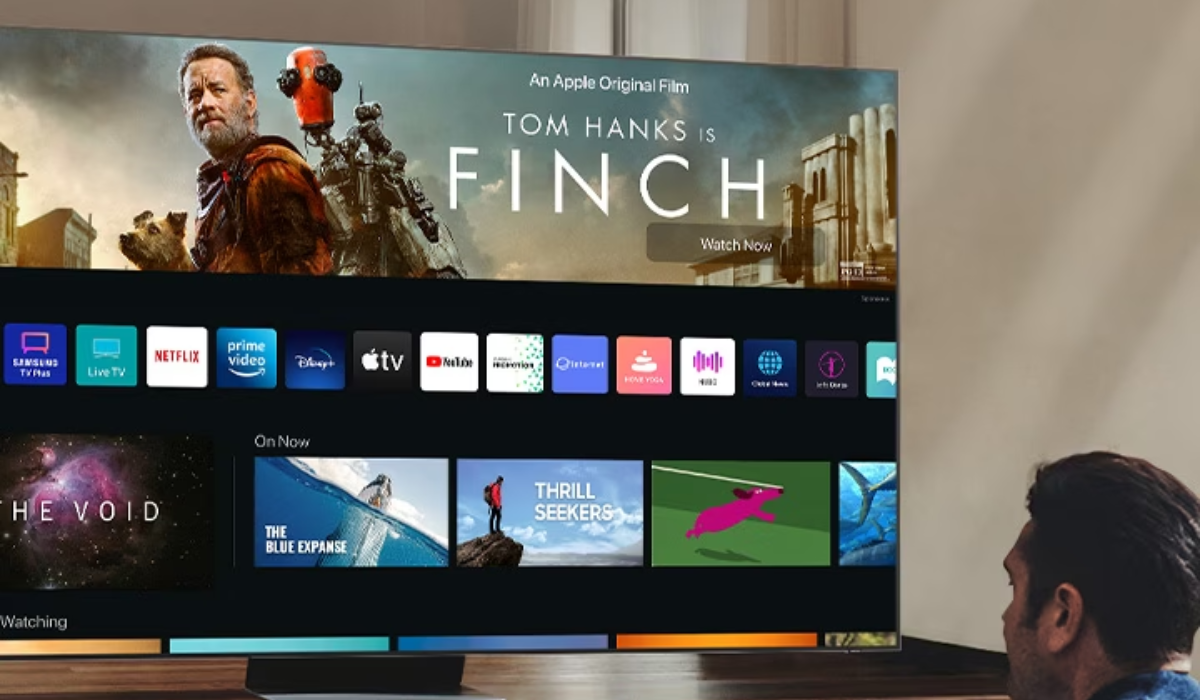
- How To Update A Samsung Smart TV Set Your TV to Automatically Update Update Samsung TV Manually Via Internet Update Samsung Smart TV Manually Using USB
- How to Update Apps on Samsung Smart TV
How To Update A Samsung Smart TV
So updating your Samsung Smart TV software is important for optimal features and smooth operation. To complete the update process for your Samsung Smart TV seamlessly, you’ll just need to follow a few simple steps.
Set Your TV to Automatically Update
Setting your Samsung smart TV to automatically update is the simplest way to ensure it gets the latest updates. The Samsung OS, like your phone, computer, or tablet, searches for updates whenever you switch on the TV or at specified intervals, depending on the configuration. That way, you won’t have to worry about keeping them up to date. Here is how to update your Samsung Smart TV automatically:
- Go to the Menu
- Navigate to Settings .
- Select Support .
- Choose Software Update .
- Click on Auto Update and turn it on.
Whenever your TV detects a new update and you turn it on, before you can watch anything on it or use the TV’s other features, it will first download and install the update. Depending on the nature of the update, this could take several minutes. Also, if you choose Auto Update and an update becomes available while you are watching TV, the update will download and install in the background so the entire process will be complete the next time you turn on the TV.
Update Samsung TV Manually Via Internet
You can also manually enable firmware/software updates if your television is connected to the Internet. Here’s how to update your Samsung Smart TV manually over the Internet:
- Use your TV remote to navigate to the Menu .
- Choose Settings .
- From there, choose Support .
- Select Software Update .
- Select Update Now to download and install new updates.
Updates generally take a few minutes, so don’t turn off your TV until the update is finished. Once the update is complete, your TV will restart automatically. If there are no new updates available, press OK to exit the Settings menu and continue using your TV as usual.
Update Samsung Smart TV Manually Using USB
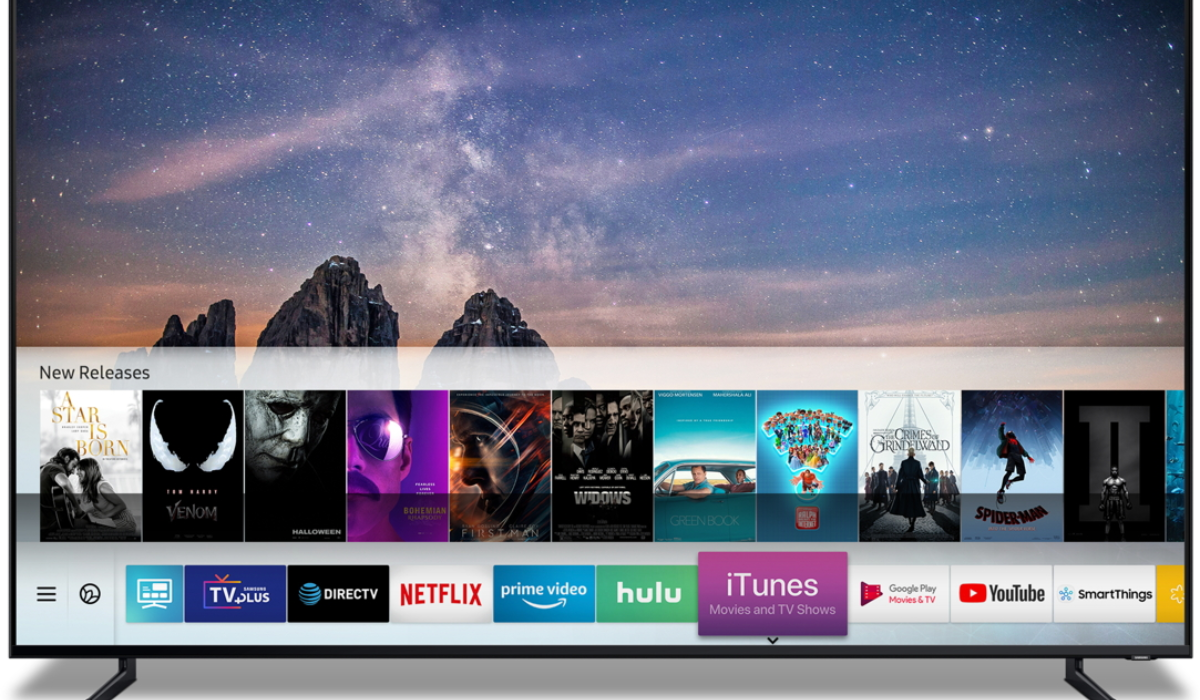
If your TV isn’t connected to the Internet or you prefer to install software/firmware updates locally, you can do so through USB; it’s straightforward enough, although it does take some time. To use this method, first download the update to your PC or laptop; follow the steps below:
- Navigate to the Samsung online support site .
- You can either select your Product category and then search for your Smart TV or monitor , or you can search for your model number to go to the support website for your specific model.
- Find the firmware file for your device under Downloads on the support website.
- If you discover numerous firmware versions, install the most recent one.
- To download the compressed file, click the Download button next to the firmware version.
- Locate the file and unzip it after the download is complete. Usually, there is just one folder within, although there could be more files.
- All of the files contained in the zip file should be copied or moved to a USB flash drive; don’t put them inside other folders. The TV or monitor won’t recognize the software folders if you put them inside a folder on the USB flash drive.
- Insert the USB drive containing the software upgrade into your device’s USB port.
- Using the remote on your device, go to Menu , choose Settings , and finally click Support . Click Software Update , choose Update Now , and when prompted, click Yes .
- The USB drive will be scanned by your device for the update files.
- Follow the on-screen instructions to install the updated software.
Updates via this process typically take a few minutes, so don’t turn off the TV until the update is complete. Once this happens, the TV will automatically restart.
How to Update Apps on Samsung Smart TV
To continue using the Samsung apps on your Smart TV, you’ll also have to make sure you have the most recent versions. Each app has its own structure, so this update is different from updating the TV’s system software or firmware.
Setting the TV to update your apps automatically is the simplest method. Here’s how to set Samsung TV apps to automatically update.
- On your TV remote, press the Smart Hub or Home button (models differ based on TV).
- Choose Apps from the menu.
- Select My Apps , then Options , from the menu that appears.
- Enable the Auto Update option.
If you’re using the manual option, when you select an individual app, you’ll be notified if an update is available. To begin the update process, follow any additional notifications or prompts.
When the update is finished, the app will launch, and you will be able to use it.
To sum up, updating your Samsung Smart TV is a quick and easy process that can be done in just a few steps. By following these tips, you’ll be able to get the most out of your TV and stay up-to-date with the latest features. If you’d like more useful Samsung tips, be sure to check out this category .
