Add MobilityArena as a preferred source on Google
Staying informed about current events is more important than ever, and with the rise of smartphones, it’s easier than ever to access news from anywhere at any time. If you’re an Android user looking for the best news apps to keep you up-to-date, you’re in luck. But with so many options available, knowing which apps are worth your time and which ones are better left uninstalled is essential.
In this article, I’ll discuss some of the best news apps for Android phones in 2023. Whether you’re interested in breaking news, local stories, or international events, I’m sure you’ll find an app on this list that will keep you sufficiently informed and engaged.
What Are the Best News Apps for Android Phones in 2023?
Many smartphone users now get their news via aggregator apps on their devices rather than websites and newspapers. Still, it’s not so easy to find the right news app. That’s why I’ve done the research for you and compiled this list of the best news apps for Android phones in 2023. So, without further ado, let’s explore the top news apps for Android phones in 2023.
Google News
Google News is a popular and comprehensive Android news app that provides tailored and curated news stories from a variety of sources and topics. It offers comprehensive coverage of significant events, in-depth content, and subscriptions to favorite publications. Google News includes a Full Coverage option, which allows readers to examine different perspectives and sources on the same story. Users can access premium content from magazines and newspapers, as well as a tailored briefing of top articles, local news, and updates from preferred sources, with a Google News subscription.
Microsoft Start
In many ways, Google News and Microsoft Start ‘s approach to news aggregation are similar. Like Google News, it uses your reading habits to learn about your interests and preferred sources. You can also customize your news feed manually and search for specific topics. The app has two main tabs, News and Home , each displaying different content. The Home tab features Top Stories and Trending Stories , while the News tab is personalized with the Daily Briefing and your preferred topics.
The Tabs section allows you to open and manage multiple tabs quickly and easily. The app also supports many local languages, and you can choose your preferred language and country in the Settings menu. To select your country and language, proceed to Settings > Region and Language > Country & Region .
Feedly
Feedly is an RSS aggregator with its own unique strengths and weaknesses. For those who are already familiar with reputable news sources, Feedly ensures that they don’t miss out on any important news. However, for those who are new to the platform, it can be overwhelming to get started. Feedly has a simple interface that makes it easy to read articles, save them for later, share them with others, and mark them as read, with tools like a save-for-later function, formatting settings, and a dark theme. It also integrates with other apps and services like Evernote, Pocket, and Twitter.
Feedly is designed for users who rely on their own RSS lists for news. It offers features that allow users to maintain and edit their lists, view fresh content, and add new feeds. Overall, Feedly is a valuable tool if you depend on your RSS lists for news and want to customize your reading experience.
Flipboard is a social magazine app for Android devices that offers feeds from trusted sources and personalized news elements. Users can customize their preferences and create profiles, with their likes and followers displayed on the home page. The app takes a more visual approach, attempting to replicate an actual magazine experience with page flip animations and large grids. It also has human-curated editorial tabs such as The Daily Edition and Flipboard Picks , which allow users to save and favorite posts.
Flipboard also allows users to follow specific topics and create personalized magazines that can be shared with others. The app has an attractive and user-friendly interface that makes reading the news enjoyable. You can also browse selected stories from top publishers or create your own personal magazines by saving articles, videos, podcasts, and other content. Flipboard also helps you discover new information depending on your interests and preferences, making it an excellent option for remaining informed, entertained, or inspired.
SmartNews
SmartNews bills itself as a news reader app that intelligently delivers only high-quality, trustworthy content. That’s accurate for the most part. However, SmartNews performs a function that is quite similar to that of services like Google News, which are already supported by a number of cutting-edge machine learning frameworks.
If you decide to give it a try, you won’t be disappointed. There’s a distinctive tab manager at the top that allows you to rapidly flip between sections like Sports, Technology, and others, as well as a Search and Explore tab if you’re bored with your usual locations. It also features an offline mode for added convenience.
To sum up, the world of news apps for Android phones has come a long way in recent years, and there are now many great options to choose from. Whether you prefer a personalized news feed or want to follow specific topics, you’ll find many apps that can meet your needs. So, check out the above top picks and find the one that works best for you. Also, take a look through this category for other useful app suggestions.
Author:Joan Agie
Add MobilityArena as a preferred source on Google
If you’ve ever found yourself in a situation where your iPhone won’t charge, you know how frustrating it can be. A malfunctioning charging port is a major cause, and it can be such an inconvenience, especially if you rely on your phone a lot for whatever purpose. However, before you take your iPhone to a repair shop, there are a few things you can try to fix the issue yourself.
In this article, I’ll describe how to fix an iPhone charging port. I’ll walk you through some of the most common solutions to help you get your iPhone charging port working again. So try one or more of these to see what helps.
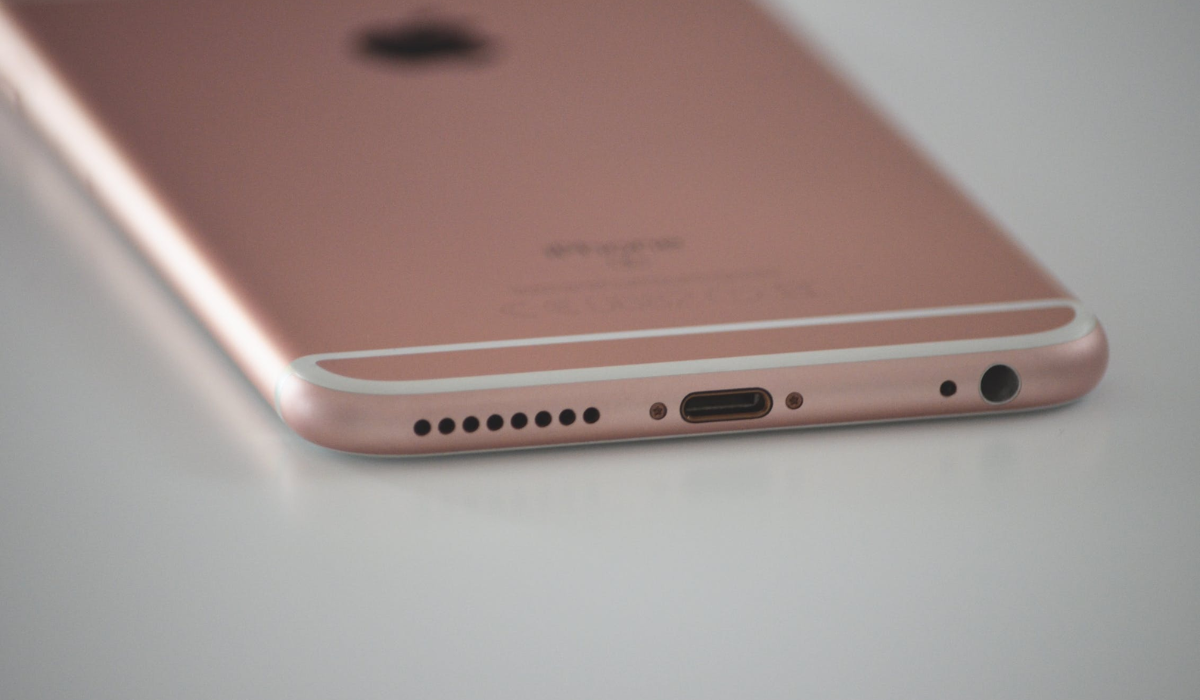
How to Fix an iPhone Charging Port Not Working
The charging port on an iPhone is designed primarily for charging the device, and iPhone users use it regularly for this purpose. However, if the charging port suddenly stops working, it hampers how much charge you can get on your device (if any), and without a charged battery, it’s not exactly possible to use your device.
A malfunctioning charging port is a common issue that many iPhone users face, but it’s great that it can be fixed by following some quick tips. Note that it’s always a good and safe option to take your phone to a recognized and authorized phone repair personnel. But if you think all the phone’s charging port needs is a little troubleshooting, then consider trying some of the following solutions to see if it fixes the issue.
Use a Different Charging Cable or Adapter
Whenever you think your iPhone charging port is not working, one of the first things you should try is using a different charging cable or adapter. This is because the cable or adapter you’re currently using may be damaged, which could be causing the charging port to seem as if malfunctioning.
To try this solution, you’ll need to have access to another charging cable or adapter that you’re sure works properly. Once you have a different charging cable or adapter, plug it into your iPhone and see if it starts charging. If it does, the issue was with your original cable or adapter. If it still doesn’t work, then you may need to try another troubleshooting step.
Remove the Phone Case
Sometimes the issue may be with your phone case, that’s if your iPhone device has a protective phone case on. If it’s too thick, it may hinder the charger from properly connecting to your smartphone. With this in mind, it’s best to take the phone case off and try plugging in the cable to your device without the case on. This should resolve your iPhone’s charging port problem, but if it doesn’t, check out any of the other fixes below.
Clean the Charging Port
If you haven’t cleaned the port in a long time, dust and debris might build up in the charging port of your iPhone device and block it. This can make it difficult for the charger to connect to your device properly. To resolve this issue, gently clean your device’s charging port.
- To begin, switch off your phone and unplug any cables that are connected to it.
- Then, using a soft brush or a cotton swab, gently clean the inside of the charging port to remove any dust or dirt.
- Ensure that you do this as cautiously and lightly as possible, as applying too much force may further damage your iPhone’s charging port.
- After you’ve completed the cleaning process, try plugging in your charger again to see whether it works. If it does, the dust was most likely the cause of your iPhone charging port not working. If that doesn’t work, move on to the next option.
Restart the iPhone
When your iPhone charging port is not working, another solution is to restart it. This can help resolve any minor issues with the device’s software.
Follow the steps below to do this.
- Quickly press and release the volume up and down buttons.
- Then, swiftly press and hold the Power button until the Apple logo appears on your screen.
- Next, release the Power button and wait for your device to boot up.
- After restarting your iPhone, plug in the charger to see if it works normally.
Update Your iOS
If your iPhone’s charging port still doesn’t work after trying all the above tips, you can try updating your iOS as an alternative solution. Sometimes, minor technical issues on your iPhone can cause the charging port to stop working. To fix this problem, you may need to update to the latest version of iOS.
Here’s how to do this:
- Check for any available updates by going to Settings > General > Software Update .
- If there is an update available, download and install it on your device.
- After installing the update, try connecting your charger again to see if the issue has been resolved.
To summarize , if you’re experiencing any issues with your iPhone’s charging port that prevent seamless charging, there are several troubleshooting steps you can try. But if none of the above solutions work, you may need to replace the charging port or seek assistance from an authorized Apple repair store . If you need other useful troubleshooting tips for your iPhone device, take a quick look through this category .
