Add MobilityArena as a preferred source on Google
OnePlus is a well-known brand in the smartphone industry, and they have a great reputation for producing high-quality devices that offer excellent performance and features. As of 2023, OnePlus has several new phones that are worth checking out. They have excellent sleek designs, cutting-edge technology, powerful performance, long-lasting batteries, and excellent cameras.
In this article, I’ll be exploring the best OnePlus phones of 2023, analyzing their features, performance, and overall value. Whether you’re looking for a phone with a top-of-the-line camera or lightning-fast performance, this guide has got you covered.
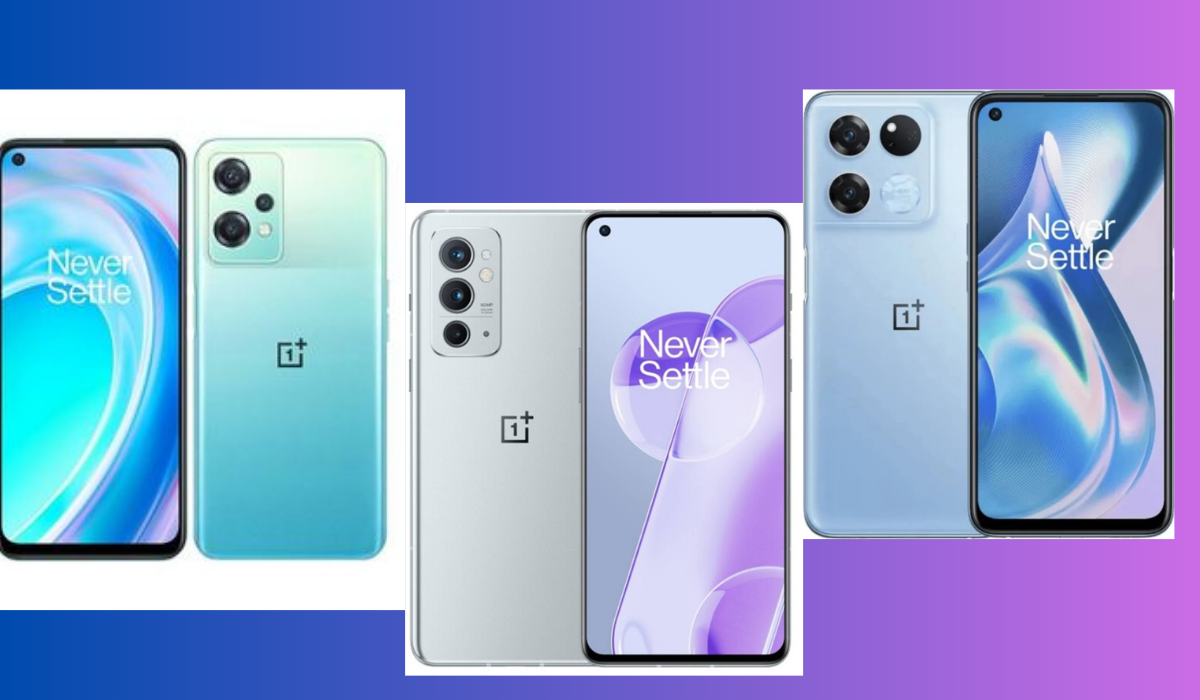
What Are the Best OnePlus Phones in 2023?
OnePlus has been making waves in the smartphone industry for years now, and they continue to impress with their latest devices. They are recognized for providing premium specifications at a more affordable cost than competitors like Samsung. The company now provides a spectrum of high-end to low-cost handsets that excel in performance, fast charging, and a smooth software experience. Here are some top OnePlus phone recommendations to help you out:
OnePlus 11
The OnePlus 11 is the current flagship model from OnePlus, offering a high-end experience with a Snapdragon 8 Gen 2 CPU, a beautiful display, and excellent battery life. It features a 6.7-inch AMOLED screen, a 1-120Hz refresh rate, and storage options of 8GB, 16GB, 128GB, and 256GB. The phone has rear and front cameras with 50MP main, 48MP ultrawide, 32MP 2x telephoto, and 16MP. The battery life is 5,000 mAh, and the charging speed is 80 W (US) or 100 W (international).
The OnePlus 11 offers great performance, battery life, and cameras, making it a perfect choice for those looking for top-tier performance at a budget-friendly price. Although it lacks wireless charging and water resistance, and its camera performance is not as reliable as competitors like Samsung or Google, the phone is guaranteed security updates until 2028.
OnePlus 10 Pro 5G
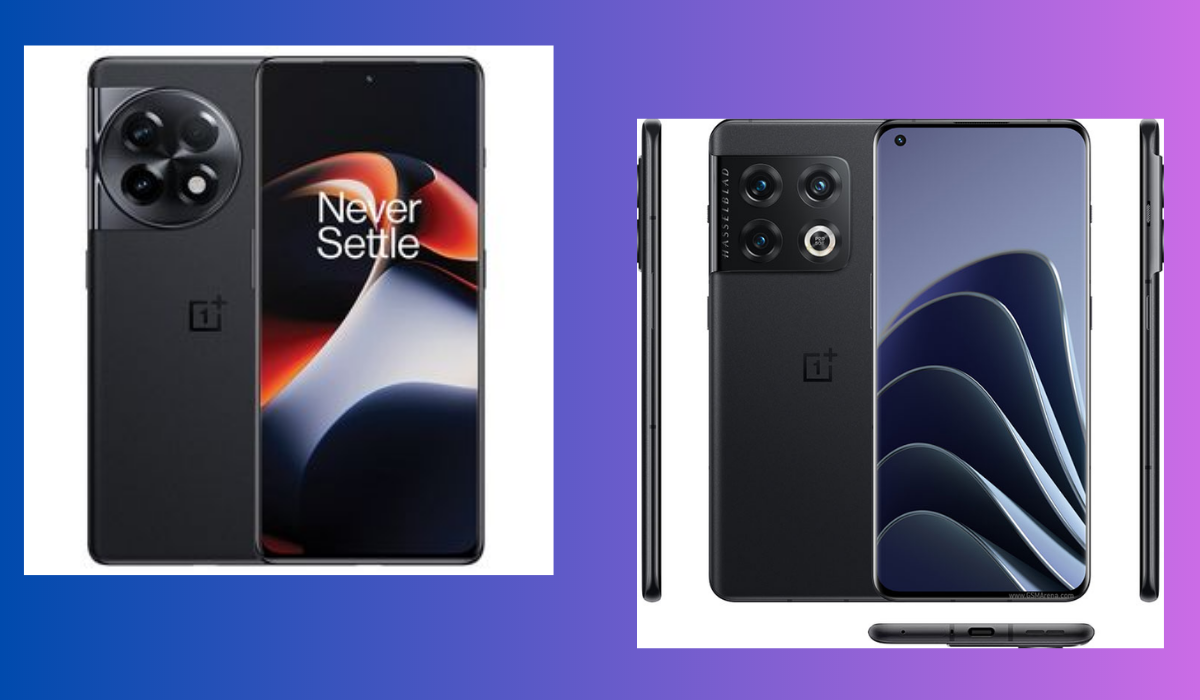
The OnePlus 10 Pro 5G offers premium quality at an affordable price, making it an excellent buy for those who don’t mind a year-old phone. It has a Snapdragon 8 Gen CPU, a 6.7-inch screen, and a 5,000 mAh battery. The phone has a rear camera of 48 MP, 50 MP, and 8 MP, and a front camera of 32 MP. Additionally, the phone is IP68 water-resistant, which is great for those who love to take pictures in the rain or beside water bodies, unlike the newer OnePlus 11.
However, the camera is not as strong as its competitors, but it still produces bright and colorful images. The phone’s size might be a bit big for some users, but it comes with a variety of software features, super fast charging, good battery life, and speedy performance. Overall, the OnePlus 10 Pro 5G is great for those looking for great cameras and speed at an affordable price.
OnePlus Nord N30 5G
The OnePlus Nord N30 5G is an impressive budget phone that offers a lot of value for its price. It has a larger 5000mAh battery, a faster 50W charging speed, a new 120Hz LCD panel, Android 13 out of the box, and a headphone jack. It also comes with a charger included in the box. The phone offers solid gaming performance, a bright display, and good battery life.
However, it has some drawbacks, such as poor build quality and subpar camera performance. OnePlus promises three years of security updates, ensuring a trouble-free experience. The Nord N30 5G also features a microSD card slot, but it would be nice if the camera system was better.
OnePlus 10T
The OnePlus 10T is another great phone with a 6.7-inch AMOLED screen, a 120Hz refresh rate, a Snapdragon 8 Plus Gen 1 RAM CPU, and 8 GB, 16 GB, 128 GB, and 256 GB of storage options. It features 50 MP main, 8 MP ultrawide, 2 MP macro, and 16 MP rear and front cameras, a 4,800mAh battery, and 150W charging. The phone offers strong performance and good battery life and is more affordable than many flagships.
However, it lacks a dynamic refresh rate and has weaker cameras than the OnePlus 10 Pro. Added to the reassurance of well-designed software, the OnePlus 10T could be an amazing gaming phone. It also makes a great work companion thanks to its good battery life and fast charging. Despite lacking features like the Alert Slider and wireless charging, the OnePlus 10T is the company’s most powerful phone yet.
OnePlus Nord 2T
With its 6.43-inch 90Hz AMOLED display and MediaTek Dimensity 1300 CPU, the OnePlus Nord 2T 5G is a potent phone that has a cooler body and exceptional performance. Features of this device include a weight of 190g, dimensions of 159.1 x 73.2 x 8.2 mm, an Android 12 operating system, a 6.43-inch screen with a resolution of 1080 x 2400, a MediaTek CPU, 8/12 GB of RAM, 128/256 GB of storage, and a 4,500 mAh battery. Along with a 32 MP front camera, the phone also has 50 MP, 8 MP, and 2 MP rear cameras.
Despite not having the most eye-catching design, this phone is powerful due to its excellent primary camera and robust performance. Two major flaws are that it has no IP rating and a white design. But overall, the OnePlus Nord 2T 5G is a worthy option for those looking for a reliable phone.
To summarize, these are the best OnePlus phones in 2023. They offer a range of features and specifications that will meet the needs of any smartphone user. So, if you’re looking for a new phone that offers great value for your money, the above phones are worth considering. If you’d like other smartphone recommendations for Samsung , Verizon , Pixel , or general Android devices , check out the respective linked categories.
Author:Joan Agie
Add MobilityArena as a preferred source on Google
In today’s digital world, we rely on applications for various reasons. I totally understand how frustrating it can be when apps won’t open on your iPhone. It’s definitely not a pleasant experience, especially if you use specific apps for work or communication. But don’t worry, because this guide is here to help.
In this article, I’ll walk you through some simple steps you can take to troubleshoot the problem and get your apps to open again in no time. Whether you’re having trouble with outdated software, or problems with the app itself, I’ve got you covered.
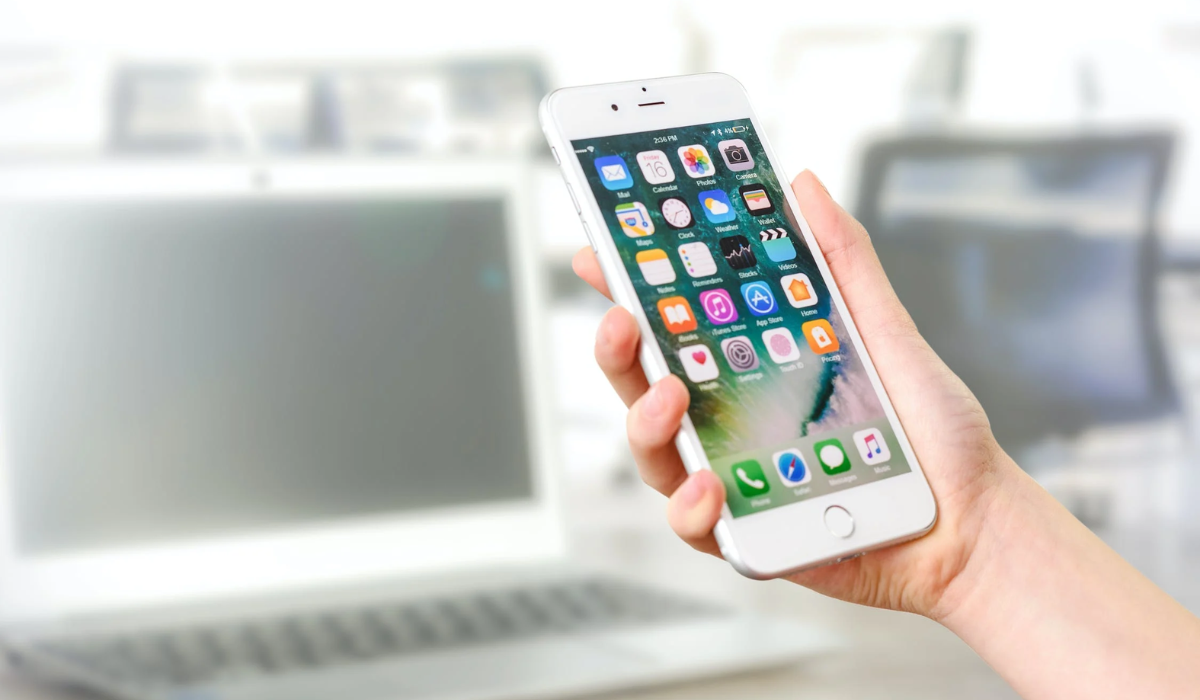
- How to Fix Apps Not Opening on iPhone Force-Quit the App Restart Your iPhone Update the App Check the Internet Connection of the App Examine the App Restrictions Settings Uninstall then Reinstall the App Check Your iPhone’s Storage Update Your iPhone Reset All Settings
How to Fix Apps Not Opening on iPhone
There are several reasons why some apps won’t open on an iPhone such as outdated software, connectivity issues, background updates, screen time limits, or problems with the app itself. Here’s how to troubleshoot and fix any app that won’t open on your iPhone.
Force-Quit the App
When an app refuses to open after multiple attempts, one of the first things you can try is to force-quit the application. An unresponsive app might be annoying because it can interfere with the device’s overall performance.
To force-quit a troublesome app:
- Launch the App Switcher . If you have an iPhone with Face ID , you can access this by swiping from the bottom. On earlier models, double-tap the Home Button .
- Select the non-working app and drag it up to force-quit it.
- Wait around 15 seconds and see if the app now works.
Restart Your iPhone
Most technical issues, such as apps not opening, can be resolved by restarting your iPhone. The steps to restart an iPhone are simple. Simply press the physical buttons on the side of your device or by going to Settings > General > Shut Down . I’ve found that Siri is also a fast alternative; simply use the command, “Hey Siri, restart my iPhone”. After one minute, turn on your iPhone and launch the app that was not working before. It should open easily after the restart, but if it doesn’t check out the other fixes below.
Update the App
It’s possible that the app is out of date if you can’t open it. As such, updating the app is another easy you can fix this problem. Secure applications like bank and carrier apps are particularly prone to this. Check the App Store to see if there are any updates available if you discover that an app won’t open.
To update the app in question from an older version to a newer version:
- Long-press on the App Store icon in the App Library or Home Screen , and then select Updates from the action menu that displays.
- You will see all the available updates once the page has loaded.
- To complete the update process, select “ Update ” from the menu next to the app that won’t open.
- You can also choose Update All to get all of the most recent versions of your apps.
Check the Internet Connection of the App
When you connect your iPhone to Wi-Fi, all apps can connect to the internet. However, with cellular data, you can disable internet connection for specific apps. This may be the issue causing the app not to open, so follow the steps below to fix it.
- Open the iPhone Settings app and select Cellular .
- Scroll down the list of apps and check if the toggle next to the non-working app is green.
Examine the App Restrictions Settings
You may have restricted an app using Screen Time, most likely to control how long your child spends on your phone while using it. If you have problems opening an app, check the Screen Time Limits settings on your iPhone. Here are some suggestions for getting around this app restriction:
- Launch the Settings App.
- Select Screen Time .
- Click App Limits and deactivate the feature by swiping right and clicking “ Delete ” to remove the app from the list.
- Then, open Content & Privacy Restrictions to ensure that no service or app is disabled by turning it off.
- When you try to launch the app again, it should open.
Uninstall then Reinstall the App
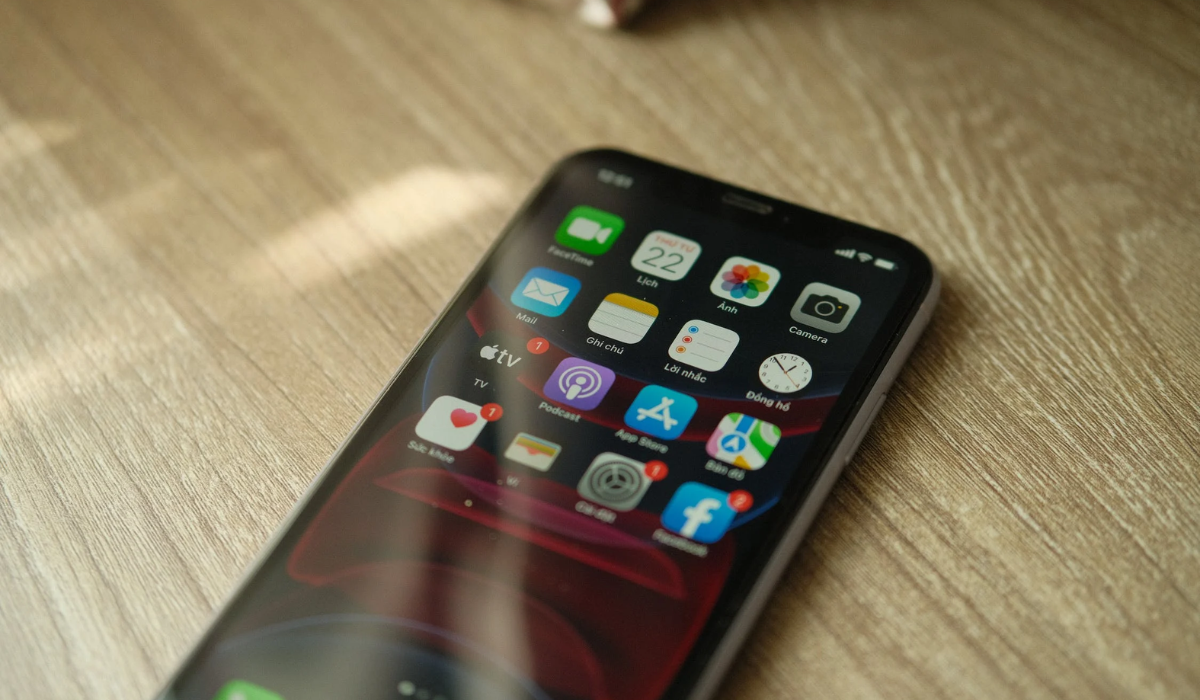
When apps won’t open, another sure option is to uninstall and reinstall them. It works by removing any potential software bugs. However, removing the app will occasionally wipe all existing data. Therefore, before doing so, make sure to back up the app’s internal data.
Here’s how to delete and reinstall apps on your iPhone:
- Begin by accessing the Home Screen and long-pressing the app until all app icons begin to shake.
- Select the “ Minus ” option.
- To confirm the uninstallation, press the “ Delete ” button.
- After deleting the app, restart the device.
- To install the app, go to the App Store and search for it.
- Try launching it again to see if it works now.
Check Your iPhone’s Storage
When your phone’s storage reaches a certain limit, you’ll find that some iPhone apps begin to malfunction and close abruptly when you click on them. Having a lot of open iPhone apps will cause issues with your device due to insufficient memory space as apps require memory space to operate at their optimum functionality.
To check your current storage status, navigate to Settings > General > iPhone Storage to see which apps are consuming the most space. Also, To free up space, remove any apps, files, or personal data that you are no longer using, and delete any media files that are taking up unnecessary space in the internal storage.
Update Your iPhone
When apps won’t launch, updating your phone’s iOS can be a useful fix because it solves different compatibility issues. The functionality of newer updates of your phone’s apps will be affected if you are using an outdated iPhone operating system. For smooth operation, both your phone and its apps must be compatible and current, and installing software updates is the best way to ensure this.
To check if an update is available for your device, navigate to Settings > General > Software Update . Press Download and Install to begin the process, if there’s the latest version available,
Reset All Settings
One of the last options to fix apps not opening is to reset all of your iPhone’s settings. This operation resets all of your iPhone’s settings to their factory defaults. Navigate to Settings > General , scroll to the bottom, and select Transfer or Reset iPhone . Choose Reset and then Reset All Settings.
As long as you don’t choose to Erase All Content and Settings by accident, your iPhone will not delete any data.
To sum up, by following the above instructions, you should be able to fix apps not opening on your iPhone. If you’re still having trouble, you can contact Apple Support for further assistance. If you’d also like other useful iPhone tips, be sure to check out this category .
