Add MobilityArena as a preferred source on Google
I am a lover of smartphones with stylus. Some of my very first cell phones had a stylus. The first was Motorola A008 Accompli , and then a few years later, I got the Ericsson R380 . I have owned a number of other smartphones with stylus besides those two. But they are becoming an endangered species.
Smartphones with stylus are now so rare, confined to a small segment of the market that includes artists and data workers. Most other people just do not need a stylus with their cell phones. Without further ado, let’s dive into the list of available in the market today.
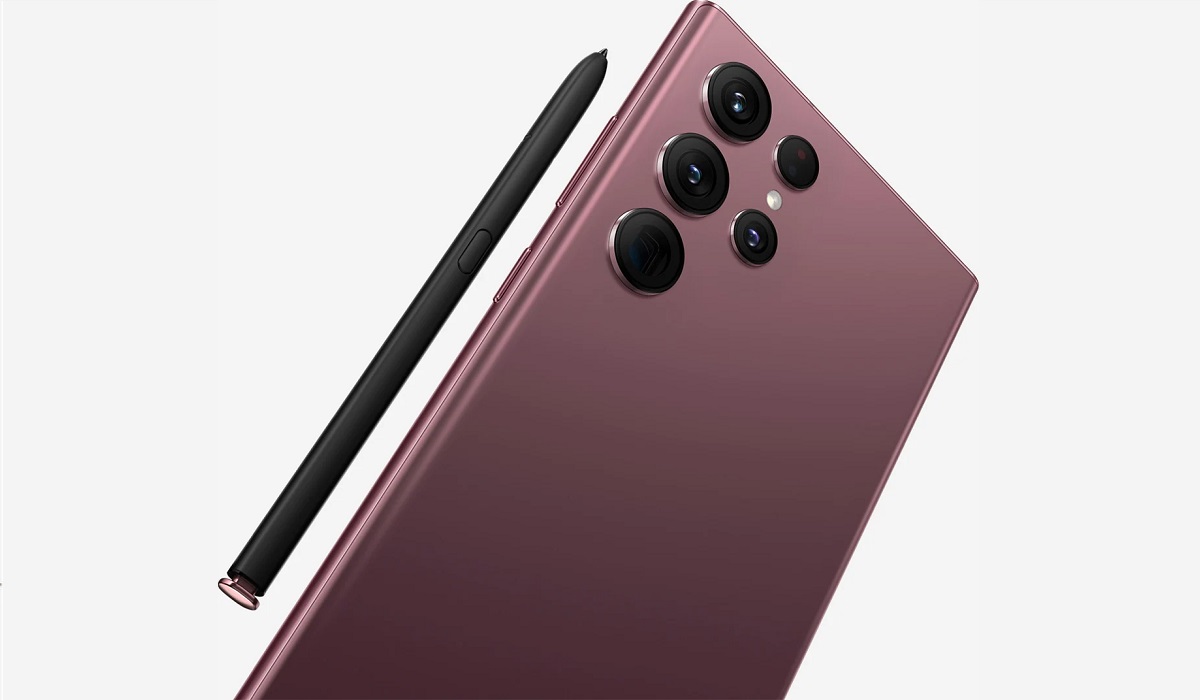
- Brands That Still Make Smartphones With Stylus
- List Of Smartphones With Stylus In 2023
- List Of Tablets That Support Stylus
Brands That Still Make Smartphones With Stylus
Once upon a time, there were many brands producing phones with stylus. The list has drastically reduced over the years.
- Samsung
- Apple
- Motorola
- Honor
- Huawei
- OPPO
- TCL
Brands like Ericsson, Sony Ericsson, LG, all used to have phones with stylus. LG is out of the phone business now. Sony has bought out the phone business of Ericsson but are no longer keen on the stylus. All we have now are the above-listed seven brands who are committed to still producing mobile devices that have a stylus.
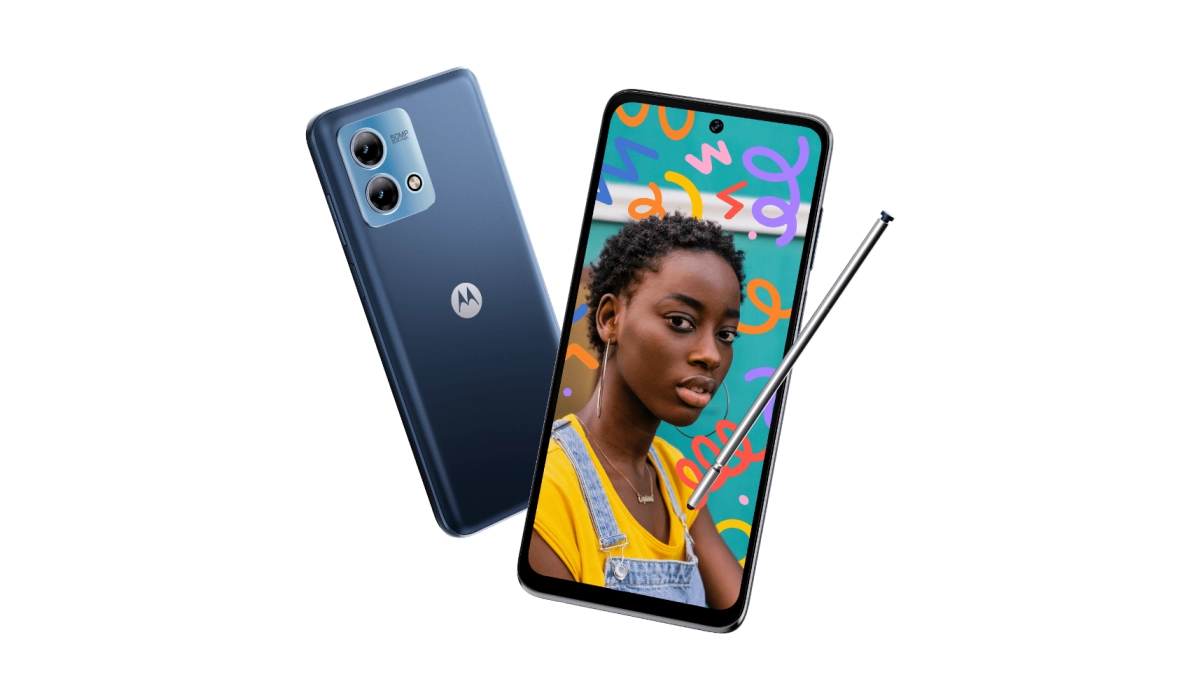
List Of Smartphones With Stylus In 2023
- Samsung Galaxy S23 Ultra
- Samsung Galaxy S22 Ultra
- Samsung Galaxy Z Fold5
- Samsung Galaxy Z Fold4
- Motorola Moto G Stylus 5G (2023)
- Motorola Moto G Stylus 5G (2022)
- Motorola Moto G Stylus (2023)
- Motorola Moto G Stylus (2022)
- TCL 40 NxtPaper
- TCL Stylus
- OPPO Find N2
List Of Tablets That Support Stylus
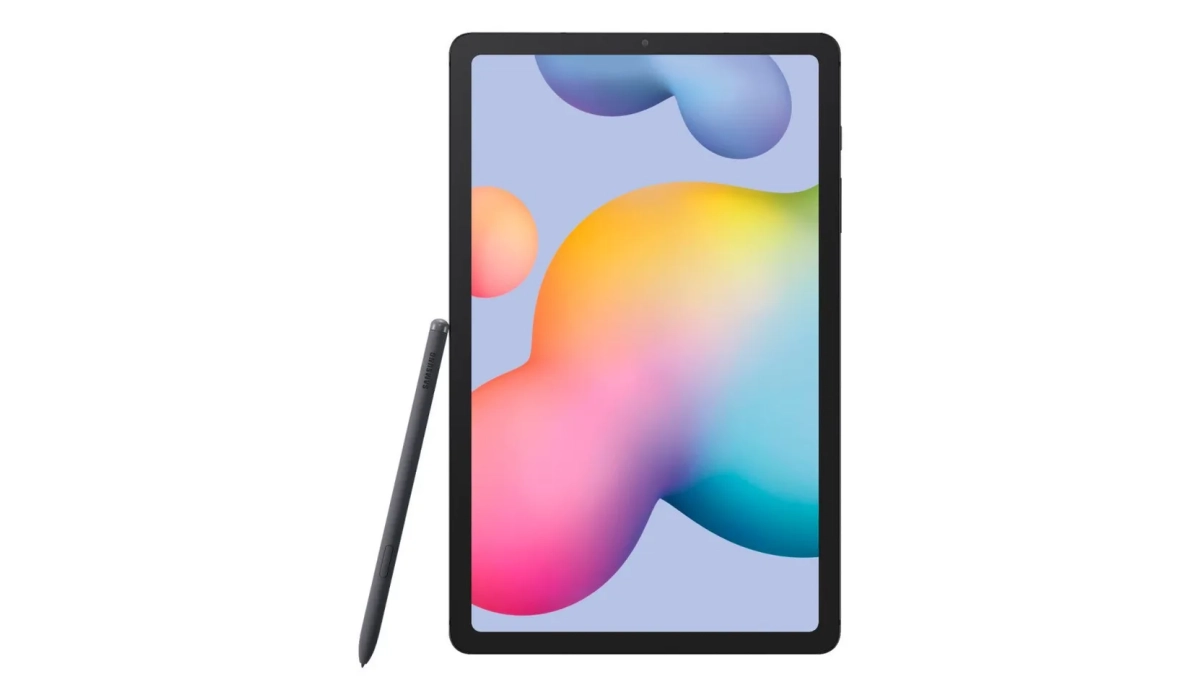
Apart from smartphones, the following tablets all have stylus support.
- Google Pixel Tablet
- Samsung Galaxy Tab S8 Ultra
- Samsung Galaxy Tab S8 Plus
- Samsung Galaxy Tab S8
- Samsung Galaxy Tab S7 Plus
- Samsung Galaxy Tab S7
- Samsung Galaxy Tab S6 Lite 2022
- Samsung Galaxy Tab S6
- iPad mini (5th generation)
- iPad (6th, 7th, 8th, and 9th generation)
- iPad (10th generation)
- iPad Air (3rd generation)
- iPad Pro 12.9-inch (1st and 2nd generation)
- iPad Pro 10.5-inch
- iPad Pro 9.7-inch
Author:Mister Mobility
Digital Skills and Communication Coach | Mobile Phone Connoisseur since 2001 | Tech Blogging since 2004
Add MobilityArena as a preferred source on Google
Blocking someone on Snapchat is a useful feature to maintain your privacy and control who can interact with you on the platform. It allows you to prevent specific users from sending you snaps, messages, or viewing your stories. Blocking someone ensures they can no longer contact you or see your content.
Here’s how to block someone on Snapchat through a straightforward process that can be completed in just a few steps. Of course, there are various ways to do this easily and I’ll explain the steps in detail for each of the methods.
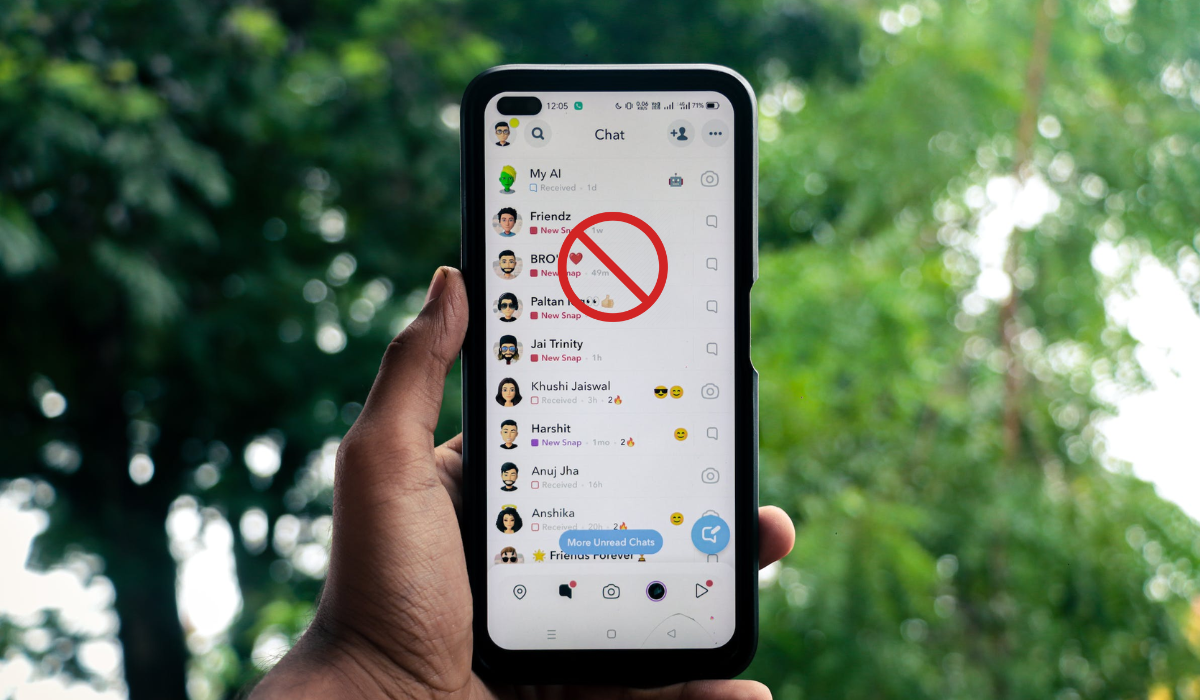
- How To Block Someone On Snapchat How To Block Someone On Snapchat Through Search How To Block Someone On Snapchat Through Stories How To Block Someone On Snapchat Through Profile How To Block Someone On Snapchat Through Map What Are the Alternatives to Blocking Someone on Snapchat?
How To Block Someone On Snapchat
When it comes to blocking any particular Snapchat contact, it’s all about taking control of your online experience. Blocking allows you to put a stop to unwanted interactions and maintain your privacy. Whether it’s an annoying ex, a bothersome acquaintance, or someone you simply don’t want to connect with, using the blocking feature on Snapchat is a simple yet powerful way to curate your Snapchat connections however you want. Try any of the methods below to block a person on Snapchat.
How To Block Someone On SnapchatThrough Search
To block someone on Snapchat through Search, follow these steps:
- Open Snapchat and tap on the search bar at the top of the screen.
- Type in the username or display name of the person you want to block.
- Find the person’s profile from the search results and tap and hold on to their name.
- A menu will appear with different options. Select “ Manage Friendship “.
- Tap on “ Block ” to block the person.
- Snapchat will ask for confirmation. Tap on “ Block ” again to confirm the action.
At this point, you will have successfully blocked someone on Snapchat through the search feature. They will no longer be able to send you snaps, messages, or view your stories.
How To Block Someone On SnapchatThrough Stories
To block someone on Snapchat through Stories, follow these steps:
- Open Snapchat and tap on the Stories section at the bottom.
- Scroll through the recently posted stories and find the profile of the person you want to block.
- Press and hold on to their profile icon.
- Select “ Manage Friendship ” and then tap on “ Block .”
- Confirm the action by tapping “ Block ” again.
How To Block Someone On SnapchatThrough Profile
To block someone on Snapchat through their profile, follow these steps:
- Open Snapchat
- Go to the Chat screen and find a chat with the person you want to block.
- Tap on their profile icon at the top of the chat.
- Tap on the menu icon ( three dots ) and select “ Manage Friendship .”
- Finally, tap on “ Block .”
How To Block Someone On Snapchat Through Map
If you spot someone on Snapchat Maps that you don’t know or if you no longer want to see the location of a friend, here’s how you can block them directly from the Maps tab:
- Launch Snapchat and go to the Maps section at the bottom.
- Look for the Bitmoji of the profile you want to block.
- Tap on their profile picture in the menu.
- Once their profile opens, tap on the three-dot menu in the corner.
- Choose “ Manage Friendship ” from the options.
- Finally, select “ Block ” and confirm by tapping “ Block ” again on the popup.
They won’t be able to see your location or recent actions on the Map anymore.
What Are the Alternatives to Blocking Someone on Snapchat?
Blocking someone on Snapchat is a way to ultimately limit contact with them. However, there are alternatives if you don’t want to take such an extreme step. When you don’t want to cut off contact with someone fully, you can consider less restrictive options. These alternatives allow you to maintain some level of connection while setting boundaries that work for you.
Here are alternative ways to manage your Snapchat interactions without completely blocking someone.
Remove from friend list: By unfriending someone, they won’t be able to see your stories or snaps, reducing interaction.
Turn on Do Not Disturb: This feature helps limit distractions from continuous messages or snaps by muting notifications.
Change privacy controls: You can adjust who can contact you on Snapchat. Options include everyone, friends only, or friends and contacts.
To set your contact preferences on Snapchat, follow these steps:
- Open Snapchat and tap on your profile icon in the upper-left corner.
- Tap on the gear icon to access the settings.
- Scroll down to the “ Who Can ” section and tap “ Contact Me .”
- Choose “ My Friends ” to allow only your friends to contact you.
- To customize who can view your stories, go back to the settings and tap on “ View My Story .”
- Select “ My Friends ” to limit your story viewers to just your friends.
- If you want more control, tap on “ Custom ” to choose specific friends who can or can’t view your stories.
By adjusting these privacy settings, you can have more control over who can contact you and view your stories on Snapchat.
To sum up, blocking someone on Snapchat is a useful feature to maintain your privacy and control over your interactions. By following the steps outlined above, you can easily block someone on Snapchat and prevent them from contacting you or viewing your content. Remember, it’s essential to prioritize your comfort and well-being on social media platforms. Check out this category if you’d like more useful smartphone tips.
