Add MobilityArena as a preferred source on Google
In recent years, smartphones have evolved into powerful tools that not only keep us connected but also help us capture and share our daily experiences. With advancements in technology, the capabilities of smartphone camera keep being expanded and extended. The arrival of smartphones with thermal imaging cameras is another step forward in this evolution.
Thermal camera phones are rarity for now, for the simple reason that the average person mostly has no need of them. But there is a category of devices that they come in useful – rugged or outdoors phones . These are phones built tough for outdoors professionals and enthusiasts e.g. search and rescue teams, security personnel, engineers, hunters, hikers, campers, and the like. This category of users finds thermal cameras useful.
- What are Thermal Cameras and what are they used for?
- How do Thermal Imaging Cameras work?
- Are Thermal Imaging Cameras limited to night use alone?
- Do thermal imaging mobile apps work?
- Do you need a Thermal Camera Phone?
- Can you add a thermal imaging camera to your regular smartphone?
- The Best Thermal Camera Phones Ulefone Armor 11T 5G AGM G2 Guardian CAT S62 Pro BL8800 Pro 5G
What are Thermal Cameras and what are they used for?
What do thermal cameras do? They allow users to see and capture objects that are visually difficult to see – whether in daylight or in the dark. They work by capturing the heat signature of objects they are pointed at. Think of infrared vision as seen in movies, and you have a good picture of the situation. Smartphones with thermal imaging cameras can be used to find missing people, animals, or objects in the dark or through smoke, can be used to detect camouflaged persons, animals or things, and can be used to detect heat leakages in industrial work areas.
How do Thermal Imaging Cameras work?
Regular cameras have lenses and sensors that work with light; thermal cameras have lenses and sensors that work with heat. They capture heat energy, process it, and render it as an image. Brightness or darkness does not matter at all here. All that a thermal camera works with is heat, and all humans, animals, and objects emit heat to varying degrees.
As lighting doesn’t matter, smartphones with thermal imaging cameras are better at detecting hidden or camouflaged objects better than the regular phone camera. Regular cameras are incapable of this, and thermal cameras are also incapable of doing what regular cameras do – processing light.
PS : I published a YouTube video demonstrating how a thermal imaging camera works. You can watch it here .
Are Thermal Imaging Cameras limited to night use alone?
Not at all. They can be used in daytime, for example, to see through fog or smoke, or to locate camouflaged persons, animals or objects in broad daylight as much as in the dark. This is because, unlike your regular camera, thermal cameras do not capture light; instead, they capture heat.
Do thermal imaging mobile apps work?
Thermal imaging apps work only if the phone has a thermal camera built in or added as a clip-on. Without a thermal sensor and lens, a thermal imaging app is useless.
Do you need a Thermal Camera Phone?
If you are not involved in the outdoors as a profession or a hobby, or do not have industrial use cases for it, you do not need a thermal camera phone. For example, I love the outdoors and fairly often have one adventure or the other. Having a thermal imaging camera in my smartphone will come in handy for me every now and then. As already mentioned, for most people, there is little use, if any, for a thermal imaging camera.
Can you add a thermal imaging camera to your regular smartphone?
Yes, you can buy an attachable thermal camera that you can clip to your iPhone or Android phone, so you can use this extra functionality.
The Best Thermal Camera Phones
While there are not many of them in the market, the field of smartphones with thermal imaging cameras is growing and quite a number of them are in the market already. Here is my curated list of the best of them.
Ulefone Armor 11T 5G
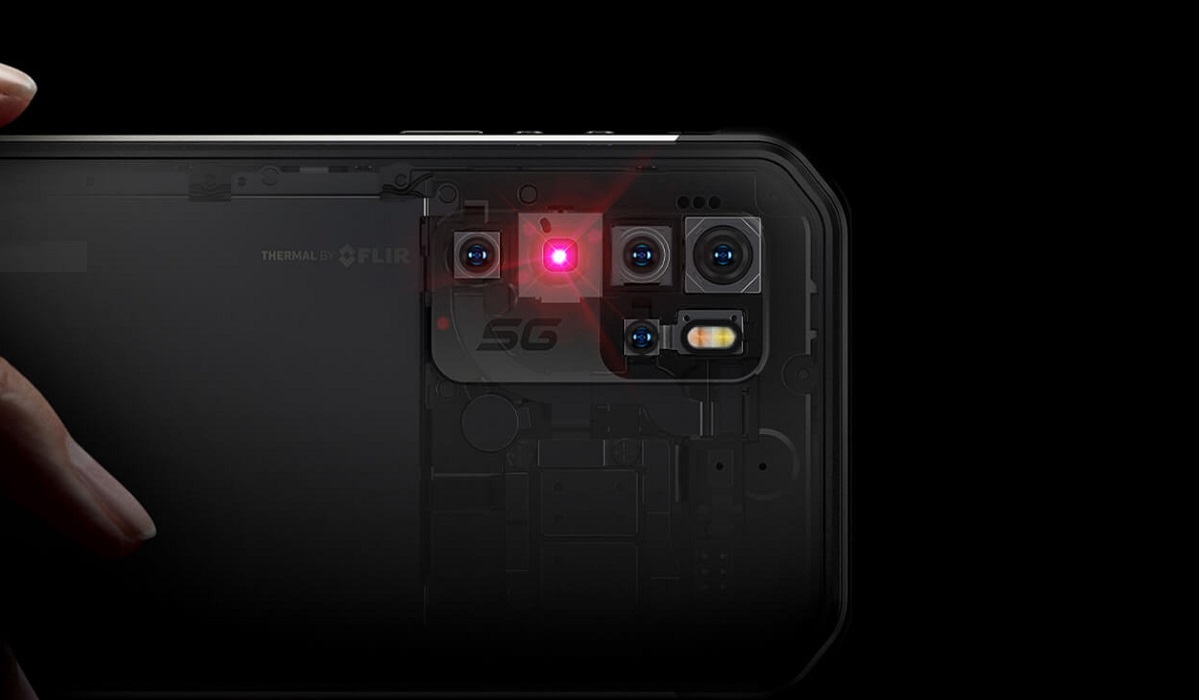
The Armor 11T 5G has an integrated FLIR thermal imaging 5MP camera, a 6.1-inch display, a MediaTek Dimensity 800 chipset, a 5200mAh battery. It has the MyFLIR app pre-installed. it was the first 5G smartphone with a thermal imaging camera.
AGM G2 Guardian
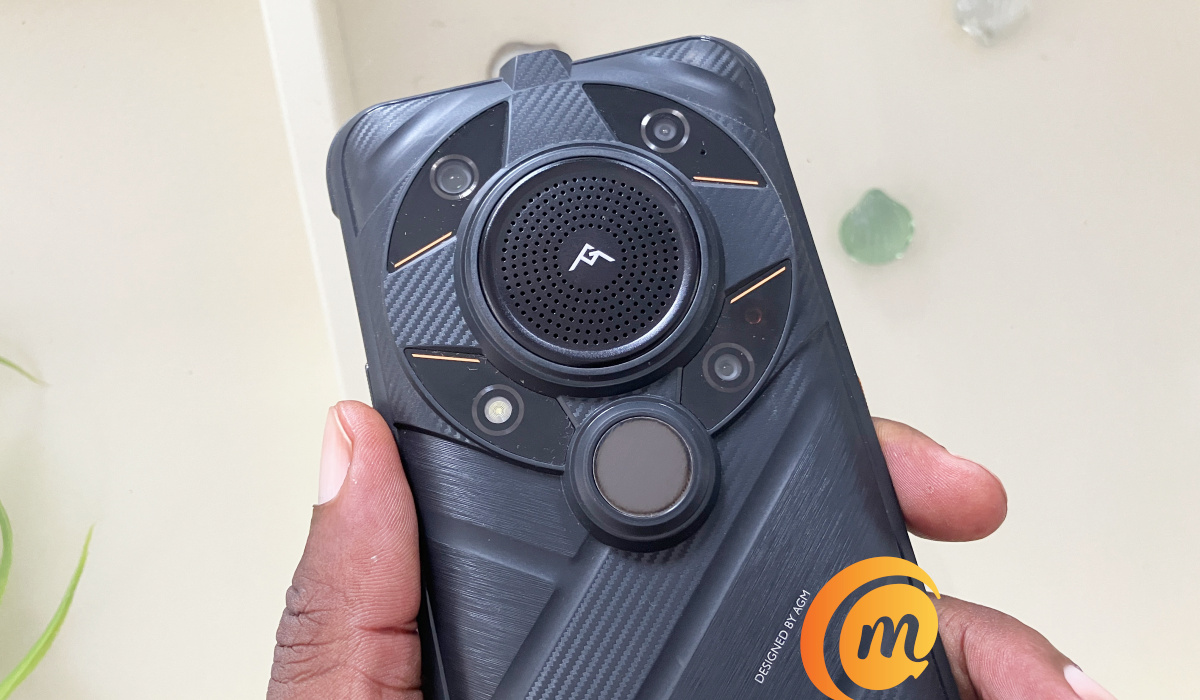
AGM G2 Guardian is a top-notch thermal camera phone
The AGM G2 Guardian has a 256×192 Thermal Monocular Long Detection autofocus thermal imaging camera with a 500m range, the longest on any thermal imaging camera phone. It is powered by a Qualcomm QCM6490 (which is a little above Snapdragon 778G and 782G in performance). The battery is of 7000mAh capacity, coupled with 18W fast charging. It has a 6.58-inch display.
CAT S62 Pro
The Cat S62 Pro uses a FLIR Lepton 3.5 professional-grade sensor and detects invisible heat energy up to 100 ft away. It has a smallish 5.7-inch display, so lovers of compact phones will love it. It is powered by a Qualcomm Snapdragon 660 4G chipset, coupled with 6Gb of RAM and 128GB built-in storage memory.
BL8800 Pro 5G
The BL8800 Pro 5G is fitted with a FLIR® Lepton® 2.5 Thermal Imaging camera, and is powered by a MediaTek Dimensity 700 5G chipset coupled with 8GB RAM and 128GB built-in storage. It has an 8380mAh battery with 33W Fast Charge.
Other phone brands are eyeing this segment of the market, too, and so we will see more thermal camera phones released into the market going forward.
Author:Mister Mobility
Digital Skills and Communication Coach | Mobile Phone Connoisseur since 2001 | Tech Blogging since 2004
Add MobilityArena as a preferred source on Google
iCloud is most likely used by anyone who has an Apple device. Apple’s cloud storage service allows you to easily sync photos, calendars, documents, emails, and other data across all of your Apple devices. However, there’s an uncomfortable risk of losing access to all your data if iCloud fails.
In this article, you’ll learn how to fix common iCloud problems. I’ve compiled the most common iCloud problems from across the web along with directions on how to fix them. So, whether iCloud just isn’t loading properly or you can’t sign in to iCloud from your iPhone, you should be able to find a fix for most iCloud issues in this guide.

How Can You Fix Common iCloud Problems?
Every year, millions of people use Apple’s iCloud service to back up documents and data across multiple devices, including the iPhone and iPad. However, issues do occur on occasion. Here’s how to fix common iCloud issues if you come across them.
Never-ending iCloud Settings Update
When signing into iCloud on your iPhone or iPad, a persistent loading screen typically appears, usually during a new device setup.
If you try to use the Files app, you may also see a message stating that iCloud Drive is loading. Alternatively, you might get a notification saying that there’s a communication issue with iCloud and you can’t sign in. Allow at least five minutes before attempting to repair it.
After five minutes, if you’re still at the iCloud updating or loading screen, do the following:
- Turn off your device and wait about a minute before restarting it.
- If your device is not responding, then force restart your iPhone or iPad.
- If you haven’t already, go to Settings and log into iCloud after restarting your device. Then try again with your iCloud apps.
Cannot Connect to iCloud
When your device is unable to connect to iCloud, the first step is to ensure that all of Apple’s systems are operational. Check each iCloud-related application on Apple’s System Status website to see if a green circle is present next to it.
Apple is having issues with that service if it has different shapes in yellow or red. There is nothing you can do if iCloud is currently down other than wait for Apple to fix the problem.
If iCloud is operational, you may be required to agree to new terms and conditions before reconnecting to it. Tap your name at the top of the Settings app on your iPhone or iPad. You’ll be prompted by a popup to accept any new terms and conditions if available.
In the event that that doesn’t work, sign out of iCloud on your iPhone or iPad, then sign back in. To do so:
- Navigate to Settings > [Your Name] .
- Scroll down to sign out.
- Turn off Find My by entering your Apple ID password if prompted.
- Choose which data you’d like to remain on your device (other things you don’t keep will still get saved to iCloud), then tap Sign Out .
- Go back to Settings and sign in again with your Apple ID information.
Data Sync Issues
If iCloud is functioning properly, it syncs everything for you automatically. Unfortunately, iCloud syncing doesn’t always work flawlessly. To resolve any iCloud syncing issue on your iPhone, follow the steps below:
- Turn off your device and wait about a minute before restarting it.
- To test your internet connection, try streaming a video from YouTube or another site. If it’s slow, try restarting your router to see if that helps.
- On each device, go to Settings > [Your Name] and make sure you’re using the same Apple ID account. If not, sign in again using the correct information.
- Navigate to Settings > [Your Name] > iCloud and enable all of the services
- Allow iCloud about 10 minutes to sync your data.
Third-Party Apps Not Saving to iCloud
Some third-party apps store their data in iCloud, which enables them to sync with all of your Apple devices. They tend to do this automatically, but you might need to make some changes to the settings if apps aren’t syncing as you would like them to.
The iCloud sync options on each of your Apple devices can be checked by following these steps:
- To access iCloud, click on Settings > [Your Name] > iCloud .
- Scroll down the list and enable the apps you want to sync via iCloud.
- If an app isn’t listed, contact the developer for more information.
iCloud Authentication Failure
Authentication failure prevents sign-in. This is yet another common iCloud issue that iPhone users encounter.
Try the following steps if you receive this message or other failed authentication messages:
- Navigate to the Apple ID website.
- Sign in with your Apple ID login details
- If you are still unable to sign in, go to Forgot your Apple ID or password to reset the login information.
- You might receive a notification to accept new terms and conditions after logging in online and seeing an account alert for your account. You should be able to sign in once more on your other devices after acknowledging these notices.
Using the above simple solutions to fix common iCloud problems, I believe you should find it easier to deal with any iCloud issues that arise.
