Add MobilityArena as a preferred source on Google
As a very ardent user of mobile internet on my gadgets, I have always been faced with the dilemma of trading battery life for faster Internet speeds or the other way round. It is a simple thing to understand, and since we also talk about cars and other vehicles here on MobilityArena, I shall use an analogy. When you drive faster, your vehicle burns fuel faster, so you run out of gasoline faster.
It is the same thing that happens when you switch to newer mobile Internet technologies that deliver faster Internet speeds. It happened when 3G was introduced, happened when 4G was introduced, and is happening now that 5G is here.
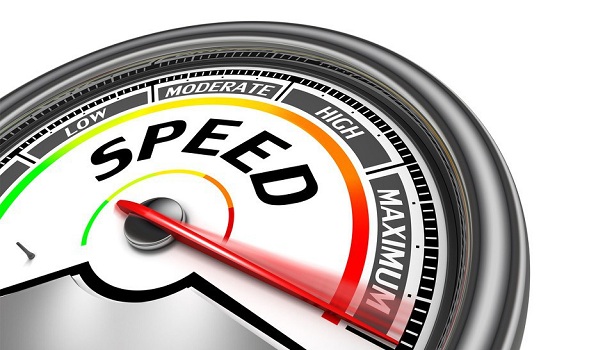
When you opt for faster Internet, battery life tends to take a hit
- From EDGE to 3G
- From 3G to 4G, and 4G to 5G
- Managing faster Internet and better battery life Reduce Screen Brightness Switch to a Lower Screen Refresh Rate Turn Off Unused Features Use Battery-Saving Mode
From EDGE to 3G
An associate, Emmanuel shared his experience: “Even with the 2500 mAh battery that powers my Galaxy Note, browsing with 3G on will keep me online for about 4 hours after which I begin to get the battery low notification.”
From 3G to 4G, and 4G to 5G
This scenario repeated itself when 4G was introduced and now that 5G is here. Our smartphones have bigger batteries than ever – 5000 mAh batteries are almost the norm now – yet many users struggle with battery life, especially over a 5G connection. This is the trade-off when we get faster Internet technologies.
Managing faster Internet and better battery life
There are several steps that mobile users can take to reduce battery drain when using newer mobile Internet technologies. Some mobile users switch between newer and older technologies as needed to maintain this balance. For example, back when 3G was introduced many years ago, one associate of mine would keep his smartphone on EDGE except for when he needed faster Internet to download fairly big files (then he would switch to 3G for that action, and back to EDGE once done). He hardly ever made use of 3G for everyday tasks, all in a bid to conserve battery power.
I think that can be tedious, especially if you have to download files fairly often. But I understand that each mobile user must find what works for them. Here are a few more ways that you can squeeze better battery life out of your smartphone when you want to continue to enjoy the faster Internet speeds that 4G and 5G provide.
Reduce Screen Brightness
Smartphone displays are the biggest guzzlers of battery power. Their higher resolutions, higher refresh rates, and support for advanced features means that when your screen is on, it drains a lot of power. It can’t be helped if you have to use your phone, but one thing you can do to save battery life is reduce the brightness. A brighter screen requires more power to operate, so lowering the brightness can help extend battery life.
Switch to a Lower Screen Refresh Rate
If your smartphone supports higher refresh rates like 90Hz, 120Hz, 144Hz and higher, that is a significant consumer of power. So, if you want better battery life from your phone, disable higher refresh rate. You will find the menu to do that under Screen/Display under your phone Settings.
Turn Off Unused Features
Turning off unused features like Bluetooth, Wi-Fi (when outside of your Wi-Fi coverage), and GPS can help reduce battery drain. These features can use a lot of power, especially when they are constantly searching for a signal.
Use Battery-Saving Mode
Many phones have a battery-saving mode that can be enabled to reduce power consumption. This mode may reduce performance or limit certain features, but it can help extend battery life, especially when you are not using the phone e.g. when in meetings, while sleeping, or carrying out other activities. Some smartphones allow you set a schedule during which battery-saving mode is activated, so your phone conserves power.
There are many articles on the Internet that say to close unused apps to conserve battery life, but that is an arguable point. Most smartphones have excellent app management already and I don’t think that you hunting apps to close will help you much in this area.
Author:Mister Mobility
Digital Skills and Communication Coach | Mobile Phone Connoisseur since 2001 | Tech Blogging since 2004
Add MobilityArena as a preferred source on Google
According to Oxford’s Dictionary, a compass is a tool containing a magnetized pointer which uses the earth’s magnetic fields to determine and show the direction of magnetic north and bearings from it. Cambridge defines it as a device for finding direction with a needle that can move easily and that always points to magnetic north. Some modern smartphones are designed to support compass apps which you can use to like you would a physical compass.
If you find your compass not working on your iPhone or Android smartphone, there are a few things you can do to fix the situation and I share those tips below. If you are new to the subject of using a compass in a cell phone, I have also included a brief but helpful section on how compass apps work.
How does the compass in a smartphone work?
Smartphone compass apps rely on a hardware component called a magnetometer to function. What is a magnetometer? It is a sensor that measures the intensity of a magnetic field. In this case, it measures the Earth’s magnetic field and uses that to determine direction.
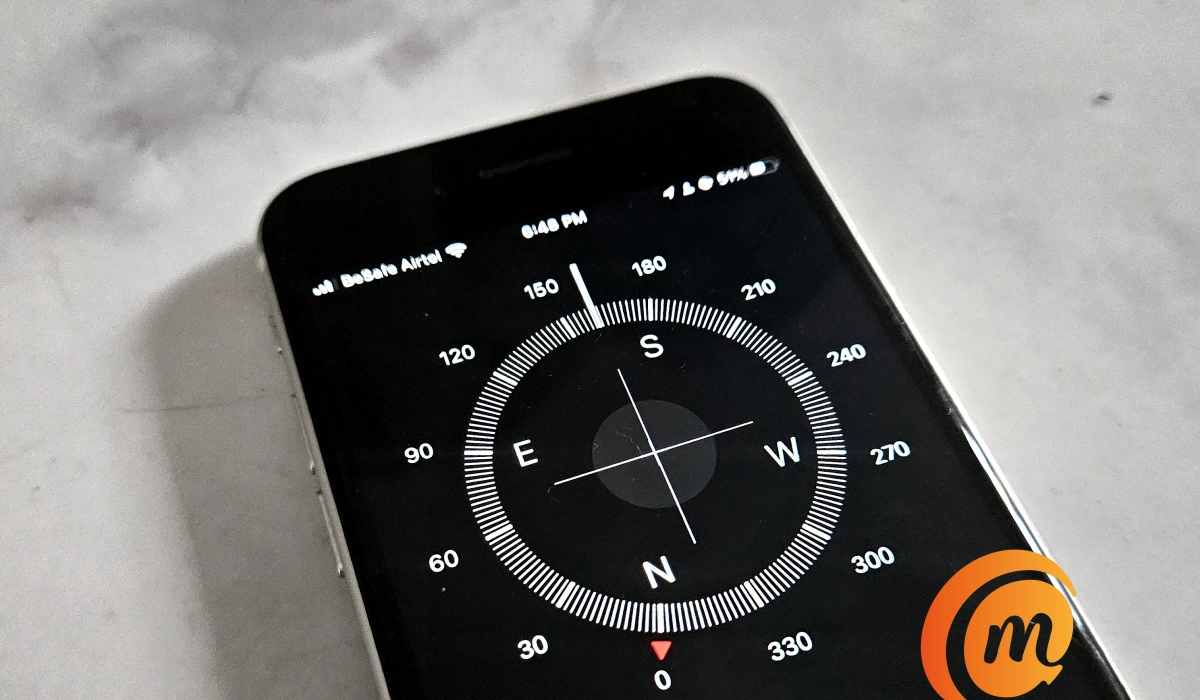
- How does the compass in a smartphone work?
- How accurate are compass apps in phones?
- Fix Compass Not Working on an iPhone
- Fix Compass Not Working on an Android Smartphone
How accurate are compass apps in phones?
How accurate are compass apps in smartphones? The accuracy varies from one device to another. For example, I opened the compass app on three smartphones and carefully aligned all three in the same direction. The AGM G2 Guardian gave me 296 degrees NW, Samsung S23 gave me 307 degrees NW, and iPhone SE 2022 gave me 302 degrees NW. That they all gave different readings is enough proof that their accuracy differs, depending on how good the magnetometer of each phone is and how well done the compass apps themselves are.
As a rule, it is good advice to not use a compass app for determining precise location, proximity, distance, or direction. It is a great tool for general directions only.
Fix Compass Not Working on an iPhone
Apple iPhones come with a magnetometer built in and a Compass app pre-installed. If you open your iPhone’s compass app and it isn’t working (if it turns when you change the direction of the phone, it works), it is likely that there is some electromagnetic interference or the built-in magnetometer is faulty.
The first thing to do is to try to troubleshoot for a possible electromagnetic interference. Move your cell phone away from any active electronic appliance like a TV, radio, or even earbuds. If you are in the middle of a lightning storm, there is definitely electromagnetic interference happening, and your compass app may not function properly for the duration of the storm.
If you have done the above and you find your compass not working properly still, you might have to send in your iPhone to have the magnetometer checked and fixed.
Fix Compass Not Working on an Android Smartphone
First, you have to make sure that your Android smartphone has a magnetometer. Most do not, especially if they are entry-level or lower mid-range Android smartphones. If your phone is a premium flagship Android phone, there is a chance that it has a magnetometer and can use a compass.
If you are trying to use a compass on your Android cell phone and it isn’t working, there is a chance that your phone does not have a magnetometer. How can you confirm? Check the manufacturer’s website for the device specifications. You can also check for cell phone specifications here on MobilityArena to see if a magnetometer is listed for your model. You can also install any of the “device info” apps from Google Play Store and look under “Sensors” to see if a magnetometer is listed as present in your phone.
Next, note that unlike iPhones that have a compass app pre-installed, your Android smartphone may have a magnetometer and yet not have a compass installed. In which case, you need to install a third party compass app from the Google Play Store.
A phone like the AGM G2 Guardian has a magnetometer and also has a compass app pre-installed. The Samsung S23 has a magnetometer but no compass app pre-installed; I had to install one from the Play Store.
Some of the best third party compass apps for Android include: Digital Compass by Axiomatic and Compass & Altimeter by PixelRose. Of course, feel free to search the store. Choose one and install it.
If you have verified that your phone has a magnetometer and have installed a compass app and find the compass not working well, try at least two other compass apps to be sure the app is not the problem. If multiple compass apps do not work, then it is time to check for magnetic interference. As mentioned for iPhones, move your Android phone away from electromagnetic sources like television sets, radio sets, and earbuds and check if your compass app now works well.
If it still does not work properly or at all, I recommend that you have the phone checked by a competent technician to possibly fix the magnetometer.
Author:Mister Mobility
Digital Skills and Communication Coach | Mobile Phone Connoisseur since 2001 | Tech Blogging since 2004
