Add MobilityArena as a preferred source on Google
As great as Samsung’s Android phones are, they are all hampered by annoying ads. Pop-up ads can be extremely beneficial in a variety of ways, such as providing ideas for purchases or drawing your attention to an app, service, or opportunity from which you can benefit. However, it becomes a problem when they appear incessantly while using your phone.
So, in this article, I’ll show you how to block pop-up ads on Samsung devices. Ads are probably something you’ve had issues with if you own a Samsung Galaxy, both in Samsung apps and in your notification tray. With the instructions in this guide, you can now bid them goodbye.
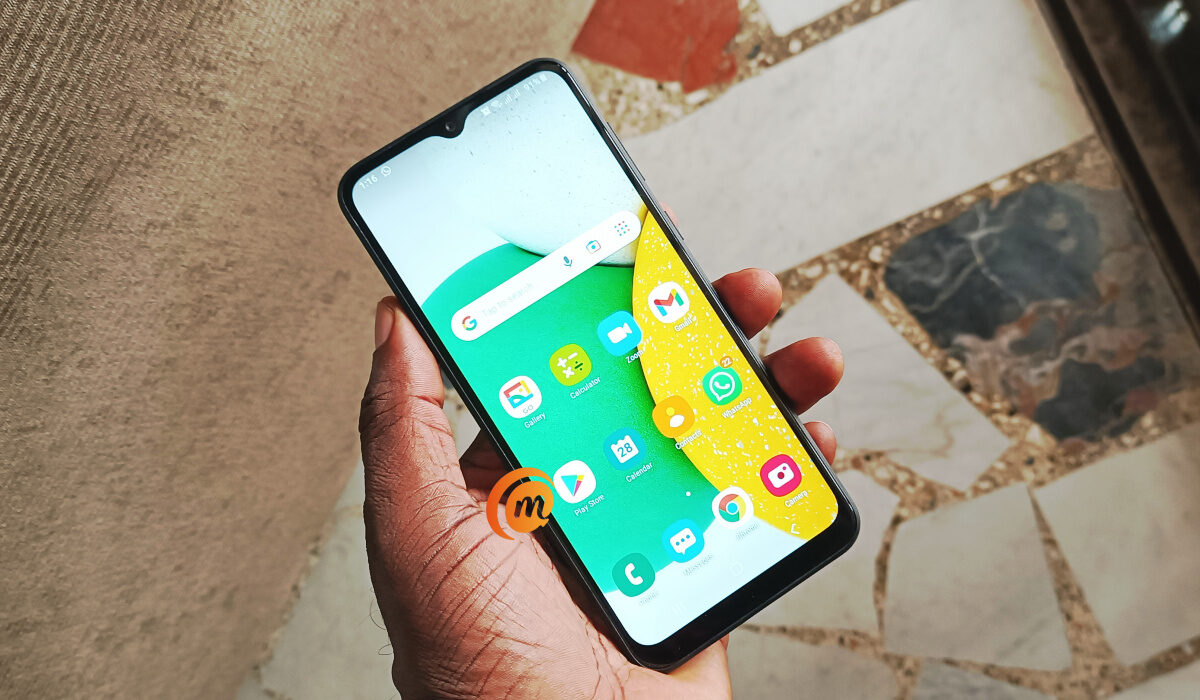
- How Can You Block Pop-up Ads on Samsung? Block Pop-Up Ads on Samsung in Apps and Customization Service Block Pop-Up Ads on Samsung from Third-Party Apps Block Pop-Up Ads on Samsung Phones from Google Chrome Block Pop-Up Ads on Samsung Internet
How Can You Block Pop-up Ads on Samsung?
Several options abound to block pop-up ads on Samsung devices. You can disable them in your preferred web browser or on the phone itself. Below, I’ve described four of these options to block pop-up ads on Samsung apps, Chrome, and Samsung Internet, so keep reading to find out!
Block Pop-Up Ads on Samsung in Apps and Customization Service
Here’s how to disable this to block pop-up ads on Samsung:
- Launch the Samsung Global Goals app.
- In the upper right corner, tap the three vertical dots.
- Select Global Goals Charging Screen under Settings and turn it off.
When you return to the previous page, I advise that you disable the following ad-related settings:
- To disable live wallpapers on your lock screen, go to Global Goals Lock Screen and toggle it off.
- To prevent ad partners from targeting you with ads, go to Ad Personalization and turn on the Don’t Sell My Personal Information option.
- Return to the previous settings page and disable Enhanced Ads .
Here’s how to turn it off to block pop-up ads on Samsung:
- Navigate to Settings , scroll down to Privacy , and then to Customization Service .
- Turn Customization Service , Customized Ads , and Direct Marketing off.
On Samsung phones, you can also easily turn off system ads and offers.
Block Pop-Up Ads on Samsung from Third-Party Apps
With the exception of a few Samsung apps, third-party apps that you downloaded and installed from the Google Play Store or unofficial app stores could also be suspect in terms of intrusive pop-up ads.
You can try to identify the apps that are causing the pop-up ads on your screen from Settings . To do so and block pop-up ads on Samsung:
Go to Settings on your phone, then scroll down and select Apps . Browse through the list of apps on your phone. Tap on any suspect or unfamiliar app that may be responsible for the ads.
If you no longer need the app, simply tap the Uninstall button and confirm to remove it from your phone.
Some apps may display ads in the form of notifications, which can clog your notification bar and disturb access to important alerts. So, in an app’s settings, go to Notifications and turn off Show Notifications .
If the apps are useful enough for you to keep them but you don’t use them frequently, you can clear their cache and data by going to Storage and selecting Clear Cache and Clear Data . Ensure that you confirm both their clearing actions.
This will close the app and delete any saved ads. It will not be able to show them again until you restart the app. However, clearing the data from an app resets it, requiring you to log in or set it up again the next time you need it.
You should be able to block pop-up ads on Samsung through third-party apps if you correctly identify the ones causing issues.
Block Pop-Up Ads on Samsung Phones from Google Chrome
Google Chrome is a popular browser among Samsung users. Pop-up ads also tend to appear while surfing the internet through this browser. And while pop-ups are beneficial to the website, they can be distracting if they appear incessantly while scrolling through a webpage.
When you find ads to be unbearable, you can block them in Google Chrome. Here’s how to block pop-up ads on Samsung in this manner:
- Open Chrome and hit the three vertical dots icon in the top right corner of your phone’s screen.
- Scroll down and tap Site Settings after selecting the Settings option
- Click the Pop-ups and redirects option, then deactivate the switch you see when you enter the menu.
- To block other forms of intrusive website advertising, you can also toggle the Ads switch off.
You should experience fewer or no pop-ups while using Google Chrome to browse the web after taking the above-mentioned steps.
Block Pop-Up Ads on Samsung Internet
All Samsung Phones come with Samsung Internet, an alternative browser with a ton of features. You can effectively block ads from websites, just as you can with Google Chrome, to enjoy a more pleasant browsing experience. Here’s how you can do this to block pop-up ads on Samsung:
- Open Samsung Internet , then hit the three horizontal lines symbol in the lower right corner of the screen.
- Click on Settings from the menu, then tap on the Browsing privacy dashboard.
- Scroll down and click the Block Pop-ups switch.
That’s all. While using Samsung Internet, you should no longer see pop-up ads. Note that not all ads are stressful, so you shouldn’t totally block all ads on your device.
Essentially, ads benefit end users and their creators in different ways. However, when these ads become something you dread, you have every right to block them. Hopefully, you won’t ever see annoying ads again with the steps I’ve provided in this guide to block pop-up ads on Samsung.
Author:Joan Agie
Add MobilityArena as a preferred source on Google
Samsung’s One UI software offers many great features, and this is one of its best qualities. Whatever your requirements, it’s almost likely that you’ll find a setting that will help you increase your productivity or improve your lifestyle. Some of those options include ones for enhancing the sound output of your phone’s speakers or headphones.
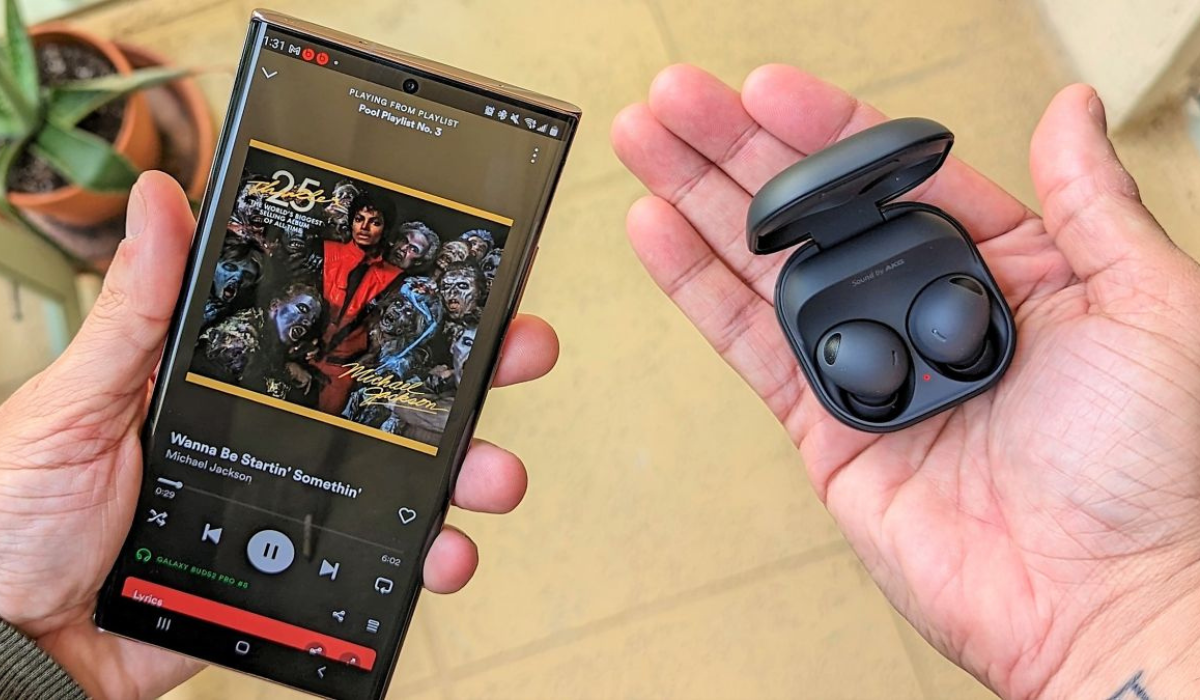
- How Can I Improve the Sound Quality on Samsung Phones? Switch on Dolby Atmos Use the Built-In Equalizer Activate the UHQ Upscaler Use Adapt Sound Use the Samsung Scalable Bluetooth Codec
How Can I Improve the Sound Quality on Samsung Phones?
Perhaps you don’t spare half a thought to it, but the sound quality is an important factor on smartphone devices. So, if you’re dissatisfied with the sound on your Samsung Galaxy device, there are simple changes that can make a difference. Here are some tips to improve the sound quality on Samsung phones.
Switch on Dolby Atmos
Dolby Atmos is a sound technology that simulates a surround sound effect in order to provide a more immersive gaming or music-listening experience. However, you can do a lot more with it on your Samsung device.
Here is how to use the Dolby Atmos feature to improve the sound quality on Samsung devices:
- To access the Quick Settings panel, swipe down from the top of your screen, then swipe again.
- Locate and press the Dolby Atmos button. If you can’t see the button, just tap the + icon on the panel to add it from the grid of available buttons.
- When you turn it on, you will notice an immediate improvement in sound quality. By default, Dolby Atmos is set to Auto , which means it will recognize and adjust the sound according to what you’re listening to. However, you can change this in the settings for more precise tuning.
- From the Quick Settings panel, tap and hold the Dolby Atmos button; a menu will appear with three additional options: Movie , Music , and Voice . This setting can be customized based on the content.
Despite the fact that Dolby Atmos does noticeably improve the sound quality on Samsung, some users claim that it can be a little unpredictable. As a result, keep in mind that you may not like how it tunes each song.
Dolby Atmos can also be used for gaming. Here’s how it’s done:
- Navigate to your device Settings .
- From the menu, go to Sounds and vibration > Sound quality and effects .
- Toggle Dolby Atmos on for gaming .
Use the Built-In Equalizer
To create a more unique sound signature, many people enjoy adjusting the equalizer on their phones. Follow these steps to do so in order to improve the sound quality on Samsung devices:
- Navigate to Settings > Sounds and vibration > Sound quality and effects > Equalizer on your device.
- There are five presets to choose from: Normal, Pop, Classic, Jazz, and Rock . Try them all to see which one you like most.
- If none of the presets work for you, you can manually adjust the EQ settings in Custom mode. Simply begin tweaking the audio frequencies to your liking, and your phone will do the rest.
You can use the equalizer to boost the bass, make the sound brighter, or do anything in between.
Activate the UHQ Upscaler
Another feature that Samsung has added to its Galaxy devices is called UHQ Upscaler, and it “enhances the sound resolution of music and videos.” If you’re wondering what UHQ stands for, it stands for Ultra High Quality.
To use this feature to improve the sound quality on Samsung, navigate to Settings > Sounds and vibration > Sound quality and effects > UHQ upscaler to enable it. There aren’t any additional configuration options or settings.
The UHQ Upscaler feature is only available with wired headphones. If your Samsung phone lacks a headphone jack, you’ll need to use a USB-C to 3.5mm adapter. If you use wireless earbuds instead of wired headphones, the toggle switch will be grayed out and you will be unable to activate the feature.
Use Adapt Sound
The most impressive sound feature on Galaxy devices is probably Adapt Sound. It allows you to establish your own sound profile so that your phone “gives you perfect sound that’s tuned just for your ears.”
Here’s how to use it to improve the sound quality on Samsung devices:
- To adjust the sound, go to Settings > Sounds and Vibration > Sound quality and effects > Adapt Sound .
- Under Adapt sound for , choose whether you want to apply the option to Media and calls , Only media , or Only calls .
- Following that, you’ll be asked to customize your device’s sound output based on your age. The feature is turned off by default (no boost), however you can modify it to one of three presets: Under 30 years old , 30 to 60 years old , or Over 60 years old . Based on the age range, each preset boosts specific audio frequencies.
If neither of these options works to improve the sound quality on Samsung you can use a hearing test to create a completely personalized sound profile.
- To do this, select Test my hearing > Start . To use Adapt Sound , you must have your headphones connected to your phone.
- After you press the Start button, your phone will make a series of beeping sounds. Simply indicate whether or not you can hear a beep.
- After the test, choose your preferred ear for calls and rename this preset (up to 20 characters) using a name such as “Jojo’s Sound Profile,” or re-create it. By tapping Preview , you can compare your unique sound profile to the original and hear the difference.
- Tap Save when you’re done.
If multiple people in your home are using the same Samsung device, try creating custom sound profiles for each of the users. This will help improve the sound quality on Samsung for each individual user
Use the Samsung Scalable Bluetooth Codec
Bluetooth codecs are like languages that your wireless headphones use to communicate with your smartphone or tablet. Bluetooth codecs differ in their properties; some prioritize sound quality, while others prioritize low latency. You can use the ones that prioritize sound quality to improve the sound quality on Samsung devices.
Samsung Scalable, like LDAC and aptX Adaptive, is an adaptive Bluetooth codec that can change its bitrate based on signal strength. Although LDAC is widely regarded as the best Bluetooth codec, some audio enthusiasts believe Samsung Scalable is a worthy rival.
When you pair your Galaxy device with compatible Bluetooth headphones, Samsung Scalable is enabled automatically. If yours isn’t, and you want to change the Bluetooth codec on your device, follow these steps:
- Navigate to Settings > Developer preferences . If you’re yet to unlock Developer options, go to Settings > About phone > Software information and tap Build number several times.
- Locate and tap Bluetooth Audio Codec , then choose Scalable Codec .
To summarize , you can use the above features to improve the sound quality on Samsung. Extra tip — you can also download the Sound Assistant Module in Good Lock, which is designed to enhance the audio experience on your Samsung phone.
