Add MobilityArena as a preferred source on Google
BLU F92e 5G is a budget Android smartphone offering a decent balance between price and features.
Welcome to our complete guide to the BLU F92e 5G. On this page, we cover everything you need to know about this mobile device, including its specifications, price, release date, and more.
BLU F92e 5G: brief information
- OS: Android 12
- Release Date: 2023
- Network Type: 2G/3G/4G/5G
- Display: 6.5-inch, 720 x 1600 pixels resolution
- Processor: Dimensity 700
- Selfie Camera: 13 MP
- Rear camera: 50 MP triple
- RAM: 4 GB
- ROM: 128 GB
- Battery: 5000 mAh
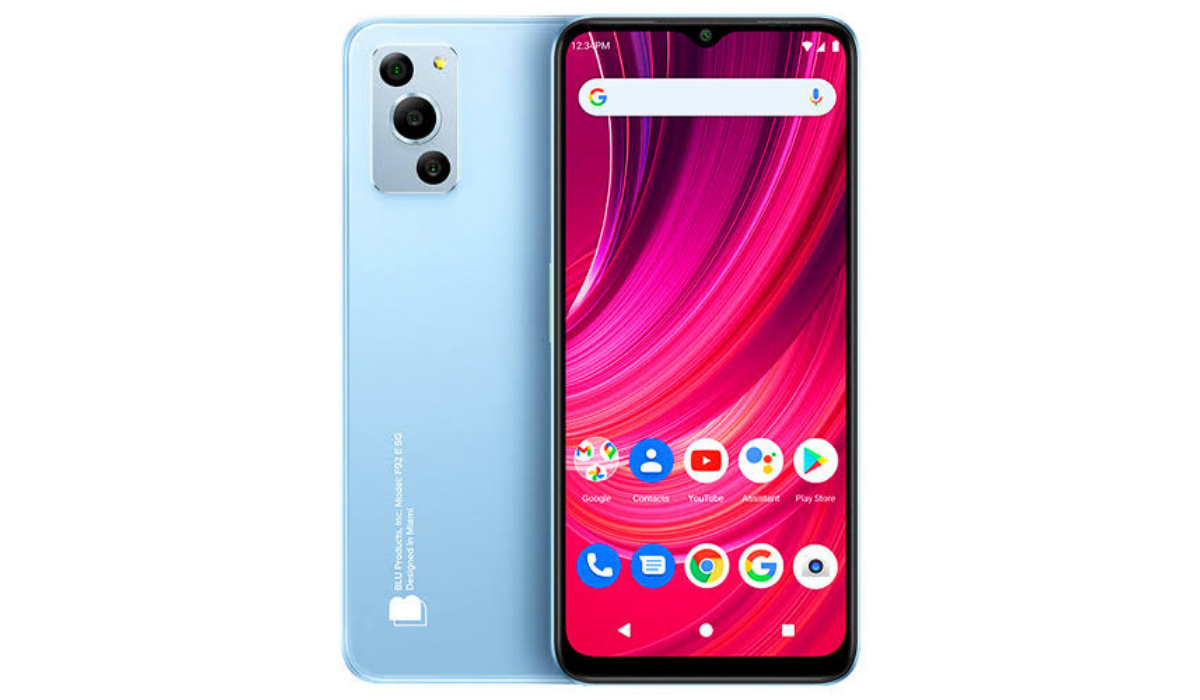
BLU F92e 5G
- Detailed specifications
- Prices in the USA, UK, EU Does BLU F92e 5G have Google Play Store? Will BLU F92e 5G work in the USA?
Detailed specifications
Mobile Wireless Network and Software
- 2G mobile network bands : GSM, GPRS, EDGE 850 / 900 / 1800 / 1900 MHz.
- 3G mobile network bands : UMTS, WCDMA, HSDPA 850 / 900 / 2100 MHz
- 4G mobile network bands : LTE.
- 5G mobile network bands : NSA/SA
- SIM Type : Nano-SIM, Dual SIM
- Software / OS : Android 12
Design, Form Factor, Appearance
- Dimensions : 164.7 x 76 x 8.9 mm
- Weight : 202g
- Display : 6.5 inches, 720 x 1600 pixels, 60 Hz refresh rate, 20:9 aspect ratio, IPS LCD screen
- Colours : .
- Physical Build : Plastic frame. Plastic back panel.
Internal Hardware Specs
- CPU/ Processor : 64-bit, 2.2 GHz Octa-core
- Chipset : Dimensity 700 (7nm)
- GPU/ Graphics Processing Unit : ARM Mali
- RAM : 4 GB
- Extended/Virtual RAM :
- Internal Storage : 128 GB
- External Storage : microSD, up to 256 GB (dedicated slot)
Photography, Video Recording
- Main Camera : 50 MP main sensor, + 2MP macro lens + QVGA depth sensor, autofocus, LED flash, 1080p@30fps video recording
- Front Camera : 13 MP, fixed focus, Face Recognition, 1080p@30fps video capture
Audio, Video Playback
- Music Support : PCM, AAC / AAC + / eAAC + / MP3 / AMR – NB / WB / APE
- Audio : 3.5 mm audio jack
- Loudspeaker : Mono speaker
- Video Support : H.264/MP4/MPEG4 player
- FM Radio : Yes.
Phone Sensors
- Digital Compass : Yes.
- Accelerometer : Yes.
- Proximity Sensor : Yes.
- Ambient Light Sensor : Yes.
- Barometer : No.
- Pedometer : No.
- Heart Rate Monitor : No.
- Gyroscope (G-Sensor) : No.
- Fingerprint Scanner : Yes; side-mounted.
- Face Unlock : Yes.
- Iris Scanner : No.
- Motion Sensing / Gesture Control : No.
- Voice Control : No.
- Intelligent Digital Assistant : Yes; Google Assistant.
- Infra-red Blaster : No.
Connectivity Options
- Bluetooth Version : 5.2
- Bluetooth Profiles : A2DP
- WiFi : Wi-Fi 802.11 a/b/g/n/ac, hotspot
- GPS : Yes, A-GPS, GLONASS, BDS, Galileo
- USB : microUSB v2.0. Type-C. USB-OTG.
- NFC : Yes.
Miscellaneous Specs and Features
- Battery Type and Capacity : Non-Removable Lithium-Polymer 5000 mAh
- Battery Charging : 10W charging
- Wireless Charging : No.
- Reverse Charging : No.
- Model Version/Number :
Launch/Release Dates and Information
- Announced : March 2023
- Release Date : March 2023
Pricesin the USA, UK, EU
- USA : $199 (available on Amazon)
- United Kingdom (UK) : £
- European Union (EU) : €
The above prices may change with time from country to country, as market forces and economic policies influence product price movements.
Does BLU F92e 5G have Google Play Store?
It supports Google Services and software applications, including Play Store and Maps, Gmail, YouTube, and others.
Will BLU F92e 5G work in the USA?
This is a GSM phone and is supported on US GSM carriers like AT&T and T-Mobile and other networks riding on their networks. It does not support CDMA networks. Do make inquiries from your carrier to know what bands/frequencies are supported on their service.
MobilityArena Buyer’s Guide Verdict
Not available.
Our Buyer’s Guide Verdict is a recommendation based on the specifications of the device and a general guide to help you understand how much value a device offers for its price. It is not an endorsement of the device. Ask questions and use your judgement when buying any device; MobilityArena takes no responsibility for your buying decisions .
Author:InfoDesk
Add MobilityArena as a preferred source on Google
Access to many system services and controls, including Bluetooth, Wi-Fi, device controls, location, and Nearby share, is made quick and simple with Android’s Quick Settings panel.
That’s not all, though — a lot of third-party apps on your device also have Quick Settings alternatives. In this guide, we’ve provided instructions to help you change the Quick Settings panel on your Android phone or tablet. Read on to find out how to add tiles to your phone’s Quick Settings panel, remove the tiles you don’t want, and change the order in which they appear.
- How Can I Change the Quick Settings Panel on my Android Phone?
- Adding Tiles to the Quick Settings Menu on Android
- Removing Tiles from the Quick Settings Menu on Android
- Quick Setting Tile Suggestions for your Android Device
How Can I Change the Quick Settings Panel on my Android Phone?
It’s pretty easy to customize your Android’s Quick Settings panel. To access the Quick Settings panel, swipe down on the home screen of your phone. Swiping downwards from your screen’s top while in an app will also bring up the panel.
There will be four tiles here. As you swipe down one more, the Quick Settings panel with its eight tiles will expand to fill the screen. Swipe horizontally to unlock additional tiles.
For this guide’s instructions, a Pixel smartphone was used. Although it can appear a little differently on your phone, the Quick Settings panel functions in the same manner on all Android phones.
Adding Tiles to the Quick Settings Menu on Android
When customizing the Quick Settings panel on Android, you may be looking to add tiles to it. For some of their features, several third-party programs provide Quick Settings tiles.
Nevertheless, you must manually add these tiles to the panel as they are not included automatically. That’s why it’s great that it’s possible to customize the Quick Settings panel on your Android The tiles can be added, removed, or rearranged to suit your needs rather easily.
To access the entire Quick Settings panel, swipe down twice from the screen’s top. To enter edit mode, tap the pencil icon located beneath the toggles.
A sign that says “ Hold and drag to add tiles ” separates this collection of tiles. The Quick Settings panel already has all of the tiles above this banner available to you, but the ones below it are buried and unreachable from the panel.
When you long-press a tile and drag it from the lower portion to the space above the banner, it will be added to the Quick Settings panel. Long-press any tile and drag it to the desired page or screen area to reposition it on the page.
Removing Tiles from the Quick Settings Menu on Android
There are various tiles included by default in the Quick Settings menu with all Android skins, including that of the Pixel UI. While a lot of these tiles seem to be useful, there are a few that you might only use occasionally, so getting rid of them will help the panel become less cluttered.
Drag a tile from the Quick Settings menu to the area beneath the banner and lift your finger to drop it there if you want to remove it.
After you’re done with the desired changes to customize your Android’s Quick Settings, touch the back arrow in your screen’s top-left corner. This will save every modification you made to the panel and bring you to the Quick Settings panel, where you’ll be able to view it all.
Quick Setting Tile Suggestions for your Android Device
When you’re customizing your Android’s Quick Settings panel, here are some suggestions for useful tiles to include:
Nearby Share
You can wirelessly share documents, apps, videos, links, and more with other Android devices with Nearby Share. It makes faster transferring possible and is simple to use. So, adding it is one great option to customize your Android’s Quick Settings panel
To activate Nearby Share, just turn it on in the Quick Settings box and press the Turn on button. To close the pop-up window, choose one of the visibility choices and click Done .
Extra Dim
Extra Dim helps light-sensitive Android users to reduce the screen brightness even further than normal settings allow.
To reduce strain while using your phone at night, simply customize your Android’s Quick Settings panel by adding it through the instructions provided above.
Other useful tile options include Shazam , One-Handed Mode , Focus Mode , and QR Code Scanner , among others.
In summary , customizing the Quick Settings panel on your Android is pretty useful and easy to accomplish. Just follow our instructions correctly to get it done seamlessly.
