Add MobilityArena as a preferred source on Google
| BLU G51s specifications in brief |
|---|
| OS: Android 11Release Date: February 2022Network Type: 2G/3G/4GDisplay: 6.4-inch, 1560 x 720 pixels resolutionProcessor: Unisoc SC9863Selfie Camera: 8 MPRear camera: 5 MPRAM: 2 GBROM: 32 GB Battery: 5000 mAhRelated: |
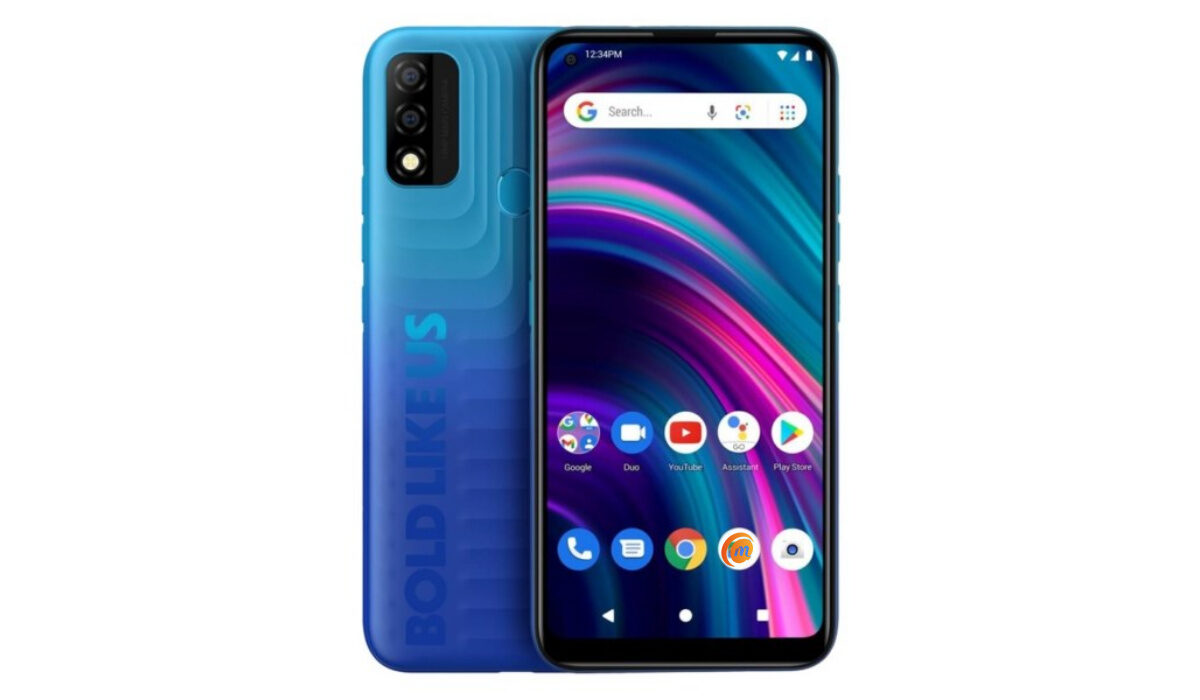
BLU G51s specifications & features
Mobile Wireless Network and Software
- 2G mobile network bands : GSM, GPRS, EDGE 850 / 900 / 1800 / 1900 MHz.
- 3G mobile network bands : UMTS, WCDMA, HSDPA 850 / 900 / 1700(AWS) / 1900 / 2100 MHz
- 4G mobile network bands : LTE 1, 2, 3, 4, 5, 7, 12, 17, 28.
- 5G mobile network bands : No
- SIM Type : Nano-SIM, Dual SIM
- Software / OS : Android 11 (Go Edition)
Design, Form Factor, Appearance
- Dimensions : 162.4 x 77.5 x 9.0 mm
- Weight : 185g
- Display : 6.4 inches, 1560 x 720 pixels, 60 Hz refresh rate, 19.5:9 aspect ratio, 2.5D curved, IPS LCD screen
- Colours : Bronze. Olive Green. Red. Gradient Blue.
- Physical Build : Plastic
Internal Hardware Specs
- Processor Type : 64-bit, 1.6 GHz Octa-core
- Processor Name : Unisoc SC9863 (28nm)
- Graphics Processor : IMG PowerVR GE8322
- RAM : 2 GB
- Internal Storage : 32 GB
- External Storage : microSD, up to 64 GB (hybrid slot)
Photography, Video Recording
- Main Camera : 13 MP main sensor + 0.3 MP depth sensor lens, autofocus, LED flash, 1080p@30fps video recording
- Front Camera : 8 MP, fixed focus, Face Recognition, 1080p@30fps video capture
Audio, Video Playback
- Music Support : PCM, AAC / AAC + / eAAC + / MP3 / AMR – NB / WB / APE
- Audio : 3.5 mm audio jack
- Loudspeaker : Mono speaker
- Video Support : H.264/MP4/MPEG4 player
- FM Radio : Yes.
Phone Sensors
- Digital Compass : No.
- Accelerometer: Yes.
- Proximity Sensor: No.
- Ambient Light Sensor: Yes.
- Barometer: No.
- Pedometer: No.
- Heart Rate Monitor: No.
- Gyroscope (G-Sensor): No.
- Fingerprint Scanner : Yes; rear-mounted.
- Face Unlock : Yes.
- Iris Scanner : No.
- Motion Sensing / Gesture Control : No.
- Voice Control : No.
- Intelligent Digital Assistant : Yes; Google Assistant.
- Infra-red Sensor : No.
Connectivity Options
- Bluetooth Version : 4.2
- Bluetooth Profiles : A2DP
- WiFi : Wi-Fi 802.11 b/g/n, hotspot
- GPS : Yes, A-GPS, GLONASS
- USB : microUSB v2.0. Type-C.
- NFC : No.
Miscellaneous Specs and Features
- Battery Type and Capacity : Non-Removable Lithium-Polymer 4000 mAh
- Battery Charging : 10W charging
- Wireless Charging : No.
- Reverse Charging : No.
- Model Version/Number :
Launch/Release Dates and Information
- Announced : February 1, 2022
- Release Date : February 2022
BLU G51s Prices by Country
- USA : $120
- European Union :
- Nigeria : ₦
- Egypt : Egyptian Pound
- UAE : AED
- India : Indian Rupee
- Iraq : Iraqi Dinar
- Kenya : Ksh.
- Ghana :
The above prices may change with time from country to country, as market forces and economic policies influence product price movements.
Does BLU G51s have Google Play Store?
It supports Google Services and software applications, including Play Store and Maps, Gmail, YouTube, and others.
Will BLU G51s work in the USA?
This is a GSM phone and is supported on US GSM carriers like AT&T and T-Mobile, Cricket Wireless, Metro by T-Mobile, and other networks riding on their networks. It does not support CDMA networks. Do make enquiries from your carrier to know what bands/frequencies are supported on their service.
MobilityArena Buyer’s Guide Verdict
Not available.
Our Buyer’s Guide Verdict is a recommendation based on the specs of the device and a general guide to help you understand how much value a device offers for its price. It is not an endorsement of the device. Ask questions and use your judgement when buying any device; MobilityArena takes no responsibility for your buying decisions .
X Phone Review Rating
Not available.
- Don’t miss our reviews .
- Join our WhatsApp Group , to be notified of the most important articles and deals,
- Follow us on Instagram , Facebook , Twitter , and YouTube .
Author:InfoDesk
Add MobilityArena as a preferred source on Google
As a mobile phone reviewer, I cycle between gadgets fairly often, because of my work. Each time I switch to a new phone, one of the first things I do is disable or stop pop-up notifications on Telegram and WhatsApp. I like to work without distractions, and all those notifications popping up to display incoming message previews every other minute are distracting.
I remember searching for how to get rid of these message pop-ups. I would come across one article or the other that offered a solution, and it would turn out to be a waste of my time. Having figured it out, it occured to me to put it into writing for the benefit of those who are searching too.
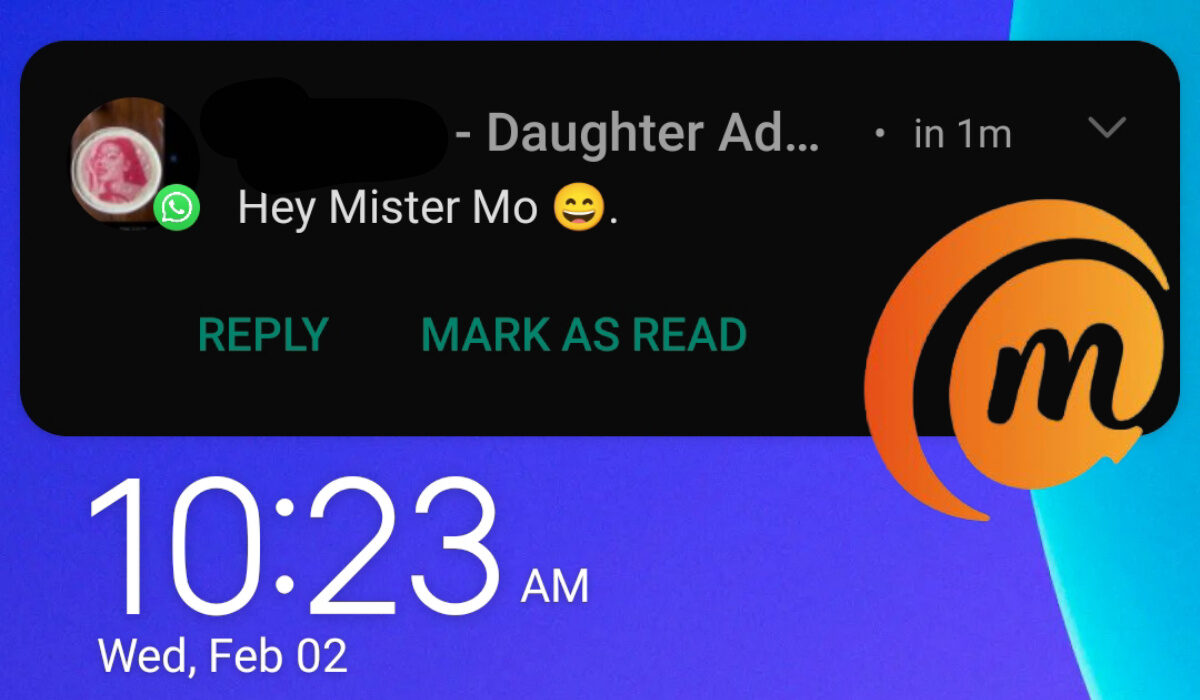
Heads-up or pop-up message previews are so distracting. Find out how to stop pop-up notifications on Telegram and WhatsApp and prevent incoming message previews from showing on your screen
Not only are these message previews distracting to you, they are also a privacy concern. You never know when anyone is standing behind or beside you when a message comes in and gets previewed on your screen.
It doesn’t matter what brand of smartphone you are using – Samsung Galaxy, Apple iPhone, Xiaomi/Redmi, Motorola, OnePlus, or TECNO, at some point on time, you will want to stop pop-up notifications from these messaging apps previewing your messages on your phone screen.
Chatting on WhatsApp and Telegram becomes a nightmare when you are in a public space and have nosey parkers not minding their business around you. Anyway, you probably already know all of these. Let’s get to how to actually turn off those pop-up message previews.
- Stop pop-up notifications on Telegram and WhatsApp with these steps Disable incoming message heads-up notifications for Telegram messages Disable heads-up notifications for WhatsApp messages One more thing to do to stop pop-up notifications on Telegram and WhatsApp from showing on your phone screen
Stop pop-up notifications on Telegram and WhatsApp with these steps
Any article that directs you only to the notifications settings of your Android smartphone to disable those message preview pop-up notifications is wasting your time. Rather, you will find the solution in the settings menu of each app. Let’s walk through it.
Disable incoming message heads-up notifications for Telegram messages
- Open your Telegram app and tap on the hamburger menu at the top left corner.
- Tap on Settings .
- Tap on Notifications and Sounds .
- Under Notifications for chats , select Private Chats .
- On the next page, you will see Message Preview , and a toggle in front of it. Disable that toggle, and that’s it.
Once you have done this, Telegram will no longer pop-up a notification at the top of your screen when you get a new message.
Disable heads-up notifications for WhatsApp messages
To stop WhatsApp from displaying a preview of incoming messages on your screen, follow these steps:
- Open WhatsApp on your smartphone.
- Tap the menu icon at the right top corner of the app.
- Select Notifications .
- Look for the item that says “ Use high priority notifications “. This is the setting that enables or disables previews of incoming messages at the top of your screen. Toggle it off.
Doing this prevents the pop-up from displaying message previews on your screen, but the notification will still pop-up. Your privacy is secured, but it is still distracting. There is one more thing to do.
One more thing to do to stop pop-up notifications on Telegram and WhatsApp from showing on your phone screen
Now, go to the settings menu of your phone. Select Apps . One after the other, select each app, select Notifications , then toggle off the Banners item.
That’s it. You are now free to use WhatsApp without it invading your screen with message previews.
Note that you will still get an audio notification when messages come in. A notification icon will still be displayed In the notification bar at the top of your phone. And you will still be able to swipe down to read and respond to the message, should you need to, without leaving what you are presently doing.
That’s it. You now know how to stop pop-up notifications for Telegram and WhatsApp and not have incoming message previews displayed at the top of your display. Enjoy using your smartphone without their distractions and without the risk of having sensitive information displayed for nosey eyes to see.
Author:Mister Mobility
Digital Skills and Communication Coach | Mobile Phone Connoisseur since 2001 | Tech Blogging since 2004
