Add MobilityArena as a preferred source on Google
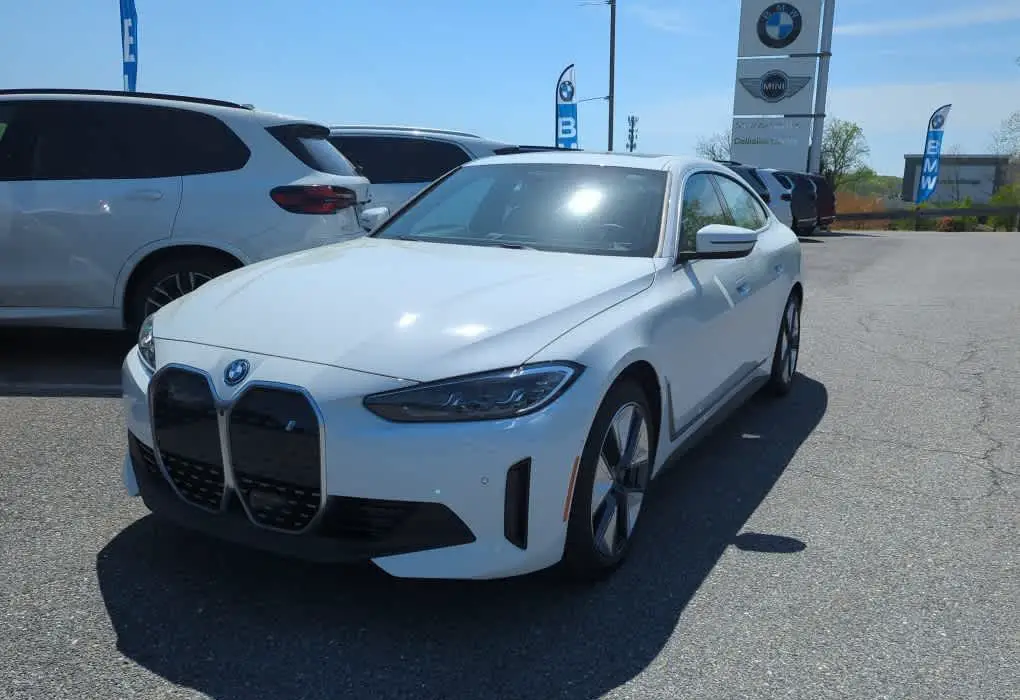
The BMW i4 eDrive35 has made a significant impact in the electric vehicle market, combining luxury, performance , and sustainability. However, like any new model, it comes with its share of challenges that users have encountered. From concerns about drivetrain malfunctions to issues with advanced driving features and battery range discrepancies, these challenges can affect the overall enjoyment of the BMW i4 eDrive35. Understanding these problems and implementing effective solutions can help you maximize your experience with this exceptional vehicle. By addressing these concerns proactively, you can ensure that your time behind the wheel is as enjoyable and fulfilling as possible. Explore with me some of these common issues reported by users as I provide practical solutions to enhance your driving experience with this innovative electric vehicle.
- Drivetrain Malfunction Warnings
- Inconsistent App Connectivity
- Limited Advanced Driving Features
- Charging Range Discrepancies
- Visibility Issues with Heads-Up Display
- Conclusion
Drivetrain Malfunction Warnings

One of the most frequently reported issues among BMW i4 eDrive35 owners is the appearance of drivetrain malfunction warnings. Users have noted that these warnings can appear sporadically, often disappearing after a short period. If you’re also experiencing this, I have a list of solutions for you:
- Regular Software Updates: Ensure your vehicle’s software is always up to date. BMW frequently releases updates that can resolve bugs related to drivetrain performance.
- Consult Your Dealer: If the warning persists, schedule an appointment with your dealership. They can run diagnostics to identify any underlying issues and provide necessary repairs.
- Monitor Driving Conditions: Keep track of when these warnings appear—certain driving conditions or maneuvers may trigger the alerts. Sharing this information with your dealer can help them diagnose the problem more effectively.
Inconsistent App Connectivity
Some users of the BMW i4 eDrive35 have reported difficulties with the BMW app not communicating effectively with their vehicle, particularly when trying to check charging status or control features remotely. If this is also your experience, follow my recommendations below:
- Reinstall the App: Sometimes, a simple reinstall of the BMW app can resolve connectivity issues. Make sure to log back in after reinstalling.
- Check Bluetooth Settings: Ensure that Bluetooth is enabled on your phone and that it is properly paired with your BMW i4 eDrive35.
- Use Alternative Methods: If the app continues to malfunction, use the vehicle’s onboard controls for charging status and other features until the app is functioning correctly again.
Limited Advanced Driving Features
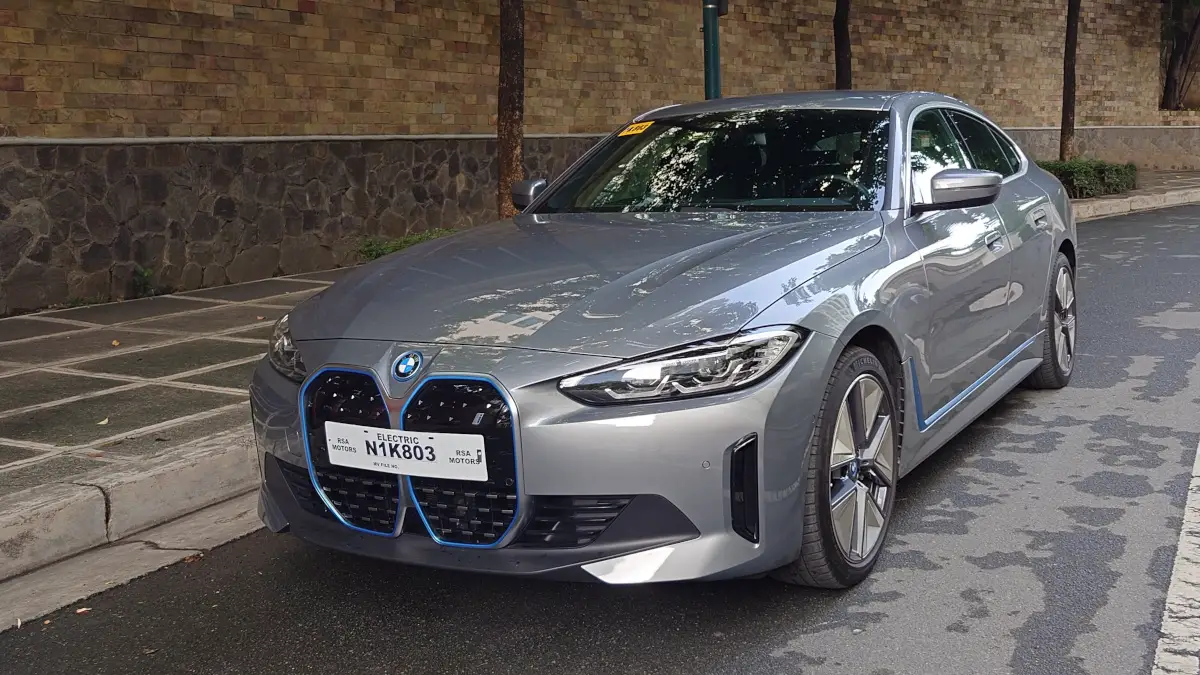
Several owners have expressed disappointment regarding the absence of certain advanced driving features that were expected upon purchase. Here are a list of what to do:
- Clarify Feature Availability: Before purchasing, confirm which features are included in your specific model. This can prevent misunderstandings regarding expectations.
- Explore Upgrades: If advanced driving features are critical for you, consider discussing upgrade options with your dealer for future models or software updates that may add these capabilities.
- Stay Informed: Join online forums or communities where other i4 owners share their experiences and solutions regarding feature availability and upgrades.
Charging Range Discrepancies
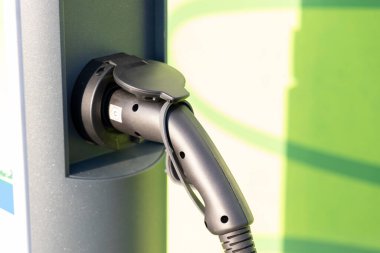
While many users appreciate the BMW i4 eDrive35’s advertised range, some have noted that real-world usage often falls short of expectations, especially under certain conditions. These are my recommended solutions:
- Optimize Driving Habits: Adopt energy-efficient driving techniques such as smooth acceleration and deceleration to maximize range.
- Utilize Regenerative Braking: Make use of regenerative braking features to recapture energy during stops, which can help extend your overall range.
- Plan Charging Stops: For longer trips, plan charging stops in advance using apps that show charging station locations along your route.
Visibility Issues with Heads-Up Display
Some drivers of the BMW i4 eDrive35 have found the heads-up display (HUD) visibility challenging, particularly during daytime driving. These are highlighted solutions to resolve it:
- Adjust Brightness Settings: Experiment with different brightness settings for the HUD to find a level that works best for you during various lighting conditions.
- Consult Your Manual: Review your owner’s manual for tips on adjusting HUD settings to optimize visibility based on personal preferences.
- Feedback to BMW: Provide feedback directly to BMW regarding HUD visibility issues so they can consider improvements in future software updates or models.
Conclusion
The BMW i4 eDrive35 is an exciting addition to the electric vehicle landscape, offering a blend of luxury and performance. While some challenges exist, many can be addressed through proactive measures and practical solutions. By staying informed about software updates, optimizing driving habits, and utilizing available resources, you can enhance your ownership experience. As electric vehicles continue to evolve, manufacturers like BMW are committed to improving their offerings based on user feedback. By embracing these solutions and engaging with the community of BMW i4 eDrive35 owners, you can navigate any hurdles and fully enjoy the innovative features this remarkable vehicle has to offer. Remember, every challenge presents an opportunity for growth—both for you as a driver and for BMW as a brand dedicated to excellence in electric mobility.
Author:Ifeoluwa Adeleke
Add MobilityArena as a preferred source on Google
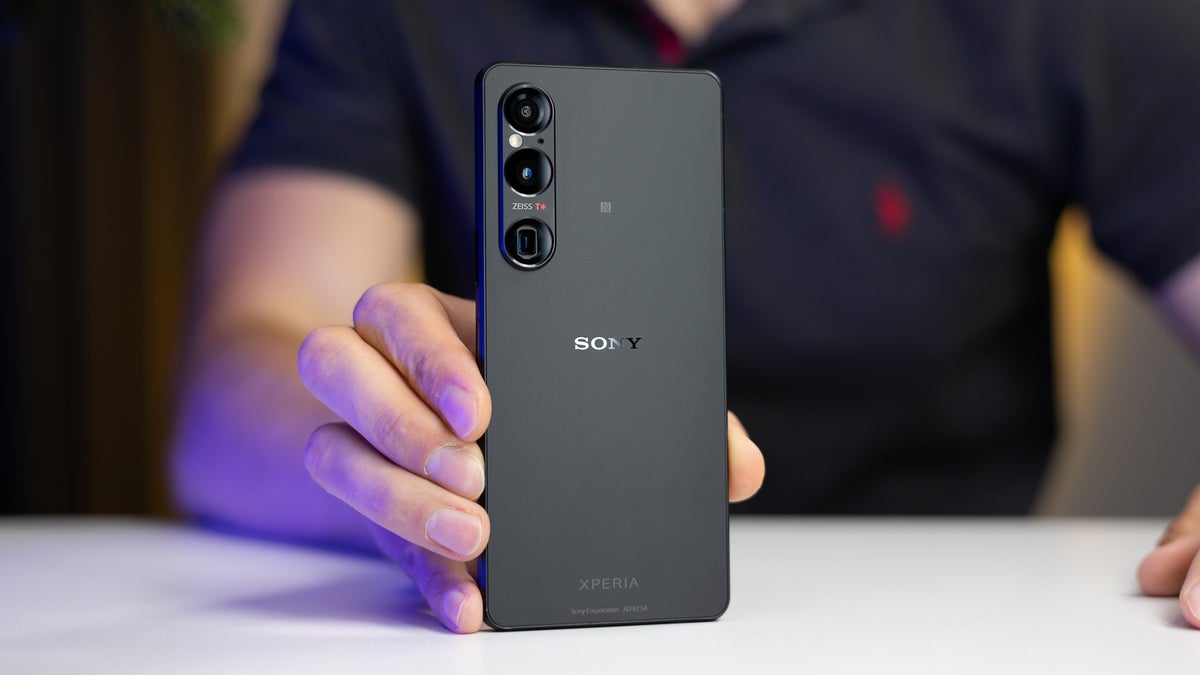
The Sony Xperia 1 VI has made waves in the smartphone market with its stunning display, powerful performance, and advanced camera features. However, like any flagship device, it comes with its own set of challenges that users may encounter. From occasional lagging performance to connectivity issues and camera functionality concerns, users have noted several areas for improvement. Additionally, some have expressed frustration over battery life and software navigation. Understanding these challenges is key to maximizing the potential of your device. By addressing these common complaints proactively, you can ensure that your time with the Xperia 1 VI is as enjoyable and seamless as possible. Explore with me some of these common issues reported by Sony Xperia 1 VI owners as I provide practical solutions to enhance your experience with this impressive smartphone.
- Lagging Performance
- Bluetooth Connectivity Issues
- Camera Performance Concerns
- Heating Issues
- USB Connection Problems
- Conclusion
Lagging Performance
One of the most frequently reported issues among users of the Sony Xperia 1 VI is lagging performance , particularly when scrolling or opening apps. Many have noted that the device can feel sluggish, especially when switching between different refresh rates. Below are the highlighted solutions:
- Lock Refresh Rate: To avoid lag when changing refresh rates, use the Game Enhancer app to lock your favorite apps at 120Hz. This way, you can enjoy smoother performance without interruptions.
- Clear Cache: Regularly clear the cache of your apps to free up system resources. Go to Settings > Apps > select the app > Storage > Clear Cache .
- Software Updates: Ensure your device is running the latest software version. Sony frequently releases updates that can improve performance and address bugs.
Bluetooth Connectivity Issues
Some users of the Sony Xperia 1 VI have experienced unstable Bluetooth connections, leading to frustrating delays when using wireless headphones or connecting to car audio systems. I recommend the following as solutions:
- Re-pair Devices: Remove the Bluetooth connection and re-pair your devices. This often resolves connectivity issues.
- Reset Network Settings: If problems persist, reset your network settings by going to Settings > System > Reset options > Reset Wi-Fi, mobile & Bluetooth . This can help refresh all network connections.
- Check for Interference: Ensure there are no other devices causing interference nearby. Sometimes, other Bluetooth devices can disrupt connections.
Camera Performance Concerns

While the Sony Xperia 1 VI boasts an impressive camera system, some users have reported issues with overexposed images in bright conditions and slow shutter response times. I recommend the following:
- Adjust Camera Settings: Experiment with manual settings in the camera app to reduce exposure levels. Switching to Pro mode allows for more control over ISO and shutter speed.
- Software Updates: Keep an eye out for camera software updates from Sony that may address performance issues and improve image quality.
- Use HDR Mode: Enable HDR mode when shooting in bright environments to help balance exposure and capture more detail in highlights and shadows.
Heating Issues
Users have noted that the Sony Xperia 1 VI can get quite warm during regular use, such as streaming videos or playing games. Here are some of the things you can do if you are experiencing this issue:
- Limit Background Processes: Close unnecessary apps running in the background to reduce strain on the processor. You can do this by accessing the recent apps menu and swiping away unused applications.
- Avoid Direct Sunlight: Try to keep your phone out of direct sunlight or hot environments while using it, as this can exacerbate heating issues.
- Use Battery Saver Mode: Activating battery saver mode can help limit resource-intensive processes that contribute to overheating.
USB Connection Problems

Some users have encountered difficulties connecting their Sony Xperia 1 VI to computers for data transfer or charging through USB-A ports. I recommend the following:
- Try Different Cables and Ports: Use a different USB cable or try connecting to a different USB port on your computer. Sometimes, compatibility issues arise from faulty cables or ports.
- Use USB-C Connections: If possible, use a USB-C connection directly instead of USB-A for more reliable data transfer and charging.
- Check Device Manager (Windows): If your computer doesn’t recognize the device, check Device Manager for any errors related to USB devices and resolve them accordingly.
Conclusion
The Sony Xperia 1 VI is a remarkable smartphone that offers an exceptional blend of features for photography enthusiasts and tech-savvy users alike. While some challenges exist, many of these issues can be effectively addressed through simple troubleshooting steps and proactive measures. By implementing these practical solutions, you can enhance your overall experience with the Xperia 1 VI and fully enjoy everything this cutting-edge device has to offer.
Remember, every challenge presents an opportunity for improvement—both for you as a user and for Sony as a brand dedicated to delivering excellence in mobile technology. Stay engaged with updates from Sony and connect with fellow Xperia users for additional tips and support. With a little effort, you can unlock the full potential of your Sony Xperia 1 VI!
