Add MobilityArena as a preferred source on Google
The BraX2 privacy phone is a de-Googled smartphone using BraxOS (based on Android Open Source Project). Its focus is user privacy, offering users freedom from constant data farming by Google and other third party app developers. This phone is a product of a partnership between Internet Privacy guy, Rob Braxman, and a Chinese Original Equipment Manufacturer (OEM).
BraX2 phone summary of specs
- OS: Android 11
- Release Date: 2022
- Network Type: 2G/3G/4G
- Display: 6.53-inch, 1080 x 2400 pixels resolution
- Processor: Helio P60
- Selfie Camera: 25 MP
- Rear camera: 48 MP triple
- RAM: 4 GB
- ROM: 128 GB
- Battery: 4500 mAh
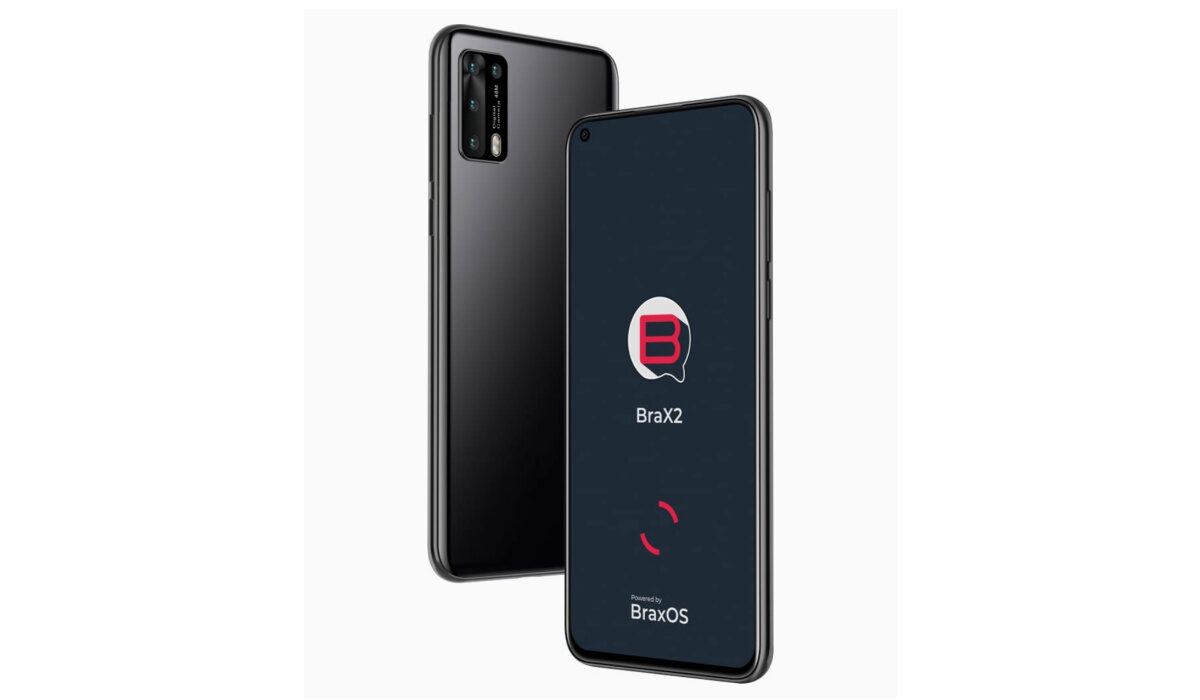
Brax2 privacy phone
- BraX2 Privacy Phone Specs
- BraX2 Privacy Phone: Prices by Country Is BraX2 a 4G phone? Is BraX2 phone battery removable? Is BraX2 phone good for gaming? Does BraX2 phone support OTG? How much is BraX2 privacy phone?
- Does BraX2 privacy phone have Google Play Store?
- Will BraX2 phone work in the USA?
BraX2 Privacy Phone Specs
Mobile Wireless Network and Software
2G mobile network bands : GSM, GPRS, EDGE 850 / 900 / 1800 / 1900 MHz.
3G mobile network bands : UMTS, WCDMA, HSDPA 850 / 900 / 2100 MHz
4G mobile network bands : LTE FDD 1/2/3/5/7/8/12/13/17/20/28B, TDD 38/40/41
5G mobile network bands : No
SIM Type : Micro-SIM, Dual SIM
Software / OS : BraxOS – built from Android Open Source Project (AOSP)
Design, Form Factor, Appearance
- Dimensions : 161.8 x 76.9 x 8.9 mm
- Weight : g
- Display : 6.53 inches, 1080 x 2400 pixels, 60 Hz refresh rate, 19.5:9 aspect ratio, IPS LCD screen
- Colours : Black.
- Physical Build : Plastic.
Internal Hardware Specs
- Processor Type : 64-bit, 2.1 GHz Octa-core
- Processor Name : MediaTek MT6771 Helio P60
- Graphics Processor : ARM Mali-G72 900MHz
- RAM : 4 GB
- Extended/Virtual RAM :
- Internal Storage : 128 GB
- External Storage : microSD, up to 256 GB (shared/hybrid slot)
Photography, Video Recording
- Main Camera : 48 MP main sensor + 8 MP ultrawide lens + 5 MP macro lens, autofocus, dual LED flash, 1080p@30fps video recording
- Front Camera : 25 MP, fixed focus, Face Recognition, 1080p@30fps video capture
Audio, Video Playback
- Music Support : PCM, AAC / AAC + / eAAC + / MP3 / AMR – NB / WB / APE
- Audio : No audio jack
- Loudspeaker : Mono speaker
- Video Support : H.264/MP4/MPEG4 player
- FM Radio : .
Phone Sensors
- Digital Compass : Yes.
- Accelerometer : Yes.
- Proximity Sensor : Yes.
- Ambient Light Sensor : Yes.
- Barometer : No.
- Pedometer : No.
- Heart Rate Monitor : No.
- Gyroscope (G-Sensor) : Yes.
- Fingerprint Scanner : Yes; side-mounted.
- Face Unlock : Yes.
- Iris Scanner : No.
- Motion Sensing / Gesture Control : No.
- Voice Control : No.
- Intelligent Digital Assistant : No.
- Infra-red Blaster : No.
Connectivity Options
- Bluetooth Version : 5.0
- Bluetooth Profiles : A2DP
- WiFi : Wi-Fi 802.11 a/b/g/n/ac, hotspot
- GPS : Yes, A-GPS, GLONASS
- USB : microUSB v2.0. Type-C.
- NFC :
Miscellaneous Specs and Features
- Battery Type and Capacity : Non-Removable Lithium-Polymer 4500 mAh
- Battery Charging : Standard
- Wireless Charging : No.
- Reverse Charging : No.
- Model Version/Number : X2
Launch/Release Dates and Information
- Announced : 2022
- Release Date : 2022
BraX2 Privacy Phone: Prices by Country
- United States : $399
- European Union :
The above prices may change with time from country to country, as market forces and economic policies influence product price movements.
Is BraX2 a 4G phone?
This privacy phone supports 2G, 3G, and 4G mobile networks.
Is BraX2 phone good for gaming?
The Helio P60 chip in the phone is adequate for casual gaming. It will struggle with the most demanding games.
How much is BraX2 privacy phone?
Does BraX2 privacy phone have Google Play Store?
This is a de-Googled phone and so does not have or support Google Services and software applications, including Play Store and Maps, Gmail, YouTube, and others.
Will BraX2 phone work in the USA?
This is a GSM phone and is supported on US GSM carriers. It does not support CDMA networks. BraX2 says it does not work properly with TMobile Prepaid. Do make enquiries from your carrier to know what bands/frequencies are supported on their service.
MobilityArena Buyer’s Guide Verdict
Not available.
Our Buyer’s Guide Verdict is a recommendation based on the specs of the device and a general guide to help you understand how much value a device offers for its price. It is not an endorsement of the device. Ask questions and use your judgement when buying any device; MobilityArena takes no responsibility for your buying decisions .
BraX2 Phone Review Rating
Not available.
Author:InfoDesk
Add MobilityArena as a preferred source on Google
Hello! As the resident iPhone fangirl here at MobilityArena , I want to share a number of iPhone hacks and tricks that I have found useful over time. If you are a long-time iPhone user, you might be surprised at some of them. There are a few that senior citizens will find helpful, and if you are switching over from Android to iPhone (Yay!), you will find every one of them helpful.
- Hide photos in the Photo Album
- Have reading trouble? Use the built-in magnifier
- Going back the easier way
- Silence all unknown callers
- Switch between the last used apps
- Find missing AirPods with Siri
- While typing, bring up an undo/redo/copy/paste toolbar
- Set a sleep timer for playing music or video
- Update all apps in bulk
- Unsubscribe to services no longer needed
- Teach Siri to call you by a specific name
Hide photos in the Photo Album
This iPhone hack will help keep snippets and roving eyes away from photos and images you want kept to yourself. You know too well how you want to show someone a photo on your phone, so you open the photo and hand it to them, but they then proceed to scroll through the entire album? People who do not respect boundaries are annoying. Thankfully, iOS allows you to hide photos you’d rather no-one else sees. Here is how to go about it.
- Open the Photos app and go to the album where the photos you want to hide are
- Tap Select at the top right and select the photos you want to hide
- Tap the share icon at the bottom left of the screen
- At the bottom of the menu that comes up, tap Hide
- Tap Hide Photo to confirm your intention/action
You have successfully hidden away that batch of photos. No-one scrolling through your Photos will see them. As a matter of fact, they are now hidden from everywhere else in your Photos album. To view them, check under Utilities to locate the album that is labelled Hidden .
Have reading trouble? Use the built-in magnifier
One major iPhone hack for accessibility is the ability to activate a magnifying glass for those with reading problems. Senior citizens, especially, will love this. It can help read text with smaller font sizes, especially on product labels when shopping. You can also read a book with it.
- Go to Settings > Accessibility.
- Tap Magnifier , then turn it on.
You have now enabled the magnifying glass feature. Simply triple-click the home button whenever you need it: your iPhone’s camera will turn into a magnifying glass, and your screen become its viewfinder, so you can read away.
Going back the easier way
The traditional way to go back is to click the back button as many times as it takes to get you back to the stop you are going. That can be so stressful sometimes, especially if you have to go way back. The easy way to jump and pass all of that is to long-press the back button. Give it a try and see how it goes. It just might be the iPhone hack that you have been waiting for.
Silence all unknown callers
If you are getting too many unwanted and unknown calls, spam calls or robocalls on your iPhone, there is a magic wand to make them ALL go away. Simply silence unknown callers, and you can have your life back.
- Go to Settings > Phone
- Toggle on Silence Unknown Callers
This silences all unknown numbers and calls. Which means that should your spouse, family member or friend be in an emergency and uses a number that you don’t have to call you….they are on their own. Your call, of course.
Switch between the last used apps
You can switch between the last used apps by swiping on the bar at the bottom of your phone.
Find missing AirPods with Siri
Did you know that Siri can help you find your missing AirPods? You didn’t? Let’s fix that so that when next your AirPods decide to stray from you, as they almost regularly do, you can fish them out easily. What Siri does is play a loud tone from your AirPods, so you can pinpoint their location.
To find them, activate Siri and say, “Find My AirPods” . she will offer to play a loud tone from your wireless earbuds. Give her the go ahead.
Now that you know this iPhone hack, you shouldn’t have to turn your bedroom upside down to find your AirPods, should they decide to hide from you again.
While typing, bring up an undo/redo/copy/paste toolbar
This next iPhone hack is great for people who are big on being productive on their cell phones. When next you are typing out that business email or document and need to undo, redo, copy, or paste, you can bring up a toolbar with those functions and get your work done faster and more conveniently. To bring up the undo/redo/copy/paste toolbar, tap the screen one time with three fingers.
Set a sleep timer for playing music or video
This iPhone hack is a neat trick for those who need to have music or some sound playing in the background in order to sleep. Or perhaps you are just young and hippy and too stubborn to put the headphones down before dozing off, and then wake up in the morning to a dead battery. Simply set a sleep timer on your iPhone to make it stop playing media after a set time. To use the sleep timer:
- Open the Clock app and select Timer at the bottom right
- Set how long you want the timer to be and tap When Timer Ends
- Scroll to the bottom of the list and tap Stop Playing
- Tap Set at the top right of your screen and then tap Start
Update all apps in bulk
If you want to execute an emergency update of all apps on your iPhone, here’s how to do it:Launch the Apps store
Click on your avatar in the top right corner of the screen to go to your account
On your Account, slide down once to refresh it
Click “Update all” under “Upcoming Automatic Updates” to update all your apps at once
Go to the App store
Tap on the avatar on the top right to go to your account.
Tap Subscriptions . to open up a list of all the services you’ve currently subscribed to. Tap on any individual app that you want to unsubscribe from, and then tap Cancel Subscription .
Hallelujah! You are free. That is one less bill to pay. The cancelled subscription will be terminated on its expiry/renewal date.
Teach Siri to call you by a specific name
Our last iPhone hack is a fun one – more of a vanity hack than an essential feature. Perhaps you prefer for Siri to call you by your nickname, or you’d prefer some affectionate endearment, so you want that piece of software to call you “Darling” or “Sweetheart”. Say no more. Here is how to do it.
- Activate Siri by holding the side button on your iPhone
- Say, “Call me ___ from now on”.
That’s it. Siri is now truly your newfound best friend or your latest lover. Great for your mental health; right?
Last words
Author:MobileChic
That motivated, gadget-loving geeky chic who tries to stay on top of things. Unapologetic iFan.
