Add MobilityArena as a preferred source on Google
Let’s start by making sure we have the basics clearly defined. By definition, a Verizon phone is one that you obtained from Verizon Wireless. This is whether you paid anything for it or got it for “free”.
A locked phone will only work with the carrier to which it is locked. So, a locked Verizon phone will work only with a Verizon SIM card. An unlocked smartphone is usable with SIM cards from other carriers.
Key takeaways
- Every phone – prepaid or postpaid – you buy from Verizon Wireless is locked to their network.
- If you get a free phone from Verizon, it is locked to their network.
- The only way to use an unlocked phone on Verizon is to bring your own device.
- Verizon locks all phones sold on their network
- How long are Verizon phones locked for?
- How to get a free cellphone on Verizon Wireless
- If you bring your own device to Verizon, does it get locked?
- How to unlock a Verizon phone
- Why Verizon Wireless phones are locked
- Will a locked phone work when roaming on another carrier when travelling?
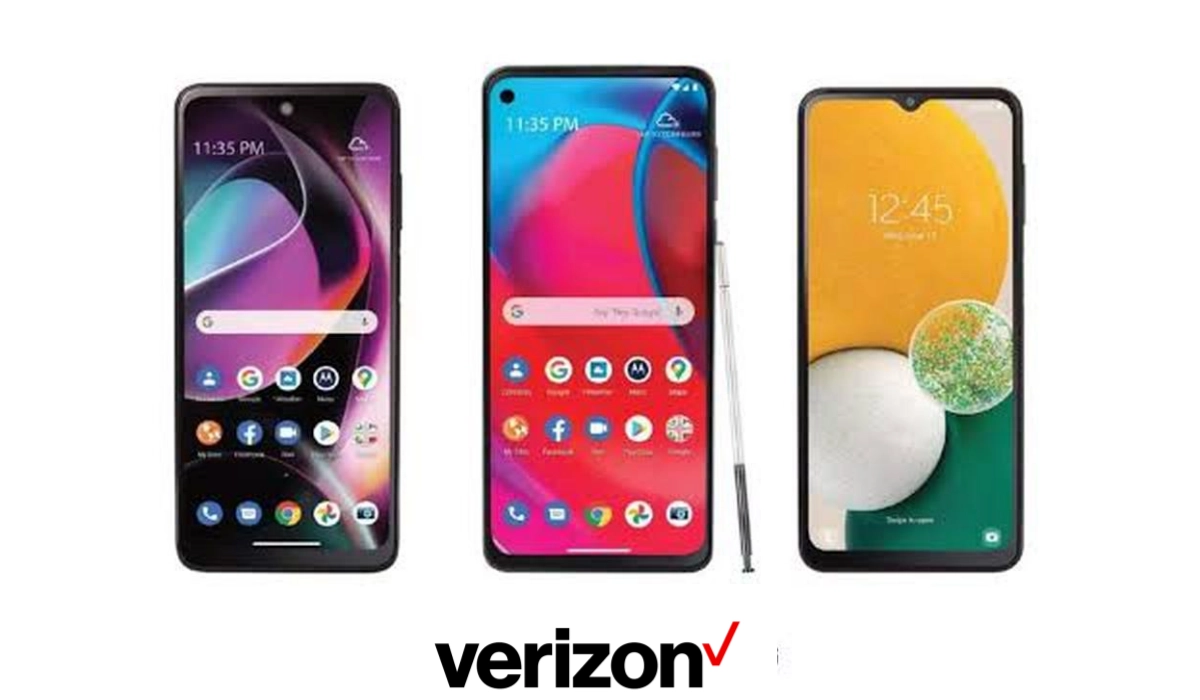
Verizon locks all phones sold on their network
In 2019, Verizon implemented a policy that locks all devices purchased from them. This is whether you buy it directly from Verizon or through one of their retail partners.
This is also applicable to discounted and “free” phones that you get from Verizon Wireless through special deals or offers.
This policy also covers smartphones and tablets purchased at full retail price or on a device payment agreement. In other words, it does not matter how you get the phone from Verizon, every Verizon phone or device is locked on activation.
How long are Verizon phones locked for?
All Verizon phones are locked for 60 days from the date of purchase. This policy applies to new and existing customers and customers porting their service to another carrier.
How to get a free cellphone on Verizon Wireless
Every now and then, Verizon Wireless offers a smartphone for $0 or free. Usually, the condition to qualify for this free phone is that you buy one of the Unlimited Welcome, Unlimited Plus, or Unlimited Ultimate plans.
For example, after the launch of Samsung Galaxy S24 FE , Verizon Wireless offered this $649 smartphone for free to individuals who buy one of those plans. The deal may still be on, so do check it out .
If you bring your own device to Verizon, does it get locked?
Not at all. If you bring your own device to the Verizon Wireless network, it does not get locked to the network. You will be able to use it with any compatible carrier. No restrictions.
How to unlock a Verizon phone
If you are not a military service personnel, there is no way to unlock a Verizon phone before the 60-day period after purchase.
Verizon Wireless locks all new phones purchased (even for $0) on the network for 60 days after activation and automatically unlocks them after 60 days.
So you do not have to do anything to unlock a Verizon cell phone. It will happen automatically.
If you cancel your Verizon service before the 60-day period, your phone stays locked till the 60-day term ends.
If you port out your number from Verizon Wireless to another carrier, your Verizon phone will stay locked until the 60-day term ends.
Why Verizon Wireless phones are locked
Verizon says that it locks all devices from the network for 60 days from purchase. Why? To serve as a deterrent to theft and to prevent fraud.
If a Verizon phone or tablet is not reported as lost or stolen and is not flagged for fraud, it will be automatically unlocked 60 days after purchase.
Will a locked phone work when roaming on another carrier when travelling?
Yes, using a locked smartphone doesn’t affect roaming. You will be able to use a locked device to roam on another carrier’s network when travelling.
Author:Mister Mobility
Digital Skills and Communication Coach | Mobile Phone Connoisseur since 2001 | Tech Blogging since 2004
Add MobilityArena as a preferred source on Google
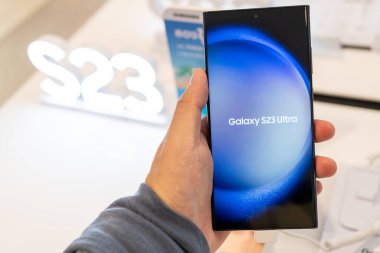
The Samsung Galaxy S23 has garnered attention for its impressive features, sleek design, and powerful performance. However, some users have reported frustrating charging problems that can disrupt their daily routines. Whether it’s slow charging speeds, failure to charge, or issues after software updates, these problems can be quite inconvenient. Additionally, the reliance on fast charging technology can lead to heightened expectations, making any deviation from optimal performance feel even more significant. By understanding these challenges and implementing the recommended fixes, you can maximize your device’s functionality and enjoy all the features it has to offer without interruption. Whether you’re a heavy user or someone who relies on their phone for essential tasks, addressing these charging concerns will enhance your overall satisfaction with the Galaxy S23. Let’s dive into the details and discover how to tackle these issues effectively!
- Common Charging Problems and Solutions Slow Charging Speeds Charging Failure Inconsistent Charging Wireless Charging Issues
- Some Other Practical Solutions for Enhanced Charging Performance Update Software Regularly Factory Reset (Last Resort)
- Conclusion
Common Charging Problems and Solutions
Slow Charging Speeds
Many users have noticed a significant drop in charging speeds , especially after recent software updates. What was once a quick charge can turn into a lengthy process, causing frustration. Ensure to always check your charging cable and always use the original charger and cable provided with your Galaxy S23. Third-party accessories may not support fast charging effectively.
- NB: Inspect your charger and cable for any visible damage or wear. If possible, test with another Samsung charger to rule out hardware issues.
Charging Failure
Some users report that their Galaxy S23 does not charge at all when plugged in. This can be alarming, especially if the device is essential for daily tasks. Always clean your charging port. Here is how to:
- Dust and debris in the charging port can hinder connectivity. Use a soft brush or compressed air to gently clean the port.
- Tip: Ensure that there’s no moisture present in the port before attempting to charge.
Inconsistent Charging
Users may find that their Galaxy S23 charges intermittently or only when positioned in a certain way. This inconsistency can lead to confusion and inconvenience. Simply adjust charging settings to get this resolved. Here is how to check Settings:
- Navigate to Settings > Battery and Device Care > Battery . Ensure that Fast Charging is enabled.
- Tip: If you notice slow charging speeds, toggle off any battery-saving modes that might limit charging capabilities.
Wireless Charging Issues
While wireless charging is a convenient feature on the Galaxy S23, some users experience problems with it as well, such as slow charging rates or the device not recognizing the charger. Sometimes, a simple restart can resolve this and some other issues. Here is how to restart:
- Press and hold the power button until the power menu appears, then select Restart .
This action can refresh system processes and potentially fix charging problems.
Some Other Practical Solutions for Enhanced Charging Performance
Update Software Regularly
Keeping your device updated ensures you have the latest bug fixes and performance improvements. How to Update:
- Go to Settings > Software Update > Download and Install .
If you’ve recently updated and are experiencing issues, consider waiting for subsequent patches that may address these problems.
Factory Reset (Last Resort)
If all else fails, consider performing a factory reset as a last resort. How to Reset:
- Back up your data first, then go to Settings > General Management > Reset > Factory Data Reset .
This will erase all data on your device but can resolve persistent software-related issues affecting charging.
Conclusion
While charging problems with the Samsung Galaxy S23 can be frustrating, understanding their common causes and implementing these effective solutions can significantly enhance your user experience. By checking your charger and cable, cleaning the charging port, adjusting settings, restarting your device, keeping software updated, managing battery-draining apps, exploring wireless options, and considering a factory reset when necessary, you can ensure that your Galaxy S23 remains charged and ready for use. Embrace these strategies as opportunities to optimize your device’s performance and enjoy all the features it has to offer without interruption! With a little attention and care, you’ll find that navigating any charging issues becomes much more manageable.
