Add MobilityArena as a preferred source on Google
A Bring Your Own Device SIM kit is also known as a Bring Your Own Phone SIM kit , or an activation kit . If you were to ask any of the carriers for a definition or an explanation, they would likely say that a Bring Your Own Device SIM kit allows you to convert your current compatible or unlocked phone into a prepaid phone. I got that explanation fro a carrier. And it doesn’t tell me anything.
A Bring Your Own Device SIM kit is what you get when you buy a SIM card from another carrier. That is it. It allows you to bring your own cell phone, smartphone or tablet from your current carrier over to a new one. So, do not get confused by the high-sounding terminology. If you have an unlocked phone, you can bring it over to another carrier by buying a Bring Your Own Device SIM kit. As such, it is also called a Prepaid SIM Card kit .
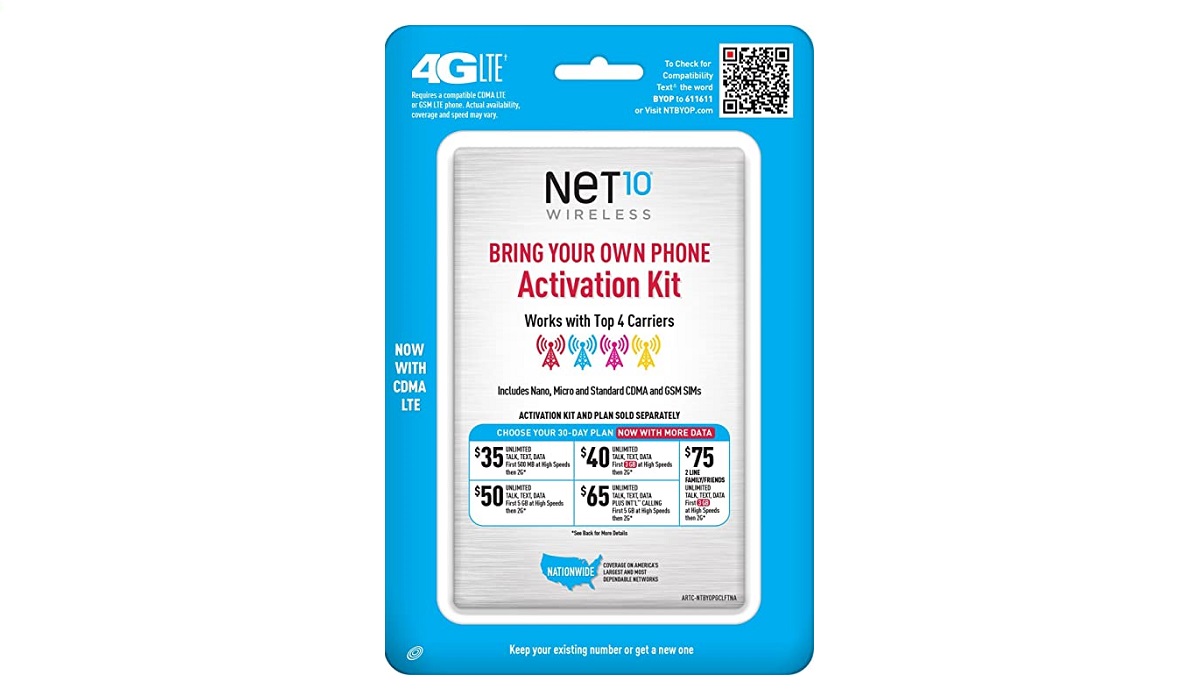
A Net10 Wireless Bring Your Own Phone activation kit
What does a Bring Your Own Device SIM kit contain?
Quite simply, it contains a prepaid SIM card, which is a SIM that is not on a contract or obligations of any sort. A prepaid SIM is one that you can load airtime as you wish and use it as you wish. Zero contracts. You don’t have to recharge the line monthly or at any regular interval. A prepaid SIM gives you total freedom to determine how much you spend on telephone calls, SMS, and mobile data.
Can you use Android phone with Bring Your Own Device SIM kit?
Most definitely. Any unlocked Android phone can be used with a BOYD SIM kit. The key factor being that it is unlocked.
Can you use iPhone with Bring Your Own Device SIM kit?
Any unlocked iPhone or 3G/4G iPad can be used with a BOYD SIM kit. Again, the requirement is that the device must be in an unlocked state.
Which Carriers Offer Bring Your Own Device SIM kit?
Outside of the United States, a Bring Your Own Phone activation kit is more commonly referred to as a SIM kit. Mobile network operators in the United Kingdom and elsewhere around the world offer the same service without the high-tech terminology that is widely used in the US. This is because of the key, traditional difference between the US mobile market and the rest of the world, which is that by default, the UK, Europe, the Middle East, South America, Asia, and Africa are largely prepaid phone markets by default, while the US cell phone market was traditionally a contract market.
In contrast to buying a prepaid phone, getting a contract phone means that you pay a monthly fee for a fixed period of time, usually 12 or 24 months. The benefits of this contract include a cell phone and a bundle that includes call minutes, a number of texts, and a data allocation, assigned to you monthly.
- Don’t miss our mobile phone reviews .
- Follow our news on Google News .
- Join our WhatsApp Group , to be notified of the most important articles and deals,
- Follow us on Instagram , Facebook , Twitter , and YouTube .
Author:Mister Mobility
Digital Skills and Communication Coach | Mobile Phone Connoisseur since 2001 | Tech Blogging since 2004
Add MobilityArena as a preferred source on Google
In recent decades, smartphone technology has slowly but surely woven itself into every aspect of our lives. This is to such an extent that some people are now totally dependent on technology.
Being aware of this issue, Apple and Google have integrated digital wellness elements into their software. The Screen Time function, which is available on the majority of Apple devices, provides extensive statistics on how much time you spend using your iPhone, iPad, or Mac.
In this guide, we’ll show you how to use Screen Time to reduce iPhone usage. This feature is really beneficial for iPhone users looking to cut down their screen time. So, keep reading to find out everything about how to use Screen Time to reduce iPhone usage.
What is the Screen Time Feature?
Apple’s digital wellness tool, Screen Time, is a feature that keeps tabs on how often you use your devices, so you can use Screen Time to reduce iPhone usage. It provides a rundown of your daily (or weekly) device usage, the most-used apps, and other information. With Screen Time, it’s simple to evaluate and reduce your iPhone usage thanks to the graphical representation of your usage.
How to Use Screen Time to Reduce iPhone Usage
It’s easy to use Screen Time to reduce iPhone usage as long as you follow the right instructions. You can easily access Screen Time from your iPhone’s settings.
You’ll see a breakdown of your weekly consumption by tapping the See All Activity button. At the top, a graph depicting your phone’s active periods device will display along with the overall amount of time spent. Social Networking , Productivity , Entertainment , Reading & Reference , and other uses are just a few of the categories that the usage is typically broken down into.
Your daily or weekly most-used apps will be visible as you scroll down. You can identify the apps on which you use the most time from this page. Your usage is broken down by hour in the day view. You’ll see your daily consumption, the daily average, and the total number of notifications you received over the course of the week in the week view. With this information, you can then easily use Screen Time to reduce iPhone usage.
Below, we’ve described two different ways you can use Screen Time to reduce iPhone usage.
Customize Downtime with Screen Time
One good way to use Screen Time to reduce iPhone usage is by customizing Downtime. You can schedule a period of time during the day when you won’t be using your smartphone using the Downtime function in Screen Time. Downtime is best used in the evening or throughout the night, but you can use it whenever you want to reduce iPhone usage during a specific period.
The Phone app and the apps you choose to allow will be the only ones accessible while Downtime is turned on. The instructions listed below should help you enable Downtime on your iPhone:
- Tap on Downtime on the Screen Time settings page.
- Change the time when Downtime will be active by toggling the Downtime switch to On .
- On the Screen Time tab, select the Always Allowed section and then enter your preferences for the apps you want to be available during Downtime.
- By clicking on the green addition (+) icon next to the app name, you can add any apps you prefer to keep running when Downtime is in effect.
Now that you’ve adjusted Downtime’s settings, you can try to limit your phone use during the designated period. The Downtime settings will automatically apply to all of your iOS devices that have the same Apple ID as your iPhone enrolled into iCloud. Simply adjust the Share Across Devices setting in Screen Time to turn this off.
Customize App Limits With Screen Time
Another way to use screen time to reduce iPhone usage is by customizing app limits. This enables you to set limits on the use of specific apps, such as the excessive use of social media apps. You can choose to impose daily time restrictions on specific apps or app categories.
Setting app time limitations on an iPhone involves the following steps:
- Navigate to Screen Time and select App Limits .
- Choose the Add Limit option.
- Use the checkbox on the left part of the app list to select a certain category, or click the arrow to enlarge the list and choose a particular app to set a limit for.
- Specify the daily time limit for the app by tapping Next .
- You’ll see the limit appear after you tap Done .
The app will automatically close with a time restriction warning after the daily time limit has been reached and won’t be available again until the following day (the limit resets at midnight). This is another great way to use Screen Time to reduce iPhone usage.
In summary , if you’ve been having trouble taking time off your iPhone, it’s a good idea to use screen time to reduce iPhone usage. The instructions we’ve provided in this guide should help you achieve this easily, so follow them carefully.
