Add MobilityArena as a preferred source on Google
A GPU (Graphics Processing Unit) is an essential part of your computer system that generates images and video for display. Just like with any other component, it is essential to check the health of your GPU on a regular basis to ensure that it works well and isn’t causing problems with your computer’s performance.
But how can you check GPU health in Windows 11? In this article, I’ll explain several methods you can use for this purpose. If you read this guide all the way through, you’ll find it very easy to check GPU health in Windows 11.

- How Can You Check GPU Health in Windows 11? Use the Settings App Use the Device Manager Use the Task Manager Use the DirectX Diagnostic Tool Use a GPU Benchmarking Tool
How Can You Check GPU Health in Windows 11?
To keep running your gig smoothly, you must know how to check GPU health if you’re an online gamer, YouTube game streamer, or graphics designer.
Here are five quick ways to check GPU health in Windows 11 to see if it’s still functioning as it should.
Use the Settings App
The Windows Settings app is the most convenient way to check GPU health in Windows 11. All you have to do is go to the Advanced display settings and check under the Device status section. I will go over these steps in more detail:
- To open the Settings app, press the Win + I hotkey.
- From the left sidebar, select System , and then in the right pane, select Display .
- Select Advanced display .
- Press the Display adapter properties for the Display 1 option.
- In the Adapter Type section, select the Properties button.
- Check the Device status section under the General tab.
This is an easy way to check GPU health in Windows 11. Any ongoing GPU problem will be displayed using an error code or warning in the Device status section. The message “ This device is working properly ” will appear if no problems are discovered.
Use the Device Manager
The Device Manager is a Windows utility which provides full management capabilities for all installed hardware components. It allows you to do a variety of tasks, including updating Windows drivers, enabling or disabling devices, and more.
You can also check GPU health in Windows 11 using the Device Manager . Here are the steps to follow:
- To access the Power User Menu , press Win + X , then select Device Manager from the list.
- Click twice on the Display Adapters node.
- Right-click on the installed graphics driver and then select Properties .
- In the Device status section, check the status.
Use the Task Manager
Using the Windows Task Manager is yet another easy method to check GPU health in Windows 11. The procedure is as follows:
- To open the Task Manager , press the Ctrl + Shift + Esc hotkey.
- In the left sidebar, select the Performance option.
- Select GPU from the left pane in the Performance section.
You’ll get comprehensive information about your GPU’s real-time usage here. Insights into shared memory usage, video encoding, and high-priority computing are provided by the graphs. By right-clicking on any graph, you can access more relevant information.
You’ll also find important information at the bottom of the screen, such as usage, GPU temperature, and GPU memory consumption, which are essential signs of GPU health. It’s time to troubleshoot your GPU if any sections provide concerning data.
For example, the GPU’s optimal operating temperature is 50°C during normal use and 85°C while gaming. If the temperature exceeds these limits, it indicates that your GPU is overheating.
Use the DirectX Diagnostic Tool
The DirectX Diagnostic Tool, also known as dxdiag, offers helpful details on the hardware and DirectX components installed on your computer. These procedures should be followed to use DirectX to check GPU health in Windows 11:
- Launch the Start menu and enter dxdiag in the search field.
- Change to the Display tab.
- Check the Notes section here.
The DirectX Diagnostic Tool will show any problems with your GPU in this area if there are any. You will see the message “ No problems found ” if everything works as it should.
Use a GPU Benchmarking Tool
The tools I’ve analyzed thus far provide an overview when you need to check GPU health in Windows 11, but GPU benchmarking tools are highly suggested for deeper solutions. MSI Afterburner is a popular choice and one of the top-notch free benchmarking programs for Windows, among the several options available. All graphics cards are compatible with this benchmarking tool, which provides additional functionality beyond health monitoring.
It also enables issue resolution and facilitates GPU adjustments in addition to checking GPU health.
To conclude, the GPU is a critical component of your system that requires optimal conditions to work at its best. By using the methods outlined above to check GPU health in Windows 11, you’ll be better able to identify any ongoing issues with your GPU and take proactive efforts to fix them. If you’re trying to troubleshoot any other Windows issue, check out this category of guides. Also contact the Windows Help Center if you need more insight into GPU health and how to maintain it.
Author:Joan Agie
Add MobilityArena as a preferred source on Google
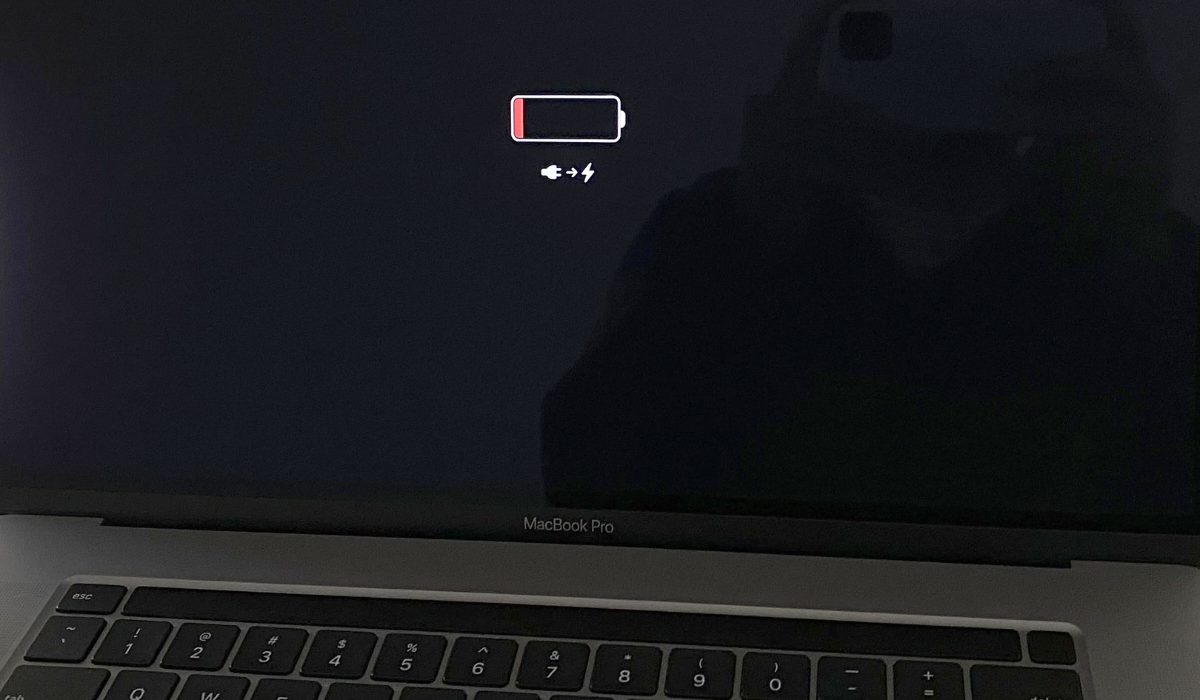
Imagine the frustration if you open your MacBook after leaving it asleep for a while only to realize that the battery has depleted since you last used it. Some functions on your MacBook might continue to drain its battery even when the device is in sleep mode. Certain accessories and malware are also common culprits.
In this article, I’ll explain some ways to fix MacBook battery draining in sleep mode. Read on to learn what features and applications might be using your MacBook’s battery even in sleep mode. You’ll also learn how to disable or switch them off to prevent this issue in the future.
- How Can You Fix MacBook Battery Draining in Sleep Mode? Disable Bluetooth on Your MacBook Disconnect USB Accessories From Your MacBook’s Turn off the Power Nap Feature Update Your Mac and Apps Turn Off Notifications on Your MacBook Locate Battery-Draining Apps and Background Processes Check for Energy-Draining Malware on Your MacBook Check Your MacBook’s Battery Health
How Can You Fix MacBook Battery Draining in Sleep Mode?
Is your MacBook draining a lot of battery even after you hibernate it? Follow the troubleshooting steps outlined below to fix MacBook battery draining in sleep mode.
Disable Bluetooth on Your MacBook
Your MacBook requires power to locate, connect, and maintain a connection with Bluetooth devices. When your MacBook is in sleep mode, leaving these connected can gradually drain the battery in your system.
Your MacBook will continue to look for nearby Bluetooth devices if Bluetooth is enabled. Although at a slower rate, this activity can also drain the battery. You can avoid any pairing attempts and fix MacBook battery draining in sleep mode in this case by turning off Bluetooth. Do this on both your MacBook and any nearby Bluetooth devices when not in use.
Click the Control Center icon in the menu bar and set the Bluetooth toggle to Off to disable Bluetooth on your MacBook.
Disconnect USB Accessories From Your MacBook’s
Like Bluetooth-connected devices, USB accessories drain some of the battery on your MacBook when they are connected. This is particularly true for USB devices that don’t have their own power sources—they draw power right from your MacBook, draining it even further.
Therefore, it is essential to unplug your external hard drives, keyboards, mice, and any other USB accessories from your MacBook’s ports before leaving it for a while. This will help you fix MacBook battery draining in sleep mode.
Turn off the Power Nap Feature
Power Nap is a function on Intel MacBooks that enables background tasks to run while the device is using battery power—even while it is in sleep mode. Such tasks include checking Mail messages and creating Time Machine backups.
Sometimes, you may prefer not to interrupt these operations, but leaving the Power Nap feature enabled causes a continual drain of your MacBook’s battery.
To fix MacBook battery draining in sleep mode, you’ll need to switch off the Power Nap feature with these instructions:
- Click System Settings and choose the Battery menu in the sidebar.
- To completely turn off the feature press the Options button at the bottom.
- Next, set the Enable Power Nap dropdown menu to Never , or change it to Only on Power Adapter to prevent Power Nap from activating when your MacBook is unplugged.
Update Your Mac and Apps
Due to bugs, several of your MacBook’s apps may deplete the battery faster than they should. Regular updates for your Mac and its apps can fix these bugs and enhance performance so that these apps consume less battery.
In essence, by updating macOS, you make sure your MacBook receives improvements in energy efficiency that will help fix MacBook battery draining in sleep mode. Follow these steps:
- Open the Mac App Store application and choose the Updates menu to update any installed apps on the Mac.
- Individual apps can be updated here, or you can select Update All to download and install them all at once.
- Open System Settings , select General > Software Update , to update macOS.
- Click the Update Now button to download and install the most recent version of macOS if one is available.
As a safety measure, don’t forget to backup your files before installing the update.
Turn Off Notifications on Your MacBook
Notifications that appear on your screen while your MacBook is in sleep mode are another factor that can drain its battery. Notifications have the ability to awaken a MacBook from sleep mode, turning on the screen and draining the battery.
In addition, notifications use energy since they run background processes continuously to see whether there is anything they can notify you about. By turning off notifications, you can disable these processes and fix MacBook battery draining in sleep mode.
To turn off notifications when your MacBook is in sleep mode, navigate to System Settings > Notifications and turn off the toggle next to Allow notifications when the display is sleeping .
Locate Battery-Draining Apps and Background Processes
As I said earlier, some apps and MacBook features depend on background processes to function. Even when the device is in sleep mode, these processes use battery power. Therefore, it is best to identify the software that is causing the issue if your MacBook experiences battery drain.
With your Mac’s built-in Activity Monitor app, you can find this information and fix MacBook battery draining in sleep mode. Follow these instructions:
- A simple Spotlight search ( Cmd + Space ) will launch Activity Monitor .
- In Activity Monitor , press the % CPU column to organize it based on apps and processes using most of the power to the least.
I’ll advise that you close any processes that consume more than 60% of your CPU. To turn off a process, click on it to highlight it and then click the Stop ( X ) button at the top of the window. It’s also worth checking the Idle Wake Ups column for any additional processes that might be awakening your MacBook when it is not in use.
Check for Energy-Draining Malware on Your MacBook
Normal operations might consume your MacBook’s battery in sleep mode, but malware can also drain it. Although Apple’s computers tend to be virus-free, ransomware that targets Macs does exist and some of it can cause havoc on your laptop’s battery.
If you want to find out if your MacBook has a virus on it, you can download a malware scanner. You can also examine the % CPU column in Activity Monitor , as detailed in the last section, and conduct some web research to discover if any power hogs are indeed malicious software that needs to be deleted
Like any other Mac antivirus program, most scanners will offer you options for removing malware if it is detected. Use them to remove the malware and fix MacBook battery draining in sleep mode.
Check Your MacBook’s Battery Health
If you’ve followed all of the instructions above and your MacBook’s battery is still running low when it’s in sleep mode, it’s possible that the battery is the root of the issue. Batteries lose some of their capacity as they get older. They can approach 0% faster, even in sleep mode, because they don’t keep charges for as long.
Fortunately, Apple offers a simple method for checking your MacBook’s battery life to investigate this:
- Go to System Settings > Battery and search for Battery Health on the right.
- If Normal appears next to it, your MacBook’s battery is functioning well and hasn’t lost a lot of capacity yet.
- if it reads “ Service Recommended ,” contact Apple as soon as possible to get your MacBook’s battery changed.
To conclude, several factors can cause your MacBook battery to decrease when in sleep mode. However, I’m sure that the troubleshooting options above will help you to identify the issue and fix MacBook battery draining in sleep mode. If you need to fix other MacBook issues, check out this category or reach out to Apple’s Help Center .
