Add MobilityArena as a preferred source on Google
The Samsung Galaxy S8 launched around four years ago, going on to become a rather popular entry due to its attractive design, awesome features and raw power. However, this smartphone, like most electrical products, occasionally experienced a number of glitches and technical difficulties from time to time.
In this piece, we will take a look at some of the common bugs with the Samsung Galaxy S8 and how to fix them,
- Moisture around charging port: A number of owners of the S8 and S8 Plus have reported getting a “moisture in charging port” message that just refuses to go away. Actually, this is a safety measure by the manufacturers to reduce the risk of shock or damage when the charging port is wet, but at certain times, this message pops up even when there is no moisture around the port. To fix this, try out these tips.
- Dry the device thoroughly and leave it in a bowl of uncooked rice for at least 8 hours.
- Ensure you are using the recommended charger and adapter cable for the Samsung Galaxy S8.
- Try turning off your device and plugging it in, after this, turn the device back on and see if the message persists.
- As a last resort, you can attempt a factory reset on your Samsung Galaxy S8.
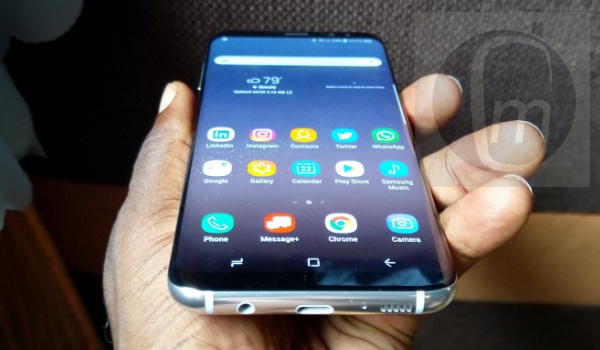
- App icon badges stop working: A number of users on different internet platforms have noticed a rather common bug with the Galaxy S8, its app icon badges showing a new message or notification just stop working, leaving users in the dark about certain important notifications. To get around this issue, follow these tips below:
- Check Settings > Notifications , then enable App Icon badges. After this, ensure the specific apps you want all have their icon badges enabled so you can receive notifications from these apps.
- Also, you can navigate to Settings , then go to Apps > Menu > Special access > Notification access > Samsung DeX Home and ensure it is turned on.
These tips above should help you find your away around this Samsung Galaxy S8 bug.
- Poor Battery Life: Perhaps one of the most common bugs with the Samsung Galaxy S8, this issue is one that plagues tons of Samsung smartphone users worldwide, as certain owners of the S8 have complained of poor battery life especially after receiving the Android Oreo 8.0 update. The good thing is, there are a number of quick fixes you can apply to help your Samsung Galaxy S8 stay alive longer. Some of these include:
- Turning power saving mode to cut down on your device’s battery usage. To do this go to Settings > Device care > Battery > Power mode , you can toggle power saver from here.
- Getting rid of certain “power hungry” apps. You can also take a look at some power-consuming apps in your settings and uninstall the ones that are not particularly helpful.
- Reducing screen brightness and resolution by navigating to display in settings. This can help you save more battery power going forward.
- Reducing background data. To do this go to Settings > Connections > Data usage > Data saver.
- Random reboots: At certain times, the Samsung Galaxy S8 suffers from reboot problems, as certain users say that the device just reboots without the owner issuing the command. This is one of the more common bugs with the Samsung Galaxy S8 and these reboots range from infrequent to regular, having the potential to disrupt important duties carried out by its owner(s). Here are a number of fixes for this bug:
- Ensure your software is up to date, if it is not, go to Settings > Software Update > Download and Install .
- If you use an SD card, try ejecting it to see if the issue is as a result of a faulty or corrupted SD card.
- You can also try wiping cache partition, to do this turn off your device, then hold down the Volume up and Bixby keys, and hold the Power button. When the Android logo pops up on your device screen, let go of the buttons and wait for a moment. The screen will display the Android recovery menu where you can use the volume buttons to wipe the cache partition. When this is done, reboot your device and see if this issue has been resolved.
Author:Alfa Baye
Staff Writer
Add MobilityArena as a preferred source on Google
The new year allows us to refresh our goals and aspirations. However, it takes determination and deliberateness to achieve those goals, including those digital technology detox targets.
In the digital age, as we are more dependent on technology, how do we strike a balance and maintain productivity? And how do you ensure that your screen time works for you?
You deserve a smartphone that aids your productivity and acts as a partner, supporting you towards achieving your goals. Specially curated for you, here are our top seven tips on staying productive all year round with your Nokia devices:
Enabling focus mode – Avoid getting side-tracked by enabling focus mode on your Nokia Smart phone. The focus mode feature helps you as a user stay focused on what’s more important at select times by pausing distracting apps that you chose to hide their notifications.
App Timers – Set daily limits on how long you can use each app. Your Nokia Device is equipped with app timers. It aids your digital wellbeing by managing the time you spend interacting with certain apps, giving you more time for productivity.
Reminders – Create to-do lists and set reminders to ensure you get tasks done. Why not break them down into mini-tasks and set reminders for each one on your Nokia device. This way, you can optimize your productivity each day.
Time Management – Track the time spent on activities. Your Nokia mobile’s clock can be used for much more than telling time and setting alarms. Why not try the timer function to keep yourself moving through the day.
Setup your home-screen for productivity – Place your most important apps, for productivity, on your home-screen. This also serves as motivation, to enable you stay productive and on top of things all through the day.
Voice-activated Personal Assistant – Let Google Assistant help and with the click of a button minimize the time spent on searches, making phone calls, taking notes, setting reminders and much more.
Do not disturb – Enable do not disturb and keep distractions at bay. For the duration of your task, you can be assured that there will be no interruptions.
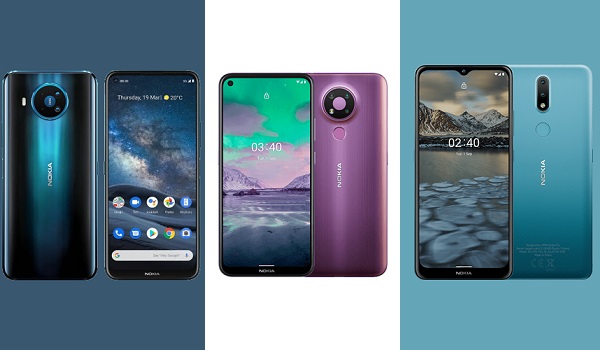
Enhance your productivity and explore a wide selection of Nokia Mobile devices, including the premium Nokia 8.3 5G selling at a retail price of ₦238,400, budget-friendly Nokia 3.4 and Nokia 2.4, retailing at ₦63,000 and ₦46,000, respectively.
Purchase your Nokia mobile at any offline partner store – Finet, Slot, Spar, Pointek, Royalline or 3CHub or the Nokia official store on Jumia.com.ng.
